

Affiliate disclosure: this page contains affiliate links — if you buy through them we may earn a commission at no extra cost to you. As an Amazon Associate we earn from qualifying purchases.
Dual-channel memory is one of the most misunderstood aspects of computer hardware. Many people buy two RAM sticks thinking they’ll get double the speed, but that’s not quite how it works. Dual-channel doesn’t mean your memory runs faster; it means your system can access both sticks simultaneously, effectively doubling the bandwidth to the CPU. The speed difference can be dramatic in some workloads (especially gaming with integrated graphics), negligible in others, and depends on how you populate your RAM slots. This guide explains what dual-channel memory is, how to enable it, and whether you should care about it for your specific use case.
Modern computers can accommodate multiple RAM sticks. How you install them affects performance. Single-channel mode (only one stick populated, or both sticks in the same channel) limits bandwidth. Dual-channel mode (two sticks in alternating channels) doubles it. Understanding this simple concept helps you make better upgrade decisions and avoid bottlenecking your system.
How Dual-Channel Memory Works
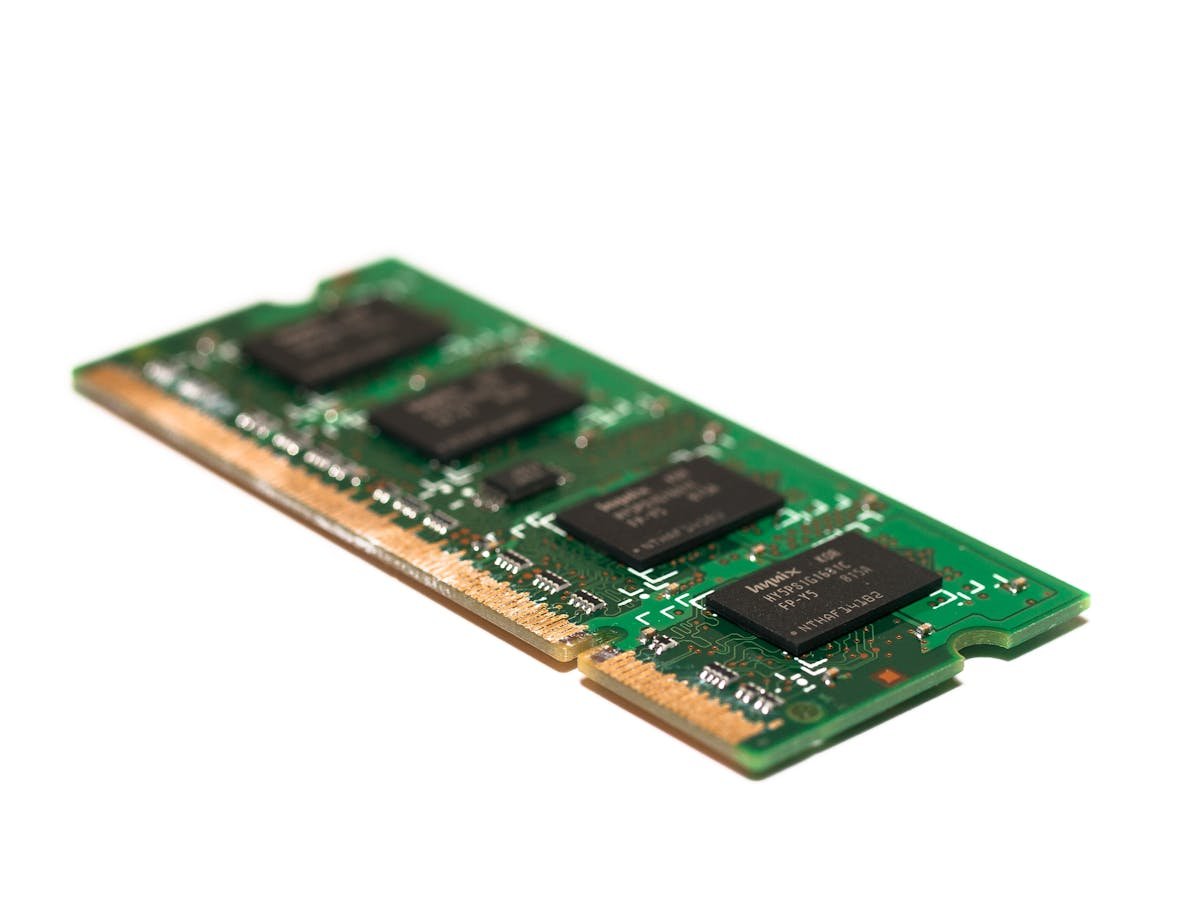
Single-Channel Architecture
In single-channel mode, your CPU can only access one RAM stick at a time (or both sticks behave as one logical unit with reduced bandwidth). Imagine a single highway connecting your CPU to memory. All data traffic flows through that one route. This works fine for light use but becomes a bottleneck when your system needs to shuffle lots of data.
Dual-Channel Architecture
Dual-channel memory adds a second highway. Now your CPU can access two RAM sticks simultaneously. Instead of waiting for Stick A to finish its data transfer before accessing Stick B, your system can pull from both at the same time. This effectively doubles the bandwidth.
The key is alternation. Dual-channel works by interleaving memory addresses. The CPU sends even-numbered addresses to one stick and odd-numbered addresses to another. When optimised this way, data can flow from both sticks in parallel.
Dual-Channel Bandwidth Math
With DDR4-3600 in single-channel mode: 3600 MT/s × 8 bytes = 28.8 GB/s.
The same RAM in dual-channel mode: 28.8 GB/s × 2 = 57.6 GB/s.
That’s a 2x bandwidth increase, which sounds massive. In reality, the performance impact varies depending on your workload and CPU.
How to Enable Dual-Channel on Desktops
Desktop Motherboards (Most Common Setup)
Most desktop motherboards have four RAM slots. The BIOS manual will label them as “Channel A1,” “Channel A2,” “Channel B1,” and “Channel B2” (or “DIMM 1,” “DIMM 2,” “DIMM 3,” “DIMM 4” with channel designation in the manual).
For dual-channel with two sticks: Install them in alternating channel slots. If your manual says slots 2 and 4 are Channel A and B respectively, install your sticks there. Alternatively, slots 1 and 3 work if they’re in different channels.
For dual-channel with four sticks: Install all four. They’ll automatically configure as two dual-channel pairs.
Consult your motherboard manual to determine which slots belong to which channels. Most modern boards auto-detect and configure dual-channel correctly, but it’s worth checking to be sure.
Verifying Dual-Channel Is Active
After installing RAM, verify dual-channel is working:
- In Windows: Open CPU-Z (free tool). Go to the “Memory” tab. You’ll see “Channel #: Dual” or “Single” listed clearly.
- In BIOS: Some motherboards display channel configuration on the main BIOS page. Consult your manual.
- In Linux: Run “cat /proc/meminfo” or use tools like “dmidecode” to check RAM configuration.
If you see “Single” when you expected “Dual,” reseat your RAM and verify you installed them in correct slots per the manual.
Laptop Considerations
Laptops are more complicated. Most modern laptops have two SO-DIMM slots and support dual-channel when both are populated. However, some laptops have one soldered stick and one replaceable slot, which limits dual-channel benefits.
If your laptop has 8GB soldered + 1 empty SO-DIMM slot: Adding an 8GB stick gives you two 8GB sticks in dual-channel. Install identical or similar capacity/speed RAM for best compatibility.
If your laptop has 16GB soldered + 1 empty slot: Adding 16GB gives you 32GB dual-channel. Asymmetrical configurations (16GB soldered + 8GB replaceable) still work in dual-channel, but performance might not be optimal.
If your laptop has all RAM soldered: You cannot upgrade. Dual-channel is locked in at factory configuration.
Flex Mode: Partial Dual-Channel Benefits
Flex mode is a middle ground that some modern systems support. If you have two sticks in dual-channel slots but different capacities (8GB + 16GB for example), the system uses part of each stick in dual-channel and the remainder in single-channel.
Flex mode gives you partial dual-channel benefits — roughly 75% of what pure dual-channel offers. It’s better than pure single-channel but not as fast as matched capacity sticks.
For best performance, match your RAM sticks exactly: same capacity, speed, and brand/model if possible. If you must mix capacities, flex mode still works and provides measurable benefits.
Performance Impact: When Dual-Channel Matters
Gaming (Integrated Graphics) — Huge Impact
This is where dual-channel shines. Modern integrated GPUs (Intel Iris Xe, AMD Radeon) share system RAM instead of using dedicated VRAM. They’re starved for bandwidth. With only single-channel RAM, integrated GPU gaming is painful — low frame rates and constant stuttering.
| Game / GPU | Single-Channel | Dual-Channel | Improvement |
|---|---|---|---|
| Valorant (Intel Iris Xe) | 40-50 FPS | 80-100 FPS | 80-100% faster |
| CS:GO (Intel Iris Xe) | 60-80 FPS | 120-160 FPS | 60-100% faster |
| Minecraft (AMD Radeon) | 30-40 FPS | 60-80 FPS | 60-100% faster |
| Elden Ring (AMD Radeon 7) | 20-30 FPS | 40-50 FPS | 60-75% faster |
These improvements are not exaggerated. Integrated GPU gaming is heavily bandwidth-limited. Dual-channel memory is the single most impactful upgrade for integrated GPU laptops.
Gaming (Dedicated GPU) — Moderate Impact
With a dedicated GPU (RTX 4060, RTX 4070, etc.), the impact of dual-channel is smaller because the GPU has its own VRAM and isn’t dependent on system RAM bandwidth.
| Game / GPU | Single-Channel | Dual-Channel | Improvement |
|---|---|---|---|
| Cyberpunk 2077 (RTX 4070) | 95-105 FPS | 110-120 FPS | 10-15% faster |
| Flight Simulator 2024 (RTX 4090) | 90-100 FPS | 105-115 FPS | 10-15% faster |
| Valorant (RTX 4060) | 120-140 FPS | 160-180 FPS | 20-30% faster |
The impact is smaller but still meaningful. CPU-limited games show bigger improvements than GPU-limited games. And when your target is high frame rates (240+ FPS for competitive gaming), dual-channel RAM can be the difference between hitting your target and falling short.
Content Creation (Video Editing, 3D Rendering)
Moderate impact. Video editing and 3D rendering benefit from dual-channel memory because they’re bandwidth-hungry. Expect 5-15% performance improvements depending on the application and specific workload.
Productivity (Office, Web Browsing)
Negligible impact. Office applications, email, and web browsing don’t stress memory bandwidth. You won’t notice the difference between single and dual-channel when working in Word, Excel, or Chrome.
Data Transfer and Compression
Significant impact. Tasks like copying large files, video encoding, or data compression that shuffle memory constantly benefit from dual-channel. Expect 20-30% improvements.
Single-Channel Scenarios to Avoid
Never use single-channel RAM if you have a choice:
- Gaming with integrated GPU: Single-channel makes gaming nearly unplayable. Dual-channel is non-negotiable.
- Laptop with integrated GPU and only one stick installed: Add a second stick immediately for dramatically faster performance.
- Building a new PC: Always buy two sticks for dual-channel from the start. It’s a free performance multiplier.
- Upgrading an old PC with only one RAM stick: Add a second matching stick instead of replacing the original. This enables dual-channel and costs less than a larger single stick.
The only exception is if you can’t afford a second stick and absolutely must upgrade capacity. A single large stick (32GB) in single-channel is better than two old 4GB sticks in dual-channel. But this scenario is rare.
Matching RAM Sticks: Importance and Considerations
Ideal Scenario: Identical Sticks
Best practice: Buy matched pairs from the same kit. Same capacity, same speed, same brand and model. This guarantees compatibility and optimal dual-channel performance.
Near-Ideal: Same Speed and Capacity, Different Brand
You can mix brands (Kingston + Corsair, etc.) as long as speed and capacity match. Modern JEDEC standards ensure compatibility. However, there’s a slight risk that one brand runs slightly faster or looser than the other, which could cause the system to default to slower timings to maintain stability.
Test this combination before relying on it. If it passes stability tests for 24 hours (using MemTest86), you’re fine. If you get random crashes or data corruption, the sticks might be incompatible.
Not Recommended: Different Speeds
If you have DDR4-3200 and DDR4-3600 sticks, the system will run both at the slower speed (3200). You lose the speed advantage of the faster stick. Only do this if absolutely necessary for capacity; otherwise, upgrade the slower stick.
Laptop SODIMM Considerations
Laptops are more sensitive to RAM compatibility. If your laptop came with a specific brand/model of SODIMM, match it exactly when upgrading. Mixing odd brands increases the risk of compatibility issues or instability.
How to Check If You’re Running Dual-Channel
Windows (Most Common)
Download CPU-Z (free) from cpuid.com. Run it, go to the “Memory” tab, and look for the “Channel” field. You’ll see:
- “Dual Channel” — Good! You’re using both sticks optimally.
- “Single Channel” — You only have one stick or they’re installed in the same channel.
- “Flex Mode” — You have dual-channel with mismatched capacities. Still good, just not perfect.
Alternatively: System Information
In Windows, right-click “This PC” → “Properties” → “Advanced system settings.” Go to “Performance” and click “Settings.” Then “Advanced.” Look at the memory section, though this is less clear than CPU-Z.
BIOS Method
Restart and enter BIOS (usually Delete or F2 during boot). Navigate to the memory section (exact path varies by motherboard). You should see RAM slots and their channel assignments listed.
Command Line (Linux/Mac)
Linux: “lshw -C memory” shows RAM configuration and channel information.
Mac: System Information (Apple menu) → “Memory” tab shows installed RAM.
Upgrading Single-Channel to Dual-Channel
Scenario 1: You Have One 8GB Stick
Best upgrade path: Add another 8GB stick matching the first (same speed, brand if possible). Total: 16GB dual-channel.
Cost: £30-50 for a second stick.
Performance gain: 3-30% depending on workload (gaming with integrated GPU sees biggest gains).
Scenario 2: You Have One 16GB Stick
Option A (Recommended): Add another 16GB stick. Total: 32GB dual-channel. Cost: £40-80. Performance boost: 3-30%.
Option B (Budget): Add an 8GB stick. Total: 24GB with flex mode (partial dual-channel). The 16GB and 8GB will run in dual-channel for the first 16GB, then single-channel for the remaining 8GB. Performance: 75% of optimal dual-channel.
Scenario 3: Building a New System
Always buy two matching sticks from the start. A 2x8GB kit costs the same as a single 16GB stick and gives you dual-channel. This is the single most important RAM decision for a new build.
Recommended Products
| Product | Notes | Link |
|---|---|---|
| Corsair Vengeance DDR4 16GB Kit (2x8GB) | Perfect entry point for dual-channel gaming, excellent value, proven reliability | View on Amazon → |
| Kingston Fury Impact DDR5 32GB Kit (2x16GB) SODIMM | Excellent for laptop dual-channel upgrades, fast DDR5, compact form factor | View on Amazon → |
| Crucial DDR5 32GB Kit (2x16GB) | Budget-friendly dual-channel DDR5 kit, great for new builds | View on Amazon → |
| G.Skill Flare X DDR4 32GB Kit (2x16GB) | AMD-optimised dual-channel kit, excellent for Ryzen systems, proven stability | View on Amazon → |
Prices and availability may vary. As an Amazon Associate, we earn from qualifying purchases.
Related Guides
- Laptop RAM Compatibility Guide
- 8GB vs 16GB vs 32GB RAM: How Much Do You Need?
- DDR4 vs DDR5: Which RAM Should You Buy?
- How to Install Laptop RAM (Step-by-Step Guide)
- RAM Speed vs CAS Latency: What Actually Matters?
Try Our Free Compatibility Checker
Not sure what RAM your laptop supports? Use our free Laptop Upgrade Compatibility Checker to find compatible RAM, SSD, and other upgrades for your specific model.
Frequently Asked Questions
Does dual-channel memory make a big difference?
It depends on your use case. For gaming with integrated graphics, dual-channel can double your frame rates. For gaming with a dedicated GPU, you’ll see 10-20% improvement. For office work, the difference is nearly imperceptible. The bandwidth improvement is substantial, but how much that matters depends on your workload.
How do I enable dual-channel memory?
Install two RAM sticks in alternating channel slots. On most desktop motherboards, that means slots 1 and 3, or slots 2 and 4. Consult your motherboard manual to be sure. For laptops, populate both SO-DIMM slots. The system detects and enables dual-channel automatically.
What’s the difference between dual-channel and single-channel?
Single-channel limits memory bandwidth to one pathway between CPU and RAM. Dual-channel provides two pathways, effectively doubling bandwidth. The CPU can access two sticks simultaneously instead of one at a time. This is especially critical for workloads like gaming with integrated graphics that are starved for bandwidth.
Can I use different RAM brands in dual-channel?
Yes, as long as they match in speed and capacity. Mixing brands (Kingston + Corsair) is generally safe if both sticks are DDR4-3600, for example. However, there’s a slight risk they might run at slightly different timings, which could cause instability. Test thoroughly after installation. If you experience crashes, revert to single sticks.
Should I buy a 32GB single stick or 2x16GB for dual-channel?
Always buy 2x16GB for dual-channel. It costs the same or less, and you get double the bandwidth. A single 32GB stick provides excellent capacity but terrible bandwidth. Never do this unless you’re adding a third stick to an existing pair.
Does dual-channel improve productivity performance?
Not noticeably. Office applications, email, web browsing, and video conferencing don’t stress memory bandwidth. Dual-channel is most beneficial for gaming (especially integrated graphics), video editing, 3D rendering, and data-intensive tasks.
Can I upgrade to dual-channel on my laptop?
Only if your laptop has two replaceable RAM slots (SO-DIMM). Check your manual or open the maintenance panel. If you see two empty slots or one populated slot with space for another, you can upgrade. If all RAM is soldered to the motherboard, you cannot upgrade and are stuck with whatever dual-channel configuration came from the factory.
Recommended upgrades
As an Amazon Associate we earn from qualifying purchases. Prices & availability shown on Amazon.
For laptops and mini PCs that use DDR5 SO-DIMM
For laptops and mini PCs that use DDR4 SO-DIMM
How we verify this guide
We cross-reference compatibility figures against manufacturer specifications where available, official service manuals, and the standards that govern fit — memory type and speed (DDR4 / DDR5 / LPDDR5), maximum supported capacity and slot count, SSD form factor and interface (M.2 2280, NVMe PCIe vs SATA, keying), and charger wattage and connector (USB-C Power Delivery, GaN). We’re explicit about soldered or non-upgradeable parts, prioritise primary sources over retailer listings, and re-verify the data on a regular cycle. More on our method →

