

Affiliate disclosure: this page contains affiliate links — if you buy through them we may earn a commission at no extra cost to you. As an Amazon Associate we earn from qualifying purchases.
/*
POST TITLE: Beginner’s Guide to Laptop Upgrades (2026) — Start Here
SLUG: beginner-guide-laptop-upgrades
CATEGORIES: [89, 135]
FOCUS KEYWORD: beginner laptop upgrades guide
META DESCRIPTION: Complete beginner’s guide to laptop upgrades. Learn what you can upgrade, why it matters, and step-by-step getting started.
*/
If your laptop feels slow, cramped, or overheating, upgrades can bring it back to life. This beginner’s guide covers what you can upgrade, why it matters, and how to start your first upgrade project.
Not sure what fits? Use our free Compatibility Checker covering 3,195+ models.
What You Can Upgrade (Easiest to Hardest)
| Upgrade | Cost | Performance Impact | Difficulty | Time Required |
| Add storage (external drive) | £20-80 | 0% (workaround only) | None (plug-and-play) | 5 minutes |
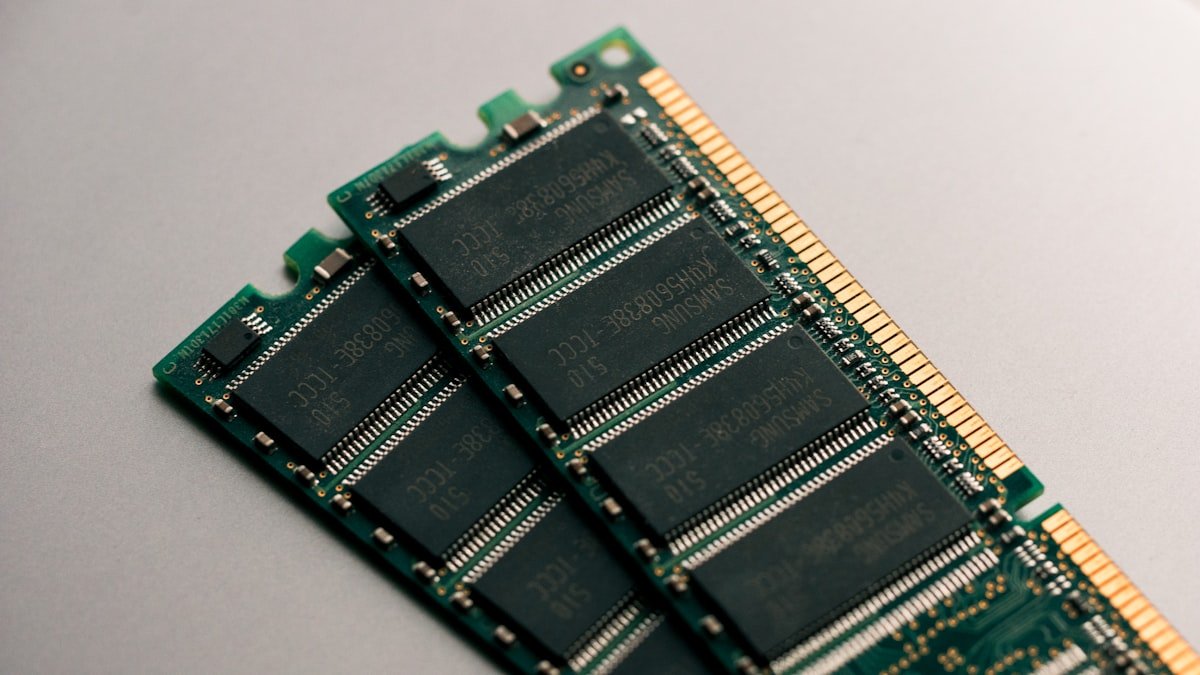
| Replace/add RAM | £30-100 | 20-50% (multitasking) | Very easy | 30 minutes |
| Replace SSD (larger/faster) | £40-150 | 30-100% (boot, app speed) | Very easy | 45 minutes |
| Repaste thermal compound | £5-15 | 15-25% (temperature, noise) | Medium | 1-2 hours |
| Replace Wi-Fi card | £30-80 | 100-300% (Wi-Fi speed) | Medium | 45 minutes |
| Replace keyboard | £40-120 | 0% (fixes broken keys) | Medium | 45 minutes |
| Replace screen | £80-200 | 0% (fixes damage) | Hard | 1-2 hours |
Why Upgrade Your Laptop?
Problem: Slow Performance When Multitasking
Cause: Insufficient RAM (you have 8GB, need 16GB+)
Solution: Add more RAM
Cost: £30-60 for 16GB
Result: Noticeable speed boost; can keep many browser tabs and applications open
Problem: Running Out of Disk Space
Cause: Your SSD is 80%+ full, slowing down the system
Solution: Replace with larger SSD or clean up data
Cost: £40-150 for 512GB-1TB upgrade
Result: More free space; faster performance; ability to store photos/videos
Problem: Laptop Overheating & Loud Fans
Cause: Dusty fans + degraded thermal paste (2-3 years old)
Solution: Clean fans, replace thermal paste
Cost: £5-20 + 1-2 hours labour
Result: 10-25°C temperature drop; quieter fans; better performance under load
Problem: Slow Wi-Fi or Weak Signal
Cause: Old Wi-Fi card (Wi-Fi 5 or earlier); bad antenna position
Solution: Upgrade to Wi-Fi 6 or Wi-Fi 7 card
Cost: £30-80 for new card
Result: 2-5x faster Wi-Fi speeds (if your router supports it)
Before You Start: Compatibility Check
Not all upgrades are compatible with all laptops. Before buying parts:
- Find your exact laptop model: Go to Settings → System → About. Write down the manufacturer, model name, and year.
- Search online: “[Your model] RAM upgrade” or “[Your model] specifications”
- Check the manual: Look for your model’s service manual on the manufacturer’s support website
- Verify compatibility: Compare what the manual says you can have vs what you want to install
Your First Upgrade: RAM
RAM upgrade is the easiest starting point. Here’s what to do:
Step 1: Research (30 minutes)
- Find your current RAM: Open Task Manager (Windows) or Activity Monitor (Mac)
- Check amount: “Installed RAM” shows your current capacity
- Note the type: “DDR4” or “DDR5” (shown in System Information)
- Search online: “[Your model] RAM upgrade” to find compatible modules
Step 2: Buy Correct RAM (1 hour)
- Use Where to Buy Laptop RAM guide to find a retailer
- Order matching your laptop’s DDR type and speed
- Consider buying double your current amount (8GB → 16GB)
Step 3: Install RAM (30 minutes)
- Power off and unplug laptop
- Remove bottom panel (usually 6-10 screws)
- Find RAM slots (look for quick-release clips on ends)
- Insert new RAM at 30-degree angle until clips lock
- Power on and verify capacity in System Information
Step 4: Enjoy the Upgrade (Ongoing)
Your laptop should feel noticeably faster at multitasking. If it doesn’t, check that both RAM modules are recognized (System Information should show total capacity).
Second Upgrade: SSD
After RAM, upgrading your SSD is the next highest-impact upgrade.
Why: Faster boot times, app loading, file transfers
Cost: £50-150 for 512GB-1TB upgrade
Installation: Similar to RAM but slightly more careful (don’t lose the tiny screw!)
See How to Backup Before SSD Upgrade for full steps.
Tools You’ll Need
For RAM/SSD upgrades, you need:
- Phillips PH1 screwdriver (£2-5)
- Anti-static wrist strap (£3-5)
- Small container for screws (£1-2)
- Plastic pry tool (optional, £1-3)
Total cost for full toolkit: £10-20
See Best Tools for Laptop Repair guide for recommendations.
What You Should NOT Upgrade (Without Professional Help)
- Screen: Glued on most laptops; risk of cracking is high
- Keyboard: Glued; removal often damages surrounding components
- Motherboard: Requires soldering; not DIY-friendly
- CPU/GPU: Soldered and not upgradeable on any modern laptop
Warranty Considerations
Before upgrading:
- Check your warranty expiry date (use this guide)
- If warranty is active, verify that RAM/SSD upgrades don’t void it
- Most manufacturers allow RAM/SSD upgrades without warranty loss
- Keep original parts in case you need warranty service
Safety Tips
- Always power off and unplug before opening
- Wear anti-static wrist strap to prevent accidental damage
- Don’t force components; if it doesn’t fit, you have the wrong part
- Take photos during disassembly so you can reassemble correctly
- Use proper screwdriver size (wrong size strips screws)
Related Guides
FAQ
Recommended Products
Looking for compatible upgrades? Here are our top picks available on Amazon:
Recommended upgrades
As an Amazon Associate we earn from qualifying purchases. Prices & availability shown on Amazon.
For laptops and mini PCs that use DDR5 SO-DIMM
For laptops and mini PCs that use DDR4 SO-DIMM
M.2 2280 NVMe SSDs
How we verify this guide
We cross-reference compatibility figures against manufacturer specifications where available, official service manuals, and the standards that govern fit — memory type and speed (DDR4 / DDR5 / LPDDR5), maximum supported capacity and slot count, SSD form factor and interface (M.2 2280, NVMe PCIe vs SATA, keying), and charger wattage and connector (USB-C Power Delivery, GaN). We’re explicit about soldered or non-upgradeable parts, prioritise primary sources over retailer listings, and re-verify the data on a regular cycle. More on our method →

