

Affiliate disclosure: this page contains affiliate links — if you buy through them we may earn a commission at no extra cost to you. As an Amazon Associate we earn from qualifying purchases.
An SSD (Solid State Drive) is a modern storage device that has revolutionised how computers perform. If you’ve ever wondered why some computers boot up in seconds while others take minutes, the answer is almost always an SSD. This guide explains what SSDs are, how they work, and why upgrading to one is the single best thing you can do to speed up a slow computer.
Table of Contents
- What is an SSD?
- How Does an SSD Work?
- Types of SSD
- SSD Capacity: How Much Storage Do You Need?
- NAND Types: SLC, MLC, TLC, and QLC
- How to Check if You Can Upgrade to an SSD
- Recommended Products
- Frequently Asked Questions
What is an SSD?
SSD stands for Solid State Drive. It’s a type of permanent storage device that holds all your files, programs, operating system, and data. Unlike traditional hard drives (HDDs) which use spinning magnetic discs and a moving read/write head, SSDs store data on flash memory chips with no moving parts whatsoever.
This lack of moving parts is what gives SSDs their key advantages: they’re dramatically faster, completely silent, more energy-efficient, and much more resistant to physical damage from drops or vibrations. SSDs are the single most impactful upgrade for any computer still running a traditional hard drive.
SSDs have been available since the late 2000s but have become the standard storage option in new computers since around 2018-2020. In 2026, virtually all new laptops and desktops ship with SSDs as their primary storage.
How Does an SSD Work?
Traditional hard drives store data by magnetising tiny areas on spinning metal platters. A mechanical arm physically moves across the platters to read and write data. This physical movement creates the characteristic clicking sound and limits how fast data can be accessed.
SSDs work completely differently. They use NAND flash memory — the same type of technology found in USB drives and memory cards, but much faster and more reliable. Data is stored in cells within memory chips, and electrical signals read and write data with no physical movement required.
Because SSDs access data electronically rather than mechanically, they can read and write data hundreds of times faster than HDDs. A typical SSD can read data at 500-7,000 MB/s, while a traditional HDD maxes out at around 120-180 MB/s.
Types of SSD
| SSD Type | Interface | Speed | Best For |
|---|---|---|---|
| 2.5″ SATA SSD | SATA III | Up to 550 MB/s | Older laptops, HDD replacements |
| M.2 SATA SSD | SATA III | Up to 550 MB/s | Thin laptops with M.2 slots |
| M.2 NVMe Gen 3 | PCIe 3.0 x4 | Up to 3,500 MB/s | Most modern laptops/desktops |
| M.2 NVMe Gen 4 | PCIe 4.0 x4 | Up to 7,000 MB/s | High-performance systems |
| M.2 NVMe Gen 5 | PCIe 5.0 x4 | Up to 14,000 MB/s | Enthusiast/professional |
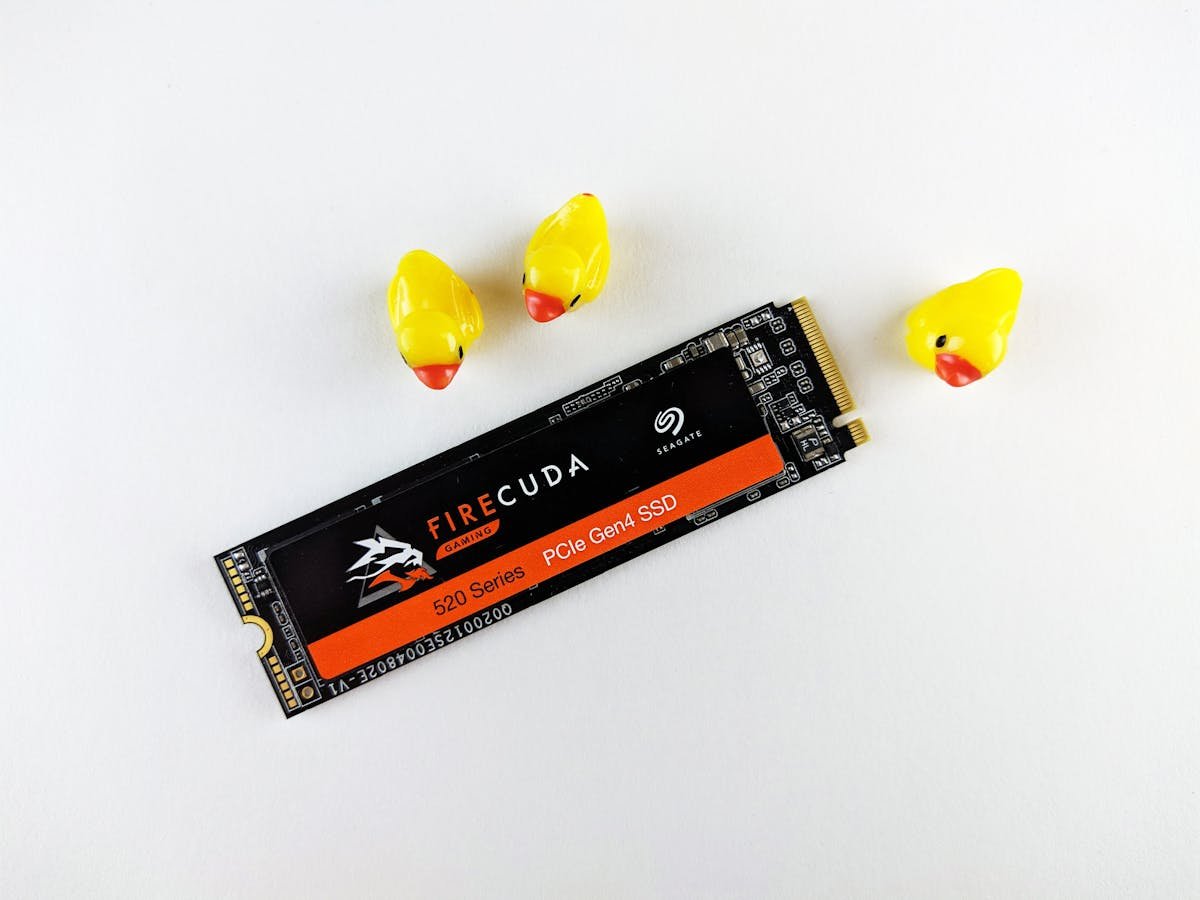
The M.2 form factor is a small, stick-of-gum-sized module that plugs directly into your motherboard. M.2 SSDs come in different lengths — 2230, 2242, and 2280 — where the numbers indicate the width and length in millimetres. The most common size is M.2 2280.
NVMe (Non-Volatile Memory Express) is the interface protocol that allows M.2 SSDs to communicate much faster than the older SATA protocol. If your laptop has an M.2 slot, it likely supports NVMe drives, which are significantly faster than SATA SSDs.
SSD Capacity: How Much Storage Do You Need?
| Capacity | Best For | Approximate Price (2026) |
|---|---|---|
| 256 GB | Light use, Chromebook replacement | £20-30 |
| 512 GB | General use — OS, apps, documents | £30-50 |
| 1 TB | Photos, games, creative work | £50-80 |
| 2 TB | Video editing, large game libraries | £90-150 |
| 4 TB | Professional video/photo production | £200-350 |
For most users in 2026, 512 GB is the comfortable minimum and 1 TB is the sweet spot. SSD prices have dropped dramatically — a 1 TB NVMe drive now costs under £60, making larger capacities very affordable.
Remember that your operating system (Windows, macOS, Linux) typically uses 20-40 GB, and installed programs can use another 50-100 GB. Always leave at least 10-20% of your SSD free for optimal performance.
NAND Types: SLC, MLC, TLC, and QLC
SSDs use different types of NAND flash memory that affect performance, endurance, and price. SLC (Single-Level Cell) stores 1 bit per cell — fastest and most durable but very expensive. MLC (Multi-Level Cell) stores 2 bits — good balance of performance and price. TLC (Triple-Level Cell) stores 3 bits — the most common type in consumer SSDs, offering great value. QLC (Quad-Level Cell) stores 4 bits — cheapest but slowest, mainly found in budget drives.
For most users, TLC SSDs offer the best combination of performance, endurance, and value. QLC drives are fine for general storage but may slow down during sustained writes. Unless you’re doing extremely heavy workloads, TLC is the sweet spot.
How to Check if You Can Upgrade to an SSD
Most laptops and desktops can be upgraded with an SSD. The key is identifying what type of slot your computer has. Desktop PCs almost always support both 2.5-inch SATA and M.2 NVMe drives. Laptops vary — some have dedicated M.2 slots, some have 2.5-inch drive bays, some have both, and some (particularly ultrabooks) have soldered storage that cannot be upgraded.
To check your specific laptop, you can use our free Laptop Compatibility Checker, consult your laptop’s service manual, or simply search for your model number plus ‘SSD upgrade’ to find out what type of SSD you need.
Recommended Products
Excellent all-round NVMe drive with up to 5,000 MB/s read speeds. Perfect for most laptop and desktop upgrades.
From £65 · Check Price on Amazon →
Great value Gen 4 NVMe drive with reliable performance. Ideal for everyday computing and gaming.
From £52 · Check Price on Amazon →
Best choice for older laptops with SATA connections. Drop-in replacement for any 2.5-inch hard drive.
From £55 · Check Price on Amazon →
Budget-friendly SATA SSD for HDD-to-SSD upgrades. Proven reliability with excellent endurance.
From £38 · Check Price on Amazon →
Frequently Asked Questions
What is an SSD in simple terms?
An SSD (Solid State Drive) is a storage device that holds all your files and programs, just like a hard drive. But instead of spinning discs, it uses flash memory chips — making it much faster, quieter, and more durable. It’s the same concept as a USB memory stick, but much faster and designed for permanent use inside your computer.
Will an SSD make my old laptop faster?
Almost certainly yes. Replacing a hard drive with an SSD is the single most impactful upgrade for an older laptop. Boot times typically drop from 1-2 minutes to 10-20 seconds, programs open almost instantly, and overall responsiveness improves dramatically.
How long do SSDs last?
Modern SSDs are rated for hundreds of terabytes of writes, which translates to many years of normal use. Most consumer SSDs will outlast the useful life of the computer they’re installed in. A typical 1 TB SSD can last 5-10 years of regular use without issues.
NVMe vs SATA — which SSD should I buy?
If your laptop has an M.2 NVMe slot, go NVMe — it’s significantly faster. If your laptop only has a 2.5-inch SATA bay or M.2 SATA slot, a SATA SSD is your only option. Both are dramatically faster than a traditional hard drive.
Do I need to reinstall Windows when switching to an SSD?
Not necessarily. You can clone your existing hard drive to the new SSD using free software like Macrium Reflect or Samsung Data Migration. However, a fresh Windows install on the new SSD is recommended for the cleanest, fastest experience.
Can I use an SSD and HDD together?
Yes, many desktops and some laptops support both. A popular setup is using an SSD for your operating system and frequently used programs, while keeping a larger HDD for file storage like photos, videos, and documents.
Final Thoughts
Upgrading to an SSD is the single most transformative improvement you can make to an older computer. The difference in speed, responsiveness, and boot times is immediately noticeable. With 1 TB NVMe drives now available for under £60, there’s never been a better time to make the switch.
Check Your Laptop’s Compatibility
Use our free tool to find compatible RAM and SSD upgrades for your specific laptop model.
Launch Compatibility Checker →Recommended upgrades
As an Amazon Associate we earn from qualifying purchases. Prices & availability shown on Amazon.
M.2 2280 NVMe SSDs
How we verify this guide
We cross-reference compatibility figures against manufacturer specifications where available, official service manuals, and the standards that govern fit — memory type and speed (DDR4 / DDR5 / LPDDR5), maximum supported capacity and slot count, SSD form factor and interface (M.2 2280, NVMe PCIe vs SATA, keying), and charger wattage and connector (USB-C Power Delivery, GaN). We’re explicit about soldered or non-upgradeable parts, prioritise primary sources over retailer listings, and re-verify the data on a regular cycle. More on our method →

