
Affiliate disclosure: this page contains affiliate links — if you buy through them we may earn a commission at no extra cost to you. As an Amazon Associate we earn from qualifying purchases.
Upgrading your laptop’s SSD doesn’t mean starting from scratch. By cloning your existing drive, you can transfer your entire operating system, applications, and files to a new, faster SSD — without reinstalling anything. This guide walks you through the complete process step by step.
Why Clone Instead of Fresh Install?
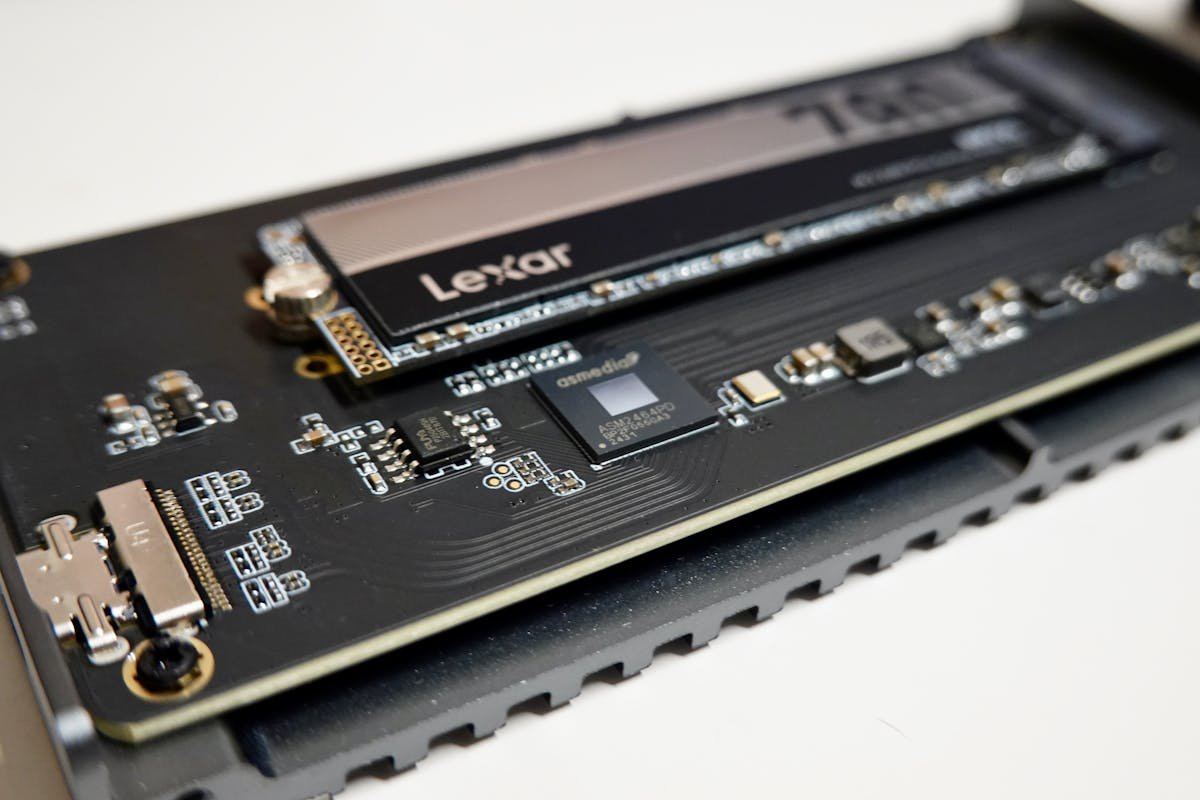
A fresh Windows installation gives you a clean slate, but cloning saves hours of setup time. You keep all your programmes, settings, licence activations, and files exactly as they are. For most users, cloning is the faster and less disruptive option — especially if you’re simply moving to a larger or faster drive.
What You’ll Need
| Item | Purpose | Where to Buy |
|---|---|---|
| New SSD (NVMe or SATA) | Replacement drive | Check prices on Amazon |
| USB-to-NVMe/SATA enclosure | Connect new SSD externally for cloning | Check prices on Amazon |
| Cloning software | Macrium Reflect Free or Samsung Data Migration | Free download |
| Small Phillips screwdriver | Open laptop back panel | Check prices on Amazon |
Step 1: Check Your Current SSD Type
Before buying a new drive, confirm what type of SSD your laptop uses. Open Device Manager or check your laptop’s specifications page on our site. Most modern laptops (2019+) use M.2 NVMe drives, while older models may use 2.5-inch SATA SSDs. The new drive must match your laptop’s interface — you cannot put a SATA drive in an NVMe-only slot or vice versa.
Step 2: Connect the New SSD via USB
Place your new SSD into a USB enclosure and connect it to your laptop. The drive should appear in Windows Disk Management. If prompted, initialise the drive as GPT (for UEFI systems) or MBR (for legacy BIOS). Do not format or create partitions — the cloning software handles this automatically.
Step 3: Download and Install Cloning Software
We recommend Macrium Reflect Free for most users — it’s reliable, fast, and handles partition resizing automatically. If you have a Samsung SSD, Samsung Data Migration is another excellent free option. Avoid paid software unless you need advanced features like scheduling or incremental backups.
Step 4: Clone Your Drive
Open your cloning software and select your current internal SSD as the source drive. Select the new SSD (connected via USB) as the destination. The software will copy every partition, including your Windows recovery partition and EFI system partition. If the new drive is larger, the software will automatically expand your main partition to use the extra space.
The cloning process typically takes 15-45 minutes depending on how much data you have. Do not use your laptop during this process.
Step 5: Swap the Drives
Once cloning is complete, shut down your laptop and disconnect the USB enclosure. Remove the back panel of your laptop (usually 6-10 Phillips screws), locate the M.2 SSD slot, and carefully remove the old drive. Insert the new cloned SSD, secure it with the retaining screw, and replace the back panel.
Step 6: First Boot and Verification
Power on your laptop. It should boot directly into Windows with all your files and programmes intact. Verify the new drive is detected correctly by checking This PC — you should see the full capacity of your new SSD. Run a quick benchmark with CrystalDiskMark to confirm you’re getting the expected speeds.
Troubleshooting Common Issues
| Problem | Cause | Solution |
|---|---|---|
| Laptop won’t boot after swap | Boot mode mismatch (UEFI/Legacy) | Enter BIOS and change boot mode to match your old configuration |
| New SSD not detected | Not fully seated in M.2 slot | Remove and reseat the drive, ensure retaining screw is tight |
| Windows activation lost | Hardware change detected | Run Activation Troubleshooter in Settings — usually auto-resolves |
| Clone failed mid-process | Bad sectors on source drive | Run chkdsk /f on source drive, then retry clone |
Frequently Asked Questions
Can I clone an HDD to an SSD?
Yes, absolutely. The process is identical. Cloning from an HDD to an SSD is one of the best upgrades you can make — you will see dramatically faster boot times and application loading speeds.
Do I need the same size SSD or larger?
The destination SSD must be at least as large as the used space on your source drive. For example, if your 500GB drive has 200GB of data, a 256GB SSD would work. Most cloning software will warn you if the destination is too small.
Will cloning copy my Windows licence?
Yes. Digital licences tied to your Microsoft account transfer automatically. OEM licences tied to the motherboard also remain valid after an SSD swap.
Can I clone to a smaller SSD?
Yes, as long as the smaller SSD has enough capacity for all your data. The cloning software will shrink the partition to fit. Delete unnecessary files first if space is tight.
Should I clone or do a fresh install?
Cloning is faster and preserves everything. Fresh installs are better if your current Windows has accumulated problems over years. For a simple SSD upgrade, cloning is almost always the better choice.
Recommended Products
Samsung 990 EVO Plus 1TB NVMe SSD
PCIe 5.0 x2 / 4.0 x4, up to 7,250 MB/s read. One of the best upgrade SSDs for 2026.
Check Price on AmazonSabrent USB-C NVMe SSD Enclosure
Tool-free M.2 NVMe enclosure with 10Gbps USB 3.2. Essential for the cloning process.
Check Price on AmazoniFixit Pro Tech Toolkit
Professional precision screwdriver set with all the bits you need for any laptop.
Check Price on AmazonRecommended upgrades
As an Amazon Associate we earn from qualifying purchases. Prices & availability shown on Amazon.