Affiliate disclosure: this page contains affiliate links — if you buy through them we may earn a commission at no extra cost to you. As an Amazon Associate we earn from qualifying purchases.
One of the biggest decisions when buying or upgrading a laptop is SSD capacity. Should you go with 512GB, 1TB, 2TB, or more? The answer depends entirely on how you use your machine. In this guide, we’ll break down real-world storage usage and help you pick the right capacity — and explain why bigger often makes financial sense.
If you’re deciding how much SSD storage you need, this guide will show you exactly what takes up space and when to invest in a larger drive.
Why Capacity Matters
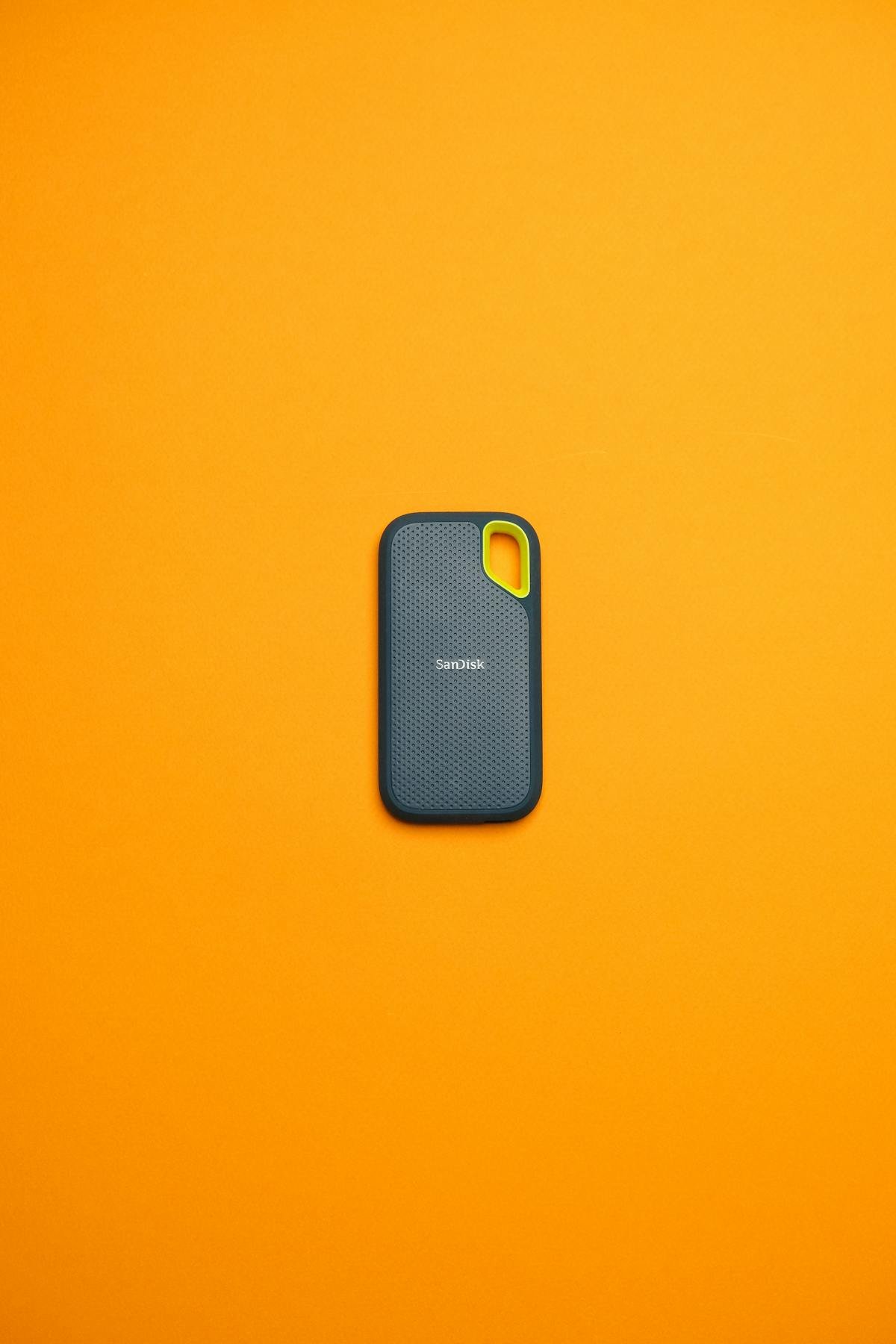
SSD capacity affects three critical things:
- How much you can install. A 256GB drive with Windows 11 leaves only ~150GB usable. That’s barely enough for a few games.
- Performance longevity. Drives slow down when they’re more than 80% full. A 512GB drive that’s always nearly full will perform worse than a 1TB drive with breathing room.
- Your upgrade path. Replacing a laptop SSD is often easier than upgrading RAM, but still requires time and technical skill. Buy big the first time and avoid future headaches.
The golden rule: buy more than you think you need today.
Real-World Storage Usage — What Takes Up Space?
Let’s look at what actually consumes SSD space:
| Item | Size | Notes |
|---|---|---|
| Windows 11 Installation | ~30GB | Leaves ~220GB free on a 256GB drive |
| Windows Paging File & Caches | ~10–20GB | System overhead (temp files, updates pending) |
| Microsoft Office Suite | ~5GB | Word, Excel, PowerPoint |
| Adobe Creative Suite | ~30GB | Photoshop, Illustrator, Premiere Pro (full installation) |
| Single AAA Video Game | 50–150GB | Modern games (e.g., Starfield, Call of Duty, Baldur’s Gate 3) |
| Small Game Library (10 games) | 300–500GB | Mix of casual and AAA titles |
| Photo Library (1 year, smartphone) | 20–50GB | Depends on resolution and video recording |
| 4K Video Project (1 hour raw) | 100–300GB | Before rendering and after-effects |
| Large Software Project (IDE, frameworks) | ~50GB | Visual Studio, node_modules, databases, Docker images |
| Chrome Browser (with cache) | 2–5GB | Extensions, history, site data |
| Documents & Downloads | 5–20GB | PDFs, spreadsheets, installers (usually) |
| Backup Cache (Time Machine, File History) | 20–50GB | Local backup of recent changes |
As you can see, modern software and content consume enormous amounts of space. A single AAA game is larger than the entire Windows operating system.
Storage Recommendations by User Type
Student / Light User
Typical use: Web browsing, Office documents, streaming, university work
Recommended capacity: 512GB (minimum)
Breakdown:
- Windows 11: 30GB
- Office, Chrome, utilities: 20GB
- Documents, notes, assignments: 50GB
- Photos (4 years): 100GB
- Downloaded videos, podcasts: 50GB
- Buffer & OS overhead: 50GB
- Total used: ~300GB (256GB too tight)
Why 512GB works: Leaves comfortable headroom for accumulating files and updates. Can store a few large video files without stress.
Consider 1TB if: You record your own videos, collaborate heavily on large project files, or plan to keep the laptop for 4+ years.
Office Worker / Business User
Typical use: Office 365, email, large spreadsheets, occasional video calls, file backups
Recommended capacity: 512GB–1TB
Breakdown:
- Windows 11: 30GB
- Office suite + utilities: 15GB
- Work documents, emails, archives: 100GB
- Local file backups: 100GB
- Photos (personal): 50GB
- Browser cache, temp files: 30GB
- Buffer: 50GB
- Total used: ~375GB
Why 512GB works: Sufficient for moderate document storage and light backups. However, if you manage large databases or store project archives, jump to 1TB.
Consider 1TB if: You work with large video files, maintain extensive backup archives, or collaborate on shared drives. Consider 2TB if: You’re backing up entire external drives or managing large media libraries.
Creative Professional (Designer, Video Editor, Photographer)
Typical use: Adobe Creative Suite, large project files, 4K video footage, photo libraries
Recommended capacity: 1TB–2TB (absolutely minimum 1TB)
Breakdown:
- Windows 11: 30GB
- Adobe Creative Suite: 30GB
- Active projects (in progress): 200–500GB
- Photo library (5 years, high-res): 300GB
- 4K footage cache: 100–200GB
- Rendering queue & exports: 50GB
- Archive of old projects: 200GB
- Buffer & OS overhead: 50GB
- Total used: ~1–1.5TB
Why 1TB is the minimum: Creative work generates massive temporary files. Without sufficient space, your machine will slow dramatically when Adobe needs scratch space. 1TB provides breathing room; 2TB is comfortable.
Consider 2TB if: You work with 4K or 6K video regularly, maintain massive photo libraries (10,000+ images), or keep many project archives on-device. Consider 4TB if: You work with 8K footage or manage client archives.
Gamer
Typical use: 5–15 AAA games installed, streaming, occasional content creation
Recommended capacity: 1TB (minimum), 2TB preferred
Breakdown:
- Windows 11: 30GB
- GPU drivers, gaming software: 10GB
- 10 AAA games (avg 80GB each): 800GB
- Streaming/recording software: 20GB
- Screenshots, clips, streams: 50GB
- Buffer & OS overhead: 50GB
- Total used: ~960GB
Why 1TB is borderline: You can fit 10–12 modern games comfortably. Once you exceed that, you’ll spend time uninstalling and reinstalling. 2TB gives you the freedom to keep 20+ games ready.
Consider 2TB if: You want to juggle 15+ titles, record gameplay, or stream. Consider 2TB+ if: You’re a content creator using your gaming laptop for YouTube/Twitch.
Developer / Data Scientist
Typical use: IDEs, Docker containers, large datasets, databases, repositories
Recommended capacity: 1TB–2TB
Breakdown:
- Windows 11: 30GB
- Development tools (VS Code, IDEs, compilers): 30GB
- node_modules, Python packages, libraries: 100GB
- Docker images & containers: 50–150GB
- Local databases, test data: 100–300GB
- Git repositories, archives: 50GB
- Scratch space for experimentation: 100GB
- Buffer: 50GB
- Total used: ~600GB–800GB
Why 1TB is solid: Development environments are lightweight compared to media work. However, Docker and large datasets add up fast. 1TB is comfortable; 2TB is luxurious.
Consider 2TB if: You work with large datasets (machine learning, data science), maintain many Docker images, or run local databases.
512GB vs 1TB vs 2TB — The Cost-Per-GB Analysis
Let’s look at real-world pricing (March 2026):
| Capacity | Typical Price | Cost Per GB | Value Rating |
|---|---|---|---|
| 256GB | £40–60 | £0.18–0.23 | Poor (too small) |
| 512GB | £50–80 | £0.10–0.16 | Good |
| 1TB | £70–120 | £0.07–0.12 | Excellent |
| 2TB | £120–200 | £0.06–0.10 | Excellent |
| 4TB | £200–350 | £0.05–0.09 | Best per GB (if you need it) |
Key insight: The cost per gigabyte drops significantly as capacity increases. A 1TB drive costs only 20–30% more than 512GB but doubles your storage. That’s an excellent value trade-off.
In most cases, buying 1TB instead of 512GB costs an extra £20–40 but gives you 2x the capacity. For a £1,000+ laptop, this is minimal.
Can You Upgrade Your Laptop SSD Later?
This is crucial information. Whether you can upgrade depends on your laptop’s design:
Single M.2 Slot (Most Laptops)
If your laptop has one M.2 slot, upgrading is possible but requires:
- Buying a new SSD
- Backing up your entire drive (250GB–1TB+)
- Opening the laptop (voids some warranties)
- Cloning or clean reinstalling Windows
- Disposing of the old SSD responsibly
Cost and hassle: £100–200 in new hardware plus several hours of setup time.
Dual M.2 Slots (Premium Laptops, Workstations)
If your laptop has two slots, adding a second drive is much easier. You can:
- Buy a second SSD and install it in the empty slot
- No need to migrate your existing data
- Both drives coexist without issues
- Total cost: Just the new drive (£70–150)
Pro tip: If you’re buying a laptop with a single M.2 slot, check the manufacturer specs. Some Dell Precisions, Lenovo ThinkPads, and ASUS Vivobooks have two slots despite being thin. Dual slots future-proof your upgrade options.
Soldered Storage (Some Ultra-Thin Laptops)
A few ultra-thin laptops and MacBooks have storage soldered directly to the motherboard. This cannot be upgraded — you’re stuck with your original capacity. Always check before buying if upgradeability matters to you.
The Buy Big Now vs Add Later Decision
Here’s the strategic question: should you buy a 2TB laptop now, or get 512GB and upgrade later?
Buy Big Now If:
- You use a single M.2 slot (upgrade later is a pain)
- You’re a creative professional or gamer
- You want the laptop to last 5+ years
- The cost difference is small (often just £30–50)
- You hate the idea of cloning or reinstalling Windows
Upgrade Later If:
- Your laptop has dual M.2 slots (adding is easy)
- You’re a light user who might not need the space
- You’re very budget-conscious and need to save £50 today
- You want to delay the purchase decision
Our recommendation: For most people, buy 1TB now rather than 512GB. The marginal cost is tiny, but the usable lifetime of your laptop increases significantly. If you’re a heavy user (creative professional, gamer, developer), jump to 2TB — you’ll absolutely thank yourself in two years.
What About External Storage?
Some people think “I’ll buy a 512GB laptop and use an external SSD for overflow.” This works but has downsides:
- Slower. External drives are 20–40% slower than internal NVMe SSDs.
- Fragile. You must remember to carry it; it can be lost, damaged, or forgotten.
- Not ideal for games. Most games require installation on your internal drive.
- Extra cost. A 1TB external SSD costs £60–90, plus you still need a larger internal drive.
External storage is great for backups and archival, but shouldn’t be your primary strategy for insufficient laptop storage.
SSD Recommendations by Capacity
When shopping for an SSD upgrade, here are our top picks across different capacities:
- 512GB: WD Blue SN580 (budget) or Samsung 990 EVO (reliability)
- 1TB: Crucial T500 (excellent value) or Samsung 990 Pro (top performance)
- 2TB: WD Black SN850X (gaming) or Crucial P3 Plus (budget-friendly)
Learn more about the best SSD brands for detailed comparisons.
FAQs — How Much SSD Storage Do You Need?
Related Guides
- Ssd Compatibility
- Best Laptop Ssds 2026
- How To Check Laptop Ssd Compatibility
- Best 4Tb Laptop Ssd
- Best 2Tb Laptop Ssd
Recommended upgrades
As an Amazon Associate we earn from qualifying purchases. Prices & availability shown on Amazon.
M.2 2280 NVMe SSDs
How we verify this guide
We cross-reference compatibility figures against manufacturer specifications where available, official service manuals, and the standards that govern fit — memory type and speed (DDR4 / DDR5 / LPDDR5), maximum supported capacity and slot count, SSD form factor and interface (M.2 2280, NVMe PCIe vs SATA, keying), and charger wattage and connector (USB-C Power Delivery, GaN). We’re explicit about soldered or non-upgradeable parts, prioritise primary sources over retailer listings, and re-verify the data on a regular cycle. More on our method →