The Acer Nitro 5 is one of the most upgrade-friendly budget gaming laptops on the market. Both RAM and SSD upgrades are straightforward — the bottom panel comes off with simple Phillips screws, and you’ll find two DDR5 RAM slots plus two M.2 SSD slots right on the motherboard. This guide is perfect for first-time upgraders.
Acer designed the Nitro 5 for users who want gaming performance without the premium price. That includes making upgrades easy. You’ll need just a Phillips screwdriver and 15 minutes to add more RAM or storage.
What You’ll Need

Gather these items. The Nitro 5 is truly beginner-friendly — most tools are standard consumer items.
| Item | Purpose | Where to Buy |
|---|---|---|
| Phillips Screwdriver (#0 or #1) | Remove bottom panel screws (simple Phillips, not Torx) | Amazon UK |
| Anti-Static Wristband | Protect RAM and SSD from static electricity | Amazon UK |
| DDR5 SO-DIMM RAM (16GB, 5600MHz) | Budget gaming upgrade (Kingston or Corsair) | Amazon UK |
| M.2 2280 NVMe SSD (512GB or 1TB) | Storage upgrade (WD Blue SN580 or similar budget option) | Amazon UK |
| Soft Cloth | Clean workspace, prevent scratches | Use what you have at home |
Before You Start
Back up your data to cloud storage or an external drive, especially if upgrading the drive that holds your Windows installation.
Power off completely — not sleep mode. Shut down Windows fully and wait 2 minutes for the system to cool.
Unplug everything — power adapter, USB drives, Ethernet, headphones. The Nitro 5 is robust, but disconnecting power is always safest.
Discharge static electricity by wearing your wristband (grounded to the laptop chassis) before touching RAM or SSDs.
Step-by-Step Guide
Step 1: Remove the Bottom Panel
Flip the Nitro 5 over. You’ll see the bottom panel held by approximately 10–15 Phillips screws. There are no captive screws here — each one will come free, so place them on a clean surface as you remove them. Some screws may be slightly longer than others; keep track of which came from where if you’re also upgrading the cooling system, but generally any Phillips screw will work for the panel.
Once all screws are out, gently pry up the edges of the bottom panel using a plastic spudger or even a coin if needed (though be careful not to scratch the panel). The panel is held by clips around the perimeter and will pop off easily once the screws are gone.
Lift the entire panel away and set it on a soft surface. You’re now looking at the guts of your budget gaming rig.
Step 2: Locate RAM and M.2 Slots
With the panel off, you’ll see the motherboard, cooling system, and your current components. The RAM slots (SO-DIMM format) are typically on the left or right side of the motherboard. The Nitro 5 has two SO-DIMM slots — check how many are occupied.
The M.2 SSD slots are in the centre or towards the back of the motherboard, often beneath a heatspreader or heat shield. Most Nitro 5 models have two M.2 2280 slots, so you can have two drives if you want.
Step 3: Upgrade RAM
To add or replace RAM:
If adding to an empty slot, hold your new DDR5 SO-DIMM at a 45-degree angle with the gold connector facing down. Align the notch on the module with the key in the slot (they only fit one way). Press down firmly and evenly until you hear or feel a click. The spring clips at both ends should snap inward, and the module will be parallel to the motherboard.
If replacing an existing module, push the spring clips outward at both ends of the slot. The module will pop up at a 45-degree angle. Grasp it by the sides (never the connector) and pull straight out. Then insert your new module using the same 45-degree method.
Step 4: Access M.2 Slots
If your Nitro 5 has a heatspreader covering the M.2 slots, you’ll need to remove it first. There are usually 1–2 Phillips screws holding the heatspreader — remove these. The heatspreader may have a thermal pad attached — if it sticks, use a plastic spudger to gently pry a corner free.
Once the heatspreader is off, you’ll see both M.2 slots clearly.
Step 5: Remove Old SSD (if replacing)
If you’re replacing the existing SSD, locate the Phillips screw at the far end of the slot (opposite the connector). Remove this screw. The SSD is angled at about 30 degrees into the slot.
Gently push the SSD down (away from you) and it will pop up at the connector end. Grasp it by the edge and pull straight out. Check if a thermal pad came off with the drive — if so, note it for reinstallation with your new drive.
Step 6: Install New SSD
Hold your new M.2 SSD at a 30-degree angle with the connector pointing down into the slot. Align the notch with the key in the slot. Slide it in smoothly and press down gently until the far end is level with the heatspreader or motherboard.
Install the Phillips screw that holds the SSD at its angle. Tighten firmly but not hard — you’re securing a thin circuit board. Ensure any thermal pad makes contact with the top surface of the new SSD.
Step 7: Reinstall the Heatspreader (if removed)
If you removed a heatspreader, position it back over the M.2 slot(s). Ensure any thermal pads contact the SSD(s) properly. Reinstall the Phillips screw(s) and tighten firmly.
Step 8: Reinstall the Bottom Panel
Carefully position the bottom panel back onto the laptop. Start from the back edge and work your way forward, ensuring all clips engage. Once aligned, flip the laptop and reinstall all Phillips screws. Tighten them firmly but not hard — Acer uses plastic inserts that can strip if over-torqued.
Verifying the Upgrade
Power on your Nitro 5. Windows should boot normally and quickly (especially if you upgraded the SSD). Verify both upgrades once at the desktop:
RAM Check: Open Settings → System → About. Look for “Installed RAM” — it should show your new total (e.g., 32GB if you upgraded from 16GB to 16GB + 16GB).
SSD Check: Open File Explorer and look at “This PC”. Your new SSD should appear with its full capacity listed. If it shows “Unknown” or “Uninitialized”, right-click it in Disk Management and initialize it, then create a Simple Volume.
Gaming Performance: Boot up a game. You should notice faster load times if you upgraded the SSD. Gameplay performance (frame rate) will improve more noticeably with the RAM upgrade, especially if you’re running other apps (Discord, OBS, Chrome) simultaneously.
Troubleshooting
RAM not showing in Windows — Power off and reseat the module. Ensure the spring clips fully engaged (they snap inward, not just rest against the module). If it still doesn’t show, try the other RAM slot to rule out a bad slot.
SSD not detected — Power off and reseat the drive. Check that the retention screw is tight. If it still doesn’t show, update the SSD firmware from the manufacturer (download from their support page).
Laptop won’t boot — If this is your primary drive (where Windows was installed), it’s now blank. You’ll need to install Windows fresh using a USB installation drive, or clone your old Windows installation to the new SSD before opening the laptop. If you’re upgrading a secondary SSD, this isn’t an issue.
Slow SSD performance — Check if the drive is overheating. With the panel off and the system running, feel near the SSD heatspreader. If it’s very hot, the thermal pad may not be making good contact. Power off, reseat the heatspreader, and ensure the pad is flat and clean.
Partial SSD capacity recognized — New SSDs sometimes show lower capacity. Update the SSD firmware. If it’s a second drive, it may need initialization in Disk Management before Windows recognizes the full size.
Recommended Upgrades
For the Acer Nitro 5 budget gaming laptop, balance performance with cost.
Best RAM: Kingston FURY DDR5 SO-DIMM (16GB, 5600MHz) — Good performance, reliable, affordable. £45–55 per module.
Best SSD: WD Blue SN580 (1TB) — Budget-friendly, fast enough for gaming, reliable. £40–60.
For the Nitro 5, 32GB total RAM (16GB + 16GB) is good for gaming + streaming or content creation. 16GB is sufficient for gaming only. For storage, 1TB total (OS + games) is minimum. Consider a second 1TB SSD later to segregate Windows/apps from your game library — this improves performance and keeps things organized.
FAQ
Can I add a second M.2 SSD to my Nitro 5?
Yes. Most Acer Nitro 5 models have two M.2 2280 slots. If you have one SSD installed and one slot is empty, you can add a second drive. This is especially useful for separating your OS (on one SSD) from your games (on a second).
What RAM speed should I buy?
DDR5 5600MHz is the standard for modern Nitro 5 models. Faster options (6400MHz) are available but cost more with minimal gaming performance gain. Stick with 5600MHz for the best value.
Is 16GB enough, or should I go straight to 32GB?
16GB is fine for gaming. 32GB (16GB + 16GB) is recommended if you stream, edit content, or run multiple apps while gaming. You can always add a second 16GB module later — both slots are easily accessible.
Will upgrading void the warranty?
Acer officially supports RAM and SSD upgrades on the Nitro 5. Warranty is not voided. However, damage caused during the upgrade is your responsibility.
Should I clone Windows or do a fresh install?
If you’re upgrading to a new primary SSD (replacing the old one), you have two options: 1) Clone your old Windows installation to the new drive using a tool like EaseUS Todo Backup (faster, everything stays as-is), or 2) Do a fresh Windows install (cleaner, but takes longer and you’ll need to reinstall apps). Cloning is easier for most users.
Is there enough cooling for two M.2 SSDs?
Yes. The Nitro 5’s cooling is designed for dual M.2 drives. Both slots have thermal pads or heatspreaders. Just ensure the pads make good contact and you won’t have thermal issues.
Recommended Products
These are the products we recommend based on this guide. All links go to Amazon UK where you can check current prices and availability.
| Product | Why We Recommend It | Amazon UK |
|---|---|---|
| Corsair Vengeance DDR5 SO-DIMM 32GB (2×16GB) 5600MHz | Top-rated DDR5 kit for gaming & productivity | View on Amazon UK |
| Kingston Fury Impact DDR5 SO-DIMM 32GB (2×16GB) 5600MHz | Excellent DDR5 alternative with XMP support | View on Amazon UK |
| Crucial DDR5 SO-DIMM 16GB 5600MHz | Affordable single-stick DDR5 | View on Amazon UK |
| G.Skill Ripjaws DDR5 SO-DIMM 32GB 5600MHz | High performance DDR5 for enthusiasts | View on Amazon UK |
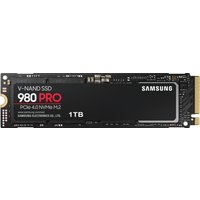
| Samsung 990 Pro 2TB NVMe M.2 2280 | Fastest consumer NVMe — ideal for gaming & editing | View on Amazon UK |
| WD Black SN850X 2TB NVMe | Excellent Gen4 speed with heatsink option | View on Amazon UK |
| Crucial P5 Plus 1TB NVMe | Great value Gen4 SSD | View on Amazon UK |
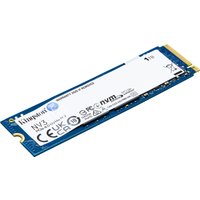
| Kingston NV2 1TB NVMe | Budget-friendly with solid reliability | View on Amazon UK |
Prices and availability may vary. As an Amazon Associate, we earn from qualifying purchases.
Related Acer Upgrade Guides
- Best RAM for Acer Laptops 2026
- Acer TravelMate Spin P4 TMP414RN-53 (2023) RAM & SSD Upgrade Guide (2023)
- Acer TravelMate P6 TMP614-53 (2023) RAM & SSD Upgrade Guide (2023)
- Acer TravelMate P4 TMP416-52 (2024) RAM & SSD Upgrade Guide (2024)
- Acer TravelMate P4 TMP414-52 (2023) RAM & SSD Upgrade Guide (2023)
- Acer Upgrade Guide
Not sure what fits? Use our free Compatibility Checker covering 3,195+ models.