The Acer Aspire 5 A515 is a budget-friendly, fully upgradeable laptop that gives you complete control over memory and storage. If you’re looking to boost performance or add capacity without replacing your machine, this model’s straightforward design makes it one of the easiest Acer laptops to upgrade. Here’s exactly what’s compatible and what you need to know.
RAM Compatibility & Upgrade Guide
The Aspire 5 A515 features 2 DDR5 SO-DIMM slots, supporting up to 32GB total (two 16GB modules at 4800MHz). This is the maximum supported configuration with current BIOS versions. Both slots are user-accessible on the bottom panel beneath the keyboard bezel.
To upgrade RAM, power down completely, remove the battery (if removable), unscrew the bottom panel, and locate the two vertical SO-DIMM slots. Push the retention clips outward and lift the existing module at a 45-degree angle. Insert your new DDR5 module into the slot, press down firmly until the clips snap into place, and verify detection in BIOS or system settings.
Recommended DDR5 modules for the Aspire 5 A515:
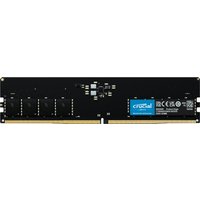
- Crucial CT16G48C40U5 — Single 16GB DDR5 4800MHz SO-DIMM, budget-friendly, reliable Taiwanese manufacturer
- Kingston KF548S17IB-16 — 16GB DDR5 4800MHz, good thermal performance, Kingston lifetime warranty
- Corsair CMSX16GX5M1A4800C40 — Premium 16GB DDR5 option with gaming-grade binning
RAM Slot Pinout & Voltage
Both slots accept standard JEDEC DDR5 SO-DIMM modules with 1.1V operating voltage. The Aspire 5 A515 supports Intel XMP or AMD DOCP profiles, though most users will see stable operation at standard 4800MHz speeds without enabling XMP.
SSD & Storage Compatibility
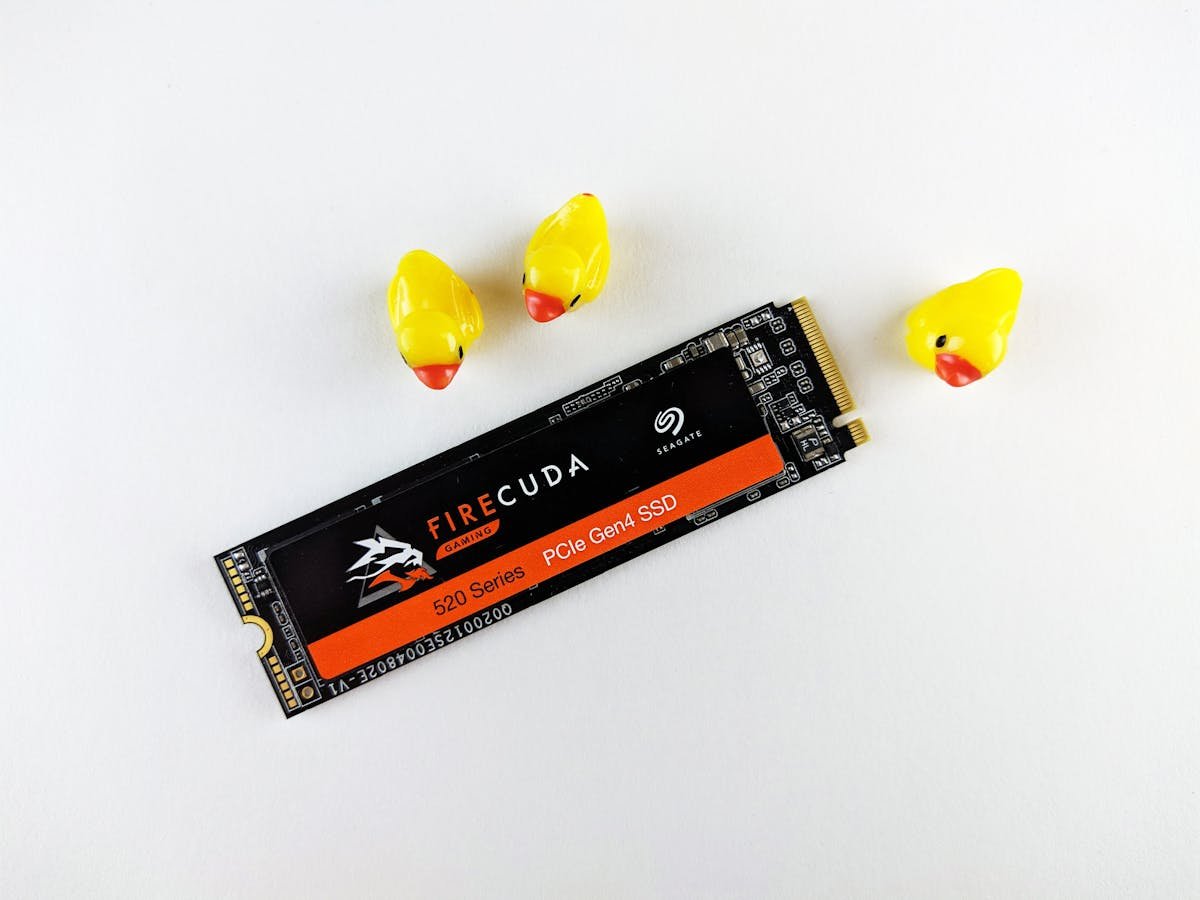
The Aspire 5 A515 contains 1 M.2 2280 NVMe slot supporting PCIe Gen 4 SSDs. This is the factory-installed storage drive; you cannot add a second SSD without replacing the original. The slot is accessible from the bottom panel next to the RAM modules.
Recommended M.2 2280 Gen 4 SSDs:
| Model | Capacity | Read/Write | Best For | Amazon UK Link |
|---|---|---|---|---|
| Samsung 990 EVO | 1TB / 2TB | 5,000 MB/s read | Balanced performance, durability | View on Amazon |
| WD Black SN850X | 1TB / 2TB | 7,100 MB/s read | Gaming, content creation | View on Amazon |
| Kingston NV2 | 1TB / 2TB | 3,500 MB/s read | Budget upgrade, everyday use | View on Amazon |
| Crucial P5 Plus | 1TB / 2TB | 6,600 MB/s read | Reliable mid-range option | View on Amazon |
To replace the SSD: power down, remove the bottom panel, locate the M.2 slot (marked with a notch), and carefully remove the single retention screw at a 45-degree angle. Slide the existing SSD out, insert your new drive at the same angle, press down, and secure with the screw.
Charger & Power Compatibility
The Aspire 5 A515 uses a barrel connector (5.5mm × 2.5mm) with 65W power delivery. The stock charger is non-negotiable for this model — USB-C power delivery is not supported. If you need a replacement, ensure you purchase an original Acer 65W charger or a certified third-party equivalent rated for this specific connector type.
Compatible charger specs:
- Output: 19V DC, 3.42A (65W)
- Connector: 5.5mm outer diameter, 2.5mm inner diameter, barrel type
- Tip polarity: Positive centre (standard Acer)
Third-party 65W barrel chargers from reputable brands (Lenovo, Dell universal chargers, or Acer originals) are safe and commonly available. Avoid significantly higher wattage chargers (90W+) as they may cause thermal stress on the charging circuit.
Dock & Hub Compatibility
The Aspire 5 A515 features USB 3.2 ports (Type-A) and one USB-C port (non-Thunderbolt). USB docking is the primary expansion method. Thunderbolt docks will not provide full functionality, so choose USB-C docking solutions explicitly designed for non-Thunderbolt laptops.
Recommended docks for Aspire 5 A515:
- Anker PowerExpand 7-in-1 USB-C Hub — USB 3.1, HDMI, SD card reader, compact and portable
- Lenovo ThinkPad Hybrid USB-C Dock — Broader compatibility across brands, multiple video output options
- CalDigit TS4 (via USB-C port) — Premium option with 98W power delivery pass-through
The single USB-C port will handle dock power and data simultaneously, but verify that your dock supports non-Thunderbolt USB 3.2 devices to avoid driver conflicts.
Full Specifications Table
| Component | Specification | Upgrade Potential |
|---|---|---|
| Processor | 13th Gen Intel Core i5 / i7 (or variant) | Non-upgradeable (soldered) |
| RAM | 2 × DDR5 SO-DIMM (4800MHz), max 32GB | Fully upgradeable |
| Storage | 1 × M.2 2280 NVMe PCIe Gen 4 | Replaceable (single slot) |
| Display | 15.6″ FHD (1920 × 1080) IPS, 60Hz | Non-upgradeable |
| Graphics | Intel Iris Xe (integrated) | Non-upgradeable |
| Charger | 65W barrel connector (5.5mm × 2.5mm) | Replaceable (same spec only) |
| Ports | 2 × USB 3.2 Type-A, 1 × USB-C 3.2, 1 × HDMI 2.1, 3.5mm audio jack | Expansion via docking |
| Battery | 56Wh Li-Polymer (non-removable) | Replaceable (requires disassembly) |
| Weight | ~1.88 kg | — |
| Warranty | 1 year limited (varies by region) | — |
Frequently Asked Questions
Can I upgrade both RAM slots at once on the Aspire 5 A515?
Yes. Both SO-DIMM slots are user-accessible. You can replace one or both modules simultaneously. If your laptop came with a single 8GB or 16GB stick, you can add a matching module to reach 16GB or 32GB respectively.
What’s the difference between DDR5 4800MHz and faster speeds for this laptop?
The Aspire 5 A515 officially supports 4800MHz DDR5. While some faster DDR5 kits (5600MHz or higher) may work, they’ll run at 4800MHz due to BIOS limitations. There’s no performance benefit to purchasing higher-speed modules — stick with 4800MHz rated modules to avoid compatibility headaches.
Can I add a second SSD to the Aspire 5 A515?
No. This model has only one M.2 slot. To expand storage, you must replace the existing SSD with a larger capacity drive (upgrade from 512GB to 1TB or 2TB, for example). External USB storage is an alternative if you need additional capacity without losing your current drive.
Is the Aspire 5 A515 compatible with USB-C docking?
Yes, but check dock specifications carefully. The single USB-C port (non-Thunderbolt) supports USB 3.2 data and power delivery. Universal USB-C docks will work, but Thunderbolt-specific docks may require firmware updates or driver patches for full compatibility.
What’s the easiest upgrade for the Aspire 5 A515?
Adding a second 16GB DDR5 module is the quickest and most impactful upgrade. It requires only a Phillips screwdriver and two minutes of work, doubling your RAM from 16GB to 32GB. SSD replacement is equally straightforward but takes slightly longer.
Recommended Products
These are the products we recommend based on this guide. All links go to Amazon UK where you can check current prices and availability.
| Product | Why We Recommend It | Amazon UK |
|---|---|---|
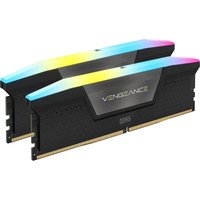
| Corsair Vengeance DDR5 SO-DIMM 32GB (2×16GB) 5600MHz | Top-rated DDR5 kit for gaming & productivity | View on Amazon UK |
| Kingston Fury Impact DDR5 SO-DIMM 32GB (2×16GB) 5600MHz | Excellent DDR5 alternative with XMP support | View on Amazon UK |
| Crucial DDR5 SO-DIMM 16GB 5600MHz | Affordable single-stick DDR5 | View on Amazon UK |
| G.Skill Ripjaws DDR5 SO-DIMM 32GB 5600MHz | High performance DDR5 for enthusiasts | View on Amazon UK |
| Samsung 990 Pro 2TB NVMe M.2 2280 | Fastest consumer NVMe — ideal for gaming & editing | View on Amazon UK |
| WD Black SN850X 2TB NVMe | Excellent Gen4 speed with heatsink option | View on Amazon UK |
| Crucial P5 Plus 1TB NVMe | Great value Gen4 SSD | View on Amazon UK |
| Kingston NV2 1TB NVMe | Budget-friendly with solid reliability | View on Amazon UK |
Prices and availability may vary. As an Amazon Associate, we earn from qualifying purchases.
Related Acer Upgrade Guides
- Best RAM for Acer Laptops 2026
- Acer TravelMate Spin P4 TMP414RN-53 (2023) RAM & SSD Upgrade Guide (2023)
- Acer TravelMate P6 TMP614-53 (2023) RAM & SSD Upgrade Guide (2023)
- Acer TravelMate P4 TMP416-52 (2024) RAM & SSD Upgrade Guide (2024)
- Acer TravelMate P4 TMP414-52 (2023) RAM & SSD Upgrade Guide (2023)
- Acer Upgrade Guide
Not sure what fits? Use our free Compatibility Checker covering 3,195+ models.