Affiliate disclosure: this page contains affiliate links — if you buy through them we may earn a commission at no extra cost to you. As an Amazon Associate we earn from qualifying purchases.
The Apple MacBook Air M2 (released July 2022) brought meaningful upgrades to the Air line: a faster chip, larger display option (15-inch), and MagSafe 3 charging. However, like its M1 predecessor, the M2 Air is still locked down when it comes to internal upgrades. Both RAM and SSD are soldered directly to the logic board, meaning you cannot expand either after purchase. This page covers what you need to know about spec selection, MagSafe 3 chargers, compatible docks, and external storage workarounds.
RAM: Unified Memory with No Upgrade Path
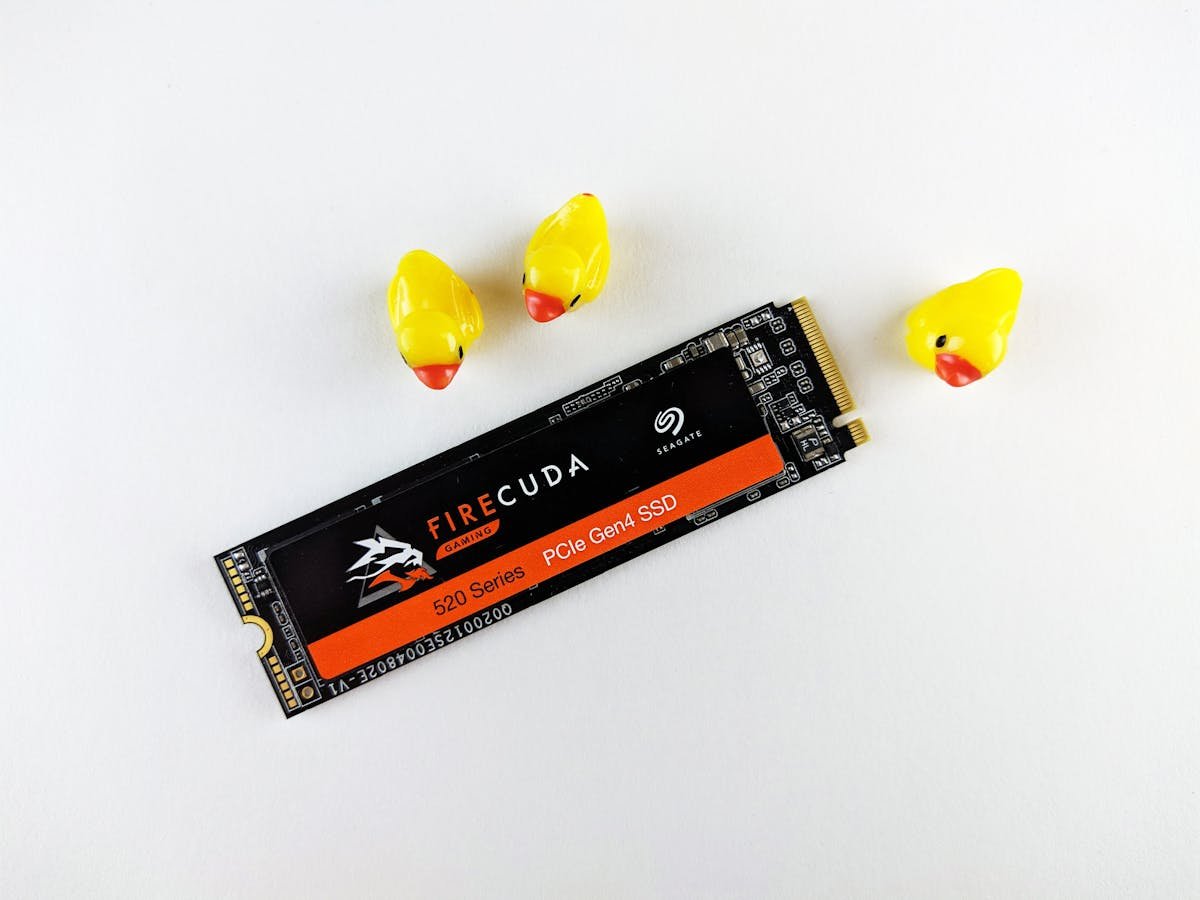
The MacBook Air M2 comes with 8GB, 16GB, or 24GB of unified memory, all soldered to the M2 package. Unlike traditional laptops with swappable RAM, these configurations are permanent. The 24GB option appeared mid-cycle as Apple pushed the Air higher into creative professional territory, but even this top-spec RAM cannot be upgraded later.
| Configuration | Unified Memory | Best For | Upgrade Recommendation |
|---|---|---|---|
| Base Model | 8GB | Light use: browsing, email, office work, streaming | Only if you replace this machine in 3 years |
| Standard | 16GB | Professional use: video editing, 3D work, software development, serious multitasking | Recommended for most buyers (best value) |
| High-end | 24GB | Heavy workloads: complex video projects, photography libraries, virtual machines, content creation | Only if you do professional creative work regularly |
Critical decision: If you plan to keep this machine for 4+ years and do any professional work at all, start with 16GB minimum. The M2’s increased GPU cores (vs M1) scale well with more unified memory, especially for video rendering.
SSD/Storage: Soldered with Important Performance Notes
The MacBook Air M2 ships with 256GB, 512GB, 1TB, or 2TB of internal SSD storage. All of it is soldered — no upgrades possible. However, there’s a critical performance caveat: the 256GB M2 Air uses a single NAND chip configuration, which results in slower speeds (~50% slower than 512GB+ models).
| Internal Storage | Speed Profile | Best For | Note |
|---|---|---|---|
| 256GB | ~2,000 MB/s (limited by single NAND) | Basic users only; light usage only | Slower due to single NAND chip. Avoid for creative work. |
| 512GB | ~3,500 MB/s (dual NAND) | General professional use | Sweet spot: good speed, reasonable cost |
| 1TB | ~3,500 MB/s (dual NAND) | Video editing, large media libraries | Same speed as 512GB, just more capacity |
| 2TB | ~3,500 MB/s (dual NAND) | Professional creatives, video production | Best for sustained workloads |
For most buyers: avoid the 256GB model entirely due to the single-NAND performance penalty. Start at 512GB minimum, or buy external Thunderbolt storage for expansion.
Charger Compatibility & MagSafe 3
The MacBook Air M2 introduces MagSafe 3 charging (and USB-C power delivery charging as a backup). This is a major quality-of-life improvement: the magnetic connector prevents accidental trips that would pull the machine off a desk. The M2 Air ships with a 30W USB-C adapter (base model), or a 35W dual USB-C charger or 70W USB-C charger, depending on the configuration.
| Charger Type | Wattage | Compatibility | Speed |
|---|---|---|---|
| Apple 35W Dual USB-C | 35W total (2× 35W output) | Works with MagSafe 3 and USB-C input | Standard charge speed |
| Apple 70W USB-C | 70W | Works with MagSafe 3 and USB-C input (faster charging when docked) | Faster than 35W; good for docking scenarios |
| Third-party MagSafe 3 chargers | 30W–60W | Compatible with MagSafe 3 connector; verify USB-C PD certification | Varies by model |
| USB-C Power Delivery (without MagSafe) | 30W–96W | Fully compatible; the MacBook draws only what it needs (~25W–35W under load) | Works, but no magnetic safety of MagSafe |
MagSafe 3 cables are backwards compatible with M1 devices but not universally across Mac models (each generation has slight differences in connector). Stick with Apple’s official chargers or certified third-party MagSafe 3 alternatives. For multi-device travel, the 35W dual USB-C is excellent — it can charge the MacBook and an iPhone simultaneously.
External Storage & Expansion
Because internal storage is fixed, external Thunderbolt and USB-C drives are essential for M2 Air users with large media libraries or active creative workflows. The M2 Air’s two Thunderbolt 3 / USB4 ports support high-speed expansion.
| External Storage Type | Speed | Best Use Case | Example Product |
|---|---|---|---|
| Portable Thunderbolt SSD | Up to 2,400 MB/s | On-the-go video work, project portability | OWC Envoy Pro EX |
| Portable USB-C NVMe SSD | Up to 1,050 MB/s | Portable media backup, general expansion | Samsung T7 |
| Desktop Thunderbolt Dock Drive | Up to 2,400 MB/s | Permanent desk-side expansion, fast I/O | SanDisk Extreme Pro |
Dock & Hub Compatibility
The MacBook Air M2 features two Thunderbolt 3 / USB4 ports on the left side. Like the M1, the M2 Air supports only 1 external display — a significant limitation for multi-monitor desk setups. This persists despite the M2’s improvements.
| Dock Type | Port Count | Display Support | Best For | Example |
|---|---|---|---|---|
| Thunderbolt 3 Dock | 6–13 USB ports + Thunderbolt passthrough | Single 5K or 6K display via Thunderbolt | Professional desk setups with one large monitor | CalDigit TS3 Plus |
| USB-C Hub (compact) | 4–8 USB-A/USB-C ports | Single external display (via USB-C Alt Mode) | Portable desk setups, lightweight | Anker 7-in-1 USB-C Hub |
| Standalone Thunderbolt display with dock | Built-in dock ports | Native single display support | All-in-one desk solution | LG UltraFine 5K with Thunderbolt |
Workaround for dual monitors: You can daisy-chain two Thunderbolt monitors through a single port, but this requires both monitors to support Thunderbolt daisy-chaining. For most users with two standard USB-C monitors, you’re limited to one.
MacBook Air M2 Specifications Summary
| Specification | Details |
|---|---|
| Processor | Apple M2 (8-core CPU, 10-core GPU) |
| Unified Memory (RAM) | 8GB, 16GB, or 24GB (soldered, not upgradeable) |
| Internal SSD | 256GB (single NAND — slower), 512GB, 1TB, or 2TB (dual NAND, soldered, not upgradeable) |
| Display Options | 13.3-inch or 15.3-inch Liquid Retina, 2560×1600 or 2880×1864, 500 nits |
| Ports | 2x Thunderbolt 3 / USB4, 1x MagSafe 3, 1x headphone jack |
| External Displays | Maximum 1 external display (or 2 via daisy-chaining Thunderbolt monitors) |
| Charging | MagSafe 3 + USB-C Power Delivery; 30W USB-C, 35W dual USB-C or 70W charger |
| Battery | 52.6 Wh (13-inch) or 52.6 Wh (15-inch); up to 15–17 hours claimed |
| Weight | 1.24 kg (13-inch) or 1.51 kg (15-inch) |
| Release Date | July 2022 |
Frequently Asked Questions
Is the 256GB M2 MacBook Air worth buying?
No, avoid it. The 256GB M2 uses a slower single-NAND configuration that cuts speeds roughly in half compared to 512GB+ models. For only slightly more money, a 512GB model is significantly faster and provides better long-term value. The 256GB penalty is not worth the savings.
Can I use the 35W dual USB-C charger to charge multiple devices?
Yes, the 35W dual USB-C charger has two USB-C ports, allowing you to charge your MacBook Air and another device (like an iPhone or iPad) simultaneously. Each port can supply up to 35W, but combined output is 35W total when both ports are in use.
Are MagSafe 3 chargers backward compatible with M1 MacBook Air?
No. MagSafe 3 (introduced with M2) is not compatible with M1 MacBooks, which use only USB-C charging. Each MagSafe generation has connector differences. Stick with chargers designed for your specific model.
Can I use a USB-C PD charger instead of the MagSafe charger?
Yes, the M2 Air accepts USB-C Power Delivery charging as a backup to MagSafe 3. Any USB-C PD charger (30W+) will work, though you lose the magnetic safety of MagSafe. The machine will only draw what it needs (~25W–35W).
How much should I spend on external storage?
For everyday use, a Samsung T7 (1TB) at ~£100–150 is excellent value. For professional video work, invest in a Thunderbolt SSD (2TB+) for sustained performance. Portable Thunderbolt drives cost more but are faster for active projects.
Recommended Products
These are the products we recommend based on this guide. All links go to Amazon where you can check current prices and availability.
| Product | Why We Recommend It | Amazon |
|---|---|---|
| WD Black SN850X 2TB NVMe | Excellent Gen4 speed with heatsink option | View on Amazon |
Prices and availability may vary. As an Amazon Associate, we earn from qualifying purchases.
Related Apple Upgrade Guides
- Which MacBooks Have Soldered SSD & RAM? Complete List (2012-2026)
- Can You Upgrade a MacBook? RAM, SSD & Storage Options by Model
- MacBook External Monitor Compatibility
- Apple MacBook Pro 15″ (2013)
- Apple Mac mini (2014)
- Apple Upgrade Guide
Not sure what fits? Use our free Compatibility Checker covering 3,195+ models.
Helpful Guides
Upgrades that fit the MacBook Air 13.6-inch
What fits: Memory: unified soldered to the board — not upgradeable · Storage: proprietary/soldered — no retail SSD fits · Charger: MagSafe 30/35/70W (USB-C charging supported)
Spec source: support.apple.com (checked 26 Sep 2026).
As an Amazon Associate we earn from qualifying purchases. Prices & availability shown on Amazon.