The Apple MacBook Pro 2012 (Non-Retina 13″ and 15″) is one of the last MacBook Pro models with user-replaceable RAM and a standard 2.5″ SATA SSD bay — making it highly upgradeable by modern standards. This guide covers memory specifications, SSD options, upgrading both RAM and storage, and compatible components for extending the lifespan of this classic machine.
User-Replaceable RAM Specifications
The MacBook Pro 2012 non-Retina features two DDR3L 1600MHz SO-DIMM slots, fully user-accessible without voiding warranty or requiring Apple service. This is a major advantage over later MacBook Pro generations, which solder RAM directly.
RAM specifications:
- Socket type: DDR3L 1600MHz SO-DIMM (204-pin)
- Slot count: 2 removable slots
- Maximum capacity: 16GB total (2x 8GB SO-DIMM modules)
- Factory configurations: 4GB, 8GB, or 16GB (2x8GB)
- Voltage: 1.35V low-voltage DDR3L (critical — do not use standard DDR3)
To upgrade RAM: power off the machine, locate the battery and remove it, unscrew the bottom panel, flip the SO-DIMM release levers outward, and slide in your new modules at a 45-degree angle until the retention clips snap shut.
Recommended RAM upgrades:
- Crucial DDR3L 8GB SO-DIMM (CT102464BF160B) — Two of these modules = 16GB total; excellent value for 2012 MacBook Pro upgraders
- Kingston DDR3L 8GB SO-DIMM — Reliable alternative; widely tested on 2012 MBP
- OWC 8GB DDR3L SO-DIMM — Premium option with OWC support
Upgrading from 4GB to 16GB dramatically improves multitasking performance, especially for photo editing, web development, and running multiple VMs. Most 2012 non-Retina users find 16GB adequate for contemporary workflows (2024+).
SSD Storage & Dual-Drive Setup
The MacBook Pro 2012 non-Retina features a 2.5″ SATA III hard drive bay that accepts standard 2.5″ SSDs and mechanical drives. Crucially, there is also an optical drive bay that can hold a second drive via OWC Data Doubler or similar caddy — allowing a two-drive configuration.
Storage options:
- Primary SATA bay: Replace original 5400 RPM HDD with SSD (e.g., 512GB–2TB)
- Secondary via caddy (optical bay): Add another 2.5″ SATA drive (SSD or HDD)
Recommended SSD upgrades:
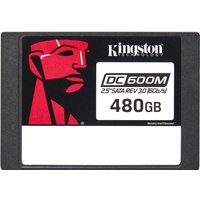
- Samsung 870 EVO 1TB or 2TB — Reliable SATA SSD; excellent performance for 2012 MBP; read/write ~560MB/s
- Kingston A400 2.5″ SATA SSD — Budget-friendly option; performs well in older systems
- Crucial BX500 — Solid mid-range SATA SSD for 2012 MacBook Pro
Dual-drive setup with OWC Data Doubler: Install 1TB Samsung 870 EVO in primary bay (OS and applications), use OWC Data Doubler caddy in optical bay with second 1TB SSD for photo/video libraries. This configuration gives 2TB total storage, ideal for photographers and videographers on a budget.
Installation & Upgrade Process
The 2012 non-Retina is one of the most user-serviceable MacBook Pro models:
- Time required: 15–30 minutes for RAM upgrade; 30–45 minutes for SSD swap; 1–2 hours for dual-drive setup
- Tools needed: #00 Phillips screwdriver, spudger or plastic pry tool, antistatic wrist strap (recommended)
- No warranty void: Opening the bottom panel does not void AppleCare coverage (pre-2012 advantage)
Key steps:
- Power down, unplug AC adapter and remove battery
- Unscrew bottom panel (10 screws; keep in order — some are different lengths)
- For RAM: flip SO-DIMM release levers and slide out old modules; insert new ones at 45° and press down until clips secure
- For SSD: disconnect SATA cable from original drive, unscrew four mounting brackets, slide SSD into bay, reattach bracket and cable
- For dual-drive: remove optical drive assembly, insert OWC Data Doubler caddy into optical bay, mount second SSD in caddy
- Reinstall bottom panel, reconnect battery, power on
OS X will detect new hardware automatically. No firmware updates or complex configuration needed.
Charger & Power Specifications
The MacBook Pro 2012 non-Retina uses MagSafe 1 charging (Apple’s first-generation MagSafe connector).
Power adapter options:
- 13″ MacBook Pro 2012: 60W MagSafe 1 adapter
- 15″ MacBook Pro 2012: 85W MagSafe 1 adapter
Original chargers are increasingly scarce. Third-party USB-C PD adapters will NOT work (different connector). Look for used genuine Apple MagSafe 1 adapters on second-hand marketplaces. If the connector is damaged, soldering repair by a professional tech shop is possible but expensive.
Hardware Specifications Table
| Component | Specification (13″) | Specification (15″) | Notes |
|---|---|---|---|
| Processor | Intel Core i5-2415M or i7-2615QM | Intel Core i5-2410M or i7-2620QM (quad-core) | Non-upgradeable; soldered to logic board |
| Memory | DDR3L 1600MHz SO-DIMM, 2 slots, max 16GB (2x8GB) | USER-REPLACEABLE — major advantage | |
| Storage | 2.5″ SATA III; primary bay + optical drive bay (caddy) | Standard SATA — any 2.5″ SSD compatible | |
| Charging | 60W MagSafe 1 | 85W MagSafe 1 | Different connector from modern Macs |
| Video | Intel HD Graphics 3000 | Intel HD Graphics 3000 or AMD Radeon | Integrated; not upgradeable |
| Ports | 2x USB 2.0, 2x Thunderbolt 1, HDMI, SD card, Ethernet, audio jack | Thunderbolt 1 is much slower than TB4 | |
Frequently Asked Questions
Can I upgrade the CPU in a 2012 MacBook Pro?
No. The CPU is soldered to the logic board. You can only upgrade RAM and storage.
What’s the maximum RAM for 2012 MacBook Pro?
16GB total (two 8GB DDR3L SO-DIMM modules). This is the practical limit despite some claims of 32GB compatibility — 32GB modules are not designed for 1.35V operation and risk instability.
Will a modern SSD work in 2012 MacBook Pro?
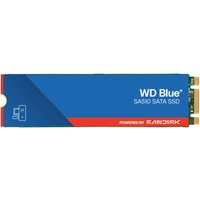
Yes. Any 2.5″ SATA SSD (Samsung 870 EVO, Kingston, Crucial) works perfectly. Avoid NVMe M.2 SSDs — they require a different connector. Stick to standard 2.5″ SATA form factor.
Can I run current macOS on a 2012 non-Retina?
The 2012 non-Retina maxes out at OS X El Capitan (10.11). Modern macOS (Monterey, Ventura, Sonoma) requires 2015 or newer hardware. Plan for Big Sur (11.x) or Monterey (12.x) as the practical limit for upgradeable compatibility.
Should I use an OWC Data Doubler or single larger SSD?
If budget allows, a single large SSD (1–2TB) is simpler and faster. If you want maximum storage for media (photos, video), the Data Doubler + two SSDs (1TB each) gives 2TB total at lower cost than a single 2TB upgrade.
What’s the difference between 2012 Retina and Non-Retina MacBook Pro?
2012 Retina (released later in year) has a higher-res screen but soldered RAM — you cannot upgrade memory. Non-Retina has user-replaceable RAM and storage. For upgradeability, Non-Retina is far superior. For modern display quality, Retina is better.
Is upgrading a 2012 MacBook Pro worth it in 2024?
Yes if: you need a budget machine for web browsing, writing, and light photo editing. No if you need to run modern creative software (Adobe CC, Final Cut Pro, DaVinci Resolve) — OS limits (El Capitan) prevent installation. For retro computing or lightweight workflows, upgrading a 2012 to 16GB + SSD is cost-effective.
Recommended Products
These are the products we recommend based on this guide. All links go to Amazon UK where you can check current prices and availability.
| Product | Why We Recommend It | Amazon UK |
|---|---|---|
| Corsair Vengeance DDR4 SO-DIMM 32GB (2×16GB) 3200MHz | Best overall DDR4 upgrade kit | View on Amazon UK |
| Kingston Fury Impact DDR4 SO-DIMM 32GB (2×16GB) 3200MHz | Reliable alternative with tight latency | View on Amazon UK |
| Crucial DDR4 SO-DIMM 16GB 3200MHz | Budget single-stick upgrade | View on Amazon UK |
| Samsung DDR4 SO-DIMM 32GB 3200MHz | OEM-quality for business laptops | View on Amazon UK |
| Samsung 990 Pro 2TB NVMe M.2 2280 | Fastest consumer NVMe — ideal for gaming & editing | View on Amazon UK |
| WD Black SN850X 2TB NVMe | Excellent Gen4 speed with heatsink option | View on Amazon UK |
| Crucial P5 Plus 1TB NVMe | Great value Gen4 SSD | View on Amazon UK |
| Kingston NV2 1TB NVMe | Budget-friendly with solid reliability | View on Amazon UK |
Prices and availability may vary. As an Amazon Associate, we earn from qualifying purchases.
Related Apple Upgrade Guides
- Which MacBooks Have Soldered SSD & RAM? Complete List (2012-2026)
- Can You Upgrade a MacBook? RAM, SSD & Storage Options by Model
- MacBook External Monitor Compatibility
- Apple MacBook Pro 15″ (2013)
- Apple Mac mini (2014)
- Apple Upgrade Guide
Not sure what fits? Use our free Compatibility Checker covering 3,195+ models.