Affiliate disclosure: this page contains affiliate links — if you buy through them we may earn a commission at no extra cost to you. As an Amazon Associate we earn from qualifying purchases.
The Framework Laptop 13 Intel (13th and 14th Gen) represents a revolutionary approach to laptop design: a fully modular, completely repairable machine where RAM, storage, and input/output are entirely user-replaceable. Unlike most modern laptops that solder components into submission, every major component on the Framework Laptop 13 Intel can be swapped, upgraded, or replaced by the user with just a screwdriver. This is the most upgradeable 13-inch laptop on the market.
What Makes the Framework Laptop 13 Intel Different
Framework’s core mission is “longevity through modularity.” The machine features standard SO-DIMM slots (not proprietary), a standard M.2 2280 NVMe SSD slot, and a unique modular expansion card system where you can swap I/O ports (USB-A, USB-C, HDMI, DisplayPort, MicroSD) on the fly. This is not a laptop designed to be thrown away when one component fails—it’s designed to be repaired, upgraded, and customized for your exact needs.
Framework provides full repair guides, sells replacement parts directly, and fully supports third-party repairs. The mainboard itself is even user-replaceable if you want to upgrade to a newer generation of Intel chips.
RAM Compatibility & Upgrade Options
The Framework Laptop 13 Intel comes with two SO-DIMM slots (DDR4-3200 on 11th-13th Gen, DDR5-5600 on Core Ultra) supporting standard laptop memory modules. This is crucial: Framework uses industry-standard SO-DIMM form factor, not proprietary packages. You can upgrade, replace, or mix and match RAM from any reputable manufacturer.
| Configuration | RAM Capacity | Module Type | Maximum | Best For |
|---|---|---|---|---|
| Base Config | 16GB (2×8GB) | DDR4-3200 or DDR5-5600 SO-DIMM | 64GB (DDR4) or 96GB (Core Ultra) | General productivity, web browsing, office work |
| Upgraded Config | 32GB (2×16GB) | DDR4-3200 or DDR5-5600 SO-DIMM | 64GB (DDR4) or 96GB (Core Ultra) | Software development, light video editing, heavy multitasking |
| Maximum Config | 64GB (2×32GB) | DDR4-3200 or DDR5-5600 SO-DIMM | 96GB on Core Ultra (2x48GB) | Professional video/3D work, running virtual machines, future-proofing |
Compatible SO-DIMM modules (DDR4-3200 for 11th-13th Gen, DDR5-5600 for Core Ultra) from Kingston, Crucial, Corsair, G.Skill, and others all work. Framework recommends 5600 MHz modules (on Core Ultra boards), though 4800 MHz will function at reduced speed. To upgrade, simply pop off the keyboard bezel, remove the existing modules, and install new ones—no proprietary tools required beyond a small screwdriver.
Framework directly sells Kingston DDR5 SO-DIMM memory and other vendors’ modules at their store. For best value on Amazon, search for “DDR4-3200 or DDR5-5600 SO-DIMM” and verify the frequency matches your system.
SSD/Storage Compatibility & Upgrade Options
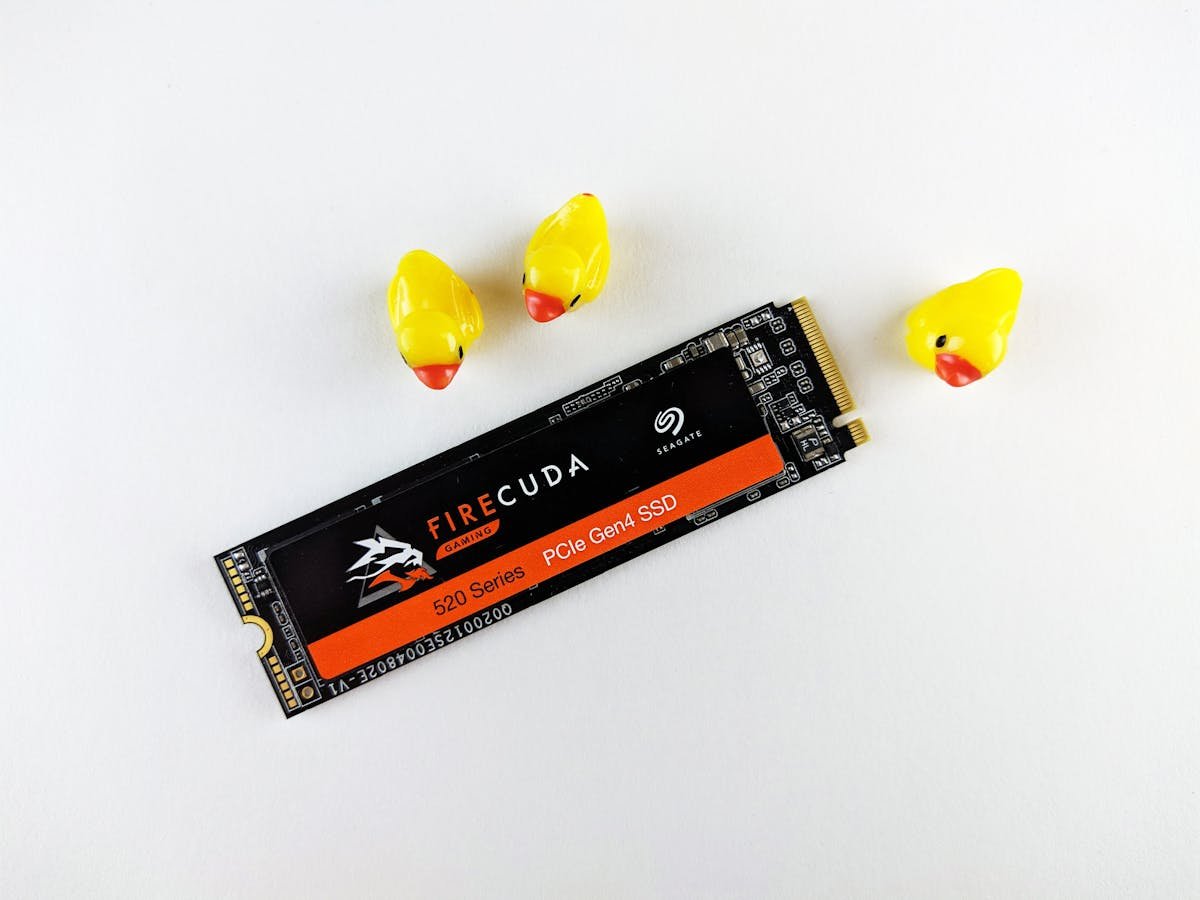
The Framework Laptop 13 Intel has a single M.2 2280 NVMe slot supporting PCIe Gen 4 drives at standard speeds. Unlike the Framework Laptop 16 (which has two SSD slots), the 13-inch model has one primary slot, but you can replace or upgrade it to any standard M.2 2280 NVMe SSD.
| SSD Type | Form Factor | Speed | Compatibility | Best Use Case |
|---|---|---|---|---|
| Samsung 990 EVO | M.2 2280 NVMe PCIe 4.0 | 5,000 MB/s | Fully compatible | General-purpose, excellent value |
| Crucial P5 Plus | M.2 2280 NVMe PCIe 4.0 | 6,600 MB/s | Fully compatible | Fast storage, good thermal management |
| WD Black SN850X | M.2 2280 NVMe PCIe 4.0 | 7,100 MB/s | Fully compatible | High-performance, gaming/creative work |
| SK Hynix Platinum P41 | M.2 2280 NVMe PCIe 4.0 | 7,100 MB/s | Fully compatible | Performance + thermals, excellent endurance |
| Kioxia Exceria Pro | M.2 2280 NVMe PCIe 4.0 | 7,400 MB/s | Fully compatible | Fastest available PCIe 4.0 |
To replace the SSD: remove the keyboard bezel, locate the single M.2 slot on the mainboard, slide out the existing drive at a 30-degree angle, and insert the new one. Framework’s repair guides include step-by-step photos. For most users, a Samsung 990 EVO or Crucial P5 Plus offers the best balance of speed and cost.
Expansion Cards & Ports
The Framework Laptop 13 Intel’s defining feature is its modular expansion card system. Instead of being stuck with fixed ports, you swap expansion cards on the left and right sides of the chassis. There are four expansion card bays (two on each side), and Framework (plus third-party makers) make cards for:
| Expansion Card Type | Description | Best For |
|---|---|---|
| USB-C Expansion Card | Two USB-C 3.1 ports (5 Gbps), full power delivery passthrough | Charging docks, external drives, peripherals |
| USB-A Expansion Card | Three USB-A 3.0 ports (5 Gbps) | Legacy peripherals, traditional mice/keyboards |
| HDMI Expansion Card | Full-size HDMI 2.0b port | Projectors, conference rooms, TV displays |
| DisplayPort Expansion Card | Full-size DisplayPort 1.4 connector | High-refresh monitors, daisy-chaining displays |
| MicroSD Card Reader | Ultra-portable card reader for cameras | Photographers, content creators |
| Storage Expansion Card (third-party) | Adds an M.2 2230 NVMe SSD in expansion slot | Extra storage, portable external drive |
Framework ships with one USB-C, one USB-A, one HDMI, and one DP card by default. You can buy additional or replacement cards from Framework directly, and third-party makers like Noctua, Seagate, and others are launching Framework-compatible accessories. The beauty: no adapter cables cluttering your bag.
Charger & Power Delivery Compatibility
The Framework Laptop 13 Intel uses USB-C Power Delivery for charging and Framework’s official adapter is 60W. The crucial feature: you can charge from any USB-C port on the machine—there’s no proprietary connector, so any compatible charger works.
| Charger Type | Wattage | Compatibility | Charging Speed |
|---|---|---|---|
| Framework Official USB-C (stock) | 65W | Perfect match, all ports | Standard (included) |
| Third-party USB-C PD 65W | 65W | Fully compatible | Standard |
| Higher-wattage PD chargers (100W, 140W) | 100W+ | Compatible—Framework will only draw 65W | Same as 65W (Framework throttles to 65W max) |
| Older 60W PD charger | 60W | Compatible (matches Framework’s official 60W adapter) | Slightly reduced speed under full load |
| Laptop chargers from other brands (Dell, Lenovo, etc.) | Variable | Incompatible (different connector) | N/A |
For travel or desk setups, any multi-port USB-C PD charger (60W or higher) works perfectly. Look for Anker 65W USB-C PD chargers or similar—they’re far cheaper than Framework’s official charger and offer the same functionality. For maximum flexibility, a 140W multi-port charger can power your Framework and charge other devices simultaneously.
Dock & Hub Compatibility
Because the Framework Laptop 13 Intel uses standard USB-C, it works with any USB-C dock or hub. However, its modular expansion cards often eliminate the need for a traditional dock entirely—you can just swap cards based on your environment.
| Dock Type | Port Count | Video Output | Power Delivery | Best For |
|---|---|---|---|---|
| Thunderbolt 4 Dock | 6–13 USB ports | Dual 4K@60Hz or single 6K | 96W–100W | Maximum connectivity and video options |
| USB-C Hub (compact) | 4–8 USB ports | Single 4K display (via USB-C DP Alt Mode) | 60W–100W | Portable, lightweight desk setups |
| USB-C Hub with HDMI | 4–6 USB ports + HDMI | Single 4K via HDMI | 60W–100W | Conference rooms, projection setups |
| No dock (expansion cards only) | N/A (swap cards as needed) | HDMI or DP via expansion card | Charge via any USB-C card | Minimalist travel setup, no cable clutter |
A universal approach: for desk work, use a USB-C dock and keep your favorite expansion cards installed. For travel, swap in a USB-C card and a storage card, leaving the HDMI/DP cards at home. Framework’s modularity means you’re never forced into a one-size-fits-all docking solution.
Framework Laptop 13 Intel Specifications Summary
| Specification | Details |
|---|---|
| Processor Options | Intel Core i5-1340P, i7-1360P, i7-1370P (13th Gen) or i5-1450P, i7-1480P (14th Gen) |
| RAM | 2×SO-DIMM slots (DDR4-3200 or DDR5-5600), up to 64GB (96GB on Core Ultra), user-replaceable |
| Storage | 1×M.2 2280 NVMe PCIe Gen 4, user-replaceable |
| Display | 13.3-inch IPS LCD, 2256×1504, 60Hz, matte finish (glossy available) |
| Ports (internal) | 3×USB-C (Thunderbolt 4 on i7, USB4 on i5), 1×headphone jack |
| Expansion Card Bays | 4 total (2 per side), fully modular with USB-A, USB-C, HDMI, DP, MicroSD, etc. |
| Charging | USB-C Power Delivery, 60W official adapter, any USB-C port |
| Battery | 55 Wh (user-replaceable) |
| Weight | 1.3 kg (2.9 lbs) |
| Repairability | 9/10 iFixit score—fully user-replaceable mainboard, battery, keyboard, display |
| Warranty | 1-year standard, 2-year available; parts sold directly by Framework |
Frequently Asked Questions
Can I upgrade to 64GB of RAM?
Yes. The Framework Laptop 13 Intel supports up to 64GB total RAM (2×32GB DDR4-3200 SO-DIMM modules on 11th-13th Gen boards; Core Ultra boards take DDR5-5600 up to 96GB). Simply purchase two 32GB modules and swap them in via the keyboard bezel. All major memory manufacturers (Kingston, Crucial, Corsair, G.Skill) offer compatible modules.
What SSD sizes fit the Framework Laptop 13?
Only M.2 2280 NVMe drives fit the single SSD slot. The form factor is standard, so any reputable manufacturer works. Avoid M.2 2242 (too short) and M.2 2230 (the Framework Laptop 16 uses 2230 in one slot, but the 13-inch requires 2280 in its single slot). If you want extra storage, use the optional storage expansion card that Framework or third parties may offer.
Can I use any USB-C charger?
Yes. Any USB-C Power Delivery charger rated 60W or higher will work. USB-C allows charging from any of the three USB-C ports on the Framework Laptop 13 Intel. Multi-port USB-C chargers (like a 140W Anker charger) are especially useful for charging the Framework and other devices from one outlet while traveling.
What expansion cards do I really need?
Framework includes one of each common type (USB-A, USB-C, HDMI, DisplayPort). For most users, this baseline covers 80% of needs. Photographers or content creators may add the MicroSD card reader expansion card. If you work at a desk, you might leave USB-A and USB-C cards installed and swap HDMI/DP based on your monitor setup.
Can I connect two external displays to the Framework Laptop 13 Intel?
Yes. The Framework Laptop 13 Intel supports two external displays if you use USB-C DP Alt Mode on one card (supports single 4K) and HDMI or DP expansion cards for the second display. This requires careful expansion card placement and compatible hubs/adapters, but is achievable. For maximum ease, use a Thunderbolt 4 dock that handles display daisy-chaining.
Recommended Products
These are the products we recommend based on this guide. All links go to Amazon where you can check current prices and availability.
| Product | Why We Recommend It | Amazon |
|---|---|---|
| Corsair Vengeance DDR5 SO-DIMM 32GB (2×16GB) 5600MHz | Top-rated DDR5 kit for gaming & productivity | View on Amazon |
| Kingston Fury Impact DDR5 SO-DIMM 32GB (2×16GB) 5600MHz | Excellent DDR5 alternative with XMP support | View on Amazon |
| Crucial DDR5 SO-DIMM 16GB 5600MHz | Affordable single-stick DDR5 | View on Amazon |
| G.Skill Ripjaws DDR5 SO-DIMM 32GB 5600MHz | High performance DDR5 for enthusiasts | View on Amazon |
| WD SN770M 1TB M.2 2230 NVMe | Best 2230 SSD for Dell, Surface, Steam Deck | View on Amazon |
| Sabrent Rocket 2230 1TB | Fast 2230 alternative | View on Amazon |
| Samsung PM991a 1TB 2230 | OEM-grade 2230 at good prices | View on Amazon |
| Samsung 990 Pro 2TB NVMe M.2 2280 | Fastest consumer NVMe — ideal for gaming & editing | View on Amazon |
Prices and availability may vary. As an Amazon Associate, we earn from qualifying purchases.
Related Framework Upgrade Guides
- Dynabook Satellite Pro C50-J RAM & SSD Upgrade Guide
- Dynabook Portege X40-K RAM & SSD Upgrade Guide
- Dynabook Portege X30L-K RAM & SSD Upgrade Guide
- Dynabook Tecra A50-K RAM & SSD Upgrade Guide
- Dynabook Tecra A40-K RAM & SSD Upgrade Guide
- Framework Upgrade Guide
Not sure what fits? Use our free Compatibility Checker covering 3,195+ models.
Helpful Guides
Recommended upgrades
As an Amazon Associate we earn from qualifying purchases. Prices & availability shown on Amazon.