The Lenovo Legion 5 Gen 8 (2023) is the sweet spot for mid-range gaming—delivering AMD Ryzen 7 7745HX or Intel Core i7-13700H performance with RTX 4050/4060 graphics at a price that doesn’t demand a second mortgage. If you’ve just grabbed one, or you’re thinking about it, here’s everything you need to know about upgrading RAM, storage, and power delivery.
RAM Compatibility & Upgrade Guide

The Legion 5 Gen 8 ships with 2× DDR5-5600 SO-DIMM slots, supporting up to 32GB total (2×16GB). Both slots are user-accessible—you’ll need to remove the base panel, which takes roughly 10 minutes with a Phillips screwdriver.
What to buy:
- Corsair DOMINATOR SODIMM DDR5-5600 – Premium option, excellent timings (CAS 28)
- Kingston Fury Beast DDR5-5600 – Best value, great stability
- SK Hynix Fury Beast DDR5-5600 – OEM-grade, rock-solid reliability
Important notes:
- Both slots must be populated for dual-channel performance (huge speed boost)
- Upgrade from base 8GB to 16GB gives a noticeable FPS bump in demanding games
- Mixing brands/timings is safe—the BIOS will dial down to the slower spec
- Warranty typically survives RAM upgrades (Lenovo doesn’t void it for this)
SSD & Storage Compatibility
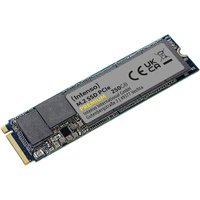
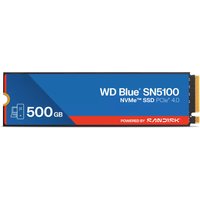
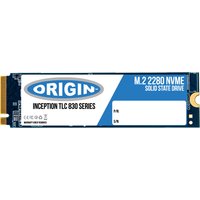
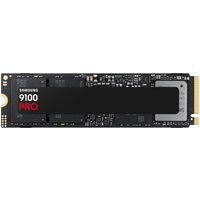
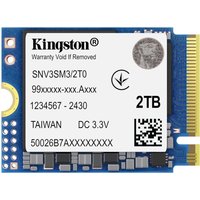
The Gen 8 offers 2× M.2 2280 PCIe Gen 4 NVMe slots, both user-swappable. Most configs ship with a single 512GB drive in slot 1; slot 2 is typically empty.
Recommended SSDs (all PCIe 4.0):
| Drive | Capacity | Speed | Best For | Link |
|---|---|---|---|---|
| Samsung 990 EVO | 500GB–2TB | 5,000 MB/s | Best overall value | Amazon UK |
| WD Black SN850X | 500GB–2TB | 7,100 MB/s | Gaming, speed matters | Amazon UK |
| Sabrent Rocket 4 Plus | 500GB–2TB | 7,000 MB/s | Best budget speed | Amazon UK |
| Crucial P5 Plus | 500GB–2TB | 6,600 MB/s | Rock-solid, cool | Amazon UK |
How to upgrade:
- Power off, unplug, wait 30 seconds
- Remove the bottom panel (5–7 screws)
- Locate the M.2 slot (usually near the battery)
- Gently remove the retaining screw; slide the drive in at 30°, then press down and re-screw
- Boot—Windows 11 will auto-detect and initialize the new drive
Storage strategy: Install the OS on the first drive (usually 512GB); use the second slot for games and projects. The Legion 5 Gen 8 doesn’t bottleneck PCIe 4.0 speeds, so you’ll see real load-time improvements.
Charger & Power Compatibility
The Legion 5 Gen 8 uses a 170W Slim Tip barrel connector (on most SKUs; some regions ship with 230W). The charger tip is proprietary—you cannot use a universal charger without an adapter.
Stock charger specs:
- 170W Slim Tip (AMD Ryzen 7, RTX 4050/4060 configs)
- 230W Slim Tip (top-tier i7-13700H + RTX 4060 combos)
- USB-C Power Delivery: Supports up to 100W via USB-C 3.2 Gen 2 port (laptops can trickle-charge at 50–100W, not ideal for gaming under load)
Replacement charger buying guide:
- Official Lenovo charger: £50–80, guaranteed fit and full power delivery
- Third-party Slim Tip (170W): £25–40, read reviews carefully—many fakes exist
- USB-C 140W charger + cable: Works for light work/charging when gaming lightly, not recommended for sustained 3D loads
Travel tip: If you’re going abroad, the USB-C charging option (if your config supports 100W) is lighter and more universal—but bring the barrel charger for gaming sessions.
Dock & Hub Compatibility
The Legion 5 Gen 8 offers limited native ports, so a dock/hub is essential for productivity:
- 2× USB 3.2 Gen 1 Type-A (5 Gbps)
- 2× USB 2.0 Type-A (480 Mbps)
- 1× HDMI 2.1 (supports up to 4K@60Hz)
- 1× USB-C 3.2 Gen 2 (10 Gbps, no Thunderbolt)
- 3.5mm audio jack
- No SD card reader (models starting Gen 8 dropped this)
Best docks for Legion 5 Gen 8:
| Dock | Ports | Best For | Link |
|---|---|---|---|
| Anker PowerExpand Elite 13-in-1 | HDMI, USB-A×4, SD, Ethernet, USB-C PD | Desktop setup, charger replacement | Amazon UK |
| CalDigit TS4 | Thunderbolt 4 (overkill for Gen 8, but future-proof) | Professional creative work | Amazon UK |
| Belkin USB-C Hub (7-in-1) | USB-A×3, HDMI, USB-C PD, Ethernet | Compact, office-friendly | Amazon UK |
Pro tip: The Legion 5 Gen 8 doesn’t have Thunderbolt, so avoid overkill docks. Stick with USB-C 3.2 Gen 2 hubs—they’re cheaper and fully compatible.
Full Specifications Table
| Component | Specification |
|---|---|
| Processor | AMD Ryzen 7 7745HX OR Intel Core i7-13700H (8 cores, up to 5.0 GHz) |
| GPU | NVIDIA RTX 4050 (6GB GDDR6) OR RTX 4060 (8GB GDDR6) |
| Display | 16″ WQXGA (2560×1600), 165Hz, IPS, 300 nits |
| RAM | 2× DDR5-5600 SO-DIMM, up to 32GB (SODIMM upgradeable) |
| Storage | 2× M.2 2280 NVMe PCIe Gen 4 (user-swappable) |
| Charger | 170W OR 230W Slim Tip barrel (config-dependent) |
| USB-C Charging | Yes, supports up to 100W Power Delivery (PD) for slow charging |
| Thunderbolt | None—USB-C 3.2 Gen 2 only |
| Ports | USB-A×4 (2× Gen 1, 2× Gen 2.0), USB-C, HDMI 2.1, 3.5mm jack |
| Weight | ~2.65 kg (5.85 lbs) |
| Battery | 80Wh (5–6 hrs light use, 2–3 hrs gaming) |
| Warranty | 1 year limited (upgradeable to 3 years + accidental damage) |
| Upgradeability Rating | ★★★★★ (RAM & SSD both fully user-accessible) |
Frequently Asked Questions
Can I upgrade the GPU in the Legion 5 Gen 8?
No. The RTX 4050/4060 is soldered to the motherboard. GPU upgrades are not possible on any modern gaming laptop. If you need more graphics power, consider the Legion 5 Pro Gen 8 (RTX 4070/4080 options) or the Legion 7 (RTX 4080/4090).
What’s the difference between the 170W and 230W chargers?
The 230W charger fills the battery faster and provides more headroom during gaming sessions. If your Legion 5 Gen 8 ships with 170W but you regularly game on battery power, upgrading to 230W is worth the £30–50 premium. Most users won’t notice the difference if they charge overnight.
Is the Legion 5 Gen 8 good for gaming in 2024?
Absolutely. The RTX 4050/4060 still handles 1440p gaming at 60–100+ FPS in competitive titles. For single-player AAA games at max settings, expect 40–60 FPS. It’s a solid 1-2 year investment. Upgrade the RAM to 32GB and add a second SSD, and you’ve got a future-proof mid-range gaming machine.
Does the Legion 5 Gen 8 have Thunderbolt 4?
No. It has USB-C 3.2 Gen 2 (10 Gbps), which is still fast for external drives and docks. Thunderbolt 4 is reserved for the Legion 7 (Intel) variants. If you need Thunderbolt, look at the Legion 7 Gen 8 or 9.
How much thermal paste or cooling paste should I use when replacing the SSD?
You don’t need to use any. SSDs don’t require thermal paste. However, if you’re repasting the CPU/GPU heatspreader (a separate advanced upgrade), use a pea-sized dot of Thermal Grizzly Kryonaut or similar (0.5ml). The Legion 5 Gen 8 ships with decent thermal paste from the factory.
Related Lenovo Upgrade Guides
- Lenovo Battery Replacement: ThinkPad, IdeaPad & Legion Step-by-Step
- Best RAM for Lenovo ThinkPad in 2026
- Lenovo ThinkSystem SR665 V3 RAM & SSD Upgrade Guide (2023)
- Lenovo ThinkSystem SR665 RAM & SSD Upgrade Guide (2020)
- Lenovo ThinkSystem SR645 RAM & SSD Upgrade Guide (2020)
- Lenovo Upgrade Guide
Not sure what fits? Use our free Compatibility Checker covering 3,195+ models.