Razer Razer Blade 14 2023 (2023) Specifications
The Razer Razer Blade 14 2023 (2023) is a gaming laptop designed for enthusiasts seeking strong performance. This guide covers RAM, SSD, charger compatibility, and upgrade paths for this model. For a comprehensive overview of all Razer upgradeable models, visit the Razer Laptop Upgrades hub.
| Component | Specification |
|---|---|
| Processor | Ryzen 9 7940HS + RTX 4060 / RTX 4070 |
| RAM | LPDDR5x, 0 slots (soldered) |
| Max RAM | 16GB (soldered) |
| Storage | M.2 2280 NVMe PCIe Gen4, 1 slot |
| Charger | 230W Barrel |
| Ports | 2x Thunderbolt 4, 2x USB 3.2, 1x HDMI 2.1, 1x SD |
| Display | 14.0″ QHD IPS 165Hz |
| Weight | 1.78 kg (3.92 lbs) |
Memory Upgrade Path
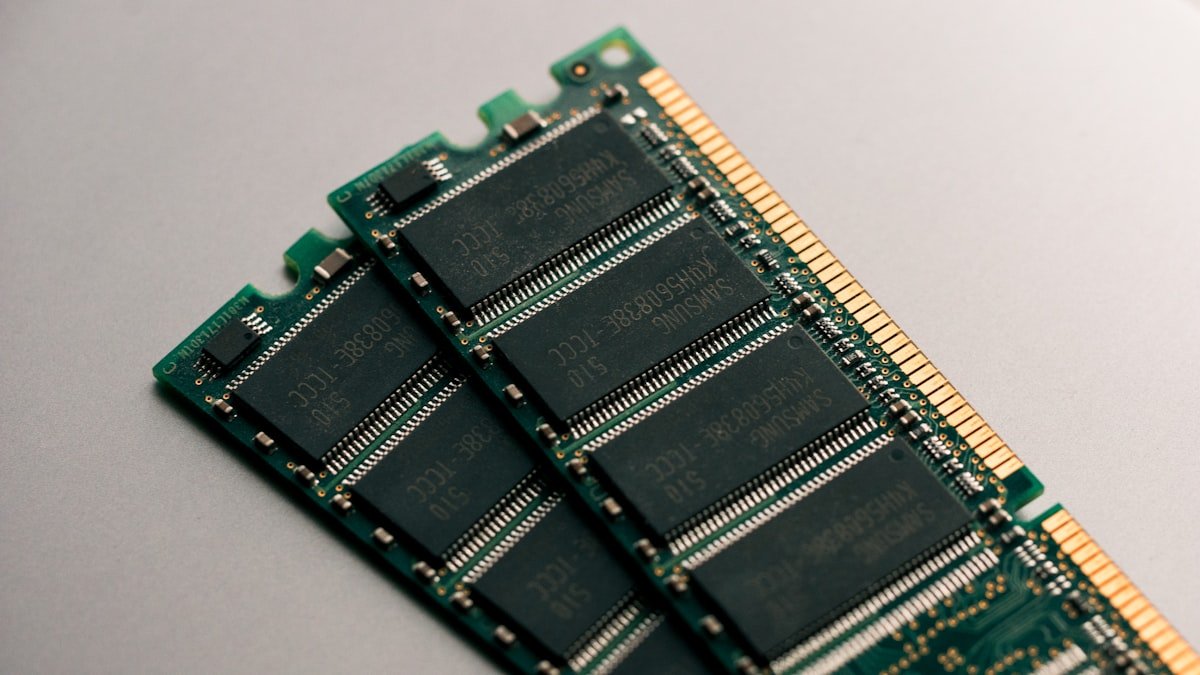
The Razer Blade 14 2023 has soldered LPDDR5x RAM (16GB (soldered)) which cannot be upgraded after purchase. Select the maximum RAM configuration when buying.
Important: Since the RAM is not user-replaceable, we recommend opting for at least 16GB at purchase to ensure adequate performance for years to come.
Storage Expansion
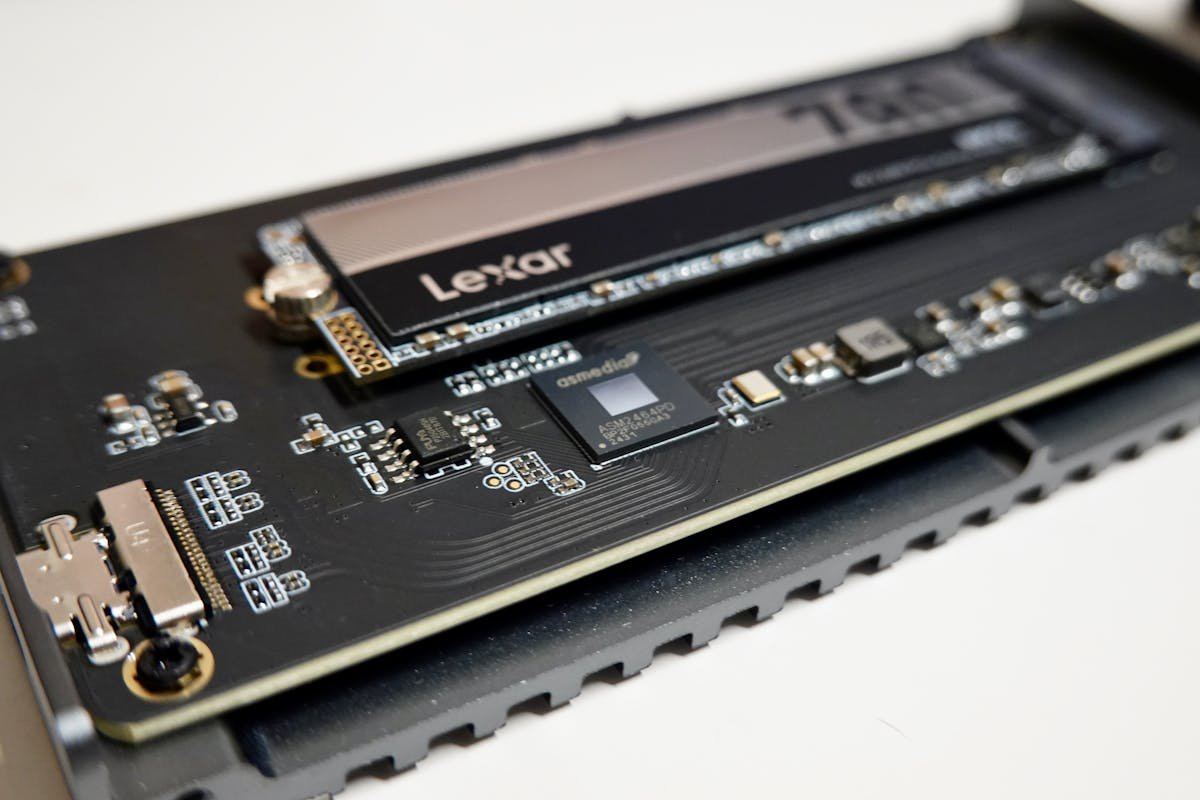
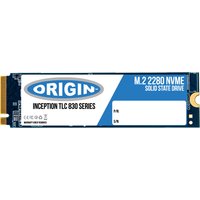
The Razer Blade 14 2023 uses a standard M.2 2280 NVMe SSD with a NVMe PCIe Gen4 interface. The single M.2 slot supports drives up to 2TB.
Recommended M.2 2280 SSDs:
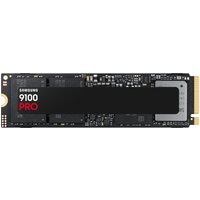
- Samsung 990 Pro NVMe 2280 — Flagship NVMe SSD with exceptional speeds.
- WD Black SN850X 2280 — High-performance NVMe with excellent sustained writes.
- Crucial P5 Plus NVMe 2280 — Excellent value NVMe with strong real-world performance.
Power Delivery & Charging
The Razer Blade 14 2023 uses a 230W Barrel charger. This uses a proprietary barrel connector. Use the original charger or a compatible replacement rated for the same wattage.
Port & Docking Capabilities
Connectivity: 2x Thunderbolt 4, 2x USB 3.2, 1x HDMI 2.1, 1x SD
The Thunderbolt 4 ports provide fast external storage and high-bandwidth peripherals. Consider a Thunderbolt dock like the CalDigit TS4 or Belkin Thunderbolt 4 Dock Pro for desktop expansion.
Upgrade Difficulty & Tools Required
The Razer Blade 14 2023 has a difficulty rating of 2/5 for upgrades (5 = easiest). The upgrade process is difficult — limited user-accessible components.
Tools needed:
- Phillips screwdriver (M2.5 or similar)
- Plastic spudger or pry tool (for bottom panel clips)
- ESD wrist strap (optional but recommended)
We recommend backing up your data and consulting the official service manual before opening the chassis.
Frequently Asked Questions
Can I upgrade the RAM in the Razer Razer Blade 14 2023?
The Razer Blade 14 2023 has soldered RAM (16GB (soldered)) which cannot be upgraded after purchase. Choose the maximum RAM when buying.
What is the maximum RAM for the Razer Blade 14 2023?
The Razer Blade 14 2023 supports up to 16GB (soldered) of LPDDR5x memory.
Can I add a second SSD to the Razer Blade 14 2023?
The Razer Blade 14 2023 has 1 M.2 slot. You can replace the existing SSD with a larger drive.
What charger does the Razer Blade 14 2023 need?
The Razer Blade 14 2023 uses a 230W Barrel charger.
Is the Razer Blade 14 2023 easy to upgrade?
The Razer Blade 14 2023 has a difficulty rating of 2/5. Consider professional assistance for upgrades.
Recommended Products
These are the products we recommend based on this guide. All links go to Amazon UK where you can check current prices and availability.
| Product | Why We Recommend It | Amazon UK |
|---|---|---|
| Samsung 990 Pro NVMe 2280 | Flagship NVMe SSD with exceptional speeds. | View on Amazon UK |
| WD Black SN850X 2280 | High-performance NVMe with excellent sustained writes. | View on Amazon UK |
| Crucial P5 Plus NVMe 2280 | Excellent value NVMe with strong real-world performance. | View on Amazon UK |
Prices and availability may vary. As an Amazon Associate, we earn from qualifying purchases.
Related Razer Upgrade Guides
- Razer Blade Stealth 13 (Late 2020) RAM & SSD Upgrade Guide
- Razer Blade 14 (2021) RAM & SSD Upgrade Guide
- Razer Blade 17 (2022) RAM & SSD Upgrade Guide
- Razer Blade 16 (2023) RAM & SSD Upgrade Guide
- Samsung Galaxy Book3 Pro 360
- Razer Upgrade Guide
Not sure what fits? Use our free Compatibility Checker covering 3,195+ models.