Affiliate disclosure: this page contains affiliate links — if you buy through them we may earn a commission at no extra cost to you. As an Amazon Associate we earn from qualifying purchases.
Every storage device has a finite lifespan, but most users don’t understand why or when they should worry about it. If you’ve ever bought an SSD and noticed a specification called “TBW” (Terabytes Written), you might have wondered what it meant and whether it actually matters. The truth is: for most people, SSD lifespan is not a practical concern — but understanding it helps you make better purchasing decisions and take proper care of your storage.
This guide explains exactly what TBW means, how it relates to real-world usage, what determines when an SSD will fail, and how to monitor your drive’s health so you can replace it before problems occur.
What Is SSD Endurance and Why It Matters
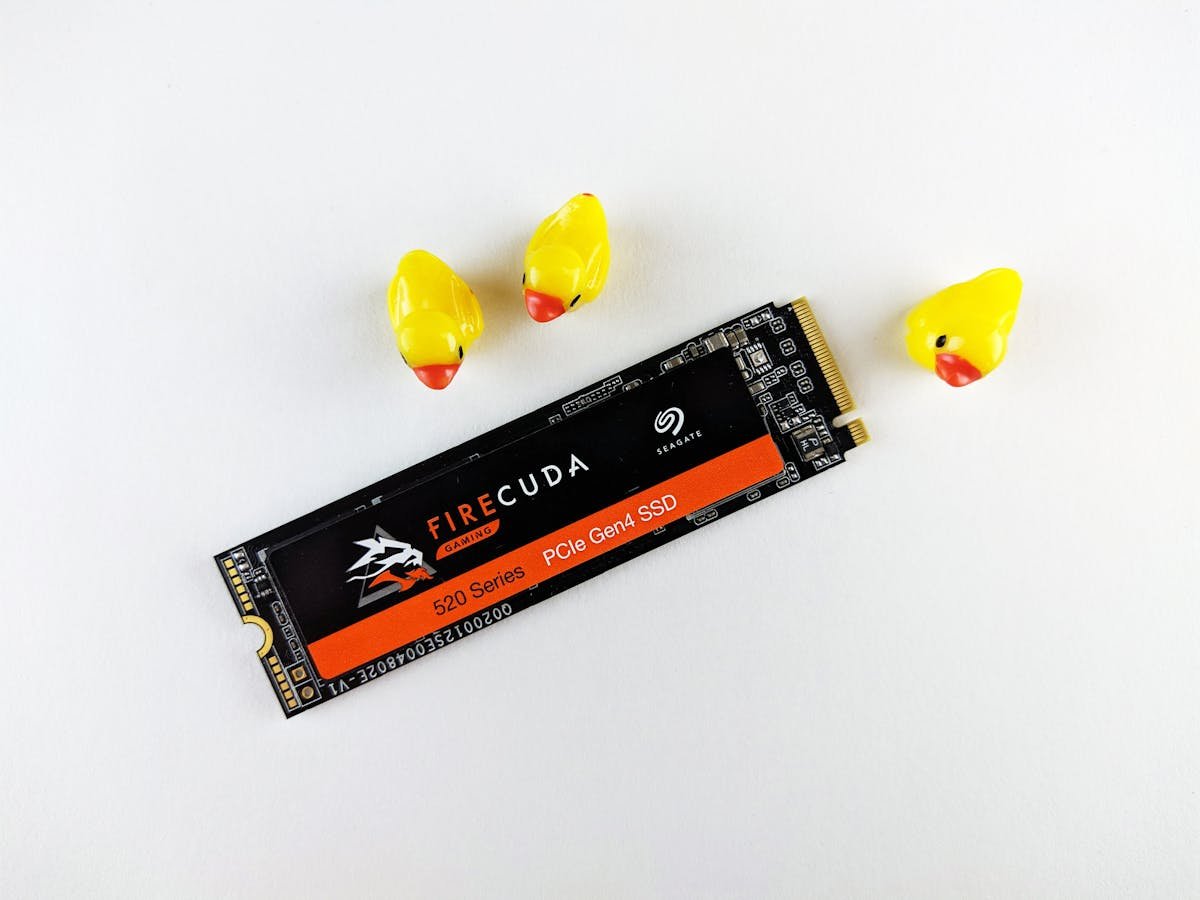
SSD endurance refers to how much data an SSD can write before the drive begins to degrade and eventually fails. Unlike mechanical hard drives that can theoretically run forever (until a physical component breaks), SSDs use NAND flash memory — a technology with a finite number of write cycles per cell.
Every time you write data to a NAND cell (which happens when you save files, install programs, download updates, or run temporary cache operations), the cell degrades slightly. After a certain number of writes, the cell can no longer reliably hold a charge, and that’s when the drive fails.
However, there’s an important distinction: reading data doesn’t wear out an SSD. You can read the same file a million times with no wear. Only writing causes wear.
Manufacturers quantify this endurance with a specification called TBW (Terabytes Written), which tells you the maximum amount of data the drive is guaranteed to write before it might fail.
Understanding TBW and DWPD
TBW (Terabytes Written) is the cumulative amount of data you can write to an SSD before it reaches its endurance limit. For example, an SSD with a 300 TBW rating can handle writing 300 terabytes of total data across its entire lifetime.
DWPD (Drive Writes Per Day) is a related metric that expresses endurance as how much data you can write per day for the warranty period. For example, 200 DWPD over 5 years means you can write 200 times the drive’s capacity per day, every day, for 5 years.
Here’s how to convert between them:
- 1TB SSD with 200 DWPD for 5 years: 1 × 200 × 365 × 5 = 365 TBW
- 2TB SSD with 100 DWPD for 5 years: 2 × 100 × 365 × 5 = 365 TBW
In both cases, the total TBW is the same (365), but the per-day limit differs depending on the drive’s capacity. This is why manufacturers provide both metrics.
TBW Ratings for Popular SSDs
Here’s a breakdown of real-world TBW ratings for common laptop and desktop SSDs:
| SSD Model | Capacity | TBW Rating | Type | Warranty |
| Samsung 990 Pro | 1TB | 600 TBW | NVMe, High-end | 5 years |
| Samsung 990 Pro | 2TB | 1,200 TBW | NVMe, High-end | 5 years |
| WD Black SN850X | 1TB | 600 TBW | NVMe, Gaming | 5 years |
| WD Black SN850X | 2TB | 1,200 TBW | NVMe, Gaming | 5 years |
| Kingston NV2 | 1TB | 600 TBW | NVMe, Budget | 5 years |
| Kingston NV2 | 2TB | 1,200 TBW | NVMe, Budget | 5 years |
| Crucial P5 Plus | 1TB | 600 TBW | NVMe, Mid-range | 5 years |
| Crucial P5 Plus | 2TB | 1,200 TBW | NVMe, Mid-range | 5 years |
| Crucial P3 | 1TB | 220 TBW | NVMe, Budget | 3 years |
| Samsung 870 QVO | 1TB | 360 TBW | SATA, Budget | 5 years |
| Samsung 870 EVO | 1TB | 600 TBW | SATA, Mid-range | 5 years |
Notice that larger capacity drives have higher TBW ratings. A 2TB SSD typically has double the TBW of the 1TB model from the same product line. This is because larger drives have more NAND cells to distribute the writes across.
How Wear Leveling Works
You might wonder: if an SSD has a limited number of writes, doesn’t that mean you can only write to it a few times before it breaks? The answer is no, thanks to wear leveling — a sophisticated technique that makes SSDs incredibly durable.
Without wear leveling, repeatedly writing to the same memory cells would wear them out quickly. Wear leveling works by distributing writes evenly across all cells on the drive, ensuring that no single cell is heavily used while others are barely touched.
Here’s how it works:
- The SSD controller maps logical addresses to physical cells — When you write to “file location A,” the controller doesn’t always write to the same physical cell. It maps that address to different cells over time.
- Data is moved around dynamically — Occasionally, the controller redistributes data across cells to ensure even wear. This happens during idle time when the drive isn’t busy with user operations.
- Frequently-used blocks are rotated — If certain areas get written to more often (like temporary system files), the controller prioritises moving this data around to prevent hotspots.
This means that even though NAND cells have a limited number of write cycles, an SSD can handle far more total writes than the raw cell count would suggest. For example, a 1TB drive with 1000 write cycles per cell can write approximately 600–1000 TBW before failure, not just 1 TBW.
NAND Types and Endurance
Not all NAND flash memory is the same. Different NAND types have different endurance characteristics:
- SLC (Single-Level Cell): Stores 1 bit per cell. ~100,000 write cycles per cell. Highest endurance, but expensive and rare in consumer drives.
- MLC (Multi-Level Cell): Stores 2 bits per cell. ~10,000 write cycles. High endurance, uncommon in modern consumer drives.
- TLC (Triple-Level Cell): Stores 3 bits per cell. ~1,000 write cycles. Standard in modern consumer SSDs. Good balance of endurance and cost.
- QLC (Quad-Level Cell): Stores 4 bits per cell. ~100 write cycles per cell. Lower endurance, but cheaper. Common in budget SSDs and large-capacity drives.
This is why budget SSDs often have lower TBW ratings — they use QLC NAND to keep costs down. However, even QLC drives are still quite durable for typical consumer use.
For detailed information on choosing the right SSD for your needs, see our guide on NVMe vs SATA laptop SSDs.
How to Check SSD Health and Remaining Endurance
You don’t need to wait until your SSD fails to know it’s dying. Modern SSDs report their health status via SMART (Self-Monitoring, Analysis and Reporting Technology), which tracks key metrics including remaining endurance.
Windows — Using CrystalDiskInfo (Recommended)
- Download CrystalDiskInfo (free, available on crystalmark.info)
- Run the application — it displays all connected drives
- Look for “Health Status” at the top (should show “Good”)
- Scroll down to find “Remaining Lifespan” or “Percentage Used”
- If percentage used is under 10%, your drive is in good condition
- Look at “Host Writes” to see total data written to date
Windows — Samsung Magician (for Samsung SSDs)
- Download Samsung Magician (free, from Samsung’s website)
- Launch the application
- It shows “Drive Health” and “Drive S.M.A.R.T.” information
- Look for “Drive Lifespan” percentage (higher is better)
- It also shows “Total Data Written” in GiB
Windows — Task Manager (Basic Check)
- Press Ctrl + Shift + Esc to open Task Manager
- Go to the Performance tab
- Click your SSD in the left sidebar
- It shows basic information but doesn’t include detailed wear data
- For deeper metrics, use CrystalDiskInfo instead
Linux — Using smartctl
sudo smartctl -a /dev/nvme0n1 (for NVMe drives)
This shows detailed SMART attributes, including “Percentage Used” which directly corresponds to remaining endurance.
macOS — Using Disk Utility
- Open Disk Utility
- Select your SSD
- Click Info to see S.M.A.R.T. status
- For detailed metrics, download Macs Fan Control or iStat Menus (third-party tools)
SMART Attributes That Matter
When checking your SSD’s health, these SMART attributes are most important:
- Percentage Used (or Media Wear Index): Shows what fraction of the drive’s endurance has been consumed. 0% = brand new, 100% = at warranty limit. This is the most reliable indicator of remaining lifespan.
- Total Host Writes: The cumulative amount of data written to the drive in GiB or TiB. Useful for comparing against your drive’s TBW rating.
- Power On Hours: Total time the drive has been powered on. Useful for age assessment, but not a direct measure of endurance consumption.
- Reallocated Sector Count: The number of bad sectors the drive has repaired. Should be zero or very low. A high count may indicate the drive is failing.
- Unsafe Shutdown Count: How many times the drive lost power unexpectedly. Many unsafe shutdowns can shorten lifespan, so minimise this.
Real-World Lifespan Calculations
Let’s do the maths to understand how long your SSD will actually last. A typical user writes 20–40 GB of data per day:
- Light user (20 GB/day): 300 TBW ÷ 20 GB = 15,000 days = 41 years
- Typical user (30 GB/day): 300 TBW ÷ 30 GB = 10,000 days = 27 years
- Heavy user (50 GB/day): 300 TBW ÷ 50 GB = 6,000 days = 16 years
- Content creator (100 GB/day): 300 TBW ÷ 100 GB = 3,000 days = 8 years
These calculations show that for the vast majority of users, your SSD will outlast the computer itself. By the time the SSD reaches its endurance limit, you’ll likely have upgraded to a newer machine for other reasons (better CPU, GPU, more RAM, etc.).
The only exception is professionals like video editors, photographers, or server administrators who write hundreds of gigabytes daily. Even then, modern SSDs typically last 5+ years under heavy use.
Data Retention and Power-Off Degradation
Another factor that affects SSD lifespan is data retention — how long the drive can hold data when powered off.
Consumer SSDs typically maintain data for at least 1 year when stored at 30°C without power. Higher temperatures reduce this:
- 30°C (86°F): ~1 year data retention
- 40°C (104°F): ~6 months data retention
- 55°C (131°F): ~3 months data retention
For practical purposes, this means if you store a backup SSD in a cool place and power it on at least once a year, your data will be safe. If you’re archiving an SSD long-term (more than 1 year), you should refresh the data periodically to prevent data loss.
When Should You Replace Your SSD?
Replace your SSD immediately if:
- SMART “Percentage Used” exceeds 95% — The drive is near its warranty limit
- Health Status shows “Caution” or “Bad” — The drive is failing or has already failed
- You see frequent “I/O errors” — Files won’t copy correctly, or Windows shows disk errors
- The drive doesn’t appear in BIOS — It’s likely failed completely
- Reallocated Sector Count is high and increasing — The drive is actively degrading
Proactive replacement is wise at 80–90% endurance use, especially for mission-critical systems. This gives you time to back up and upgrade before failure.
Recommended SSDs for Longevity
| Product | Type | Capacity | TBW Rating | Best For |
| Samsung 990 Pro | NVMe | 1TB–4TB | 600–2,400 TBW | High-performance, high-endurance |
| WD Black SN850X | NVMe | 1TB–4TB | 600–2,400 TBW | Gaming, content creation |
| Crucial P5 Plus | NVMe | 500GB–2TB | 300–1,200 TBW | Balanced performance and endurance |
| Kingston Fury Beast | NVMe | 500GB–2TB | 300–1,200 TBW | Budget-friendly, reliable |
| Samsung 870 EVO | SATA | 250GB–4TB | 600–2,400 TBW | SATA-based systems (older laptops) |
Prices and availability may vary. As an Amazon Associate, we earn from qualifying purchases.
Frequently Asked Questions
How many years will my SSD last?
For typical users (20–40 GB writes per day), a 300 TBW SSD lasts 20–40+ years before reaching endurance limits. In reality, you’ll upgrade your computer for performance reasons long before the SSD wears out. SSDs are significantly more durable than most people believe.
Is 300 TBW enough for a laptop SSD?
Yes. Even 300 TBW is sufficient for 10+ years of heavy use for most people. If you’re a typical user, even a 220 TBW budget SSD will outlast your laptop. Professional users who write 100+ GB daily should prefer drives with 600+ TBW.
Does reading data wear out an SSD?
No. Reading data causes zero wear. Only writing and erasing cause wear. You can read the same file a million times with no endurance impact. This is why SSDs excel as storage and backup drives.
Can a dead SSD be recovered?
Once an SSD fails completely, data recovery is difficult and expensive. If the controller fails, professional data recovery firms may be able to extract the NAND chips and recover data, but this costs hundreds or thousands of pounds. Regular backups are essential — don’t rely on SSD longevity alone.
Should I defragment an SSD?
No. Defragmentation is not only unnecessary on SSDs — it actively wears the drive by increasing write operations. Modern operating systems automatically prevent fragmentation on SSDs. Let your SSD’s wear leveling do its job.
What’s the difference between TBW and DWPD?
TBW (Terabytes Written) is total endurance. DWPD (Drive Writes Per Day) expresses the same endurance as a daily allowance over the warranty period. For a 1TB drive with 200 DWPD over 5 years, you can write 200 TB per day (200 times the drive’s capacity) every day for 5 years, totalling 365 TBW.
Related Guides
- NVMe vs SATA Laptop SSD — Which Is Faster?
- Best Laptop SSDs 2026 — Top Picks for Performance and Value
- How to Clone Your Laptop SSD — Step-by-Step Guide
- Laptop SSD Compatibility Guide
- 2230 vs 2242 vs 2280 SSD — M.2 Form Factors Explained
Recommended upgrades
As an Amazon Associate we earn from qualifying purchases. Prices & availability shown on Amazon.
M.2 2280 NVMe SSDs
How we verify this guide
We cross-reference compatibility figures against manufacturer specifications where available, official service manuals, and the standards that govern fit — memory type and speed (DDR4 / DDR5 / LPDDR5), maximum supported capacity and slot count, SSD form factor and interface (M.2 2280, NVMe PCIe vs SATA, keying), and charger wattage and connector (USB-C Power Delivery, GaN). We’re explicit about soldered or non-upgradeable parts, prioritise primary sources over retailer listings, and re-verify the data on a regular cycle. More on our method →