Affiliate disclosure: this page contains affiliate links — if you buy through them we may earn a commission at no extra cost to you. As an Amazon Associate we earn from qualifying purchases.
You’ve just installed a shiny new kit of DDR5-6400 RAM in your PC, but when you boot up, Windows is showing DDR5-4800. You’ve paid for speed you’re not getting — and you have no idea why. This is the JEDEC vs XMP problem, and it affects millions of PC builders.
The truth is your RAM is running at a conservative default speed designed by Intel and AMD to work on any motherboard without issues. To unlock the full advertised speed, you need to enable XMP (Intel) or EXPO (AMD) — manufacturer-specific memory profiles built into your RAM module.
In this guide, we’ll explain what XMP and EXPO are, why they exist, how to enable them safely, and which systems actually support them.
The JEDEC vs XMP Problem — Why Your RAM Runs Slower
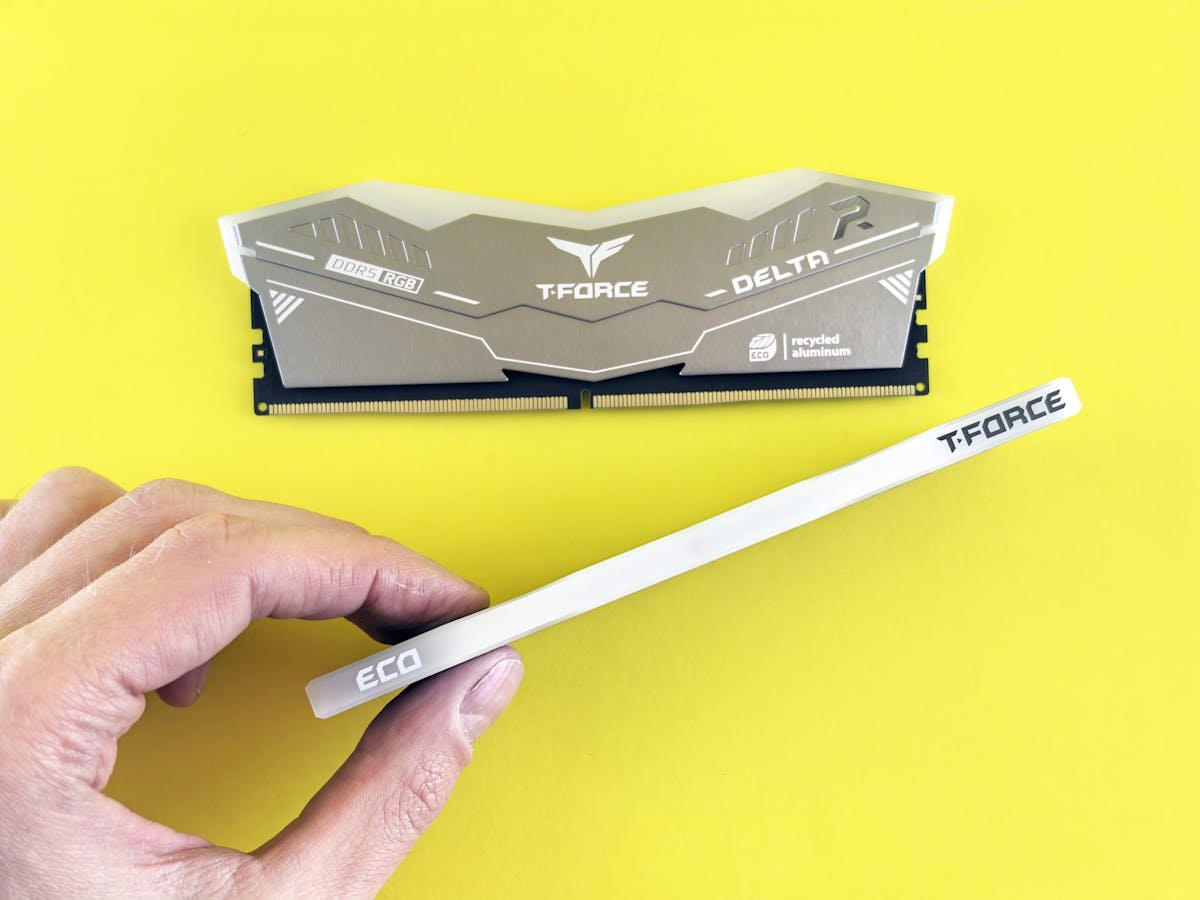
When you install a RAM module without enabling any special profiles, your motherboard defaults to JEDEC speeds — the slowest, most conservative speed that Intel and AMD officially certify as stable across all platforms. This is a safety-first approach.
Here’s the catch: a kit advertised as DDR5-6400 CL36 XMP will boot at DDR5-4800 CL48 JEDEC until you tell your BIOS otherwise. That’s a 25% speed loss right out of the box.
| Profile Type | DDR4 Example | DDR5 Example | When Used |
|---|---|---|---|
| JEDEC Default | DDR4-3200 CL22 | DDR5-4800 CL48 | Always — safe fallback |
| XMP (Intel) | DDR4-3600 CL18 | DDR5-6400 CL36 | When enabled in BIOS |
| EXPO (AMD) | DDR4-3600 CL18 | DDR5-6400 CL36 | When enabled in BIOS |
The RAM manufacturer tests these higher-speed profiles and stores them directly on the module’s SPD (Serial Presence Detect) chip. Your motherboard can read and apply these profiles — but only if you tell it to.
What Is XMP? Intel Extreme Memory Profile Explained
XMP (Extreme Memory Profile) is Intel’s standard for pre-configured memory overclocking profiles. It was introduced in 2007 and has become the industry standard for consumer RAM.
Here’s how it works:
- RAM manufacturers test their modules at higher speeds (e.g., DDR5-6400 CL36)
- They encode this data as a profile on the module’s SPD chip
- You enable XMP in your BIOS, and the motherboard reads and applies these settings automatically
- Your system boots at the advertised speed without manual tweaking
XMP exists because memory overclocking used to be complicated. You had to manually adjust voltage, timings, and frequency in BIOS. XMP democratised it — one click and your RAM runs at full speed.
XMP 2.0 (DDR4 era) supported a single profile. XMP 3.0 (DDR5) allows manufacturers to encode multiple profiles, giving you options between conservative and aggressive settings.
What Is EXPO? AMD Extended Profiles for Overclocking
EXPO (Extended Profiles for Overclocking) is AMD’s answer to XMP. Introduced with Ryzen 7000 series, EXPO works identically to XMP — same concept, AMD branding.
The critical difference: XMP and EXPO are platform-specific. An XMP profile is optimised for Intel platforms; an EXPO profile is optimised for AMD platforms. They’re not interchangeable, even though the RAM may support both.
A high-quality RAM kit will include both XMP and EXPO profiles on the same module, so it works flawlessly on both Intel and AMD systems. Budget kits sometimes only include one.
XMP vs EXPO — Head-to-Head Comparison
| Feature | XMP (Intel) | EXPO (AMD) |
|---|---|---|
| Platform | Intel LGA1700 (13th–14th gen), older platforms | AMD Ryzen 7000, 9000 (AM5 socket) |
| Versions | XMP 2.0 (DDR4), XMP 3.0 (DDR5) | EXPO 1.0 (current standard) |
| Setup | One click in BIOS, fully automatic | One click in BIOS, fully automatic |
| Stability | Tested by Intel, manufacturer-verified | Tested by AMD, manufacturer-verified |
| Manual Override | Yes — you can fine-tune further if desired | Yes — you can fine-tune further if desired |
| Laptop Support | Rare (some ASUS ROG, MSI gaming laptops) | Not typically available in consumer laptops |
For practical purposes, XMP and EXPO are equivalent. The choice depends on your CPU: Intel → XMP, AMD → EXPO.
How to Enable XMP/EXPO in BIOS — Step-by-Step
The process is straightforward and takes under a minute. Here’s what to do:
1. Restart Your PC and Enter BIOS
Restart your computer and press Delete, F2, or F12 during startup (varies by motherboard). Check your motherboard manual if you’re unsure. You’ll see the BIOS setup screen — usually dark blue or black with white text.
2. Find the Memory or Overclocking Section
Navigate to a section called Advanced, Overclocking, Performance, or Memory Settings (exact names vary). Look for an option labelled:
- Intel XMP, Intel Profile, or Memory Profile (Intel systems)
- AMD DOCP, AMD EXPO, or Memory Profile (AMD systems)
3. Enable the Profile
Set the option to Enabled or Profile 1. If multiple profiles are available, Profile 1 is usually the default/safest. Some BIOS versions let you select from multiple XMP/EXPO profiles — choose the one matching your desired speed.
4. Save and Exit
Press F10 to save settings and exit. Your system will restart and apply the profile automatically.
5. Verify in Windows
Once booted, open CPU-Z (free, download at cpuid.com). The Memory tab will show your RAM’s current speed. It should now match the advertised XMP/EXPO speed (e.g., DDR5-6400).
Note: AMD systems sometimes label XMP as “DOCP” (Direct Overclocking Profile) on certain motherboards — it’s the same thing, just different terminology.
Why Laptops Don’t Support XMP/EXPO
Most laptops will never reach XMP/EXPO speeds, even if you upgrade the RAM. Here’s why:
- Locked BIOS: OEM manufacturers lock the BIOS to prevent users from changing memory settings. This keeps power consumption and thermals predictable.
- Soldered RAM: Many laptops have RAM soldered to the motherboard, making upgrades impossible.
- OEM Certification: Even when RAM is upgradeable, manufacturers only certify specific JEDEC speeds for stability and warranty coverage.
- Power Budget: Laptops operate under strict power constraints. XMP profiles increase voltage and power draw, which reduces battery life.
A typical gaming laptop from 2024–2026 will run DDR5 at JEDEC speeds (DDR5-4800 or DDR5-5600), even if you install a DDR5-6400 XMP module.
Gaming Laptops with XMP/EXPO Support
A few high-end gaming laptops do support XMP or similar memory overclocking, though it’s uncommon:
- ASUS ROG Zephyrus (some models with unlocked BIOS options)
- MSI Raider Pro (limited support)
- Lenovo Legion Pro (selected models)
- Alienware Area-51m (desktop replacement, semi-upgradeable)
Even then, support is inconsistent and depends on your specific model. Always check your laptop’s documentation before assuming XMP compatibility.
For laptops, your best bet is choosing higher base-speed JEDEC RAM (like DDR5-5600 JEDEC) rather than relying on overclocking profiles.
XMP 3.0 — New Features for DDR5
XMP 3.0 was introduced with DDR5 and expanded the standard in several ways:
- Multiple Profiles: A single module can store up to three profiles (e.g., a conservative 6000 MHz profile and an aggressive 6400 MHz profile)
- Custom Profiles: Manufacturers can encode profile names for easy identification in BIOS
- Improved Compatibility: Better margin for stability across different motherboards
- Intel Standard Temperature Range (STR): Profiles can specify different settings based on ambient temperature
If your DDR5 kit supports XMP 3.0 with multiple profiles, your BIOS may let you choose between them. Default to Profile 1 unless you have a specific reason to try a different profile (e.g., you want lower power consumption).
Is XMP/EXPO Safe? Will It Damage My RAM?
Yes, XMP and EXPO are safe — by design. Here’s why:
- Manufacturer-Tested: Each profile has been tested by the RAM manufacturer to ensure stability within the module’s rated specifications
- Within Spec: The voltage and timings in an XMP/EXPO profile are within the safe operating range for the RAM chips used
- Intel and AMD Certified: Intel and AMD have set strict standards for what can be encoded in XMP/EXPO profiles
- Warranty Protected: Enabling XMP/EXPO does not void your RAM warranty (manual overclocking beyond the profile might, so check your warranty terms)
Millions of users have been running XMP/EXPO for over a decade without issues. The risk is negligible when using manufacturer-provided profiles.
Important caveat: Stability depends on your motherboard’s power delivery and cooling. On rare occasions, a specific motherboard model may have issues with a particular RAM kit’s XMP profile. If you experience crashes after enabling XMP, see the troubleshooting section below.
Testing Stability After Enabling XMP/EXPO
In 99% of cases, enabling XMP/EXPO works perfectly without additional testing. But if you want to verify stability, use one of these tools:
- MemTest86: Boot-level memory test (most thorough). Download at memtest.org
- Windows Memory Diagnostic: Built into Windows, run via Control Panel → Administrative Tools
- Prime95: CPU and memory stress test (free, free95.com). Run for 8–12 hours
- CPU-Z Bench: Quick validation (free with CPU-Z). Not a full stress test, but good as a sanity check
For most users, simply booting into Windows and using your system normally for a few hours is sufficient. If XMP were unstable on your system, you’d see crashes immediately, not hours later.
Troubleshooting: What If XMP Won’t Boot?
If your system won’t boot after enabling XMP/EXPO, don’t panic:
- Enter BIOS again and disable XMP/EXPO
- Boot back to Windows. Your system should restart without issue
- Check if the RAM is fully seated (push down firmly on both ends of the module until the clips click)
- Try the opposite XMP/EXPO profile if multiple are available
- Update your motherboard BIOS to the latest version — manufacturers often release updates to improve memory compatibility
- Enable XMP/EXPO again and test
If you’re still experiencing issues after BIOS update and reseating, you may have a rare motherboard-to-RAM compatibility issue. Contact the motherboard or RAM manufacturer for support. In the meantime, running at JEDEC speeds is completely safe and functional — you just won’t have the maximum performance.
Recommended Products — Quality XMP/EXPO RAM
| Product | Type | Profile | Best For |
|---|---|---|---|
| Corsair Vengeance Pro SL DDR5-6400 | DDR5 UDIMM | XMP 3.0 | High performance, good value |
| Kingston Fury Beast DDR5-6400 | DDR5 UDIMM | XMP 3.0 | Gaming, streaming |
| G.Skill Ripjaws S5 DDR5 SODIMM | DDR5 SODIMM (laptop) | XMP 3.0 | Laptop upgrades (where supported) |
| Crucial Pro DDR5-6000 | DDR5 UDIMM | XMP 3.0 | Budget-conscious builds |
Prices and availability may vary. As an Amazon Associate, we earn from qualifying purchases.
FAQ — XMP and EXPO Questions
Is XMP the same as overclocking?
Not exactly. XMP is a form of overclocking, but it’s pre-validated overclocking. When you enable XMP, you’re applying a factory-tested overclock stored on the module itself. Manual overclocking (adjusting voltages and timings yourself in BIOS) is different — it’s riskier and not covered by warranty. XMP is safe and warranty-backed.
Why is my RAM running at 2400 MHz instead of 3200 MHz?
Your system is running at the JEDEC default speed. You need to enable XMP (Intel) or EXPO (AMD) in BIOS. Follow the step-by-step guide earlier in this article.
Can XMP/EXPO damage my RAM or CPU?
No. XMP and EXPO are designed to run safely within manufacturer specifications. Stability depends on your motherboard’s power delivery, but damage is extremely unlikely if the profile is from a reputable manufacturer.
Does EXPO work on Intel systems?
No. EXPO is AMD-specific; Intel uses XMP. However, some high-end RAM kits include both profiles on the same module, so they work on both platforms. Always check the product spec sheet.
Can I use XMP RAM on an AMD system?
Physically, yes — DDR5 is DDR5. But it will run at JEDEC speeds unless the kit also includes an EXPO profile. The RAM will work, but you won’t get the advertised speed. Check the product page to confirm EXPO support before buying for an AMD system.
What’s the difference between XMP 2.0 and XMP 3.0?
XMP 2.0 (DDR4) stores one profile per module. XMP 3.0 (DDR5) can store up to three profiles, giving you more flexibility. In practice, most users just enable the default profile and never touch the others.
Do I need to manually set XMP timings, or is it fully automatic?
Fully automatic. You enable XMP in one BIOS menu, save, and restart. The motherboard reads all the settings (speed, voltage, timings) from the module and applies them. Zero manual configuration required.
Related Guides
- Laptop RAM Speed Compatibility — What Speed Does Your Laptop Actually Support?
- DDR4 vs DDR5 Laptop RAM — Generational Differences Explained
- How to Upgrade Laptop RAM — Step-by-Step Guide
- Laptop RAM Compatibility Guide — DDR4, DDR5 & LPDDR5
Recommended upgrades
As an Amazon Associate we earn from qualifying purchases. Prices & availability shown on Amazon.
For laptops and mini PCs that use DDR5 SO-DIMM
For laptops and mini PCs that use DDR4 SO-DIMM
How we verify this guide
We cross-reference compatibility figures against manufacturer specifications where available, official service manuals, and the standards that govern fit — memory type and speed (DDR4 / DDR5 / LPDDR5), maximum supported capacity and slot count, SSD form factor and interface (M.2 2280, NVMe PCIe vs SATA, keying), and charger wattage and connector (USB-C Power Delivery, GaN). We’re explicit about soldered or non-upgradeable parts, prioritise primary sources over retailer listings, and re-verify the data on a regular cycle. More on our method →