Affiliate disclosure: this page contains affiliate links — if you buy through them we may earn a commission at no extra cost to you. As an Amazon Associate we earn from qualifying purchases.
Introduction
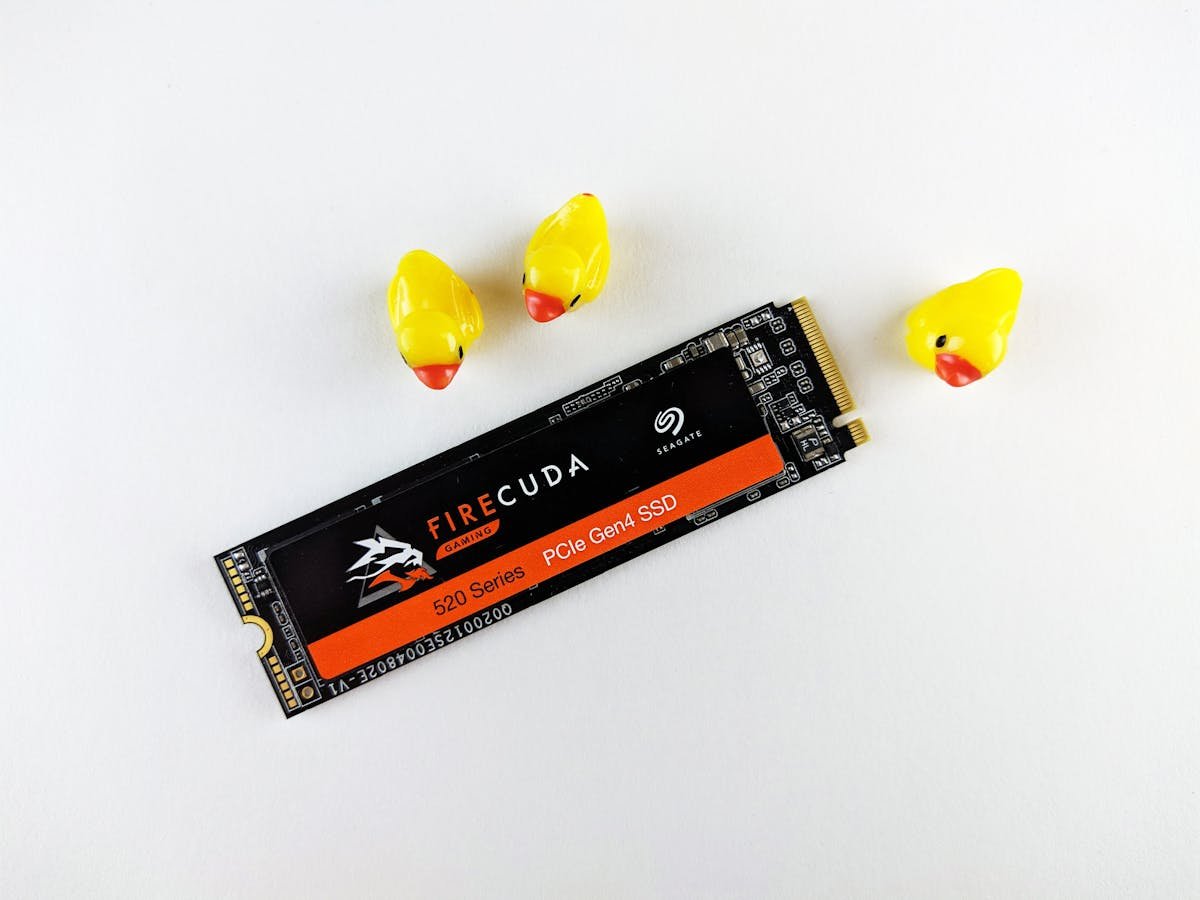
You’ve just unboxed a shiny new SSD — whether it’s an NVMe M.2 drive or a 2.5-inch SATA solid state drive — connected it to your PC or laptop, booted up Windows, and… nothing. No new drive appearing in File Explorer. No D: drive letter. Just silence.
This is completely normal. New SSDs ship uninitialized and unformatted. Windows can see the hardware, but the drive has no partition table, no file system, and no drive letter. It’s like owning a blank notebook that Windows doesn’t know how to use yet. The good news: initializing and formatting take about five minutes, and this guide walks you through every method.
By the end of this article, your new SSD will be ready to store files, install games, or become your new boot drive. We’ll cover Disk Management (the easiest way), DiskPart command line, PowerShell, and how to troubleshoot if things go sideways.
Why Your New SSD Doesn’t Show Up
When you connect a new SSD to your PC, Windows detects the physical drive. Device Manager shows it. But File Explorer stays silent. Why? Because the drive has no Master Boot Record (MBR) or GUID Partition Table (GPT) — the partition scheme that tells Windows how to organize the storage space.
A new drive is also unformatted, meaning it has no file system. Windows needs NTFS (or exFAT) to actually write files. Think of it this way: the SSD hardware is present, but the organizational structure — the skeleton that holds your data — doesn’t exist yet. Initialization creates that structure. Formatting applies the file system. Both are necessary, and both take seconds.
If you’re using an M.2 NVMe drive, it also needs to be in an active M.2 slot. Some motherboards have multiple M.2 slots, and some of them may be disabled by default, especially if you’re using certain SATA expansion cards. We’ll cover that in troubleshooting.
GPT vs MBR: Which Partition Style to Choose
When you initialize a new disk in Windows, you’ll be asked to choose between GPT (GUID Partition Table) and MBR (Master Boot Record). This choice matters, though not in a way that should stress you.
Use GPT if: You’re on any modern Windows 10 or 11 system (nearly always recommended), your drive is larger than 2TB, you want UEFI boot support, or you just want the modern standard. GPT is forward-compatible, supports drives up to 18 exabytes, and is the industry standard since ~2010.
Use MBR if: You’re running ancient hardware or an old 32-bit version of Windows (released before 2010). For 99% of users, this doesn’t apply. MBR supports a maximum of 2TB and is considered legacy.
Our recommendation: always choose GPT unless you have a specific reason not to. Windows 10 and 11 strongly prefer GPT. There’s no performance penalty, and you’ll never regret using the modern standard.
Method 1: Initialize SSD Using Disk Management (Step-by-Step)
Disk Management is the easiest, most reliable way to initialize a new SSD on Windows 10 or 11. It’s built in, requires no command line knowledge, and gives you a clear visual of what’s happening.
Step 1: Open Disk Management
Right-click the Start button and select “Disk Management”. Alternatively, press Windows key + X and click “Disk Management”, or search for “Disk Management” in the Start menu and open it. You may see a UAC (User Account Control) prompt — click “Yes” to confirm you want to run this with administrator privileges.
Step 2: Locate Your New SSD
Disk Management shows two panes: a list of drives at the top (usually arranged by disk number) and a detailed view of partitions at the bottom. Your new SSD will appear in the list on the left, labeled something like “Disk 1”, “Disk 2”, or “Disk 3” depending on how many drives you have. Look for a drive marked “Not Initialized” with all its space labeled “Unallocated”. This is your new drive.
Step 3: Initialize the Disk
Right-click on the new disk (in the disk list on the left) and select “Initialize Disk”. A small dialog box will appear asking you to choose between MBR and GPT. Select “GPT” (unless you have a specific reason for MBR — you almost certainly don’t). Click “OK”. Windows will initialize the disk in a few seconds.
Step 4: Create a New Partition
After initialization, the unallocated space is still there, but now the disk has a partition table. You need to create a partition to actually use the space. Right-click the “Unallocated” space (in the bottom pane) and select “New Simple Volume”. This opens the New Simple Volume Wizard.
Step 5: Configure the Volume Size
The wizard shows you the size of the volume available. By default, it suggests using all available space, which is what you want. You can type a different size if you want to create multiple partitions on this drive (most users don’t), but leaving the default is fine. Click “Next”.
Step 6: Assign a Drive Letter
The wizard asks what drive letter to assign — D:, E:, F:, etc. Windows automatically picks the next available letter. This is fine. You can change it now or later from Disk Management. Click “Next”.
Step 7: Format the Volume
The final step is formatting. The wizard will ask:
- File system: Choose NTFS (this is the Windows standard). exFAT is for external drives shared with Macs; ReFS is for servers. Stick with NTFS.
- Allocation unit size: Leave as “Default”.
- Volume label: This is the name that will appear in File Explorer. Call it something like “Games SSD”, “Storage”, or “New Drive” — whatever makes sense to you. You can change this later.
- Perform a quick format: Check this box. A quick format takes seconds; an extended format checks the drive for bad sectors and takes much longer. For a brand-new SSD, quick format is fine.
Click “Finish”. Windows will format the drive in a few seconds to a minute. Once complete, your new SSD will appear in File Explorer with a drive letter and the label you chose. You can now copy files, install programs, or set it as your boot drive.
Method 2: Initialize SSD Using DiskPart (Command Prompt)
If Disk Management won’t open or you prefer the command line, DiskPart is a powerful alternative. It’s faster if you’re initializing multiple drives, and it’s useful if Disk Management is unresponsive.
Step 1: Open Command Prompt as Administrator
Press Windows key + X and select “Command Prompt (Admin)” or “Windows Terminal (Admin)”. Click “Yes” if prompted by UAC.
Step 2: Start DiskPart
Type the following and press Enter:
diskpart
Your command prompt will change to show “DISKPART>” indicating you’re now in the DiskPart utility.
Step 3: List All Disks
Type:
list disk
This will display all drives connected to your system. Look for your new SSD in the list. It will be labeled by size — if you installed a 1TB drive, you’ll see “Disk X 1000 GB” (the number is approximate; 1TB shows as ~931GB usable). Note the disk number.
Step 4: Select Your Drive
Type (replace X with your disk number):
select disk X
Step 5: Clean and Initialize
Type:
clean
This command wipes any existing partition table and initializes the disk for GPT by default on modern systems. This is the equivalent of the “Initialize Disk” step in Disk Management.
Step 6: Create a Partition
Type:
create partition primary
This creates a primary partition using all available space. If you want a partition smaller than the full disk, use “create partition primary size=XXXXXX” where XXXXXX is the size in MB (e.g., size=524288 for 512GB).
Step 7: Format the Partition
Type:
format fs=ntfs quick label="YOUR LABEL"
Replace YOUR LABEL with whatever you want to call the drive (e.g., “Games SSD”). The “quick” parameter speeds up formatting.
Step 8: Assign a Drive Letter
Type:
assign
This automatically assigns the next available drive letter (usually D: if C: is your main drive). The new drive will now appear in File Explorer immediately.
Step 9: Exit DiskPart
Type:
exit
You’re done. Your SSD is initialized, partitioned, formatted, and ready to use.
Method 3: Initialize SSD Using PowerShell
PowerShell offers a more modern approach and is increasingly the preferred method in Windows 10 and 11. If you’re comfortable with command-line tools, this is quick and scriptable.
Step 1: Open PowerShell as Administrator
Right-click the Start button and select “Windows Terminal (Admin)”, or search for “PowerShell” in the Start menu and run it as Administrator. Click “Yes” on the UAC prompt.
Step 2: List All Disks
Type:
Get-Disk
This lists all disks with their size, partition style, and status. Find your new SSD by size and note its disk number. An uninitialized disk will show “PartitionStyle: RAW”.
Step 3: Select and Initialize the Disk
Type (replace 3 with your disk number):
Initialize-Disk -Number 3 -PartitionStyle GPT
This initializes the disk with GPT partition table in a single command.
Step 4: Create a New Partition
Type:
New-Partition -DiskNumber 3 -UseMaximumSize -DriveLetter D
Replace “3” with your disk number and “D” with your desired drive letter. This creates a partition using all available space and assigns the letter immediately.
Step 5: Format the Partition
Type:
Format-Volume -DriveLetter D -FileSystem NTFS -NewFileSystemLabel "Games SSD" -Confirm:$false
Replace “D” with your drive letter and “Games SSD” with your preferred label. The “-Confirm:$false” parameter skips the confirmation prompt. Formatting completes in seconds.
Your SSD is now ready. Check File Explorer — the new drive should appear immediately.
Setting Up SSD as Boot Drive
If you’re not just adding storage but replacing or supplementing your boot drive, there’s an additional step: tell Windows and your BIOS to boot from the new drive.
If you’ve cloned your existing Windows installation to the new SSD, or done a fresh Windows install on it, you’ll need to change boot order in BIOS. This is different from just initializing a drive — initialization makes the drive usable for storage; changing boot order makes it the system drive.
To change boot order: Restart your computer and immediately press Delete, F2, F12, or Esc (depending on your motherboard — try F2 for most laptops and Dell/Lenovo desktops, F12 for HP, or Delete for ASUS). Navigate to the Boot menu and move your new SSD to the top of the boot order. Save and exit. Your computer will now boot from the new drive.
Windows will recognize the new drive and should activate automatically. If you haven’t installed Windows on the new SSD yet, use the Laptop SSD Compatibility Guide or Laptop Screen Compatibility Guide for next steps depending on your device type.
How to Check SSD Health After Setup
Once your SSD is initialized and formatted, it’s good practice to verify its health — especially if it’s a used or refurbished drive, or if you want to catch any early failures.
Windows includes S.M.A.R.T. monitoring (Self-Monitoring, Analysis and Reporting Technology), which tracks drive health. Several free tools read this data:
CrystalDiskInfo is lightweight and popular. It shows drive temperature, health status, and S.M.A.R.T. attributes in a simple interface. Red means bad; blue means good.
Samsung Magician (for Samsung drives), WD Dashboard (for Western Digital), and SK hynix Health Check (for SK hynix) are manufacturer-specific tools that often provide firmware updates and advanced optimization as well.
Run one of these tools immediately after formatting, and it should show a healthy drive. Check back occasionally to catch early warnings of drive degradation. SSDs rarely fail suddenly; S.M.A.R.T. usually warns you days or weeks in advance.
Troubleshooting: SSD Still Not Showing Up
If your new SSD doesn’t appear in Disk Management, or Disk Management shows it but the steps above don’t work, try these fixes:
Check BIOS and Enable the M.2 Slot (NVMe drives only)
Some motherboards have multiple M.2 slots, and some are disabled by default, especially on boards with SATA expansion. Restart your PC, enter BIOS (usually F2 or Delete during startup), and look for an M.2 or NVMe configuration option. Ensure the slot you’re using is enabled. If you’re using a different M.2 slot, try another one — some slots are SATA-only, while others are NVMe-only.
Try a Different M.2 Slot
If your motherboard has multiple M.2 slots, physically move the drive to a different slot, restart, and try again. This rules out a faulty slot.
Check SATA Cables and Connections (SATA SSDs)
For 2.5-inch SATA SSDs, ensure both the data cable (to the motherboard) and power cable (to the PSU) are firmly seated. Reseat both connections — disconnect and reconnect them.
Update Motherboard BIOS
If your motherboard BIOS is old, it may not recognize newer NVMe drives or larger drives. Check your motherboard manufacturer’s website (ASUS, MSI, Gigabyte, ASRock, etc.), download the latest BIOS update, and flash it to your board. Instructions vary by manufacturer, but most BIOS updates can be done through the BIOS interface itself (look for “BIOS Update” or “EZ Flash” options).
Check Device Manager
Open Device Manager (Windows key + X, then select Device Manager). Expand “Disk drives” and look for your new SSD. If it appears but shows a warning icon (yellow exclamation mark), right-click it and select “Update driver”. If it’s not listed at all, check that the drive is properly seated.
Try on Another PC (Last Resort)
If none of the above work, the drive may be dead on arrival (DOA). Try connecting it to another PC to confirm. If it still doesn’t show up, contact the seller or manufacturer for an RMA (return/replacement).
Recommended SSDs for Every Use Case
Whether you’re upgrading an older PC or building new, here are reliable SSDs that work with virtually any system:
| SSD Model | Capacity | Type | Best For | Link |
|---|---|---|---|---|
| Samsung 990 Pro | 1TB, 2TB | NVMe PCIe 4.0 | Gaming, video editing, fastest performance | View on Amazon |
| WD Black SN850X | 1TB, 2TB | NVMe PCIe 4.0 | Gaming, fast load times, great value | View on Amazon |
| Kingston NV2 | 1TB, 2TB | NVMe PCIe 3.0 | Affordable, reliable, PS5 compatible | View on Amazon |
| Crucial T500 | 1TB | NVMe PCIe 5.0 | Future-proof, next-gen performance | View on Amazon |
| Samsung 870 EVO | 1TB, 2TB | SATA 2.5″ | Budget laptops, older desktops | View on Amazon |
| Crucial MX500 | 1TB | SATA 2.5″ | Affordable, proven reliability | View on Amazon |
| SK hynix P41 | 1TB | NVMe PCIe 4.0 | Great performance, lower power consumption | View on Amazon |
| Sabrent Rocket 2230 | 1TB | NVMe PCIe 4.0 | Steam Deck, ultrabook M.2 slot | View on Amazon |
Frequently Asked Questions
Should I use GPT or MBR?
Always use GPT unless you have a specific reason not to. GPT is the modern standard, supports drives larger than 2TB, and is fully compatible with Windows 10 and 11. MBR is legacy and best avoided.
Will initializing erase data on my other drives?
No. Initialization only affects the drive you select. As long as you choose the correct disk in Disk Management or DiskPart, your other drives are untouched. However, double-check the disk number or size to be absolutely sure you’ve selected the right drive.
Can I initialize an SSD with data on it?
Technically yes, but initializing will erase all existing data irreversibly. Never initialize a drive with data you want to keep unless you’ve backed it up elsewhere first.
Why does my 1TB SSD show as 931GB in Windows?
This is normal and not a scam. Storage manufacturers use decimal (base-10) math: 1TB = 1,000,000,000,000 bytes. Windows uses binary (base-2) math: 1 TiB = 1,099,511,627,776 bytes. So 1TB in decimal is about 931 GiB in binary. You’re not losing space; the labeling is just different. This happens with every drive.
How do I make my new SSD the boot drive?
Restart your computer and press Delete or F2 (depending on your motherboard) during startup to enter BIOS. Navigate to the Boot menu and move your new SSD to the top of the boot order. Save and restart. Windows will now boot from the new drive (if Windows is installed on it).
My SSD doesn’t appear in Disk Management. What now?
Check that the M.2 slot is enabled in BIOS (for NVMe drives), try a different M.2 slot, update your motherboard BIOS, and verify SATA cables are seated (for SATA drives). If it still doesn’t appear, try the drive on another PC to confirm it’s not dead on arrival.
Can I use the quick format, or should I do a full format?
Quick format is fine for new drives. It only takes seconds. A full (extended) format checks every sector for bad blocks, which takes much longer and is unnecessary for brand-new SSDs. Use full format only if the drive has been used and you want a thorough check.
What’s the difference between a Primary Partition and Logical Partition?
Primary partitions are bootable and work on GPT or MBR. Logical partitions are for extended storage on MBR drives only. On GPT drives (which you should be using), this distinction doesn’t matter — just create a “primary” partition and move on.
Is NTFS the right file system, or should I use something else?
NTFS is the standard for Windows. Use it unless you’re setting up a drive to share with a Mac (exFAT) or a professional server (ReFS). NTFS is fast, reliable, and universally compatible with Windows.
Related Guides
Once your SSD is initialized, you might want to explore these related topics:
- Laptop SSD Compatibility Guide — Learn which SSDs work with your specific laptop model.
- Laptop RAM Compatibility Guide — Upgrade RAM at the same time as your SSD for a faster machine.
- Laptop Battery Replacement Guide — Replace a worn battery while you’re opening the machine up for an SSD upgrade.
- SSD vs HDD: Which Should You Choose? — Understand the pros and cons of SSDs versus traditional hard drives.
Not sure which SSD works with your device? Use the Laptop Upgrade Checker — enter your laptop model and we’ll show you compatible SSDs, RAM, chargers, and more.
Affiliate Disclosure
This site contains affiliate links to Amazon. If you purchase an SSD through one of our links, we earn a small commission at no extra cost to you. This helps us maintain free guides like this one. Thank you for your support.
Recommended upgrades
As an Amazon Associate we earn from qualifying purchases. Prices & availability shown on Amazon.