
Affiliate disclosure: this page contains affiliate links — if you buy through them we may earn a commission at no extra cost to you. As an Amazon Associate we earn from qualifying purchases.
You’ve just installed brand-new RAM rated for 5600 MHz, but your system is running it at 3200 MHz. The problem? You haven’t enabled XMP or EXPO. These are profiles built into modern RAM that automatically configure your memory to run at its rated speed—but they’re disabled by default. This guide shows you exactly how to enable them, troubleshoot problems, and understand why your RAM might be running slower than advertised.
What Is XMP (and EXPO)?
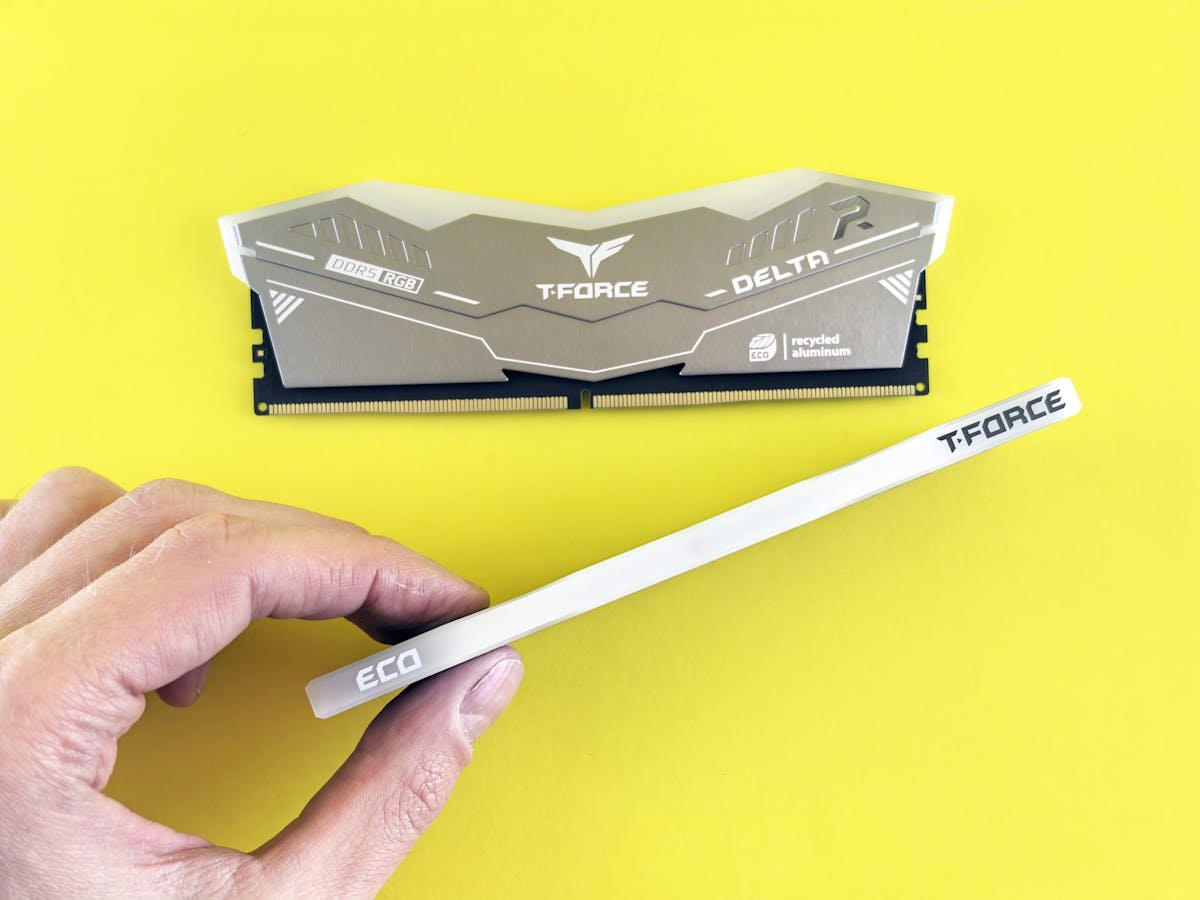
XMP stands for Extreme Memory Profile. It’s an Intel specification that lets RAM manufacturers store overclocking profiles directly on the memory module. When you enable XMP, your BIOS reads these profiles and automatically adjusts your RAM speed, timings, and voltage to match the module’s rated specifications.
EXPO is AMD’s equivalent—it stands for Extended Profiles for Overclocking. It works the same way: profiles are stored on the RAM, and enabling EXPO in BIOS makes your Ryzen system run the memory at rated speed.
Think of it like this: your RAM is rated for 5600 MHz, but your BIOS defaults to a conservative 3200 MHz for compatibility. XMP and EXPO are pre-tested profiles that say “at 5600 MHz with these timings and voltage, this RAM is stable.” Enabling them unlocks your RAM’s full performance potential.
Why Your RAM Runs Slower Than Advertised
When you install new DDR5 RAM rated at 6000 MHz, your system will default to running it at approximately 4800 MHz (JEDEC standard). This is because:
- Compatibility and stability: JEDEC speeds are rock-solid standard speeds that work with virtually any motherboard and CPU combination.
- Conservative defaults: BIOS manufacturers default to the slowest, safest settings to avoid crashes on day one.
- XMP/EXPO is optional: These overclocking profiles are an opt-in feature. They’re not automatically enabled because not every system can handle them (though modern systems almost always can).
Your RAM isn’t broken. It’s just running at JEDEC defaults. Enabling XMP or EXPO closes the gap and lets your new RAM reach its rated performance.
Step-by-Step: Enabling XMP in BIOS (Intel)
1. Restart Your Computer and Enter BIOS
Turn off your computer completely. Turn it back on and immediately start pressing the BIOS key. This varies by motherboard:
- ASUS: Press Delete or F2 repeatedly as your computer boots.
- MSI: Press Delete repeatedly as your computer boots.
- Gigabyte: Press Delete repeatedly as your computer boots.
- ASRock: Press Delete repeatedly as your computer boots.
If you’re not sure, check your motherboard’s manual or manufacturer website. You need to press the key during the boot screen before Windows loads.
2. Locate the XMP Setting
Once in BIOS, you’ll see a menu (sometimes called the Main page or Overview). Look for a section called:
- XMP (on some Intel boards)
- Intel XMP
- Extreme Memory Profile
- Performance (sometimes under an Advanced tab)
The exact location varies by motherboard, but it’s usually on the main BIOS screen or under an “Advanced” or “OC” (Overclocking) menu. Don’t be intimidated—you’re just clicking a dropdown; you’re not manually configuring anything.
3. Select an XMP Profile
When you find the XMP setting, you’ll typically see options like:
- Disabled (default)
- XMP Profile 1 (usually your RAM’s rated speed)
- XMP Profile 2 (sometimes a more aggressive variant)
Select XMP Profile 1. This is the manufacturer’s standard overclocking profile and is what your RAM is rated for.
4. Save and Exit
Once you’ve selected XMP Profile 1, press F10 (or look for a “Save and Exit” option in the menu) to save your settings and reboot.
5. Verify the Speed in Windows
Once Windows boots, you can check that XMP was applied:
- Right-click This PC or My Computer and select Properties.
- Look for the RAM listing (it should now show your rated speed, e.g., 5600 MHz or 6000 MHz).
- Alternatively, download CPU-Z (free tool) and click the Memory tab. You’ll see the exact frequency and timings.
If CPU-Z shows your RAM at the rated speed (e.g., 5600 MHz for “5600 MHz rated” RAM), XMP has been successfully enabled.
Step-by-Step: Enabling EXPO in BIOS (AMD)
1. Restart and Enter BIOS
The process is nearly identical to Intel. Turn off your computer, turn it back on, and press Delete (or F2 on some boards) repeatedly as your system boots to enter BIOS.
2. Locate the EXPO Setting
In BIOS, look for:
- EXPO
- AMD EXPO
- Extended Profiles for Overclocking
- OC (Overclocking) menu
On some AMD boards, EXPO is under Advanced CPU Settings or Extreme Tweaker. Check your manual if you can’t find it immediately.
3. Select an EXPO Profile
You’ll typically see:
- Disabled (default)
- EXPO Profile 1
- EXPO Profile 2
Select EXPO Profile 1, which is your RAM’s rated speed profile.
4. Save and Exit
Press F10 or use the menu to save changes and exit BIOS. Your system will reboot.
5. Verify in Windows
Check that EXPO was applied using CPU-Z (click Memory tab) or the System Properties. Your RAM should now run at its rated speed.
RAM Still Running Slow After Enabling XMP?
You’ve enabled XMP or EXPO, but CPU-Z still shows your RAM at 3200 MHz or 4800 MHz instead of the rated 5600 MHz or 6000 MHz. What’s going on?
CPU and Motherboard Speed Limits
Not all CPUs and motherboards support all RAM speeds. Intel’s 12th-gen Core i5 officially supports up to DDR5-4800 (JEDEC standard). If you try to run DDR5-6000 RAM on a 12th-gen CPU, the system will default to 4800 MHz because that’s the maximum the CPU can officially handle.
Similarly, your motherboard may have speed limits. Always check your CPU and motherboard specifications to see which DDR speeds are supported. Modern systems (13th-gen Intel, Ryzen 7000 series) typically support higher speeds.
Mismatched RAM Modules
If you’ve installed RAM of different speeds (one 5600 MHz stick and one 3200 MHz stick), your system will default to the slowest module’s speed (3200 MHz) to maintain stability. All RAM in a system runs at the same frequency. For best performance, use matching sticks.
DDR Speed Display Confusion
Here’s a common source of confusion: RAM speed is often marketed using “DDR” nomenclature, but the actual frequency is half that. DDR5-6000 runs at 3000 MHz (6000 / 2). When CPU-Z shows 3000 MHz, that’s the correct frequency for DDR5-6000 RAM. Don’t assume your RAM is running slow just because CPU-Z shows a lower number than the marketing name.
Rule of thumb: Take the DDR speed and divide by 2 to get the actual frequency CPU-Z will report.
BIOS Update Required
Older BIOS versions may not include EXPO or XMP support for the latest RAM speeds. If you’ve got brand-new DDR5-8000 RAM and a motherboard from 2022, check the manufacturer’s website for a BIOS update. Updated BIOS versions often add support for newer memory profiles.
Stability Issues After Enabling XMP
In rare cases, enabling XMP can cause system instability—random crashes, freezes, or blue screens. This usually means the motherboard or CPU doesn’t fully support that specific RAM module at its rated speeds (which is unusual but can happen with very new or very aggressive RAM).
How to Fix It
- Restart and enter BIOS. If your system won’t boot, turn off the computer, wait 10 seconds, and turn it back on. Then immediately enter BIOS.
- Disable XMP/EXPO. Set it back to “Disabled” and save. Your system will boot with default JEDEC speeds.
- Update BIOS. Check your motherboard manufacturer’s website for the latest BIOS version and update if available. New BIOS versions often improve RAM compatibility.
- Try XMP Profile 2. Some boards offer a second, less aggressive profile. If available, try that instead of Profile 1.
- Enable XMP again and test. After updating BIOS, retry XMP. Stability is usually restored.
If you’re still experiencing crashes after a BIOS update, your RAM or motherboard may have a hardware fault. Contact the manufacturer or consider returning the RAM for a different batch.
Laptop XMP Support
Most laptops do not support XMP or EXPO, even if they have user-upgradeable RAM slots. Laptop manufacturers lock down BIOS and don’t expose overclocking features. This is by design—laptops have limited cooling and power budgets.
If you’ve upgraded your laptop’s RAM and it’s running slower than rated, it’s likely because laptops default to JEDEC speeds and don’t have XMP/EXPO support available. This is normal and expected. Laptop RAM will still be much faster than it would have been at original spec (e.g., upgrading from 2400 MHz to 3200 MHz DDR4, even if the new sticks are rated for 3600 MHz).
Frequently Asked Questions
Q: Will enabling XMP void my warranty?
A: No. XMP is an official Intel and AMD specification supported by motherboard manufacturers. Enabling XMP is not considered overclocking in the traditional sense and does not void warranties. The profiles are tested and certified by RAM manufacturers.
Q: Is XMP or EXPO safe?
A: Yes, on modern systems. XMP and EXPO profiles have been extensively tested by both RAM manufacturers and CPU vendors. They’re designed to be stable on supported hardware. If your system crashes after enabling XMP, it’s usually a sign of incompatibility (older BIOS, unsupported CPU) rather than a fault with XMP itself.
Q: My RAM is rated 6000 MHz but shows 3000 MHz in CPU-Z. Is it broken?
A: No. DDR5-6000 has a frequency of 3000 MHz (the DDR part means double data rate, so 3000 × 2 = 6000 transfers per second). CPU-Z correctly shows 3000 MHz. This is normal and correct.
Q: Can I enable XMP on older systems?
A: It depends. XMP requires BIOS support. If your motherboard was released before XMP became common (pre-2010), it may not support it. Check your motherboard’s manual or manufacturer website. Even older enthusiast boards sometimes added XMP via BIOS updates.
Q: What’s the difference between XMP Profile 1 and Profile 2?
A: Profile 1 is the standard, tested profile matching your RAM’s rated speed. Profile 2 (if available) is usually a more aggressive overclocking profile—higher speeds, tighter timings. For most users, Profile 1 is the right choice. Use Profile 2 only if you’re chasing maximum performance and have good cooling.
Q: My system won’t boot after enabling XMP. What do I do?
A: Power off completely, wait 10 seconds, and power on again. Immediately enter BIOS (mash Delete or F2 during boot). Disable XMP and save. Your system should boot normally. Then try troubleshooting: update BIOS, test with just one RAM stick, or try XMP Profile 2 if available.
Q: Can I use XMP on a Ryzen system with Intel DDR5 RAM?
A: No. DDR5 RAM with XMP profiles won’t work properly on AMD Ryzen systems because they use EXPO, not XMP. Look for DDR5 RAM specifically marked as EXPO-compatible or JEDEC-compliant. Many modern DDR5 modules support both, but always check the specs.
Recommended Products for RAM Upgrades
| Product | Why We Recommend It | Amazon |
|---|---|---|
| Kingston Fury Beast DDR5 5600 MHz | Excellent DDR5 option with solid XMP profiles and competitive pricing. Reliable brand with strong warranty and widely compatible with modern Intel and AMD systems. | View on Amazon |
| Corsair Vengeance DDR5 6000 MHz | Premium DDR5 with aggressive XMP profiles, excellent performance, and distinctive styling. Great for gaming and workstations where every MHz counts. | View on Amazon |
| Samsung DDR5 5600 MHz | Highly reliable consumer DDR5 from a major manufacturer. Excellent XMP support and well-tested across a wide range of motherboards. | View on Amazon |
| Kingston Fury Impact DDR4 3600 MHz | Excellent DDR4 choice if you’re on an older system. Reliable XMP support, excellent performance, and good value for money. | View on Amazon |
| Corsair Vengeance DDR4 3600 MHz | Industry-standard DDR4 with robust XMP profiles. Trusted by enthusiasts and professionals for stability and performance on DDR4 platforms. | View on Amazon |
Next Steps
Once you’ve enabled XMP or EXPO, your RAM is running at full advertised speeds. You should see immediate performance improvements in multitasking, video editing, streaming, and gaming. If you’re still experiencing performance issues or crashes, check our blue screen after upgrade guide for further troubleshooting.
For more on RAM upgrades and compatibility, see our complete RAM compatibility guide.
Prices and availability may vary. As an Amazon Associate, we earn from qualifying purchases.
Related Troubleshooting Guides
- Laptop Upgrade Troubleshooting Hub — Complete reference guide for all RAM and SSD upgrade issues.
- RAM Not Recognised After Upgrade — If your new memory isn’t detected at all, troubleshoot detection first.
- Blue Screen After Upgrade — If enabling XMP causes crashes or blue screens, this guide covers the fixes.
- Laptop RAM Compatibility Guide — Check DDR4/DDR5 compatibility, speed limits, and maximum capacity for your model.
Recommended upgrades
As an Amazon Associate we earn from qualifying purchases. Prices & availability shown on Amazon.
For laptops and mini PCs that use DDR5 SO-DIMM
For laptops and mini PCs that use DDR4 SO-DIMM
How we verify this guide
We cross-reference compatibility figures against manufacturer specifications where available, official service manuals, and the standards that govern fit — memory type and speed (DDR4 / DDR5 / LPDDR5), maximum supported capacity and slot count, SSD form factor and interface (M.2 2280, NVMe PCIe vs SATA, keying), and charger wattage and connector (USB-C Power Delivery, GaN). We’re explicit about soldered or non-upgradeable parts, prioritise primary sources over retailer listings, and re-verify the data on a regular cycle. More on our method →

