
Affiliate disclosure: this page contains affiliate links — if you buy through them we may earn a commission at no extra cost to you. As an Amazon Associate we earn from qualifying purchases.
Custom-built desktops offer maximum flexibility for upgrades and future-proofing. Whether you assembled your own machine or purchased a custom system, understanding your motherboard’s socket and chipset is crucial for finding compatible RAM and SSDs. This guide covers the most common Intel and AMD sockets and their upgrade capabilities.
Understanding Your Motherboard Socket
Your CPU socket determines the type of RAM and storage your motherboard supports. Here are the most common sockets you’ll encounter in 2026.
| Socket / Chipset | Architecture | RAM Type | Release Year | Current Status |
|---|---|---|---|---|
| LGA 1700 (Intel) | 12th–14th Gen Core | DDR4 / DDR5 | 2021 | Current mainstream |
| AM5 (AMD Ryzen) | Ryzen 7000 series | DDR5 | 2022 | Current mainstream |
| LGA 1200 (Intel) | 10th–11th Gen Core | DDR4 | 2020 | Older generation |
| AM4 (AMD Ryzen) | Ryzen 1000–5000 | DDR4 | 2017 | End of life |
| LGA 1151 v2 (Intel) | 8th–9th Gen Core | DDR4 | 2017 | Older generation |
How to Find Your Motherboard Socket and RAM Type
Method 1: BIOS/UEFI
- Restart your computer and press F2, F10, Del, or the key shown during boot (varies by manufacturer).
- Enter BIOS Setup. Look for “Main” or “System Information” tab.
- Check for your CPU model and RAM specifications. Make note of the RAM type (DDR4 or DDR5) and amount currently installed.
- Check the motherboard manufacturer and model (usually displayed on the main BIOS page).
Method 2: Windows System Information
- Right-click This PC and select Properties.
- Click “System Information” (or press Win+X → System Information).
- Look for “Processor” — this tells you your CPU model and socket type.
- Search online for your CPU model’s socket (e.g., “Intel Core i9-14900K socket”) to determine what motherboards are compatible.
Method 3: Third-Party Software
Use tools like CPU-Z or GPU-Z to instantly identify your CPU, motherboard model, and current RAM specifications:
- CPU-Z — Shows CPU socket, motherboard model, and RAM details
- TechPowerUp CPU-Z — Alternative CPU-Z source
Method 4: Physical Inspection
- Power off your computer and unplug it.
- Open the case and look at the motherboard. The motherboard manufacturer and model are printed on the board (look for brand names like ASUS, MSI, Gigabyte).
- Search for your motherboard model online to find its socket and supported RAM type.
Intel LGA 1700 Socket (Current Mainstream)
LGA 1700 is Intel’s current mainstream socket, supporting 12th–14th Generation Core processors. LGA 1700 motherboards support either DDR4 or DDR5 depending on the chipset version.
LGA 1700 Chipsets and RAM Support
| Chipset | Generation | RAM Type | Max RAM | RAM Slots |
|---|---|---|---|---|
| Intel Z890 | 14th Gen (Raptor Lake Refresh) | DDR5 | 192GB | 2 |
| Intel H870 | 14th Gen Workstation | DDR5 | 192GB | 2–4 |
| Intel Z790 | 13th Gen (Raptor Lake) | DDR4 / DDR5 | 192GB | 2 |
| Intel H770 | 13th Gen Workstation | DDR4 | 128GB | 4 |
| Intel B760 | 12th Gen (Alder Lake) | DDR4 / DDR5 | 192GB | 2 |
Key Points for LGA 1700:
- Most consumer LGA 1700 motherboards have only 2 RAM slots.
- DDR4 and DDR5 are NOT interchangeable. You must match your motherboard’s supported RAM type.
- DDR5 is faster but more expensive. DDR4 is more affordable and compatible with older boards.
- Maximum per-DIMM capacities: DDR5 up to 192GB, DDR4 up to 128GB (but realistically 32GB–64GB per stick for consumer use).
Full LGA 1700 RAM Compatibility Guide
AMD Socket AM5 (Current Mainstream)
Socket AM5 is AMD’s current mainstream socket, supporting Ryzen 7000 series processors. All AM5 motherboards support DDR5 memory with multiple DIMM slot configurations.
AM5 Chipsets and RAM Support
| Chipset | Generation | RAM Type | Max RAM | RAM Slots |
|---|---|---|---|---|
| AMD X870-E | Ryzen 9000 series | DDR5 | 192GB | 2 |
| AMD X870 | Ryzen 9000 series | DDR5 | 192GB | 2 |
| AMD X670-E | Ryzen 7000 series | DDR5 | 192GB | 2 |
| AMD X670 | Ryzen 7000 series | DDR5 | 192GB | 2 |
| AMD B870 | Ryzen 9000 series | DDR5 | 192GB | 2 |
| AMD B670-E | Ryzen 7000 series | DDR5 | 192GB | 2 |
Key Points for AM5:
- All AM5 boards support DDR5, not DDR4.
- Most consumer AM5 motherboards have 2 RAM slots.
- AM5 socket is forward-compatible — Ryzen 9000 series processors work in boards from Ryzen 7000 generation with a BIOS update.
- Maximum memory: 192GB per DIMM (though realistically 32GB–64GB per stick for consumer use).
Full AM5 RAM Compatibility Guide
Intel LGA 1200 Socket (Older Generation)
LGA 1200 is Intel’s socket for 10th and 11th Generation Core processors. All LGA 1200 boards support DDR4 RAM.
LGA 1200 Chipsets and RAM Support
| Chipset | Generation | RAM Type | Max RAM | RAM Slots |
|---|---|---|---|---|
| Intel Z590 | 11th Gen (Rocket Lake) | DDR4 | 128GB | 2 |
| Intel H570 | 11th Gen (Rocket Lake) | DDR4 | 128GB | 2 |
| Intel B560 | 11th Gen (Rocket Lake) | DDR4 | 128GB | 2 |
| Intel Z490 | 10th Gen (Comet Lake) | DDR4 | 128GB | 2 |
| Intel H470 | 10th Gen (Comet Lake) | DDR4 | 64GB | 2 |
| Intel B460 | 10th Gen (Comet Lake) | DDR4 | 64GB | 2 |
Key Points for LGA 1200:
- All LGA 1200 boards use DDR4 RAM.
- Most consumer boards have 2 RAM slots.
- DDR4 speeds range from 2400 MHz to 3200 MHz depending on chipset.
- This socket is end-of-life but still widely used in budget and office systems.
Full LGA 1200 RAM Compatibility Guide
AMD Socket AM4 (End of Life)
Socket AM4 is AMD’s older socket for Ryzen 1000–5000 series processors. All AM4 boards support DDR4 RAM. AM4 is end-of-life but still popular in used and budget systems.
AM4 Chipsets and RAM Support
| Chipset | Generation | RAM Type | Max RAM | RAM Slots |
|---|---|---|---|---|
| AMD X670 (Older boards) | Ryzen 5000 series | DDR4 | 128GB | 2 |
| AMD X570 | Ryzen 3000 series | DDR4 | 128GB | 2 |
| AMD B550 | Ryzen 3000/5000 | DDR4 | 128GB | 2 |
| AMD B450 | Ryzen 1000–5000 | DDR4 | 64GB | 2–4 |
| AMD X370 | Ryzen 1000 series | DDR4 | 64GB | 4 |
Key Points for AM4:
- All AM4 boards use DDR4 RAM.
- DDR4 speeds range from 2400 MHz to 3200 MHz+.
- AM4 is no longer supported for new processors, making it suitable only for existing systems.
- Older boards (B450, X370) may have up to 4 RAM slots versus 2 on newer boards.
Full AM4 RAM Compatibility Guide
Determining Maximum RAM Capacity
While your motherboard may have 2 or 4 DIMM slots, the actual maximum RAM capacity depends on several factors:
Factors Affecting Max RAM
| Factor | Explanation | Example |
|---|---|---|
| Motherboard Chipset Limit | Each chipset has a theoretical maximum. Most modern boards support 192GB+. | LGA 1700 Z790: up to 192GB |
| BIOS Version | Older BIOS versions may not recognize newer, larger-capacity DIMMs. Update your BIOS first. | 48GB DIMMs may require BIOS update |
| Per-DIMM Capacity | The largest DIMM available in the market at your motherboard’s release time. | DDR5: up to 96GB per DIMM |
| Actual Hardware Limit | Some boards support less than their theoretical maximum. Check your manual. | Some boards max out at 64GB despite 192GB chipset support |
Best Practice: Before purchasing high-capacity RAM, check your motherboard’s manual to see the maximum tested configuration. Manufacturers usually list compatible RAM speeds and capacities.
SSD Compatibility for Custom Desktops
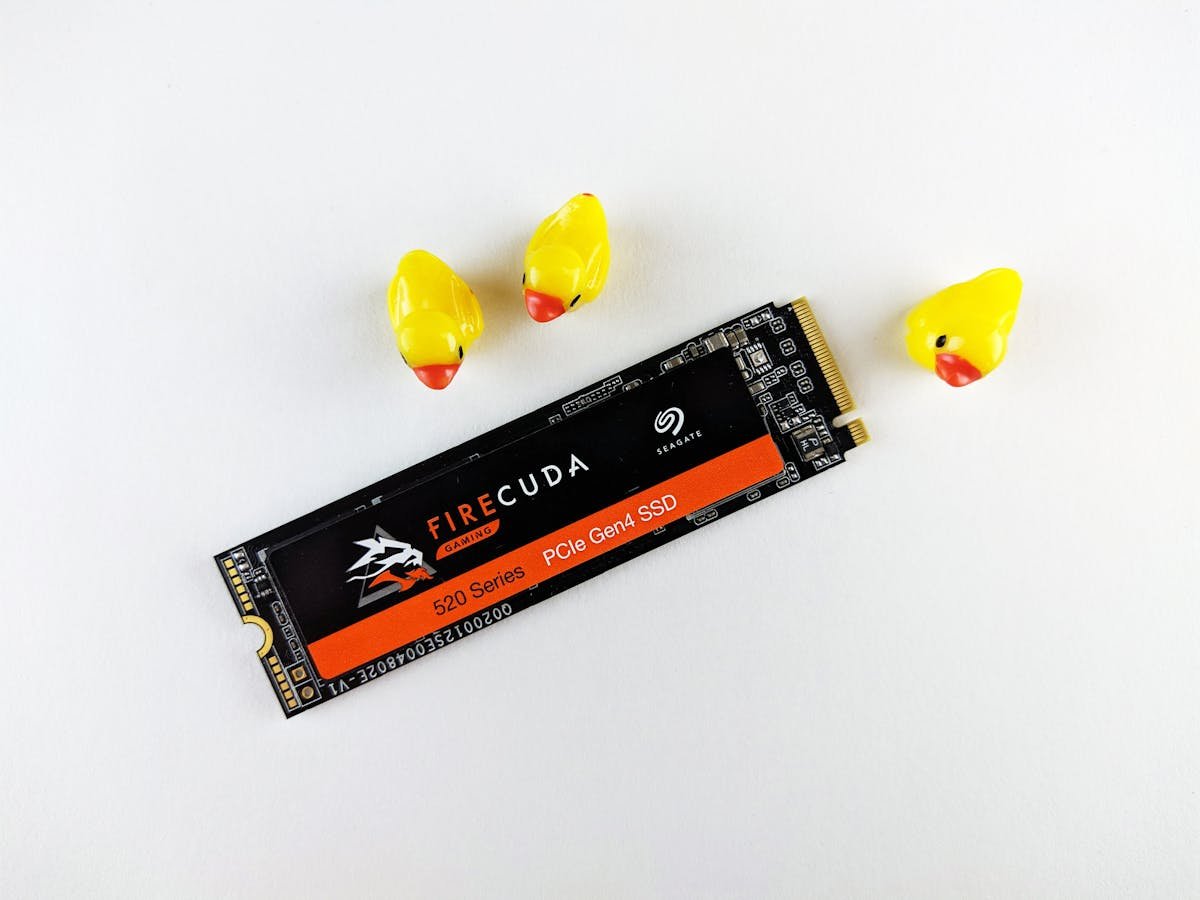
Almost all modern motherboards (2015+) support M.2 NVMe SSDs, which are the fastest and most common option.
SSD Types by Motherboard Era
| Era | SSD Type | Interface | Speed | Availability |
|---|---|---|---|---|
| 2024–Present (14th Gen Intel, Ryzen 9000) | NVMe M.2 | PCIe 5.0 | 7,000+ MB/s | Z890, X870-E boards |
| 2021–2023 (12th–13th Gen Intel, Ryzen 7000) | NVMe M.2 | PCIe 4.0 | 3,500–5,000 MB/s | Z790, Z690, B760, AM5 boards |
| 2018–2021 (10th–11th Gen Intel, Ryzen 3000) | NVMe M.2 | PCIe 3.0 | 3,000–3,500 MB/s | Z590, Z490, B560, B450 boards |
| 2015–2018 (7th–8th Gen Intel, Ryzen 1000) | NVMe M.2 or SATA | PCIe 3.0 or SATA | 2,000–3,500 MB/s | Most boards from this era |
Key SSD Takeaways:
- M.2 NVMe is standard: Look for M.2 slots labeled “NVMe” or “M Key”.
- Check your PCIe generation: Newer SSDs require PCIe 4.0 or 5.0. Older boards may only support PCIe 3.0.
- Backward compatibility: PCIe 5.0 and 4.0 SSDs work in older boards at reduced speeds.
- SATA is deprecated: Most new boards skip SATA slots entirely. If your board is older, you can still use SATA SSDs for secondary storage.
Custom Desktop RAM Upgrade Step-by-Step
Step 1: Identify Your Current RAM
Use CPU-Z or check BIOS to note your current RAM type, speed, and capacity. This helps you purchase matching or compatible modules.
Step 2: Choose Compatible RAM
Search online for your motherboard model and “maximum supported RAM” or “RAM compatibility list”. Match the DDR type (DDR4 or DDR5) and preferably the speed.
Step 3: Power Down and Open the Case
Shut down completely, unplug the power cable, and wait 30 seconds. Open the case side panel.
Step 4: Locate RAM Slots
Find the RAM slots near the CPU. They are typically long, vertical slots color-coded blue or black.
Step 5: Remove Old RAM (If Replacing)
Press the release clips on both ends of the DIMM outward. The module will pop up at a 45-degree angle. Gently pull it out.
Step 6: Install New RAM
Align the notch on the bottom of the new RAM with the key in the slot. Insert at 45 degrees, then press firmly until both clips snap into place.
Step 7: Power On and Verify
Close the case, reconnect power, and boot up. Check BIOS or Windows System Information to confirm the new RAM is recognized.
Compatible RAM by Socket — Quick Reference
| Socket | RAM Type | Speed Range | Max per DIMM | Typical Slots |
|---|---|---|---|---|
| LGA 1700 (DDR5) | DDR5 | 5600–6000 MHz | 96GB | 2 |
| LGA 1700 (DDR4) | DDR4 | 2666–3200 MHz | 32GB | 2 |
| AM5 | DDR5 | 5600–6000 MHz | 96GB | 2 |
| LGA 1200 | DDR4 | 2400–3200 MHz | 32GB | 2 |
| AM4 | DDR4 | 2400–3200 MHz | 32GB | 2–4 |
Recommended RAM and SSD Products
| Component | Common Brands | Shop |
|---|---|---|
| DDR5 RAM (LGA 1700, AM5) | Corsair, G.Skill, Kingston, Crucial | View on Amazon |
| DDR4 RAM (LGA 1200, AM4, older) | Corsair, Crucial, Kingston, G.Skill | View on Amazon |
| NVMe SSD (PCIe 5.0) | Samsung 990 Pro X2, Corsair MP600 Elites, WD Black SN850X | View on Amazon |
| NVMe SSD (PCIe 4.0) | Samsung 990 Pro, WD Black SN850X, Corsair MP600 Core XT | View on Amazon |
| SATA SSD (legacy systems) | Samsung 870 EVO, WD Blue, Crucial MX500 | View on Amazon |
Prices and availability may vary. As an Amazon Associate, we earn from qualifying purchases.
Related Guides
- Laptop RAM Compatibility Guide (2026) — DDR4, DDR5 & LPDDR5 explained
- Laptop SSD Compatibility Guide (2026) — NVMe, SATA, M.2 sizes
- Desktop Motherboard RAM Compatibility — All Intel and AMD socket details
- How Many RAM Slots Does My Desktop Have? — DIMM slot overview by socket
Recommended upgrades
As an Amazon Associate we earn from qualifying purchases. Prices & availability shown on Amazon.
For desktops that use DDR5 DIMMs
For desktops that use DDR4 DIMMs
How we verify this guide
We cross-reference compatibility figures against manufacturer specifications where available, official service manuals, and the standards that govern fit — memory type and speed (DDR4 / DDR5 / LPDDR5), maximum supported capacity and slot count, SSD form factor and interface (M.2 2280, NVMe PCIe vs SATA, keying), and charger wattage and connector (USB-C Power Delivery, GaN). We’re explicit about soldered or non-upgradeable parts, prioritise primary sources over retailer listings, and re-verify the data on a regular cycle. More on our method →