The OptiPlex 7090 is a 10th/11th Gen Intel business desktop released in 2021. This guide covers RAM compatibility (DDR4-3200), SSD upgrade options including NVMe, and recommended components for maximum performance.
Available in SFF (Small Form Factor) and Tower variants, the OptiPlex 7090 supports up to 128GB of DDR4-3200 RAM in the Tower configuration and 64GB in the SFF.
OptiPlex 7090 Quick Specifications
| Specification | SFF | Tower |
|---|---|---|
| Processor | 10th/11th Gen Intel | |
| RAM Type | DDR4-3200 | |
| RAM Slots | 2 | 4 |
| Max RAM | 64GB | 128GB |
| Storage | M.2 NVMe PCIe 4.0 + 2.5″ SATA | |
| NVMe Support | Yes | |
| PCIe Generation | 4.0 | |
OptiPlex 7090 RAM Upgrade Guide
Compatible RAM Specifications
The OptiPlex 7090 requires DDR4-3200 unbuffered DIMMs (UDIMMs). Use non-ECC desktop DIMMs for standard configurations.
Recommended RAM Configurations
| Configuration | Form Factor | Total RAM | Modules |
|---|---|---|---|
| Budget | SFF/Tower | 16GB | 2 × 8GB |
| Standard | SFF | 32GB | 2 × 16GB |
| Standard | Tower | 32GB | 2 × 16GB |
| Maximum (Tower) | Tower | 128GB | 4 × 32GB |
RAM Installation Steps
- Shut down the computer and disconnect all cables including the power cord
- Press the power button for 5 seconds to discharge residual electricity
- Remove the side panel (SFF: slide release latch; Tower: remove thumbscrews)
- Locate the DIMM slots on the motherboard
- Open the retention clips on both sides of the slot
- Align the notch on the RAM module with the key in the slot
- Press down firmly and evenly until the retention clips snap into place
- Replace the side panel and reconnect cables
- Power on and verify RAM is recognised in BIOS (press F10 during startup)
OptiPlex 7090 SSD Upgrade Guide
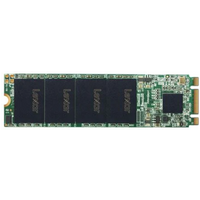
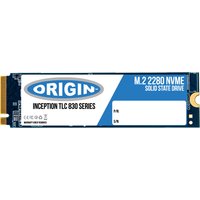
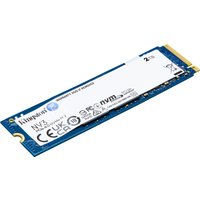
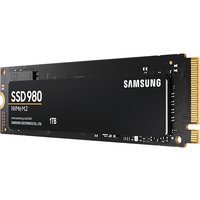
The OptiPlex 7090 supports M.2 NVMe drives via PCIe 4.0 as well as standard 2.5″ SATA SSDs. NVMe drives offer significantly faster read/write speeds compared to SATA.
M.2 NVMe Installation
- Power off and open the chassis as described above
- Locate the M.2 slot on the motherboard (typically near the CPU or front panel connectors)
- Remove the M.2 mounting screw
- Insert the M.2 drive at a 30-degree angle into the slot
- Press down and secure with the mounting screw
- Reassemble and boot — the drive should appear in BIOS automatically
Recommended Upgrade Products
| Product | Type | Best For | Link |
|---|---|---|---|
| Crucial 16GB DDR4-3200 UDIMM | RAM | 16GB stick | Shop |
| Kingston Fury Beast 16GB DDR4-3200 | RAM | 16GB stick | Shop |
| Corsair Vengeance LPX 32GB DDR4-3200 Kit | RAM | 32GB kit (2×16GB) | Shop |
| Samsung 970 EVO Plus 1TB NVMe | SSD | High performance | Shop |
| WD Blue SN570 1TB NVMe | SSD | Great value | Shop |
| Crucial P3 Plus 1TB NVMe | SSD | Budget NVMe | Shop |
| Samsung 870 EVO 1TB SATA | SSD | SATA upgrade | Shop |
| Crucial MX500 1TB SATA | SSD | Budget SATA | Shop |
Prices and availability may vary. As an Amazon Associate, we earn from qualifying purchases.
Frequently Asked Questions
Q: What type of RAM does the OptiPlex 7090 use?
A: The OptiPlex 7090 uses DDR4-3200 unbuffered DIMMs (UDIMMs). The SFF model has 2 DIMM slots supporting up to 64GB, while the Tower model has 4 slots supporting up to 128GB.
Q: Can I add an NVMe SSD to the OptiPlex 7090?
A: Yes, the OptiPlex 7090 supports M.2 NVMe drives via PCIe 4.0. This is the recommended upgrade for maximum storage performance.
Q: Is the OptiPlex 7090 RAM compatible with the OptiPlex series?
A: RAM compatibility depends on the specific generation. The OptiPlex 7090 uses DDR4-3200, which is physically compatible with other DDR4 systems but the speed rating must match or exceed the motherboard’s requirement.
Q: How do I check how much RAM is currently installed?
A: Open Task Manager (Ctrl+Shift+Esc), click the Performance tab, then select Memory. This shows total installed RAM, speed, form factor, and how many slots are in use. Alternatively, press Win+Pause/Break to open System Information.
Q: Can I mix different RAM sizes in the OptiPlex 7090?
A: While the OptiPlex 7090 can technically run with mismatched RAM sizes, it is recommended to use identical modules in pairs for optimal dual-channel performance. Mixing sizes will cause the system to run in flex mode, which reduces memory bandwidth.
Related Dell Upgrade Guides
- Dell Alienware Aurora R16 RAM & SSD Upgrade Guide (2024)
- Dell OptiPlex 5000 SFF RAM & SSD Upgrade Guide (2023)
- Dell OptiPlex 5000 Tower RAM & SSD Upgrade Guide (2023)
- Dell OptiPlex 7020 SFF RAM & SSD Upgrade Guide (2024)
- Dell OptiPlex 7020 Micro RAM & SSD Upgrade Guide (2024)
- Dell Upgrade Guide
Not sure what fits? Use our free Compatibility Checker covering 3,195+ models.