

Acer Aspire Desktop Upgrade Guide (2026) — RAM, SSD & Storage
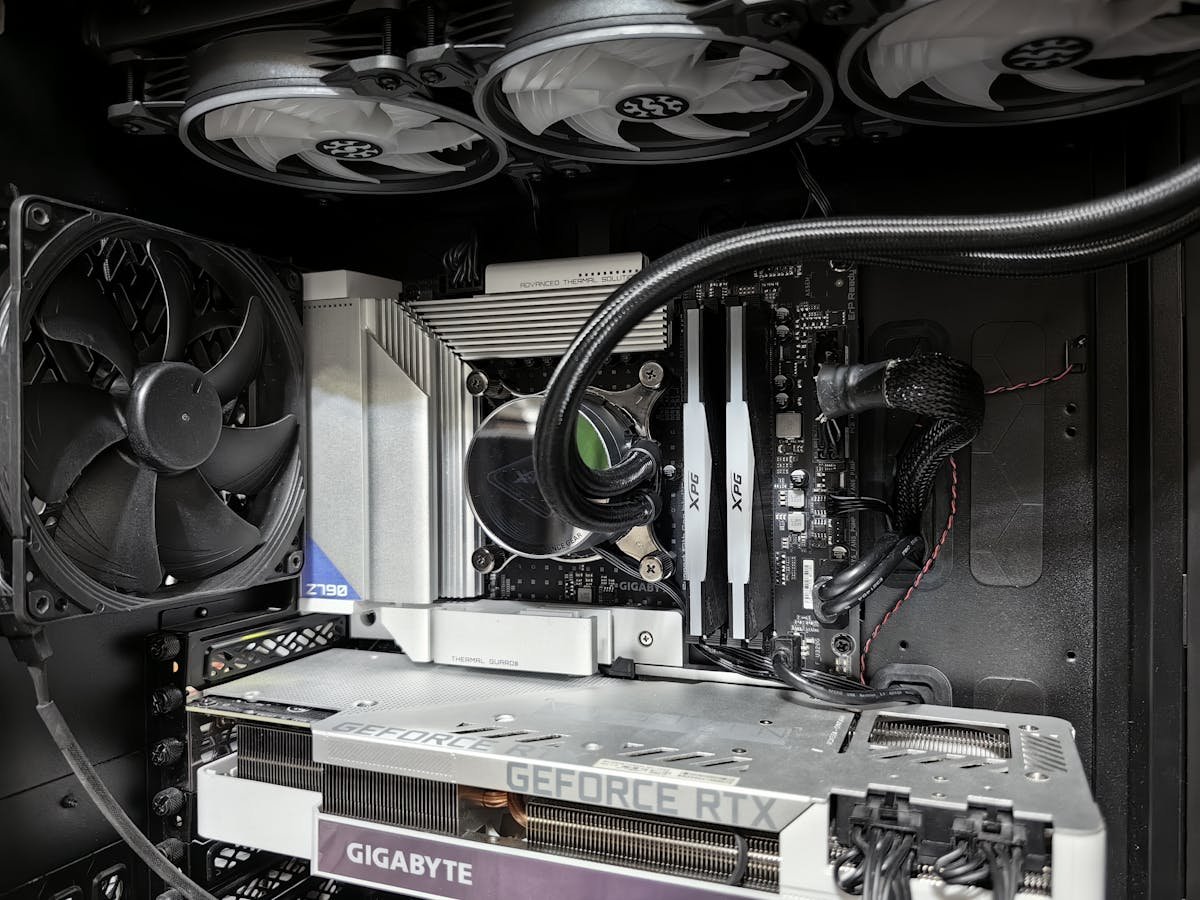
Acer’s Aspire TC desktop line targets budget and mid-range buyers who want reliable everyday computing with the flexibility to upgrade over time. The TC series uses industry-standard components, making memory and storage upgrades straightforward and cost-effective. This guide covers current Aspire models, specifications, and detailed upgrade procedures.
Acer Aspire TC Model Lineup
Current Models Overview
| Model | Form Factor | Processor Tier | Base Memory | Target User |
|---|---|---|---|---|
| Aspire TC-1780 | Mid-tower | Intel Core i5–i7 (12th–13th gen) | 8GB–16GB DDR4 | Everyday computing, light office work |
| Aspire TC-1760 | Mid-tower (compact variant) | Intel Core i3–i5 (12th gen) | 8GB DDR4 | Home office, budget builds |
| Aspire TC-885 | Mid-tower | Intel Core i3–i5, AMD Ryzen 3–5 | 8GB–16GB DDR4 | Entry-level gaming, productivity |
Why Aspire TC for upgrades? These machines use fully standard components — no proprietary parts. You can upgrade with any retail DDR4/DDR5 RAM and any M.2 NVMe or SATA SSD without special compatibility concerns.
Memory (RAM) Specifications
Aspire TC-1780 & TC-1760
| Specification | Details |
|---|---|
| RAM Type | DDR4-3200 MHz (standard) |
| Form Factor | U-DIMM (full-size desktop modules) |
| DIMM Slots | 2 or 4 (depending on motherboard revision) |
| Stock Configuration | 8GB or 16GB (1 × 8GB or 1 × 16GB, or 2 × 8GB) |
| Maximum Supported | 64GB (2 × 32GB) on 2-slot models, 128GB (4 × 32GB) on 4-slot models |
Aspire TC-885 (Older/Legacy Model)
| Specification | Details |
|---|---|
| RAM Type | DDR4-2666 or DDR4-3200 (depends on variant) |
| Form Factor | U-DIMM (full-size desktop modules) |
| DIMM Slots | 2 or 4 |
| Maximum Supported | 64GB–128GB (depending on slot count) |
DDR4 note: Acer Aspire TC models released prior to 2024 use DDR4 exclusively. DDR5 support may appear in 2024+ Aspire models, but as of this writing, DDR4 remains standard for the budget/mid-range TC line.
Storage (SSD/NVMe & SATA) Specifications
M.2 NVMe Slots
| Model | M.2 Slots | PCIe Speed | Form Factors | Max Capacity |
|---|---|---|---|---|
| TC-1780 | 1 or 2 | PCIe 3.0 (6 Gbps) or PCIe 4.0 (16 Gbps) | 2242, 2260, 2280 | 2TB–4TB |
| TC-1760 | 1 | PCIe 3.0 (6 Gbps) | 2280 | 2TB–4TB |
| TC-885 | 1 | PCIe 3.0 (6 Gbps) | 2280 | 2TB–4TB |
SATA Storage
Most Aspire TC models include 2.5-inch SATA bays (typically 1 to 2):
- Standard SATA 6 Gbps speed
- Perfect for secondary storage or backup drives
- Much cheaper than NVMe SSDs
- Suitable for games, media libraries, or archival storage
Practical upgrade path: Start with the base NVMe drive for OS and applications. Add a SATA SSD to the 2.5-inch bay for game or media storage. This combination offers the best balance of speed (NVMe for OS) and capacity (SATA for bulk storage) at reasonable cost.
Step-by-Step RAM Upgrade Procedure
Tools Required
- Screwdriver (Phillips, size #1 or #0)
- Anti-static wrist strap (optional)
- Flashlight
Upgrade Steps
Step 1: Power Down and Unplug
- Shut down the Aspire TC completely
- Unplug the power cable from the back
- Wait 30 seconds
Step 2: Open the Chassis
- Most Acer Aspire TC cases use Phillips screws on the side panel (typically 2 to 4 screws)
- Locate and unscrew these fasteners
- Slide the side panel off to reveal the interior
Step 3: Locate Memory Slots
- Look toward the center of the motherboard
- You’ll see vertical U-DIMM slots
- Most TC models have 2 or 4 slots
Step 4: Ground Yourself
- Touch a bare metal part of the case to discharge static electricity
Step 5: Remove Existing Modules
- Press the ejector clips on both ends of each DIMM outward
- The module will pop up at an angle
- Pull it straight out and place it aside
Step 6: Install New Modules
- Align the new DIMM with the slot (notch must match the key)
- Press down firmly at a 45-degree angle until the ejector clips snap around both ends
- The module should now be fully vertical and seated
Step 7: Close the Chassis
- Slide the side panel back into place
- Reinstall the Phillips screws and tighten firmly (not over-tight)
- Reconnect the power cable and power on
Step 8: Verify Installation
- Boot to Windows and right-click This PC → Properties
- Confirm the new RAM total is listed
Step-by-Step NVMe SSD Upgrade
What You Need: Very small Phillips screwdriver (#000 or #00), anti-static strap, new M.2 NVMe drive
Procedure:
- Power down and unplug the Aspire TC
- Open the side panel as described above
- Locate the M.2 slot on the motherboard (usually labeled M.2_1, may be near the top-center or right side)
- If there’s a heatspreader covering the slot, gently unscrew it (single screw, usually brass)
- Hold your new NVMe drive at a 30-degree angle and insert it into the slot
- Press down until the drive sits flat against the motherboard
- Install the retaining screw at the far end of the drive (small brass screw)
- If desired, reinstall the heatspreader (optional but improves thermals)
- Close the case and power on
- Boot to Windows and open Disk Management to initialize the new drive if necessary
Step-by-Step SATA SSD Installation
What You Need: Screwdriver (Phillips #1), new 2.5-inch SATA SSD, SATA data cable (may be provided), SATA power cable (should be available in the case)
Procedure:
- Power down and unplug the desktop
- Open the side panel
- Locate the 2.5-inch drive bay (usually on the front or bottom of the case)
- Slide the new SATA SSD into the bay, aligning the screw holes
- Secure with two small Phillips screws on each side (do not over-tighten)
- Connect a SATA data cable from the motherboard to the drive (look for connectors labeled SATA1, SATA2, etc.)
- Connect a SATA power cable from the PSU to the drive (L-shaped connector)
- Close the case and power on
- Boot to Windows and initialize the drive in Disk Management if necessary
Cable routing: Route SATA cables away from fans and heat sources. SATA cables can handle some heat, but direct fan airflow may damage them over time.
Recommended Upgrade Components for Aspire TC
| Component | Capacity | Price Range | Link |
|---|---|---|---|
| Kingston FURY Beast DDR4 | 8GB–32GB | £15–70 | View on Amazon UK |
| Corsair Vengeance DDR4 | 8GB–32GB | £18–80 | View on Amazon UK |
| Crucial P3 NVMe (PCIe 3.0) | 500GB–2TB | £30–100 | View on Amazon UK |
| Kingston A3000 NVMe (PCIe 3.0) | 500GB–2TB | £25–90 | View on Amazon UK |
| Samsung 870 EVO SATA SSD | 250GB–1TB | £25–80 | View on Amazon UK |
| WD Green SATA SSD | 240GB–1TB | £20–70 | View on Amazon UK |
Troubleshooting Common Issues
New RAM Not Recognized or Only Partial Recognition
Solution: Power down, open the case, and firmly reseat each new module. Ensure both ejector clips engage on both sides. Test with one module at a time if possible to identify if one is defective.
New SSD Not Appearing in Windows
Solution: Open Disk Management, find your new drive, right-click it, and select Initialize Disk (choose GPT for modern systems). Then right-click again and select New Simple Volume to format and create a usable partition.
SATA Drive Not Detected
Solution: Verify both the data and power cables are fully connected. Reseat the drive itself in the bay to ensure metal contacts are clean. Try a different SATA port on the motherboard (SATA1, SATA2, etc.) in case one port is faulty.
Related Guides
- Acer Predator Orion Upgrade Guide (2026) — Gaming Desktop Upgrades
- Laptop RAM Compatibility Guide (2026) — DDR4, DDR5 & LPDDR5
- Laptop SSD Compatibility Guide (2026) — NVMe, SATA, M.2 Sizes Explained
Frequently Asked Questions
Prices and availability may vary. As an Amazon Associate, we earn from qualifying purchases.