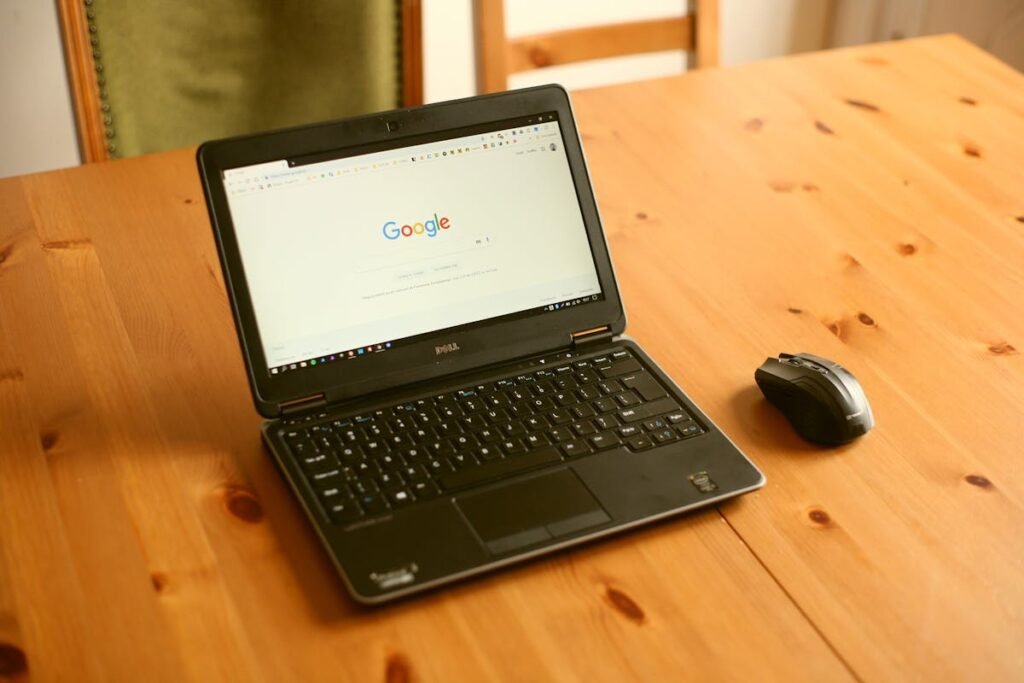
Dell laptops are among the most popular worldwide, and battery replacement is a common maintenance task as these batteries age. Whether you have a Latitude, Inspiron, XPS, Vostro, or Precision workstation, this guide covers how to identify the right replacement battery, step-by-step installation instructions, and tips for maximising your new battery’s lifespan.
Table of Contents
- Signs Your Dell Battery Needs Replacing
- Dell Battery Types by Series
- How to Find the Right Dell Replacement Battery
- Step-by-Step Dell Battery Replacement
- Dell Battery Calibration and First Use
- Maximising Dell Battery Lifespan
- Recommended Products
- Frequently Asked Questions
Signs Your Dell Battery Needs Replacing
Your Dell battery likely needs replacing if: battery life has dropped to less than half of its original capacity, the laptop shuts down unexpectedly at 20-30% charge, Dell SupportAssist shows a battery warning or ‘Replace Battery’ message, the battery has swollen (visible bulging under the trackpad or bottom panel), or the battery won’t charge at all despite the charger working.
To check your Dell battery health, open Command Prompt as administrator and run ‘powercfg /batteryreport’. Compare the ‘Design Capacity’ to ‘Full Charge Capacity’. If full charge is below 50-60% of design capacity, replacement is recommended. Dell SupportAssist also provides battery health diagnostics under the Hardware section.
Dell Battery Types by Series
| Dell Series | Battery Type | Typical Capacity | Replacement Difficulty |
|---|---|---|---|
| Latitude 5000/7000 | Internal | 42-63 Wh | Easy |
| Latitude 3000 | Internal | 38-54 Wh | Easy |
| Inspiron 14/15/16 | Internal | 41-54 Wh | Moderate |
| XPS 13/14/15/16 | Internal | 46-86 Wh | Moderate |
| G-Series / Alienware | Internal | 56-97 Wh | Easy |
| Precision Workstation | Internal | 64-97 Wh | Easy |
| Vostro | Internal | 40-54 Wh | Moderate |
Dell Latitude business laptops are the easiest to service — Dell publishes detailed service manuals for every model, and the bottom panels are designed for easy access. XPS models require more care due to their compact designs.
How to Find the Right Dell Replacement Battery
Dell batteries use part numbers like ‘DXGH8’, ‘WDX0R’, ‘451-BBVS’, or ‘MV07R’. You can find your battery’s part number by: checking Dell SupportAssist (enter your Service Tag at support.dell.com), looking at the label on your current battery (requires opening the laptop), or searching for your exact model number on Amazon.
Dell’s Service Tag system is the fastest method — enter your 7-character Service Tag at support.dell.com/support/home, and Dell will list all compatible parts including the battery. The Service Tag is printed on a sticker on the bottom of your laptop.
Step-by-Step Dell Battery Replacement
Tools needed: Phillips #1 screwdriver, plastic spudger, and optionally an anti-static wrist strap.
Step 1: Power off the laptop completely and disconnect the charger. Step 2: Close the lid and place the laptop upside down on a clean, soft surface. Step 3: Remove the bottom panel screws. Dell Latitude models typically use 6-8 captive screws. XPS and Inspiron models may use 8-10 Torx T5 or Phillips screws. Step 4: Carefully pry off the bottom panel starting from the rear edge, using a plastic spudger along the clips. Step 5: Disconnect the battery cable from the motherboard. On most Dell models, the connector pulls straight up. Step 6: Remove the battery mounting screws (usually 1-4 screws). Step 7: Lift out the old battery. Step 8: Place the new battery, secure with screws, reconnect the cable, reattach the bottom panel, and power on.
Dell provides free service manuals for every laptop model at support.dell.com. Search for your Service Tag and look under ‘Documentation’ for the illustrated step-by-step guide specific to your exact model.
Dell Battery Calibration and First Use
After installing your new Dell battery: charge it to 100% and leave connected for 2 hours, then use the laptop on battery until it shuts down from low charge, and finally charge back to 100% uninterrupted. This calibration cycle helps the battery controller accurately report charge levels.
Dell Command Power Manager (on Latitude/Precision models) or Dell SupportAssist lets you configure charging profiles: Standard, ExpressCharge, Primarily AC Use, and Custom. If you mostly work plugged in, the ‘Primarily AC Use’ profile limits charging to protect long-term battery health.
Maximising Dell Battery Lifespan
Use Dell’s thermal management settings to keep temperatures down — heat is the biggest enemy of battery longevity. Enable the custom charge profile in Dell Power Manager to limit charging to 80% if you mostly work plugged in. Keep your BIOS updated as Dell often releases battery management improvements. Avoid leaving your laptop in direct sunlight or hot cars.
Recommended Products
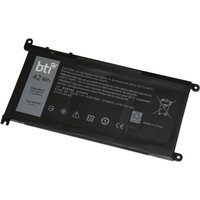
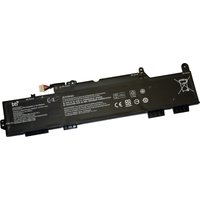
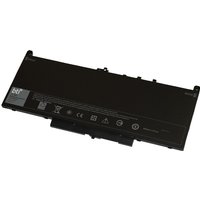
Compatible with Latitude 7280, 7290, 7380, 7390, 7480, 7490. Dell OEM quality replacement.
From £32 · Check Price on Amazon UK →
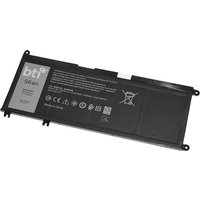
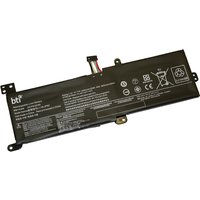
Fits Inspiron 13 5000/7000, 14 7000, 15 5000/7000, 17 5000. One of Dell’s most common batteries.
From £28 · Check Price on Amazon UK →
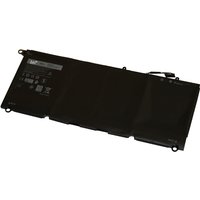
Replacement for XPS 13 9370/9380, XPS 15 9560/9570. Premium build quality.
From £38 · Check Price on Amazon UK →
Essential toolkit for Dell laptop repairs. Includes Phillips, Torx T5, and spudger tools.
From £10 · Check Price on Amazon UK →
Frequently Asked Questions
How long do Dell laptop batteries last?
Dell batteries typically last 2-4 years with normal use. Business Latitude models often last longer due to better battery management software. Heavy use or frequent deep discharges will shorten lifespan.
Where do I find my Dell laptop’s Service Tag?
The Service Tag is printed on a sticker on the bottom of your laptop. It’s a 7-character alphanumeric code. You can also find it by pressing F2 at boot to enter BIOS, or by opening Dell SupportAssist.
Can I use a higher capacity Dell battery?
In some cases, yes. Some Dell models offer batteries in different capacities (e.g., 42Wh, 54Wh, 68Wh). The higher capacity option must be designed for your specific model — it will physically fit in a larger battery cavity. Check Dell’s parts list for your Service Tag.
My Dell shows ‘plugged in, not charging’. How do I fix this?
Try these steps: disconnect and reconnect the charger, update your BIOS, reset the battery driver in Device Manager (uninstall ‘Microsoft ACPI-Compliant Control Method Battery’ and restart), or try a different charger. If the battery is old, it may need replacing.
Does Dell warranty cover battery replacement?
Dell’s standard warranty covers battery defects but not normal wear. If your battery fails within the warranty period due to a manufacturing defect, Dell will replace it free. Normal capacity degradation over time is not covered.
Is it safe to use a third-party Dell battery?
Third-party batteries are generally safe if purchased from reputable sellers with good reviews. Ensure the voltage and connector type match your original battery exactly. Some Dell models may display a warning about non-Dell batteries but will still function normally.
Related Dell Upgrade Guides
- Best RAM for Dell Laptops in 2026
- Dell Precision T7920 RAM & SSD Upgrade Guide (2018)
- Dell Precision T7875 RAM & SSD Upgrade Guide (2024)
- Dell Precision T5860 RAM & SSD Upgrade Guide (2024)
- Dell PowerEdge R760xs RAM & SSD Upgrade Guide (2023)
- Dell Upgrade Guide
Not sure what fits? Use our free Compatibility Checker covering 3,195+ models.
Helpful Guides
Final Thoughts
Replacing a Dell laptop battery is a manageable DIY task that can save you significant money compared to professional repair. Dell’s excellent documentation and mostly accessible designs make the process straightforward. With the right replacement part and basic tools, you can restore your Dell’s battery life in under 30 minutes.
Check Your Laptop’s Compatibility
Use our free tool to find compatible RAM and SSD upgrades for your specific laptop model.
Launch Compatibility Checker →