The Framework Laptop 16 is Framework’s first 16-inch offering, designed for professionals and creators who need serious performance without sacrificing repairability. Like the 13-inch models, it’s fully modular: user-replaceable DDR5 RAM, two M.2 2280 SSD slots, and six expansion card bays for customizable I/O. But the Laptop 16 adds a powerful feature: a dedicated modular GPU expansion bay that lets you add discrete graphics (NVIDIA or AMD) if needed, or swap it for additional storage expansion. This is the only repairable 16-inch laptop on the market.
Framework Laptop 16: Desktop-Class Upgradability at Laptop Size
The Framework Laptop 16 runs AMD Ryzen 9 7940HS or newer processors with integrated Radeon graphics. Unlike the 13-inch models, the Laptop 16’s expansion bay can accept a Framework GPU Module—either NVIDIA GeForce RTX 4060 or RTX 4050 discrete graphics—that you can install or remove as needed. This means you can configure light (iGPU only) for travel or battery life, then add discrete graphics for gaming, 3D rendering, or video editing at your desk. You can even upgrade to a newer GPU module in the future—repairability and upgradeability come standard.
RAM Compatibility & Upgrade Options
The Framework Laptop 16 has two DDR5 SO-DIMM slots supporting standard laptop memory up to 64GB maximum. This is identical to the 13-inch models, but the larger form factor and higher-performance processor make 32GB a more attractive baseline for this device category.
| Configuration | RAM Capacity | Module Type | Maximum | Best For |
|---|---|---|---|---|
| Light Config | 16GB (2×8GB) | DDR5 SO-DIMM 5600 MHz | 64GB total (2×32GB) | Web browsing, documents, light creative work |
| Standard Config | 32GB (2×16GB) | DDR5 SO-DIMM 5600 MHz | 64GB total (2×32GB) | Video editing, 3D modeling, software development, professional creative work |
| Maximum Config | 64GB (2×32GB) | DDR5 SO-DIMM 5600 MHz | N/A (maximum supported) | Complex 3D renders, running multiple VMs, heavy multithreading, future-proofing |
For the Framework Laptop 16, we recommend a minimum of 32GB DDR5 at purchase because this machine is positioned for professional/creative workflows where the extra memory pays immediate dividends. Upgrading is simple: remove the keyboard bezel, swap the modules. Framework sells compatible Kingston DDR5 modules, and any major manufacturer’s modules work.
SSD/Storage Compatibility & Upgrade Options
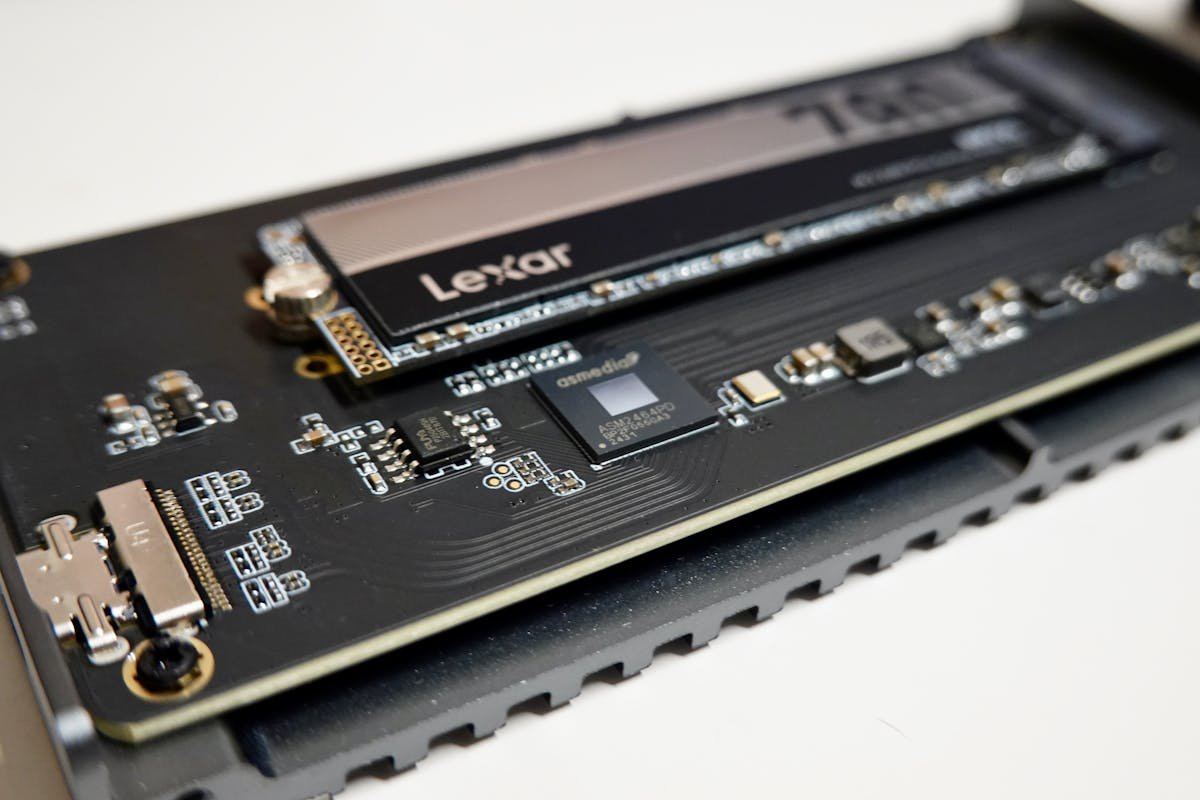
The Framework Laptop 16 features two M.2 2280 NVMe SSD slots—a major upgrade from the 13-inch models. You can configure the machine with two internal drives for RAID, storage duplication, or simply expand capacity. Both slots support PCIe Gen 4.
| Configuration | Total Storage | Slot 1 | Slot 2 | Best Use |
|---|---|---|---|---|
| Single Drive | 512GB–2TB | Primary SSD | Empty (upgrade later) | General use, budget conscious |
| Dual Drive (Matched) | 1TB–4TB | 512GB–2TB | 512GB–2TB (same model) | RAID 0 (faster), RAID 1 (backup), dual partitions |
| Dual Drive (Asymmetric) | 1.5TB–4TB | 1TB fast SSD | 512GB secondary SSD | OS + project cache on fast drive, backup on secondary |
| SSD Type | Form Factor | Speed | Compatibility | Best For Laptop 16 |
|---|---|---|---|---|
| Samsung 990 EVO | M.2 2280 NVMe PCIe 4.0 | 5,000 MB/s | Fully compatible | Budget option, both slots |
| Samsung 990 Pro | M.2 2280 NVMe PCIe 4.0 | 7,100 MB/s | Fully compatible | Primary drive for professionals, excellent durability |
| WD Black SN850X | M.2 2280 NVMe PCIe 4.0 | 7,100 MB/s | Fully compatible | Gaming/rendering, primary slot |
| SK Hynix Platinum P41 | M.2 2280 NVMe PCIe 4.0 | 7,100 MB/s | Fully compatible | Excellent thermals, good secondary drive |
| Crucial P5 Plus | M.2 2280 NVMe PCIe 4.0 | 6,600 MB/s | Fully compatible | Reliable, good for secondary/backup slot |
Recommended configuration: Samsung 990 Pro 1TB (primary) + Crucial P5 Plus 512GB (secondary/backup). This gives you 1.5TB total with excellent speeds on the primary drive and reliable backup. To install: open the keyboard bezel, insert the SSD at a 30-degree angle into either slot, and press down to secure.
GPU Expansion Bay & Modular Graphics
The Framework Laptop 16’s most innovative feature is the modular GPU expansion bay. You can install a Framework GPU Module (NVIDIA or AMD) or use the bay for storage expansion instead. This is unique in the industry: upgrade GPU capability without replacing the entire machine.
| GPU Option | VRAM | Use Case | Performance vs iGPU |
|---|---|---|---|
| Integrated Radeon 680M (no module) | Shared DDR5 | Web, documents, light editing, everyday work | Baseline (good enough for 1080p–1440p gaming) |
| NVIDIA GeForce RTX 4060 (6GB GDDR6) | 6GB dedicated | Gaming, 3D modeling, light video editing | ~5–8x faster than iGPU for CUDA workloads |
| NVIDIA GeForce RTX 4050 (6GB GDDR6) | 6GB dedicated | Portable gaming, light creative work, efficiency | ~3–5x faster than iGPU, lower power draw |
| Storage Expansion Module (third-party, future) | N/A | Extra internal SSD without GPU | N/A—adds capacity instead of graphics |
The Framework GPU Module adds significant weight and battery drain, so you can remove it for travel or battery-critical work and reinstall it when you need graphics performance. This is the first laptop where you can physically swap GPUs—a major breakthrough in repairability.
Note: The RTX 4060 and 4050 modules are sold by Framework as of 2024. Older RTX 4050 modules are rarer. Check Framework’s store or Amazon UK for current availability.
Expansion Cards & Ports
The Framework Laptop 16 has six expansion card bays (versus four on the 13-inch)—three per side. This gives you more flexibility: you could have USB-A, USB-C, HDMI, DisplayPort, and MicroSD reader simultaneously, or any custom combination.
| Expansion Card Type | Description | Bays Needed | Best For |
|---|---|---|---|
| USB-C Expansion Card | Two USB-C 3.1 ports, power delivery passthrough | 1 bay | External drives, docking, multi-device charging |
| USB-A Expansion Card | Three USB-A 3.0 ports | 1 bay | Legacy peripherals, legacy mice/keyboards |
| HDMI Expansion Card | Full-size HDMI 2.0b | 1 bay | Projectors, conference rooms, HDMI displays |
| DisplayPort Expansion Card | Full-size DisplayPort 1.4 | 1 bay | High-refresh monitors, daisy-chaining displays |
| MicroSD Card Reader | Quick MicroSD access | 1 bay | Photographers, drone pilots, video crews |
| Ethernet Expansion Card (third-party) | Gigabit Ethernet RJ45 | 1 bay | Studio setups, wired network access |
With six bays, the Laptop 16 lets you have a complete I/O setup without compromise. One suggested configuration for creative professionals: USB-C + USB-A + HDMI + DisplayPort + MicroSD + one empty (for future cards). This covers all typical needs without adapters.
Charger & Power Delivery Compatibility
The Framework Laptop 16 is more power-hungry than the 13-inch models, especially with the GPU module installed. Standard charging is 180W USB-C Power Delivery (recommended for dGPU configs), though it supports lower-wattage chargers for iGPU-only use.
| Charger Type | Wattage | GPU Config | Charging Speed |
|---|---|---|---|
| Framework Official USB-C (stock) | 180W | With RTX 4060/4050 module | Standard (included) |
| Third-party USB-C PD 180W | 180W | With dGPU | Full speed (must support 180W) |
| USB-C PD 140W | 140W | With iGPU only (slower with dGPU) | Slow with RTX module, fine for iGPU |
| USB-C PD 100W | 100W | iGPU only (very slow with dGPU) | Adequate for light use, not gaming |
| Proprietary laptop chargers | Variable | N/A | Incompatible (wrong connector) |
If you plan to use the Framework Laptop 16 with the RTX GPU module and do gaming or rendering, invest in a proper 180W USB-C PD charger. For iGPU-only work, a 140W or even 100W charger works in lighter scenarios, but you’ll experience slow charging under heavy load. Look for USB-C 180W power delivery chargers on Amazon UK.
Dock & Hub Compatibility
The Framework Laptop 16 has three internal USB-C/Thunderbolt 4 ports (unlike the 13-inch AMD which uses USB4). This means it works with all Thunderbolt docks, USB4 docks, and USB-C hubs. The six expansion card bays often eliminate the need for a dock, but for permanent desk setups, Thunderbolt docks offer better cable management.
| Dock Type | Port Count | Video Output | Best For |
|---|---|---|---|
| Thunderbolt 4 Dock (full featured) | 6–13 USB ports | Dual 5K or single 6K display | Professional creative desk setups, maximum connectivity |
| USB-C Hub (compact) | 4–8 USB ports | Single 4K via USB-C DP Alt Mode | Portable, lightweight workspaces |
| No dock (expansion cards only) | N/A (swap cards as needed) | HDMI or DP via expansion card | Minimalist studio setup, no extra cables |
Many Framework Laptop 16 owners use the six expansion cards as their “dock,” swapping cards for different environments. This is more flexible than a traditional dock, though a permanent desktop setup may benefit from a Thunderbolt dock for cleaner cable organization.
Framework Laptop 16 Specifications Summary
| Specification | Details |
|---|---|
| Processor | AMD Ryzen 9 7940HS (12-core), integrated Radeon 680M GPU |
| RAM | 2×DDR5 SO-DIMM slots, 16GB–64GB, user-replaceable |
| Storage | 2×M.2 2280 NVMe PCIe Gen 4 slots, fully user-replaceable |
| Discrete GPU (modular) | Optional: NVIDIA RTX 4060 (6GB) or RTX 4050 (6GB), user-installable/removable |
| Display | 16-inch IPS LCD, 2560×1600, 165Hz or 60Hz (standard), 500 nits |
| Ports (internal) | 3×Thunderbolt 4 / USB4, 1×headphone jack |
| Expansion Card Bays | 6 total (3 per side), modular USB-A, USB-C, HDMI, DP, MicroSD, custom cards |
| Charging | USB-C Power Delivery, 180W recommended for dGPU (100W+ minimum) |
| Battery | 86 Wh (user-replaceable) |
| Weight | 1.87 kg (4.1 lbs) without GPU module, 2.1 kg (4.6 lbs) with RTX module |
| Repairability | 9/10 iFixit score—fully user-replaceable mainboard, GPU module, battery, keyboard, display |
Frequently Asked Questions
Do I need the GPU module?
No. The integrated Radeon 680M is adequate for web browsing, office work, and light creative tasks. Only add the RTX 4060 or 4050 module if you game, do 3D rendering, or video editing. The beauty of Framework: you can add it later if you discover you need it, rather than being locked into a dGPU at purchase.
Can I remove the GPU module and use the bay for storage instead?
Not yet, but Framework has indicated storage expansion cards for the GPU bay may be offered in the future. For now, you can only install/remove the GPU module. If you don’t need a GPU, simply leave the bay empty.
How much does adding an RTX module affect battery life?
The RTX 4050 or 4060 modules draw 15–30W when active, significantly reducing battery life from ~12 hours (iGPU) to ~6–8 hours (with dGPU). If battery life is critical, remove the module for travel. This is the huge advantage: you can physically detach the GPU when you don’t need it.
Should I buy two SSDs in each slot?
Not necessarily. Buy one quality SSD at purchase, then add a second when you need it (3–12 months later). This spreads cost and lets you upgrade the primary drive independently. A suggested upgrade path: start with 512GB primary SSD, add a 1TB secondary SSD later for projects/media.
Can I use the six expansion card bays effectively without a dock?
Absolutely. With six bays, you can install: USB-C + USB-A + HDMI + DisplayPort + MicroSD + one spare. This eliminates the need for adapters or a dock. Just swap cards if your environment changes (e.g., swap DP for a second USB-A card when traveling).
What’s the best configuration for a video editor?
For professional video editing, we recommend: Ryzen 9 7940HS + 32GB or 64GB DDR5 RAM + RTX 4060 GPU module + 1TB primary SSD + 2TB secondary SSD (one for cache, one for backup). The RTX 4060 accelerates NVIDIA NVENC export significantly. Upgrade to 64GB RAM if handling 4K+ projects. Use fast NVMe SSDs for cache drives.
Recommended Products
These are the products we recommend based on this guide. All links go to Amazon UK where you can check current prices and availability.
| Product | Why We Recommend It | Amazon UK |
|---|---|---|
| Corsair Vengeance DDR5 SO-DIMM 32GB (2×16GB) 5600MHz | Top-rated DDR5 kit for gaming & productivity | View on Amazon UK |
| Kingston Fury Impact DDR5 SO-DIMM 32GB (2×16GB) 5600MHz | Excellent DDR5 alternative with XMP support | View on Amazon UK |
| Crucial DDR5 SO-DIMM 16GB 5600MHz | Affordable single-stick DDR5 | View on Amazon UK |
| G.Skill Ripjaws DDR5 SO-DIMM 32GB 5600MHz | High performance DDR5 for enthusiasts | View on Amazon UK |
| Samsung 990 Pro 2TB NVMe M.2 2280 | Fastest consumer NVMe — ideal for gaming & editing | View on Amazon UK |
| WD Black SN850X 2TB NVMe | Excellent Gen4 speed with heatsink option | View on Amazon UK |
| Crucial P5 Plus 1TB NVMe | Great value Gen4 SSD | View on Amazon UK |
| Kingston NV2 1TB NVMe | Budget-friendly with solid reliability | View on Amazon UK |
Prices and availability may vary. As an Amazon Associate, we earn from qualifying purchases.
Related Framework Upgrade Guides
- Dynabook Satellite Pro C50-J RAM & SSD Upgrade Guide
- Dynabook Portege X40-K RAM & SSD Upgrade Guide
- Dynabook Portege X30L-K RAM & SSD Upgrade Guide
- Dynabook Tecra A50-K RAM & SSD Upgrade Guide
- Dynabook Tecra A40-K RAM & SSD Upgrade Guide
- Framework Upgrade Guide
Not sure what fits? Use our free Compatibility Checker covering 3,195+ models.