

Affiliate disclosure: this page contains affiliate links — if you buy through them we may earn a commission at no extra cost to you. As an Amazon Associate we earn from qualifying purchases.
Your laptop is slow. You’re thinking about upgrading. But should you add more RAM and swap in an SSD, or is it time to buy a completely new machine? This is one of the most common questions we hear, and the answer depends on several factors: your laptop’s age, what’s actually slow, and how much you’re willing to spend.
The Economics of Upgrading vs Replacing
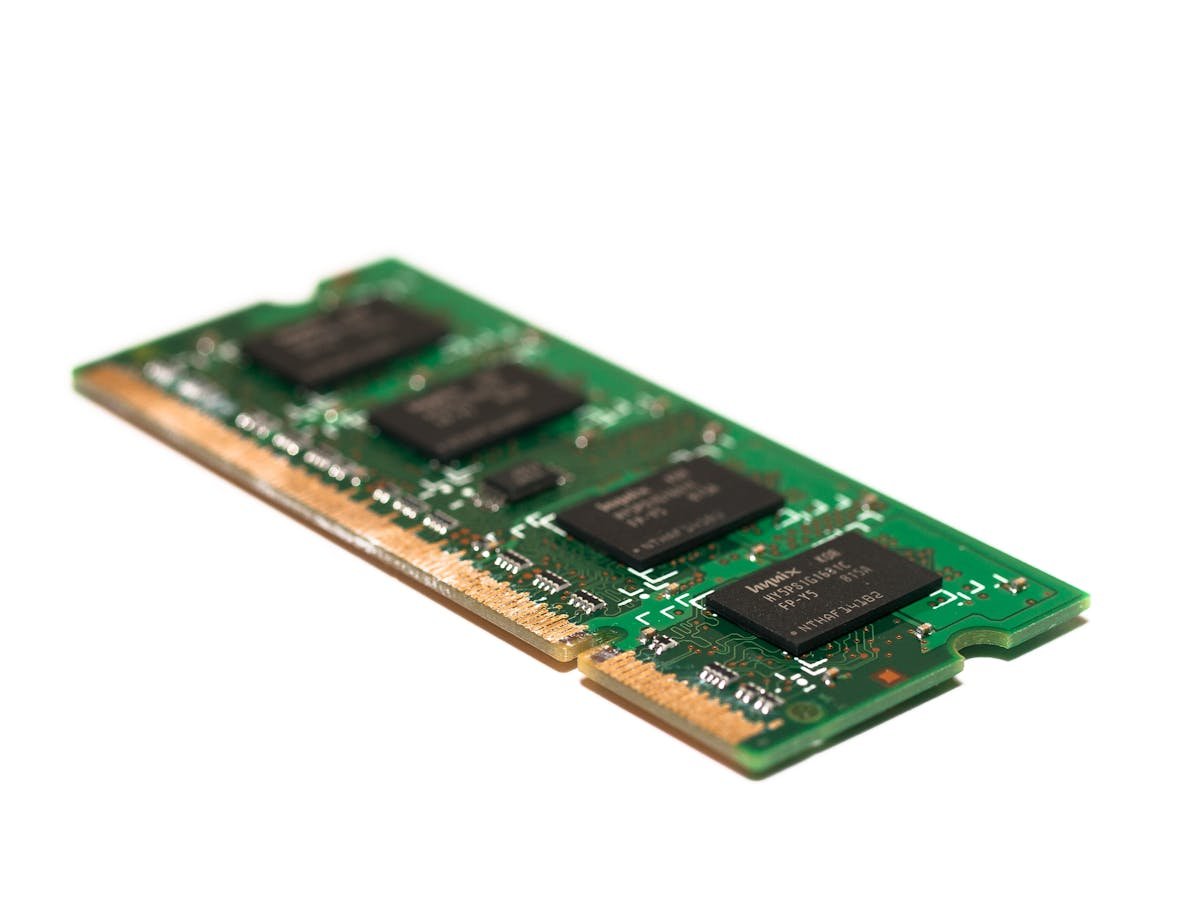
Let’s start with a straightforward cost analysis. Upgrading a typical laptop costs:
- RAM upgrade: £30-80 for 8-16GB
- SSD upgrade: £40-120 for 512GB-1TB
- Battery replacement: £40-100 (if the battery is dead)
- Total typical upgrade: £70-200
A new budget-to-mid-range laptop costs:
- Budget laptop: £300-600 (Dell Inspiron, HP Pavilion, ASUS Vivobook)
- Mid-range laptop: £600-1,000 (Dell XPS 13, ASUS ZenBook, Lenovo ThinkPad)
- Premium laptop: £1,000-2,000+ (MacBook, premium business models)
The simple math: If you can upgrade your current laptop for £100-150, and you’d be happy using it for another 3-5 years, that’s a no-brainer upgrade. You’re extending the life of a device at a tiny fraction of replacement cost.
However, if your laptop is so old or damaged that upgrades won’t help, you’re throwing money away.
Is Your Laptop Actually Slow, or Just Feels Slow?
This is the critical question. Not all slowness is fixable with hardware upgrades. Here’s how to diagnose:
Symptom: System takes 30 seconds to boot, programs take 5 seconds to launch
Diagnosis: Almost certainly a mechanical hard drive (HDD). SSDs have been standard since 2015, but some budget models still ship with HDDs.
Can you fix it? Yes. Upgrading to an SSD is transformative. Boot time drops to 10 seconds, program launch to under 1 second. This is one of the best value upgrades you can make.
Cost: £40-100 for a 512GB SSD.
Symptom: Everything is slow, even opening a web browser takes several seconds
Diagnosis: Likely multiple issues. Check these in order:
- RAM maxed out? Open Task Manager (Windows) or Activity Monitor (Mac). Click the “Performance” or “Memory” tab. If memory usage is consistently above 80-90%, RAM is the bottleneck.
- Storage full? If your C: drive (Windows) shows less than 10% free space, the system can’t create temporary files and crawls. This is fixable by freeing space or upgrading storage.
- Old processor hitting thermal limits? If the CPU usage in Task Manager is constantly at 100% even during light use, and the laptop is hot, thermal throttling might be limiting performance. This is harder to fix.
- Malware or bloatware? Run Windows Defender full scan or Malwarebytes. Too many startup programs drain RAM and CPU. Disable unnecessary startup items in Task Manager.
Can you fix it? Partially. Upgrading RAM (if maxed out) helps. Cleaning the drive helps. But if the CPU is ancient (7+ years old), upgrades have limits.
Cost: £30-80 for RAM, plus troubleshooting time.
Symptom: Some specific tasks are slow (video editing lags, games stutter, 4K video playback is choppy)
Diagnosis: The CPU or GPU isn’t powerful enough for the workload.
Can you fix it? No. You cannot upgrade the CPU or GPU in 99% of laptops. These are soldered to the motherboard. This requires a new laptop.
Cost: New laptop (£400-2,000).
How Old Is Too Old? The Upgrade/Replace Decision Matrix
| Laptop Age | Current Specs | Upgrade Worth It? | Reasoning |
|---|---|---|---|
| 0-3 years | Any specs | Yes, almost always | Newer CPU/GPU still relevant. RAM/SSD upgrade will revitalize it for 3-5 more years. |
| 3-5 years | Intel 8th-gen+, Ryzen 2000+, 8GB+ RAM, SSD | Yes, worth it | CPU still competitive. Upgrading RAM (to 16GB) and adding SSD extends life another 3-4 years cost-effectively. |
| 5-7 years | Intel 6th-7th gen, Ryzen 1000, 4GB RAM, HDD | Depends on use | CPU aging but usable for light work. Upgrade makes sense if you only do browsing/email. Not worth it if you need performance. |
| 7-10 years | Intel 5th-gen or older, Ryzen 1000, 2-4GB RAM | Rarely worth it | CPU is significantly outdated. You’ll upgrade the RAM/SSD, then immediately hit CPU limitations. Better to replace. |
| 10+ years | Anything | No, buy new | Even basic tasks will be slow. Battery likely near end-of-life. Better to replace. |
Real example: You have a 2017 Dell XPS 13 with 8GB RAM and an SSD, but it feels slow for web browsing and email. Upgrading RAM to 16GB costs £50. Is it worth it? Yes, because the CPU (7th-gen Intel Core i7) is still capable. The slowness is likely from maxed-out RAM, not the processor.
Counter-example: You have a 2013 HP Pavilion with 4GB RAM and a mechanical drive. Upgrading the SSD and RAM will make it feel snappier, but you’ll quickly hit the CPU (Haswell-era Core i5) bottleneck. You’ll spend £100 upgrading, then be frustrated that it’s still slow for anything demanding. Better to buy new.
Specific Upgrade Scenarios
Scenario 1: 2020 Lenovo ThinkPad, 8GB RAM, 256GB SSD, slow at multitasking
Diagnosis: RAM is the bottleneck. Modern sites and productivity apps need 12-16GB.
Solution: Upgrade to 16GB RAM (£50-70). ThinkPads are easy to upgrade.
Expected improvement: Web browsing becomes smooth, multitasking is seamless, no more lag.
Cost/benefit: Excellent. You’ll extend the laptop’s useful life by 4-5 years for under £100.
Scenario 2: 2018 MacBook Air, 8GB RAM, 256GB SSD, storage full and slow
Diagnosis: Storage is maxed out, and RAM is insufficient for modern apps.
Solution: Unfortunately, MacBook Air (2018 and earlier) has soldered, non-upgradeable storage and RAM. Your options: (A) Clean up files aggressively, or (B) buy a new MacBook.
Cost/benefit: Not worth upgrading. The limitations are hardware. Consider a new 2024+ MacBook Air with 16GB/512GB (£1,200).
Scenario 3: 2019 Dell Inspiron 15, 8GB RAM, 256GB SSD, gaming laptop, newer games lag
Diagnosis: GPU is insufficient. Dell Inspiron 15 typically ships with integrated Intel UHD graphics, not a discrete GPU. The CPU (i5-9300H) is capable, but integrated graphics can’t handle modern games.
Solution: None. You can’t upgrade integrated graphics to a discrete GPU without replacing the laptop. Upgrading RAM or SSD won’t help gaming performance.
Cost/benefit: Not worth it. If gaming is your priority, buy a gaming laptop with a discrete GPU (RTX 3050 or better), £800+.
Scenario 4: 2015 ASUS VivoBook, 4GB RAM, 256GB HDD, general use (email, browsing)
Diagnosis: Combination of HDD and low RAM. The HDD is the primary bottleneck.
Solution: Upgrade to 256GB SSD (£50-70). RAM upgrade to 8GB is optional; the HDD fix alone will transform performance.
Expected improvement: Boot time 40 seconds → 10 seconds. Program launch 5-10 seconds → 1-2 seconds. Massive quality of life improvement.
Cost/benefit: Excellent. For £50-70, you’ve extended the laptop’s life by 3-4 years.
Upgrade Cost vs New Laptop: Break-Even Analysis
Here’s a practical formula:
If (Upgrade Cost + Expected Life in Years * Annual Depreciation) < New Laptop Cost, upgrade.
Let’s apply it:
Scenario A: 2022 laptop, upgrade cost £120, expected to work another 4 years
- Upgrade cost: £120
- Plus 4 years of extended life (no further upgrades needed): £0
- Total value extracted: 4 years of use from £120
- Comparison: New laptop £700
- Verdict: Upgrade. You’re getting 4 more years for £120.
Scenario B: 2015 laptop, upgrade cost £150, expected to work another 2 years before hitting CPU limits
- Upgrade cost: £150
- Plus 2 years of extended life before CPU becomes bottleneck
- Comparison: New laptop £700
- Verdict: Depends on your patience. If you’re willing to live with occasional slowness, upgrade. If you need consistent performance, buy new.
Scenario C: 2010 laptop, upgrade cost £120, expected to work another 1 year before complete obsolescence
- Upgrade cost: £120
- Plus 1 year of marginal improvement
- Comparison: New laptop £700
- Verdict: Don’t upgrade. You’re throwing £120 away for 1 year of borderline-usable performance. Better to save up and buy new.
Environmental Considerations
Upgrading an existing laptop is more environmentally responsible than buying new. Manufacturing a laptop consumes significant resources (water, minerals, energy). Extending a laptop’s life by 3-5 years with a £100 upgrade avoids the production impact of a new device.
If you do buy new: Recycle or donate the old laptop. Many communities have e-waste programs, and older laptops can be refurbished for students or developing regions.
Recommended Upgrade Paths by Laptop Age
0-2 years old: Minimal upgrades needed
- If you want more speed: Add 8GB RAM if it came with 8GB (total 16GB). Skip if it already has 16GB.
- If you want more storage: Upgrade SSD if under 512GB.
- Expected cost: £0-100
2-4 years old: Core upgrades pay dividends
- If running slowly: Upgrade RAM to 16GB (if currently 8GB). Upgrade SSD to 512GB (if currently 256GB).
- If battery is weak: Replace battery (£40-80).
- Expected cost: £100-200
- Expected life extension: 4-5 years
4-6 years old: Selective upgrades only
- If you use light tasks only (email, browsing): Upgrade SSD (HDD-to-SSD is transformative). Skip RAM upgrade.
- If you use demanding tasks: Consider replacement instead. Upgrading won’t solve CPU limitations.
- Expected cost: £40-100
6-10 years old: Probably time to replace
- The CPU is aging significantly. Even with RAM and SSD upgrades, modern software will feel sluggish.
- Battery is likely degraded and hard to replace.
- OS support is ending (Windows 10 ends Oct 2025).
- Upgrade value is low; replacement is better.
10+ years old: Definitely replace
- Even the absolute best upgrades won’t overcome the CPU bottleneck.
- Hardware is obsolete by any measure.
- Support is non-existent.
Special Considerations: When NOT to Upgrade
1. Screen is broken
If your laptop has a shattered screen and you’re considering upgrading the RAM/SSD, stop. Screen repairs cost £200-500 (almost as much as a new budget laptop). If the screen is damaged, it’s time to replace the whole device.
2. Motherboard problems
If the laptop has been serviced for motherboard issues (liquid damage, failing power supply, etc.), don’t invest in upgrades. The device is fragile and may fail soon. Replace it.
3. Thermal issues (constant overheating)
If your laptop overheats and throttles performance, upgrading RAM won’t help. The problem is cooling, not components. Cleaning vents (£0) might help, but if it doesn’t, the laptop design is fundamentally flawed. Better to replace.
4. Soldered components (MacBooks, some ultra-thin laptops)
If the laptop has soldered (non-upgradeable) RAM and SSD, you can’t upgrade. Your only option is a new device with the specs you want from day one.
ROI Summary: Should You Upgrade or Replace?
Upgrade (add RAM/SSD) if:
- Laptop is 0-5 years old
- Upgrade cost is under £150
- You expect 3+ more years of use
- The issue is specifically RAM or storage (HDD), not CPU or GPU
- You’re generally happy with the device otherwise
Replace (buy new) if:
- Laptop is 6+ years old
- Upgrade cost is over £150
- Screen or motherboard is damaged
- The issue is CPU/GPU performance, not storage
- You need better performance for new tasks (gaming, video editing, coding)
- The device is expensive to repair (multiple issues)
Neutral zone (either could work):
- 3-5 year old laptops with moderate issues
- Upgrade if you’re in no rush for new features; replace if you want the latest technology and better performance
Real-World Benchmarks: Upgrade Impact
Adding 8GB RAM to an 8GB-equipped laptop:
- System responsiveness: +25-40% (web browsing is noticeably smoother)
- Multitasking: +50-100% (you can have way more tabs/programs open)
- Gaming: +10-20% (if GPU-limited); no improvement if CPU-limited
- Cost: £50-80
- ROI: Excellent for most users
Adding SSD to an HDD-equipped laptop:
- Boot time: 40+ seconds → 8-12 seconds (70% improvement)
- Program launch: 5-10 seconds → 1-2 seconds (60-80% improvement)
- File operations: Major speedup (copying large files is 3x faster)
- Gaming load times: 30-40% improvement
- Cost: £40-100
- ROI: Excellent for all users, especially those upgrading from HDD
CPU upgrade (if possible):
- You can’t upgrade the CPU. It’s soldered. This requires a new laptop.
Conclusion: The Decision Framework
Before you upgrade, ask three questions:
- Is the upgrade specific to the problem? (e.g., are you adding SSD to fix an HDD-based bottleneck?) If yes, upgrade. If no (e.g., trying RAM to fix a CPU problem), don’t bother.
- How old is the laptop? If 0-5 years, upgrading makes sense. If 6+, replacing is usually better.
- How much will the upgrade cost? If under £150 and you expect 3+ more years of use, upgrade. If the cost is creeping toward a new laptop price, replace.
Follow these rules and you’ll make the right call almost every time.
Need Upgrade Help?
Check out our RAM compatibility guide or SSD compatibility guide for your specific laptop model, or browse our laptop upgrade section for installation instructions.
Recommended Products
Looking for compatible upgrades? Here are our top picks available on Amazon:
Recommended Laptop Upgrades (RAM & SSD)
As an Amazon Associate we earn from qualifying purchases. Prices & availability shown on Amazon.
How we verify this guide
We cross-reference compatibility figures against manufacturer specifications where available, official service manuals, and the standards that govern fit — memory type and speed (DDR4 / DDR5 / LPDDR5), maximum supported capacity and slot count, SSD form factor and interface (M.2 2280, NVMe PCIe vs SATA, keying), and charger wattage and connector (USB-C Power Delivery, GaN). We’re explicit about soldered or non-upgradeable parts, prioritise primary sources over retailer listings, and re-verify the data on a regular cycle. More on our method →

