All MacBooks have soldered Wi-Fi modules that cannot be removed. Unlike Windows laptops with upgradeable M.2 slots, Apple has chosen to integrate Wi-Fi hardware permanently onto the logic board. If your MacBook’s Wi-Fi is slow or outdated, upgrading is impossible without professional rework. This guide explains why MacBooks aren’t upgradeable and what alternatives exist for improving your wireless connectivity.
Why MacBooks Don’t Have Upgradeable Wi-Fi
The Soldered Design
Apple solders components directly to the logic board. This allows for:
- Thinner, lighter laptops (no extra space for M.2 slots)
- Better heat management (no slot = less air gaps)
- Higher reliability (fewer connectors = fewer failure points)
- Full control over Wi-Fi performance optimization
The tradeoff: you cannot upgrade anything. It’s a deliberate design choice.
All MacBooks Are Soldered
This applies to every MacBook model, ever made:
- MacBook Air (all generations)
- MacBook Pro (all generations, including M1/M2/M3 chips)
- MacBook 12-inch (discontinued 2015 version)
- iPad Pro (if you have one—also soldered)
Whether your MacBook is 10 years old or brand new, the Wi-Fi module is soldered to the logic board. You cannot remove it.
Your Alternatives for Better MacBook Wi-Fi
Option 1: USB-C or USB-A Wi-Fi Adapter (£20–50)
What it is: A small external Wi-Fi receiver that plugs into your MacBook’s USB port.
Pros:
- Works immediately—no installation
- No warranty risk (external device)
- Can be moved between multiple devices
- Supports Wi-Fi 6 on affordable adapters (£30–50)
Cons:
- Takes up a USB port
- Slightly slower than internal cards (not a huge difference)
- Visible dongle on the side of your laptop
- Another thing to carry and lose
Best for: Temporary solution, travelling, when you need a quick upgrade without professional service.
Recommended USB Wi-Fi adapters on Amazon UK:
- USB-A Wi-Fi 6 adapters (for older Macs with USB-A ports)
- USB-C Wi-Fi 6 adapters (for newer Macs with USB-C/Thunderbolt)
- USB Wi-Fi 6E adapters (for cutting-edge performance)
Option 2: Thunderbolt 3/4 Wi-Fi Adapter (£30–60)
What it is: A Wi-Fi 6 adapter that uses Thunderbolt 3/4 instead of USB.
Pros:
- Faster than USB-A or USB-C (Thunderbolt bandwidth)
- Works with newer MacBook Pro and Air with Thunderbolt ports
- Cleaner than USB adapters (matches MacBook aesthetics)
Cons:
- More expensive than USB adapters
- Takes up a Thunderbolt port (might impact other peripherals)
- Fewer product options available
Example: Elgato Stream Deck or Belkin Thunderbolt 3 docks sometimes include Wi-Fi upgrades.
Option 3: Upgrade Your Router (£100–300)
What it is: Replace your home Wi-Fi router with a modern Wi-Fi 6 or Wi-Fi 6E model.
Pros:
- Improves Wi-Fi for all devices (not just MacBook)
- No dongle or cable on your laptop
- Permanent upgrade to your whole home network
- Better range and stability across your house
Cons:
- Expensive (£100–300 for decent routers)
- Your MacBook still has old Wi-Fi hardware—you’re just getting a better broadcast
- Only helps if your router is the bottleneck (not if it’s already Wi-Fi 6)
When it helps: If your current router is 5+ years old (Wi-Fi 5 or older), upgrading helps your MacBook connect faster. Modern routers broadcast stronger signals, giving your MacBook better reception. For a more detailed comparison, check our Wi-Fi 6 vs 6E guide.
Shop for routers on Amazon UK: Wi-Fi 6 routers | Wi-Fi 6E routers
Option 4: Use Ethernet (£15–30)
What it is: Wired Ethernet connection via USB-C or Thunderbolt adapter.
Pros:
- Fastest, most stable connection
- No wireless interference
- Cheap (£15–30 for a USB-C to Ethernet adapter)
Cons:
- Not mobile—you need to be near a router/modem
- Cable on your desk
Best for: Home office setup where you’re always at a desk. Gamers wanting zero latency.
Buy on Amazon UK: USB-C to Ethernet adapters
Option 5: Apple Service Repair (£100–500)
What it is: Contact Apple to repair or replace the logic board (which includes Wi-Fi).
Pros:
- Official Apple repair—warranty guaranteed
- Permanent fix with new hardware
Cons:
- Very expensive (£200–500 in parts + labour)
- Takes days or weeks
- May be out of warranty, requiring paid service
- You get an old logic board with old Wi-Fi hardware (no modern upgrade)
When to consider: Only if your MacBook’s Wi-Fi completely fails and you’re still under warranty. Otherwise, a USB adapter is far cheaper.
Option 6: Accept It and Live with It
What it is: Do nothing. Your MacBook’s Wi-Fi is what it is.
Pros:
- No cost
- No extra hardware
Cons:
- Potentially slow Wi-Fi
- Frustration with connectivity
When it’s OK: If your ISP is slow (e.g., 50 Mbps) and your MacBook’s Wi-Fi is fast enough to max it out. Your MacBook isn’t the bottleneck, so upgrading won’t help.
MacBook Wi-Fi Hardware by Generation
Here’s what Wi-Fi standard your MacBook has based on its year:
| MacBook Model | Approx Year | Wi-Fi Standard | Speed vs Modern |
|---|---|---|---|
| MacBook Air M2 / M3 (2022+) | 2022–2025 | Wi-Fi 6E | Modern (good) |
| MacBook Air M1 (2020–2021) | 2020–2021 | Wi-Fi 6 | Very good |
| MacBook Air (Intel 2020) | 2020 | Wi-Fi 6 | Very good |
| MacBook Air (Intel 2018–2019) | 2018–2019 | Wi-Fi 5 | Outdated (slow) |
| MacBook Air (Intel pre-2018) | pre-2018 | Wi-Fi 5 or older | Very slow |
| MacBook Pro M2 / M3 (2023+) | 2023+ | Wi-Fi 6E | Modern (very good) |
| MacBook Pro M1 (2021) | 2021 | Wi-Fi 6 | Very good |
| MacBook Pro (Intel 16-inch 2021) | 2021 | Wi-Fi 6 | Very good |
| MacBook Pro (Intel pre-2021) | pre-2021 | Wi-Fi 5 | Outdated (slow) |
If your MacBook is pre-2020 with Wi-Fi 5, a USB Wi-Fi 6 adapter could provide a noticeable improvement. Newer MacBooks already have Wi-Fi 6 or 6E, so adapters won’t help much—your router or ISP is the bottleneck.
Deciding What to Do
Decision Tree
Is your MacBook’s Wi-Fi noticeably slow?
- No, it’s fast enough: Do nothing. Your ISP or router is the limit.
- Yes, it’s slow compared to other devices: Check your router age.
Is your router more than 5 years old?
- Yes: Upgrade the router (£100–300). This helps all devices.
- No, router is modern: Try a USB Wi-Fi adapter (£25–50).
Does the USB adapter help?
- Yes, speeds improved: Keep using it.
- No, still slow: Your ISP is the limit. Upgrade your ISP plan instead.
Why Apple Doesn’t Allow Upgrades
Apple’s philosophy is “sealed, optimized, reliable.” By soldering components, Apple ensures:
- Thinness: M.2 slots require space. Soldering allows thinner designs.
- Reliability: Fewer removable parts = fewer potential failures.
- Performance: Apple controls Wi-Fi hardware to optimize integration with macOS.
- Support: Apple doesn’t have to support user-installed hardware.
The downside is you’re locked in. This is a tradeoff Apple accepts; many users accept it too.
Frequently Asked Questions
Can I replace the Wi-Fi module in my MacBook myself?
No. The module is soldered directly to the logic board. Removing it requires specialized equipment (microscope, hot air station, etc.) and professional skills. It’s not a DIY task. Even Apple service technicians don’t do this—they replace the entire logic board.
Is there a MacBook model with an upgradeable Wi-Fi card?
No. Every MacBook, ever, has soldered Wi-Fi. This has been Apple’s design since the first MacBook Air in 2008.
Should I buy a USB Wi-Fi adapter or upgrade my router?
Upgrade your router first (if it’s old). Routers help all devices. If your router is modern and still slow, try a USB adapter. If neither helps, your ISP is the limit.
Will a USB Wi-Fi 6 adapter work with my old MacBook Air?
Yes. Your MacBook Air has USB-A or USB-C (depending on year). USB Wi-Fi adapters work with any Mac.
Is there an M.2 slot anywhere in a MacBook?
No. MacBooks have no M.2 slots. The SSD is also soldered. Nothing is removable or upgradeable.
Can I use a Windows laptop’s Wi-Fi card in a MacBook?
No. Windows cards are different sizes, use different connectors, and require Windows drivers. Plus, the card is soldered in—you can’t remove it anyway.
Is Apple ever going to make upgradeable MacBooks?
Unlikely. Apple’s entire design philosophy is sealed, integrated systems. Upgradeable hardware contradicts this approach. MacBooks are designed to be kept for 3–5 years and then replaced.
What if my MacBook’s Wi-Fi completely stops working?
Contact Apple Support or visit an Apple Store. You’ll need a logic board replacement (£200–500, depending on MacBook model). Unless your MacBook is under warranty or AppleCare, this is very expensive.
Should I buy an external antenna to boost MacBook Wi-Fi?
Don’t waste money. External antennas for laptops don’t work—they can’t properly connect to the internal Wi-Fi module. A USB Wi-Fi adapter is far more effective.
Recommended Products
These are the products we recommend based on this guide. All links go to Amazon UK where you can check current prices and availability.
| Product | Why We Recommend It | Amazon UK |
|---|---|---|
| Samsung 990 Pro 2TB NVMe M.2 2280 | Fastest consumer NVMe — ideal for gaming & editing | View on Amazon UK |
| WD Black SN850X 2TB NVMe | Excellent Gen4 speed with heatsink option | View on Amazon UK |
| Crucial P5 Plus 1TB NVMe | Great value Gen4 SSD | View on Amazon UK |
| Kingston NV2 1TB NVMe | Budget-friendly with solid reliability | View on Amazon UK |
| Anker 341 7-in-1 USB-C Hub | Best budget single-monitor dock | View on Amazon UK |
| CalDigit TS4 Thunderbolt 4 Dock | Premium dock with 18 ports | View on Amazon UK |
| Ugreen 9-in-1 USB-C Hub | Budget dock with Ethernet included | View on Amazon UK |
| Plugable TBT3-UDZ Thunderbolt 3 Dock | Best mid-range dual-display dock | View on Amazon UK |
Prices and availability may vary. As an Amazon Associate, we earn from qualifying purchases.
Related Apple Upgrade Guides
- Which MacBooks Have Soldered SSD & RAM? Complete List (2012-2026)
- Can You Upgrade a MacBook? RAM, SSD & Storage Options by Model
- MacBook External Monitor Compatibility
- Apple MacBook Pro 15″ (2013)
- Apple Mac mini (2014)
- Apple Upgrade Guide
Not sure what fits? Use our free Compatibility Checker covering 3,195+ models.
Helpful Guides
Recommended DDR5 Laptop RAM


Kingston Technology
Kingston Technology ValueRAM memory module 8 GB 1 x 8 GB DDR5 5600 MT/
£132.31
View Deal
Kingston Technology
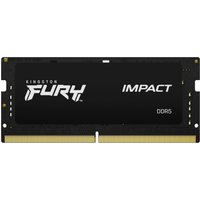
Kingston Technology FURY 32GB 4800MT/s DDR5 CL38 SODIMM (Kit of 2) Imp
£434.86
View Deal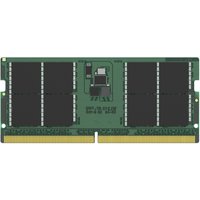
Kingston Technology
Kingston Technology KCP556SD8-32 memory module 32 GB 1 x 32 GB DDR5 56
£405.06
View Deal