Solid-state drives come in multiple physical sizes and shapes, and choosing the wrong one for your laptop means a failed upgrade. SSD form factors determine the physical dimensions—not the interface or speed. This guide explains every form factor used in modern laptops, how to identify which your device supports, keying standards, and how to measure your drive slot to ensure compatibility before buying.
What Are SSD Form Factors?
A form factor is the physical shape and size of a drive—separate from the interface (NVMe, SATA, mSATA) and speed (Gen 3, Gen 4, Gen 5). Two drives might use the same interface but differ in form factor, making one compatible with your laptop and the other physically unable to fit.
Key distinction: Form factor is about physical dimensions. Interface is about the slot and data connection. Speed (PCIe generation) is about bandwidth. You need to match all three for successful compatibility.
Most modern laptops use M.2 form factors (primarily 2280 and 2242). Older laptops use mSATA or 2.5-inch SATA. Some thin gaming or business laptops use the smaller 2230 form factor for space efficiency.
M.2 Form Factor (Most Common)
M.2 is the modern standard for laptops and desktops. The name refers to a “Type 2242” slot in the original mobile industry specification (hence “M.2”). All M.2 drives share the same height (3.8mm) but vary in length.
M.2 common sizes:
M.2 2280 (22mm × 80mm)
The dominant form factor in modern laptops since 2015. Fits the vast majority of current Dell, HP, Lenovo, ASUS, and other brands. “2280” means 22mm wide and 80mm long. This is the safe default when upgrading a recent laptop—if unsure, this is almost certainly what you need.
M.2 2242 (22mm × 42mm)
Slightly shorter than 2280. Used in some ultrabooks, MacBook Air/Pro models, and space-constrained designs (ThinkPad X1 Carbon, Dell XPS 13). Physically smaller so fits where 2280 won’t, but also more expensive. Growing in popularity in thin laptops.
M.2 2230 (22mm × 30mm)
The shortest M.2 form factor. Used in ultraportable laptops and some gaming models where space is critical. Examples: Microsoft Surface Laptop, some newer MSI gaming laptops, certain Framework modules. Significantly more expensive due to lower demand and higher manufacturing costs. Check your manual before assuming this is what you need.
M.2 2260 (22mm × 60mm)
Rare in consumer laptops but found in some professional workstations and older enterprise devices. Not widely available in retail markets.
Form factor comparison table:
| Form Factor | Dimensions (W × L) | Common In | Price Relative to 2280 | Availability |
|---|---|---|---|---|
| M.2 2280 | 22mm × 80mm | Most laptops (90% of market) | Baseline (cheapest) | Excellent |
| M.2 2242 | 22mm × 42mm | MacBook, ultrabooks, some ThinkPads | +15–25% | Good |
| M.2 2230 | 22mm × 30mm | Surface Laptop, thin gaming laptops | +40–60% | Limited |
| M.2 2260 | 22mm × 60mm | Some workstations (rare) | +50–70% | Very rare |
2.5-Inch SATA SSD (Legacy Standard)
The 2.5-inch form factor was the standard for SSDs from 2005–2015 and still appears in some laptops, particularly budget models and older devices. Physically resembles a traditional hard drive: 2.5 inches wide (63.5mm), 7mm or 9.5mm thick.
Where it’s still used:
Budget and entry-level laptops from 2018–2023. Some professional laptops with dual drive bays. Business models prioritising reliability over thinness. Older laptops from any brand pre-2015.
Limitations:
SATA interface only (no NVMe, so maximum ~550MB/s read speed). Larger footprint means fewer thin laptops can accommodate it. Most modern laptops don’t have room for a 2.5-inch drive and have discontinued this format in favour of M.2.
Upgrade compatibility:
Do not assume you can swap a 2.5-inch SSD into an M.2 slot or vice versa—they are physically incompatible. If your laptop has a 2.5-inch drive now, check your manual to see if it has an empty M.2 slot available for a secondary NVMe drive (common on gaming and workstation laptops).
mSATA (Mini-SATA, Rare Legacy)
mSATA is a miniaturised form factor used primarily in ultrabooks and thin laptops from 2010–2015. About half the size of a 2.5-inch drive and similar in appearance to an SO-DIMM RAM stick. Now largely obsolete, replaced by M.2.
Identifying mSATA:
Rectangular module, ~51mm × 30mm. Has a single notch (key) on one edge. SATA interface (not NVMe). If you see this in a 2012–2014 laptop, it’s mSATA.
Practical note:
mSATA is extremely difficult to replace or upgrade in 2026. New mSATA SSDs are rarely manufactured, prices are extremely high (£50–80 for basic models), and many retailers don’t stock them. If your old ultrabook uses mSATA and needs a storage upgrade, it’s often more economical to replace the entire drive than to find a new mSATA module.
U.2 (Uncommon Enterprise Form Factor)
U.2 (also called “SFF-8639”) is a 2.5-inch form factor designed for enterprise NVMe drives. Physically resembles a traditional 2.5-inch SATA SSD but uses NVMe interface and PCIe connection. Not common in consumer laptops; mainly found in servers, workstations, and high-end professional equipment.
Practical note for consumers: If your laptop doesn’t specifically mention U.2 support, it doesn’t have a U.2 slot. Don’t purchase U.2 drives for consumer laptops.
M.2 Keying Standards (Important!)
M.2 slots include a small notch (called the “key”) that ensures you insert the drive correctly and prevents damage. Different keys accommodate different interfaces. This is critical: inserting a drive into the wrong slot will not work and may cause permanent damage to the drive and/or motherboard.
M Key (NVMe drives)
Used for NVMe M.2 drives (PCIe). The notch is located towards the right side of the drive. All modern laptops have M-keyed slots. This is what you need for fast modern upgrades.
B Key (SATA drives)
Used for older M.2 SATA drives. The notch is towards the left. Much less common in modern devices. Some older laptops (2015–2017) had B-keyed slots.
B+M Key (Universal)
Slots that accommodate both B and M keys—rare in laptops but found on some motherboards. Allows flexibility but most consumer devices use either M key or B key, not both.
Critical warning: Never force a drive into a slot if it doesn’t fit smoothly. A “stuck” key means the drive is the wrong type. Forcing it will damage the drive and the slot.
How to Identify Your Laptop’s SSD Slot
Step 1: Check Your Manual (Easiest)
Download your laptop’s service manual from the manufacturer’s website. Search the PDF for “SSD” or “storage” specifications. The manual will explicitly state the form factor (e.g., “M.2 2280 NVMe” or “2.5-inch SATA”).
Step 2: Visual Inspection (Opens the Device)
Power off and unplug your laptop. Remove the bottom panel (usually 8–12 screws). Locate the storage slot:
– M.2 slot: Thin vertical slot, about the size of a matchstick. Drive sits at a 30-degree angle before being pressed flat. Usually labelled on the motherboard.
– 2.5-inch bay: Larger horizontal compartment with metal mounting points on each side. Drive sits flat.
– mSATA slot: Tiny vertical slot similar to M.2 but smaller. Very rare in modern devices.
Look at the existing drive (if one is installed). Measure its length with a ruler or calipers: 80mm = 2280, 42mm = 2242, 30mm = 2230.
Step 3: Use System Information Software
Tools like CPU-Z, Speccy, or HWInfo64 will display your current drive model. Look up that exact model number on the manufacturer’s website—the specifications page lists the form factor.
Step 4: Contact the Manufacturer
If all else fails, contact the laptop maker’s support team with your model number. They can confirm the form factor immediately.
Measuring Your Drive Slot
If you have the physical drive and need to measure its dimensions:
Tools needed: Digital calliper (£5–15 on Amazon) or a ruler (less accurate but functional).
Measurement points:
– Measure the length of the drive from the connector notch to the far end of the PCB. This determines the form factor code.
– Width is always 22mm for M.2 drives.
– Height/thickness is 3.8mm for M.2 (irrelevant to compatibility).
Example: If you measure 80mm, it’s M.2 2280. If 42mm, it’s M.2 2242. If 30mm, it’s M.2 2230.
Practical note: A slightly larger drive will not fit into a slot designed for a smaller form factor. An 80mm drive will not fit into a 2242 slot. Always match or go smaller.
Interface vs Form Factor (Critical Distinction)
Many people confuse these. They are not the same:
Form factor = physical size (2280, 2242, 2.5-inch, mSATA)
Interface = the type of connection (NVMe, SATA, PCIe lane count)
An M.2 drive can be NVMe (fast) or SATA (slower). An M.2 NVMe drive can be Gen 3 (3500MB/s), Gen 4 (7000MB/s), or Gen 5 (15000MB/s). The form factor doesn’t determine speed—the interface does.
Common confusion: “My laptop has an M.2 slot, so I can install any M.2 drive.” False. The slot is keyed (M key or B key), and your laptop’s interface (NVMe or SATA) determines which drives work. Most modern laptops support M-key (NVMe) only.
Speed (PCIe Generation) vs Form Factor
Speed and form factor are independent. You can have:
– M.2 2280 Gen 3 NVMe (fast, modern)
– M.2 2280 Gen 4 NVMe (faster, modern)
– M.2 2242 Gen 4 NVMe (faster, compact)
– M.2 2230 Gen 3 NVMe (adequate speed, smallest)
All use the same M-key keying, but the PCIe generation (Gen 3 vs Gen 4) determines bandwidth. Newer generation drives are faster but also more expensive. Check your laptop’s motherboard specifications to see what speed your slot supports (most laptops support Gen 4 as of 2024; older machines support Gen 3).
Which Form Factor Should You Buy?
If you don’t know what you have: M.2 2280 NVMe. This is the safest bet—90% of consumer laptops use this form factor. Costs are lowest, availability is excellent, and performance is excellent.
Before buying, verify by:
– Checking your manual (definitive answer)
– Removing the bottom panel and measuring the existing drive
– Contacting the laptop manufacturer
Cost implications:
– M.2 2280: £40–150 (depending on brand/speed)
– M.2 2242: £50–180 (15–25% more expensive)
– M.2 2230: £80–250 (40–60% more expensive)
Buying wrong is expensive: A 2230 drive in a 2280 slot won’t reach the end of the connector and won’t make contact. A 2280 drive won’t fit into a 2242 slot. Always verify before purchasing.
Physical Drive Compatibility Table
| Form Factor | Interface Options | Speed Options | Laptop Type | Buy If… |
|---|---|---|---|---|
| M.2 2280 | NVMe (typical), rarely SATA | Gen 3, Gen 4, Gen 5 | Most modern laptops | You’re uncertain what you need |
| M.2 2242 | NVMe only | Gen 3, Gen 4, Gen 5 | MacBook, ultrabooks, ThinkPad X | Your manual explicitly states 2242 |
| M.2 2230 | NVMe only | Gen 3, Gen 4 | Surface Laptop, thin gaming laptops | Measured existing drive and confirmed 30mm length |
| 2.5″ SATA | SATA only | SATA (max 550MB/s) | Budget laptops, older models | Your laptop has a 2.5″ bay visible from outside |
| mSATA | SATA only | SATA (max 550MB/s) | Very old ultrabooks (2010–2015) | Your laptop is 10+ years old and shows tiny mSATA slot |
Frequently Asked Questions
Can I fit an M.2 2280 drive into an M.2 2242 slot?
No. The 2280 drive is physically longer and won’t fit—the slot will stop it before the connector reaches contact. Always match your slot size exactly or buy smaller (2242 in 2280 slot works; 2280 in 2242 slot does not).
Is M.2 2280 the same as NVMe?
No. 2280 is the physical form factor (size). NVMe is the interface (speed/connection type). You can have M.2 2280 SATA (rare, slower) or M.2 2280 NVMe (common, faster). Always check both specs before buying.
What happens if I insert an M.2 drive into the wrong key slot?
The drive won’t fit—the key notch will be misaligned. If you force it, you’ll damage the drive connector and the motherboard slot, causing permanent hardware failure. Never force an M.2 drive into a slot.
Do all M.2 2280 NVMe drives work in any laptop?
No. Form factor (2280) is compatible, but the interface generation matters: Gen 3 vs Gen 4 vs Gen 5. Most laptops support Gen 3 and Gen 4. Gen 5 drives are bleeding-edge and may not be supported by older laptops. Check your motherboard specifications or manual for the supported PCIe generation.
Why is M.2 2230 so much more expensive?
Lower production volume. Fewer laptops use 2230, so manufacturers produce fewer drives. Lower demand = higher per-unit cost. If you need 2230, budget for a 40–60% premium over 2280.
Can I use a 2.5-inch SSD as a second drive in my laptop?
Only if your laptop has a dedicated 2.5-inch bay. Modern thin laptops don’t have room for a 2.5-inch drive. Check your manual or service documentation to confirm if a secondary 2.5-inch bay exists. If your laptop only has an M.2 slot, you cannot use a 2.5-inch drive.
Is my laptop’s existing drive definitely the form factor I need?
Yes, with one exception: if the existing drive is 2.5-inch and your manual mentions an additional M.2 slot, you have dual drive bays. But if you’re replacing the current drive, match its form factor exactly.
Recommended Products
These are the products we recommend based on this guide. All links go to Amazon UK where you can check current prices and availability.
| Product | Why We Recommend It | Amazon UK |
|---|---|---|
| Samsung 990 EVO M.2 2280 NVMe 1TB | Excellent balance of speed, reliability, and price. Gen 4 performance. Fits most laptops. | View on Amazon UK |
| WD SN770M M.2 2230 NVMe 1TB | Only mainstream 2230 option. Perfect for Surface Laptop and thin gaming devices. More expensive but necessary for tight spaces. | View on Amazon UK |
| Crucial P3 Plus M.2 2280 NVMe 1TB | Budget-friendly Gen 4 NVMe. Solid performance, proven reliability. Great value for everyday laptops. | View on Amazon UK |
| Samsung 870 EVO 2.5-Inch SATA SSD 1TB | Best SATA SSD available. If you have a 2.5-inch bay or need to upgrade an older laptop, this is reliable and proven. | View on Amazon UK |
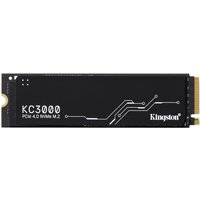
| Kingston KC3000 M.2 2280 NVMe 1TB | Fast Gen 4 drive with excellent thermals. Good alternative to Samsung for 2280 slots. | View on Amazon UK |
| Digital Calliper (0–150mm) | Essential tool for measuring SSD form factors. Cheap insurance against buying the wrong size. | View on Amazon UK |
Prices and availability may vary. As an Amazon Associate, we earn from qualifying purchases.
Related Guides
- SSD Compatibility Guide
- NVMe vs SATA SSD for Laptops
- How to Install a Laptop SSD
- RAM Compatibility Guide
- Laptop Battery Replacement Guide
Try Our Free Compatibility Checker
Not sure what upgrades your laptop supports? Use our free Laptop Upgrade Compatibility Checker to find compatible RAM, SSD, and other upgrades for your specific model.
Recommended NVMe SSDs


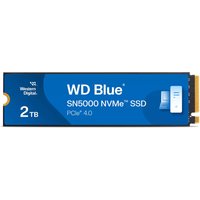

Western Digital
Western Digital Green SN3000 1 TB M.2 PCI Express 4.0 NVMe QLC 3D NAND
£241.61
View Deal