
Affiliate disclosure: this page contains affiliate links — if you buy through them we may earn a commission at no extra cost to you. As an Amazon Associate we earn from qualifying purchases.
Memory vs storage is one of the most fundamental concepts in computing, yet it confuses many people. Your laptop’s “8GB of memory” and “256GB of storage” are completely different things. Memory (RAM) is temporary, lightning-fast, and your CPU uses it to run programs. Storage (SSD/HDD) is permanent, slower, and holds your files and operating system. Confusing the two leads to poor upgrade decisions: adding storage won’t speed up a sluggish system, and insufficient storage will create headaches even if you have plenty of RAM. This guide explains the difference clearly, shows you how much of each you actually need, and helps you decide which to upgrade first.
Think of memory as your desk and storage as your filing cabinet. Your desk (memory) is small but you access it constantly when working. Your filing cabinet (storage) is large but takes longer to retrieve files from. Both are essential, and they serve completely different purposes. A larger filing cabinet (more storage) doesn’t help you work faster at your desk (memory). Understanding this analogy is the key to understanding the difference.
RAM (Memory): Your Working Space
What Is RAM?
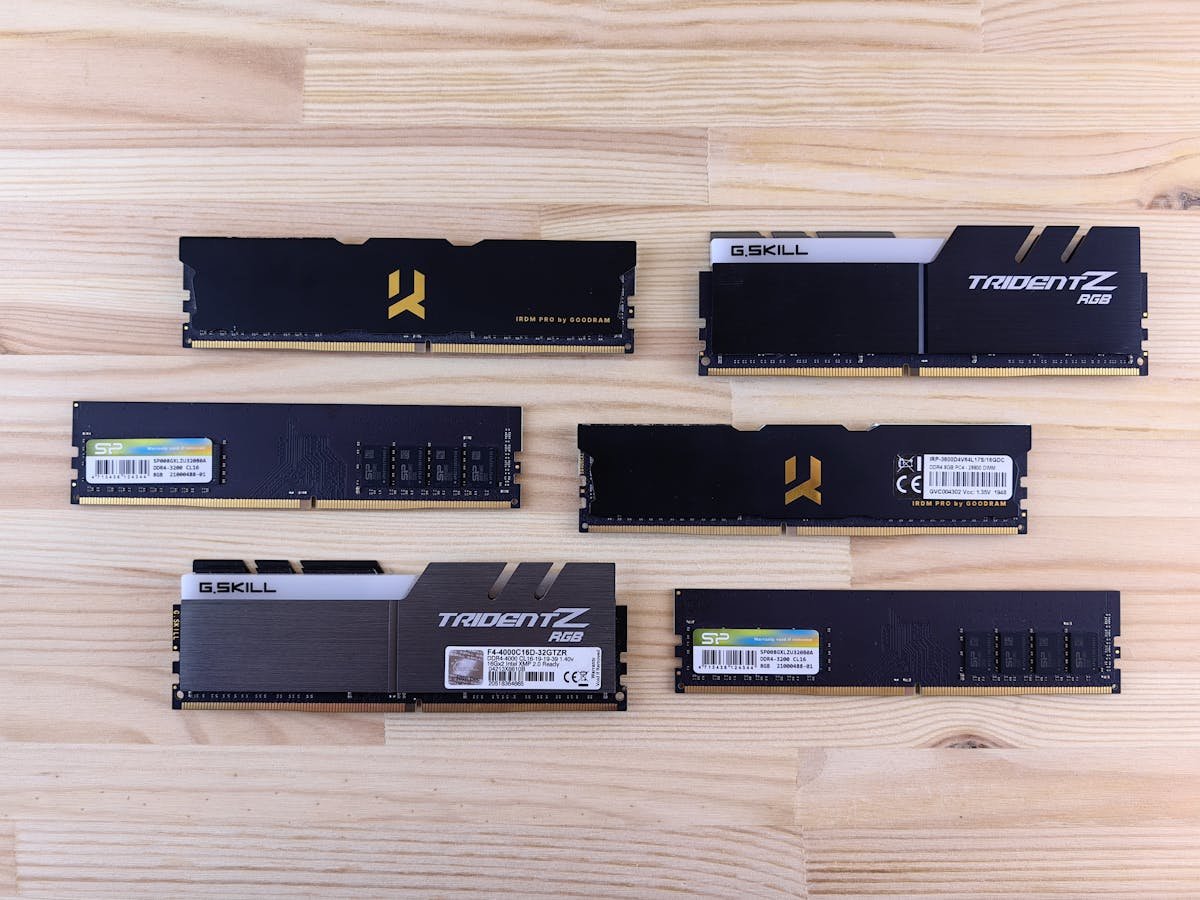
RAM (Random Access Memory) is temporary, high-speed storage that your CPU uses while running programs. It’s called “volatile” because data disappears when you power off your computer. Every program you open, every file you work on, every browser tab you have running — all of it lives in RAM while active.
RAM is incredibly fast. Your CPU can read from or write to RAM in nanoseconds. This speed is essential for responsiveness — when you click a button in Photoshop or scroll in a spreadsheet, that’s RAM doing the work, not your storage drive.
How RAM Works
RAM is like a workspace on your desk. The larger your desk, the more projects you can work on simultaneously. Open three browser windows, each with 10 tabs, plus Photoshop, plus a music streaming service? That might be 4GB of RAM in use. Your CPU constantly reads from and writes to RAM as it executes program instructions.
RAM comes in sticks that you insert into slots on your motherboard (on desktops) or are soldered onto the board (on laptops). Typical capacities: 8GB, 16GB, 32GB, 64GB.
Speed Characteristics
RAM access time: 10-20 nanoseconds. This is why RAM feels instant. Your CPU can pull data from RAM thousands of times per second without any noticeable delay.
Storage (SSD/HDD): Your Filing Cabinet
What Is Storage?
Storage is permanent, non-volatile memory that holds your files, documents, photos, videos, and operating system. Unlike RAM, storage retains data when powered off. Everything you save goes to storage.
Storage devices come in two types: SSDs (Solid State Drives) and HDDs (Hard Disk Drives). Both are slower than RAM but offer permanent, reliable data retention. Typical capacities: 256GB, 512GB, 1TB, 2TB, 4TB, and larger.
How Storage Works
Storage is like your filing cabinet. Your operating system (Windows, macOS, Linux) lives here. Your documents, photos, videos, all stored safely. When you need to use something, your CPU retrieves it from storage and loads it into RAM. When you’re done and save, it goes back to storage.
The relationship is sequential: Storage → RAM → CPU. Your computer loads programs from storage into RAM. Your CPU processes data in RAM. When finished, data goes back to storage (if you save it).
Speed Characteristics
HDD access time: 5-15 milliseconds (5,000-15,000 nanoseconds). Massively slower than RAM.
SATA SSD access time: 50-100 microseconds (50,000-100,000 nanoseconds). Much faster than HDD, but still slower than RAM.
NVMe SSD access time: 10-50 microseconds. Even faster, approaching SATA SSD limits despite higher bandwidth.
Even the fastest SSD is 500-1000x slower than RAM. This is why having enough RAM matters so much.
Key Differences at a Glance
| Aspect | RAM (Memory) | Storage (SSD/HDD) |
|---|---|---|
| Data persistence | Volatile (erased on power-off) | Non-volatile (data survives power-off) |
| Speed | Extremely fast (nanoseconds) | Much slower (microseconds to milliseconds) |
| Capacity | Small (8GB-128GB typical) | Large (256GB-10TB+ typical) |
| Cost per GB | Expensive (£5-10 per GB) | Cheap (£0.05-0.30 per GB) |
| Purpose | Working space for active programs | Permanent file and OS storage |
| How CPU uses it | Constantly reads/writes at high speed | Loads programs/files into RAM when needed |
| Typical use | Running applications, temporary data | Operating system, documents, photos, videos |
| Upgrade frequency | Rarely (8-10 years) | Every 3-5 years as capacity needs grow |
The Desk and Filing Cabinet Analogy (Explained Fully)
Imagine you’re an architect working on building designs.
Your desk is your RAM. It’s small but you use it constantly. You can spread out your current project, reference materials, sketches. The larger your desk, the more projects you can juggle at once. If your desk is tiny (2GB RAM), you can only work on one simple project. A huge desk (32GB RAM) lets you have multiple complex projects open simultaneously.
Your filing cabinet is your storage. It’s much larger — you can fit thousands of completed projects, blueprints, documents. But retrieving a file from the filing cabinet takes longer than grabbing something off your desk. You must physically walk to the cabinet, find the file, and bring it to your desk.
When you need a stored project, you retrieve it from the filing cabinet (storage) and place it on your desk (RAM). You work on it there. When done, you return it to the filing cabinet.
The crucial point: A larger filing cabinet (more storage) doesn’t make you work faster. A larger desk (more RAM) does. They serve different purposes. You need both, but they affect performance differently.
How Much RAM Do You Actually Need?
Minimal (Basic Web Browsing and Office)
8GB minimum, 16GB recommended. You can technically get by with 8GB if you’re only using Word, Excel, email, and web browsing. But modern browsers are memory hogs. If you have 20+ browser tabs open, you’ll thrash into virtual memory (using storage as temporary RAM, which is slow).
16GB is the sweet spot for general use in 2026. It eliminates slowdowns from memory exhaustion and future-proofs you for a few years.
Productive Multitasking
16GB, ideally 32GB. If you run multiple applications simultaneously — email, browser with many tabs, spreadsheet, video conference, music streaming — 16GB keeps things smooth. If you do this heavily, bump to 32GB to eliminate any stuttering.
Gaming
16GB minimum, 32GB recommended. Modern games use 8-12GB of RAM themselves. If your CPU needs to multitask (Discord, Spotify, Chrome in the background), 16GB gets tight. 32GB is ideal for problem-free gaming with background programs.
Content Creation (Video, Photo, 3D)
32GB minimum, 64GB ideal. Video editing projects, 3D models, and photo libraries in apps like Premiere, After Effects, or Blender are incredibly RAM-intensive. 16GB will cause constant lag and rendering stalls. 32GB is minimum comfort; 64GB if you work with 4K+ video or massive 3D scenes.
Software Development
16GB minimum, 32GB for large projects. IDEs like Visual Studio or Xcode, build processes, databases, and virtual machines can consume substantial RAM. 16GB handles most projects; 32GB ensures zero slowdown when compiling large applications or running multiple VMs.
How Much Storage Do You Actually Need?
Operating System and Programs
Windows takes ~20-30GB. macOS takes ~15-20GB. Popular programs add up: Adobe Creative Suite (~100GB), gaming library (varies), office applications (~20GB), development tools (~50GB). If you install everything, you could easily hit 100-150GB just for OS and programs.
Documents and Photos
A typical document is 1-5MB. A photo is 3-8MB. A thousand photos = 3-8GB. If you have a large photo library (10,000+ photos), expect 30-100GB. Documents rarely exceed 10-20GB unless you’re working with massive data files.
Video Files
This is where storage explodes. A 1-hour video in HD (1080p) is 4-8GB. 4K video is 20-50GB per hour. If you store video files locally, storage needs become enormous quickly.
Recommended Storage Amounts
Minimal (cloud-first user): 256GB. OS, programs, and small local document/photo cache. Everything else is cloud-synced (Google Drive, OneDrive, Dropbox).
Standard (typical user): 512GB-1TB. OS, programs, all documents and photos, modest local backup.
Content creator (photos, videos): 2-4TB minimum. OS and programs on a fast SSD; large video/photo archive on larger drives.
Large video/media library:: 4TB+. Professional video editors or those with extensive video libraries need multiple drives: fast SSD for OS/programs, large storage drives for media.
The SSD +4 HDD Hybrid Approach
The optimal setup for most people: A fast 500GB-1TB SSD for OS and programs, plus a large HDDF (2-4TB) for documents, photos, and media. The SSD keeps your system snappy. The HDD provides cheap, reliable capacity.
When to Upgrade RAM vs Storage
Upgrade RAM If:
- Your system feels slow and sluggish, especially when multitasking or with many browser tabs open.
- You see constant disk activity (your SSD/HDD light is constantly on), even when you’re not doing anything. This indicates memory exhaustion and thrashing into virtual memory (storage used as temporary RAM).
- Programs lag or freeze temporarily when switching between them. This is memory pressure.
- You do gaming, content creation, or heavy multitasking and you have 8-16GB. Upgrade to 16-32GB.
- You’re building a new system. Invest in sufficient RAM now (16-32GB) rather than being limited later.
Upgrade Storage If:
- You’re running out of disk space (less than 10% free space remaining). This can cause performance issues and crash risk.
- You’re accumulating files that don’t fit — video projects, large photo libraries, game installations.
- Your storage drive is old (5+ years) and you want redundancy or backup.
- You need faster load times for programs and files. Upgrading HDD to SSD is the single best speed upgrade for most systems.
Upgrade Priority Decision Tree
Is your main drive an HDD? → Upgrade to SSD immediately. This is your single best upgrade.
Are you running out of space? → Add storage (another SSD or HDD) or migrate to cloud.
Does your system feel slow? → Check Task Manager / Activity Monitor. If memory is near 100% utilization, upgrade RAM. If not, problem is likely elsewhere (old CPU, GPU bottleneck).
Do you have room for both upgrades? → Upgrade SSD first (biggest impact), then RAM (second-biggest impact).
Common Misconceptions
Misconception 1: “I have 512GB storage, so I have fast memory”
False. Storage capacity and speed are unrelated. A 512GB SSD is faster than a 2TB HDD. More storage ≠ faster. Speed depends on drive type (SSD vs HDD) and interface (SATA vs NVMe).
Misconception 2: “More storage will speed up my computer”
False. If your computer feels slow, adding storage won’t help. If memory is the bottleneck (constant thrashing to disk), adding RAM will help dramatically. Storage speed matters for load times, not overall responsiveness.
Misconception 3: “RAM is the same as storage”
False. RAM is temporary working space; storage is permanent file storage. Confusing them leads to poor upgrade decisions.
Misconception 4: “I only need to upgrade storage because I’m ‘out of space'”
Incomplete reasoning. Yes, upgrade storage if you’re running out. But also upgrade RAM if it’s the performance bottleneck. Often, people need both.
Misconception 5: “Cloud storage replaces local RAM”
False. Cloud storage replaces local storage (useful for backup). RAM cannot be replaced by cloud — your programs must run in physical RAM on your device. Cloud files must be downloaded into local storage first, then loaded into RAM.
Real-World Scenarios
Scenario 1: “My Laptop Feels Slow”
Diagnosis: Open Task Manager (Windows) or Activity Monitor (Mac). Look at memory and disk usage.
If RAM is near 100%, upgrade to 16GB or 32GB. This is the most common cause of perceived slowness.
If you’re using minimal RAM but have an HDD, upgrade to an SSD. This dramatically improves responsiveness.
If you have an SSD and sufficient RAM, problem is likely CPU/GPU limitation (not an upgrade issue).
Scenario 2: “I’m Running Out of Space”
Solution: First, check what’s consuming space. Delete old files, move photos/videos to external drive or cloud. If you genuinely need local space, add an external drive (portable SSD) or upgrade your internal drive.
For important files, back up to cloud (Google Drive, OneDrive, Backblaze). This saves local storage and protects against loss.
Scenario 3: “I Do Video Editing and Everything Lags”
Solution: You likely need both. Video editing requires: 32GB+ RAM (for smooth editing), fast SSD for projects (NVMe), and large storage for media (4TB+). Upgrading only RAM won’t help if your drive is slow. Upgrading only storage won’t help if you’re memory-constrained.
Scenario 4: “I’m Building a New Computer”
Solution: Invest in both properly from the start. 500GB-1TB fast NVMe SSD for OS and programs (non-negotiable). 16-32GB RAM for multitasking and gaming (don’t skimp). If you need more storage, add a larger HDD later. Starting with good RAM and fast SSD prevents future frustration.
Recommended Products
RAM Upgrades
| Product | Use Case | Link |
|---|---|---|
| Crucial DDR4 16GB SODIMM | Laptop memory upgrade, excellent value | View on Amazon → |
| Corsair Vengeance DDR5 32GB Kit | New desktop build with gaming focus | View on Amazon → |
Storage Upgrades
| Product | Use Case | Link |
|---|---|---|
| WD Blue SN580 1TB NVMe SSD | Fast OS/program drive for any computer | View on Amazon → |
| Samsung 870 EVO 500GB SATA SSD | Upgrade older laptops with SATA slots | View on Amazon → |
| Seagate Barracuda 4TB HDD | Large capacity bulk storage for media files | View on Amazon → |
Prices and availability may vary. As an Amazon Associate, we earn from qualifying purchases.
Related Guides
- Laptop RAM Compatibility Guide
- SSD Compatibility Guide
- 8GB vs 16GB vs 32GB: How Much RAM Do You Need?
- SSD vs HDD: Complete Comparison
- How to Install Laptop RAM
Try Our Free Compatibility Checker
Not sure what upgrades your laptop supports? Use our free Laptop Upgrade Compatibility Checker to find compatible RAM, SSD, and other upgrades for your specific model.
Frequently Asked Questions
What’s the difference between memory and storage?
Memory (RAM) is temporary, fast working space for your CPU. Storage (SSD/HDD) is permanent file storage. Memory is like your desk; storage is like your filing cabinet. Both are essential but serve different purposes.
How much RAM and storage do I need?
RAM: 16GB for most people, 32GB for gaming/multitasking, 8GB minimum. Storage: 512GB-1TB for OS and programs, plus as much as you need for photos/videos (another 1-4TB on a second drive if needed).
Does more storage make my computer faster?
No. Storage size doesn’t affect speed. Storage type (SSD vs HDD) does. An SSD is faster than an HDD. More RAM makes your computer feel faster (more multitasking headroom). More storage doesn’t improve speed — it just gives you space for more files.
Should I upgrade RAM or storage first?
If you have an HDD: upgrade to SSD (biggest speed improvement). Then upgrade RAM if you multitask heavily. If you have an SSD and sufficient space: upgrade RAM if multitasking feels slow, upgrade storage if you’re running out of space.
Can cloud storage replace my local storage?
Partially. Cloud storage is excellent for backup and sharing. But your operating system and programs must run locally. You still need local storage for your OS and active projects. Cloud storage supplements, not replaces, local storage.
Why does my computer slow down when I’m “out of storage”?
When your drive is full, your operating system can’t use part of the disk as temporary memory (swap space). Additionally, Windows and macOS reserve space for system operations. When that space is full, operations slow dramatically. Always keep at least 10% free space.
Is my 8GB of storage different from my 8GB of RAM?
Yes, completely different. 8GB of RAM is temporary memory your CPU uses for running programs. 8GB of storage is permanent disk space for files. They cannot substitute for each other. You can’t have “8GB of RAM” storage or vice versa — they’re different technologies serving different purposes.
Recommended upgrades
As an Amazon Associate we earn from qualifying purchases. Prices & availability shown on Amazon.
For laptops and mini PCs that use DDR5 SO-DIMM
For laptops and mini PCs that use DDR4 SO-DIMM
M.2 2280 NVMe SSDs
How we verify this guide
We cross-reference compatibility figures against manufacturer specifications where available, official service manuals, and the standards that govern fit — memory type and speed (DDR4 / DDR5 / LPDDR5), maximum supported capacity and slot count, SSD form factor and interface (M.2 2280, NVMe PCIe vs SATA, keying), and charger wattage and connector (USB-C Power Delivery, GaN). We’re explicit about soldered or non-upgradeable parts, prioritise primary sources over retailer listings, and re-verify the data on a regular cycle. More on our method →

