

Affiliate disclosure: this page contains affiliate links — if you buy through them we may earn a commission at no extra cost to you. As an Amazon Associate we earn from qualifying purchases.
Quick Answer
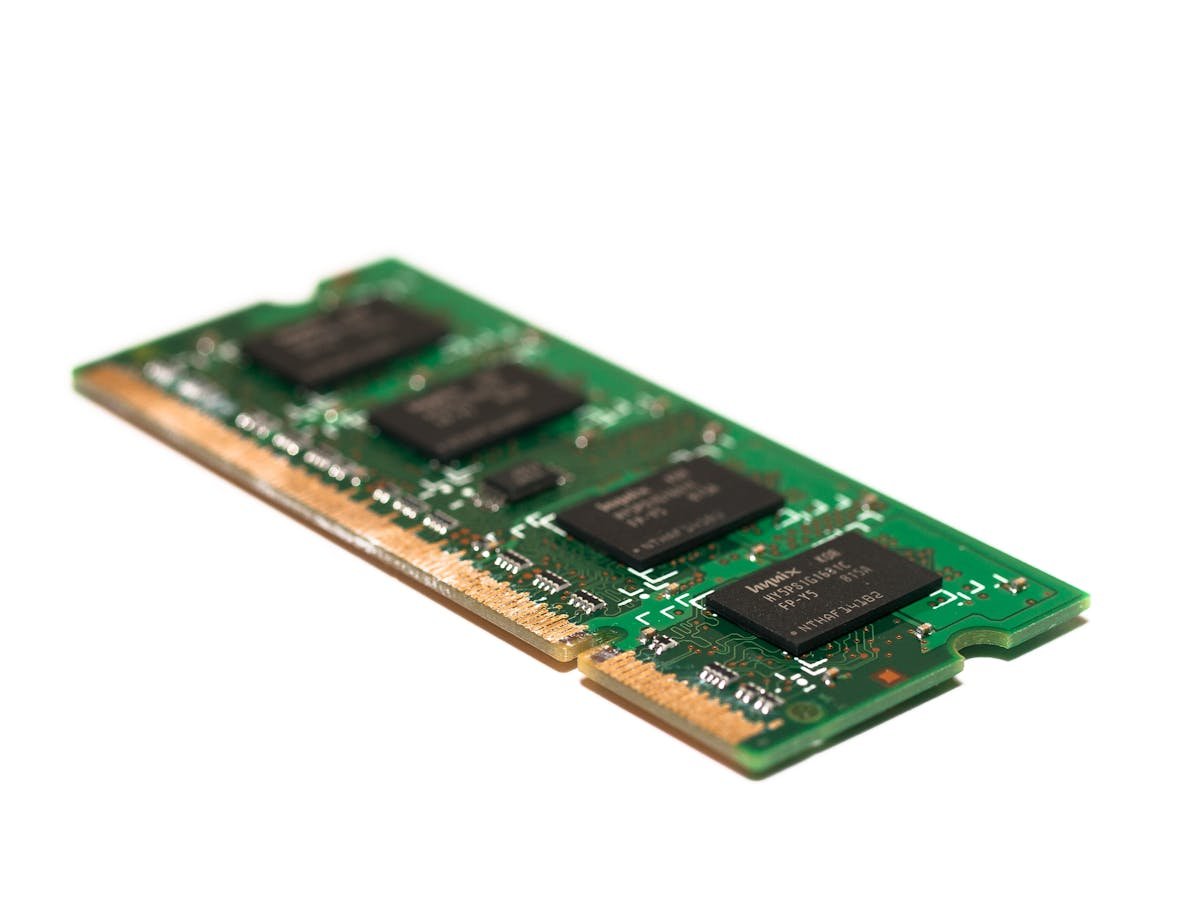
If you install incompatible RAM, your laptop will usually not boot, display error codes, or crash repeatedly. The motherboard has safeguards to prevent damage, but the system will refuse to run with mismatched memory. Common symptoms include black screens, POST (Power-On Self-Test) beep codes, blue screens (BSOD), or random crashes. Always check your laptop’s RAM compatibility specs before buying—using the wrong RAM won’t permanently damage your laptop, but you’ll waste money on unusable modules.
What Is Compatible vs Incompatible RAM?
RAM compatibility is determined by several specifications. Here’s what must match:
| Specification | What Happens If Mismatched | Example |
|---|---|---|
| Type (DDR4 vs DDR5) | Won’t physically fit; different slot shape | DDR5 SODIMM will not fit in DDR4 slot |
| Speed (MT/s) | Faster stick downclocks to slower speed; may cause boot failure if too slow | DDR4-3200 + DDR4-2400 = both run at 2400 |
| Voltage | Wrong voltage can cause immediate damage to motherboard; thermal runaway | 1.35V DDR4 in 1.5V slot = potential motherboard failure |
| Capacity | System won’t recognize RAM beyond limit; boots with less than installed | Laptop supports max 32GB, you install 64GB = only 32GB recognized |
| CAS Latency (CL) | Usually doesn’t matter; slower latency is supported downward | CL18 RAM in CL16 system = runs fine at CL18 |
| Form Factor | Won’t fit; different physical size | Desktop DDR4 in laptop SODIMM slot = no fit |
Common Symptoms of Incompatible RAM
1. Black Screen / No Boot
The most common symptom. You press power and the laptop appears completely dead or shows a black screen with no POST (Power-On Self-Test) sequence.
- Likely cause: Wrong DDR type (DDR5 in DDR4 slot), wrong voltage, or severe speed mismatch
- What happens: The motherboard detects incompatible RAM during POST and refuses to continue. No error message—just silence.
- Fix: Remove the incompatible RAM and reinstall the original RAM to confirm the laptop works again
2. POST Beep Codes (Beeping Sounds)
Some laptops emit beep codes during startup to indicate errors. If you hear unusual beeping patterns, it may indicate RAM issues:
- One long beep, two short beeps: Typically “memory error” on many laptop BIOSes
- Continuous beeping: Often means RAM is not fully seated or incompatible
- One beep = normal: Some laptops beep normally on successful boot
Check your laptop model’s beep code guide by searching “[laptop model] beep codes meaning.” Dell, HP, and ThinkPad all have different beep code interpretations.
3. BSOD (Blue Screen of Death) on Windows
If the laptop boots but crashes immediately or after a few minutes with a blue error screen:
- Error codes to watch for: MEMORY_MANAGEMENT, IRQL_NOT_LESS_OR_EQUAL, or generic “CRITICAL PROCESS DIED”
- Likely cause: Speed or latency mismatch, voltage issue, or capacity limit exceeded
- Fix: Run Windows Memory Diagnostic (Win+R → mdsched.exe) to identify which module is faulty
Example: A Dell Latitude 5540 that supports up to DDR5-5600 CL40 installed with DDR5-6400 CL48 RAM from a different laptop would boot but crash during Windows startup due to unsupported speed.
4. Kernel Panic on macOS
Mac laptops (which have soldered RAM) rarely suffer from incompatible RAM issues. However, if RAM is soldered incorrectly during manufacturing, you’d see:
- Immediate restart loop
- Apple logo with prohibited symbol
- Error code “No bootable device” or similar
Note: You cannot upgrade RAM on Macs, so this is not a user issue. This would only occur as a manufacturing defect.
5. Single-Channel Mode (Performance Loss)
This is subtle—the laptop boots and runs, but performance is significantly degraded (15-30% slower). This happens when:
- You install different capacity RAM (e.g., 8GB + 16GB instead of 8GB + 8GB)
- You install different brands/speeds (e.g., Corsair + Kingston)
- The system defaults to single-channel mode for safety
Symptom: Laptop boots fine but feels sluggish. Games are 15-20% slower than expected. You notice in system info that RAM is running in “single-channel” instead of “dual-channel.”
Fix: Return the mismatched RAM and buy identical modules (same brand, speed, capacity). Dual-channel is critical for performance.
6. Random Crashes or Freezes
The laptop boots, but crashes randomly at unpredictable times:
- Likely cause: RAM speed/latency mismatch, or one module is defective
- Pattern: Crashes happen more frequently under load (video editing, gaming, compiling)
- Fix: Remove one module and test. If crashes stop, one module is bad. If crashes continue, try the other module.
Compatibility Troubleshooting Table
| Symptom | Likely Problem | Diagnostic Step | Solution |
|---|---|---|---|
| Black screen, no boot | Wrong DDR type or voltage | Remove new RAM; boot with original only | Return incompatible RAM; buy correct DDR type |
| Beep codes | RAM not recognized | Search “[model] beep codes”; remove RAM and reseat firmly | Ensure RAM is fully inserted; check type/voltage |
| BSOD/Kernel Panic | Speed, latency, or capacity issue | Run Windows Memory Diagnostic (mdsched.exe) | Replace RAM with spec-correct modules |
| Single-channel mode | Mismatched capacity/brand | Check System Info → Memory → Dual-Channel? | Replace with matching pair (same brand, speed, capacity) |
| Random crashes | Defective module or speed conflict | Test each module individually | Replace defective module; avoid mixing speeds |
| Over maximum capacity | Motherboard limit exceeded | Check spec sheet for “Max Supported Memory” | Install only up to motherboard maximum |
How to Verify Compatibility Before Buying
Method 1: Check Your Laptop’s Spec Sheet
Find the official specification sheet for your laptop model. Look for sections like “Memory” or “Upgradeable Components.”
What to look for:
- Memory Type: DDR4 or DDR5 (must match existing RAM)
- Speed: MT/s (e.g., DDR5-5600)—must be same or higher
- Voltage: Typically 1.1V (DDR5), 1.2V (DDR4 standard), or 1.35V (DDR4 low-power)
- Form Factor: SODIMM (laptop) or not applicable (soldered)
- Maximum Capacity: Often 32GB, 64GB, or 128GB depending on laptop
- Slots: “Supports 2 SODIMM” or “Supports 1 SODIMM + 1 Soldered” (mixed)
Example (Dell Latitude 5540):
Memory: 16GB DDR5-5600 (1x16GB) SODIMM, expandable to 64GB, 1.1V, JEDEC
- Current: 1 stick of 16GB DDR5-5600
- You can add another DDR5-5600 stick (to dual-channel) or replace it
- Maximum total: 64GB (two 32GB sticks)
- Voltage: 1.1V (standard DDR5)
Method 2: Use Compatibility Checker Tools
These tools scan your laptop and tell you exactly what RAM is compatible:
- Crucial System Scanner — Free tool that identifies your laptop and lists compatible RAM modules
- Kingston Memory Finder — Similar to Crucial, scans your system
- CPU-Z — Shows your current RAM specs (speed, latency, voltage)
Method 3: Check Amazon Product Pages
Most RAM vendors (Corsair, Kingston, G.Skill) list compatible laptop models on their Amazon pages. Search for your laptop model and the RAM type you want (e.g., “Corsair DDR5 SODIMM Dell XPS 13”).
Step-by-Step: Installing Compatible RAM Correctly
- Power off the laptop completely and unplug the power adapter (do not use sleep mode)
- Ground yourself by touching a metal part of the laptop frame to avoid static discharge
- Open the bottom panel (usually 6-10 Phillips screws; watch a YouTube disassembly for your model)
- Locate the SODIMM slots — you’ll see rectangular slots with small tabs on each end
- If replacing: Open the tabs at both ends of the slot by pulling outward. The RAM will spring-eject at an angle. Gently pull it out.
- Insert new RAM:
- Align the notch on the RAM with the key in the slot (only one way fits)
- Press down firmly at an angle (45 degrees) until you hear a click
- Push down flat until the tabs snap into place
- Close the bottom panel and reinstall screws
- Power on the laptop and verify in System Info that new RAM is recognized
Common installation mistakes:
- Not pressing hard enough: RAM must be fully seated. If you see the tab not fully closed, it’s not inserted correctly.
- Installing backwards: The notch on RAM must align with the key in the slot. It only fits one way.
- Touching gold connectors: Avoid touching the gold pins on the RAM—oils from your fingers can cause connection issues.
What NOT to Do With Incompatible RAM
- Don’t force it in: If RAM doesn’t slide in smoothly, stop. Don’t force it; something is misaligned or wrong type.
- Don’t ignore beep codes: If the laptop beeps continuously or shows unusual beep patterns, remove the RAM and troubleshoot before continuing.
- Don’t mix old and new RAM types: Avoid mixing DDR4 with DDR5, or different speeds (especially with old budget RAM). Always buy matching pairs.
- Don’t exceed capacity limits: Check your laptop’s maximum supported memory. Exceeding it won’t cause damage but won’t work either.
- Don’t assume a crash is RAM: Random crashes can be caused by storage failure, overheating, or software. Test systematically by removing the new RAM and confirming the original works.
Real-World Examples
Example 1: Speed Mismatch
Scenario: You have a Dell XPS 15 with DDR5-5600 RAM. You buy DDR5-6400 RAM to upgrade.
What happens: The RAM physically fits and the laptop boots, but both sticks downclock to DDR5-5600 (slower speed). Your 6400-rated RAM runs at 5600 MT/s, so you wasted money on faster RAM you can’t use.
Lesson: Match the speed. If your system supports DDR5-5600, buy DDR5-5600, not 6400.
Example 2: Capacity Limit Exceeded
Scenario: You have an ASUS VivoBook that supports maximum 32GB. You buy two 32GB sticks, planning to install 64GB total.
What happens: The laptop boots and recognizes only 32GB. The extra 32GB is silently ignored by the motherboard. You wasted £100+ on RAM you can’t use.
Lesson: Always check the maximum supported capacity in your laptop’s spec sheet.
Example 3: Voltage Mismatch (Rare but Serious)
Scenario: You buy low-power DDR4 (1.35V) RAM for a system that expects standard DDR4 (1.2V).
What happens: The motherboard applies 1.2V, but the RAM is designed for 1.35V. The RAM is “undervolted” and may not be recognized. Worse, if the BIOS is misconfigured and applies 1.35V when 1.2V is expected, it could damage the motherboard VRM (voltage regulator).
Lesson: Always match voltage exactly. Check spec sheets carefully.
How to Run Windows Memory Diagnostic
If you suspect a defective RAM module (causing crashes or errors):
- Press Win+R and type
mdsched.exe - Click “Restart now and check for problems”
- The laptop restarts and runs an automated memory test (may take 10-30 minutes)
- After testing, it shows results:
- No errors: RAM is fine
- Errors found: One of your modules is defective; replace it
If Memory Diagnostic finds errors, remove the new RAM and run the test again with only the original RAM. If errors persist, the original RAM is failing. If errors go away, your new RAM is incompatible or defective.
Warranty and Returns
If you buy incompatible RAM:
- Amazon/Newegg: Usually accept returns within 30 days (no questions asked)
- Brand retailers (Corsair, Kingston): Accept returns within 30 days with proof of purchase
- Crucial: Offers lifetime warranty on RAM—if it fails, they replace it free
Tip: When buying RAM, use Crucial’s system scanner. If you buy from Crucial and it’s incompatible, they handle returns easily and have excellent support.
Key Takeaways
- Incompatible RAM usually causes boot failure, beep codes, or crashes—not permanent damage
- Always verify compatibility before buying: Check spec sheet, DDR type, speed, voltage, and capacity limit
- Common mistakes: Wrong DDR type, speed mismatch, exceeding capacity, voltage mismatch
- Use compatibility tools: Crucial Scanner or Kingston Memory Finder tell you exactly what’s compatible
- Test systematically: If crashes occur, remove new RAM and confirm original works to isolate the problem
- Buy matching pairs: 2x8GB DDR5-5600 outperforms mismatched RAM
- See our RAM Compatibility Guide for your specific laptop model
Related Guides
- Laptop RAM Compatibility Guide — Find compatible RAM for your model
- Does RAM Speed Matter for Laptops? — Understand speed vs. capacity trade-offs
- Can You Upgrade Soldered RAM? — Check if your laptop has upgradeable RAM
Shopping for Compatible RAM
Recommended upgrades
As an Amazon Associate we earn from qualifying purchases. Prices & availability shown on Amazon.
For laptops and mini PCs that use DDR5 SO-DIMM
For laptops and mini PCs that use DDR4 SO-DIMM
How we verify this guide
We cross-reference compatibility figures against manufacturer specifications where available, official service manuals, and the standards that govern fit — memory type and speed (DDR4 / DDR5 / LPDDR5), maximum supported capacity and slot count, SSD form factor and interface (M.2 2280, NVMe PCIe vs SATA, keying), and charger wattage and connector (USB-C Power Delivery, GaN). We’re explicit about soldered or non-upgradeable parts, prioritise primary sources over retailer listings, and re-verify the data on a regular cycle. More on our method →

