Affiliate disclosure: this page contains affiliate links — if you buy through them we may earn a commission at no extra cost to you. As an Amazon Associate we earn from qualifying purchases.
Quick Answer
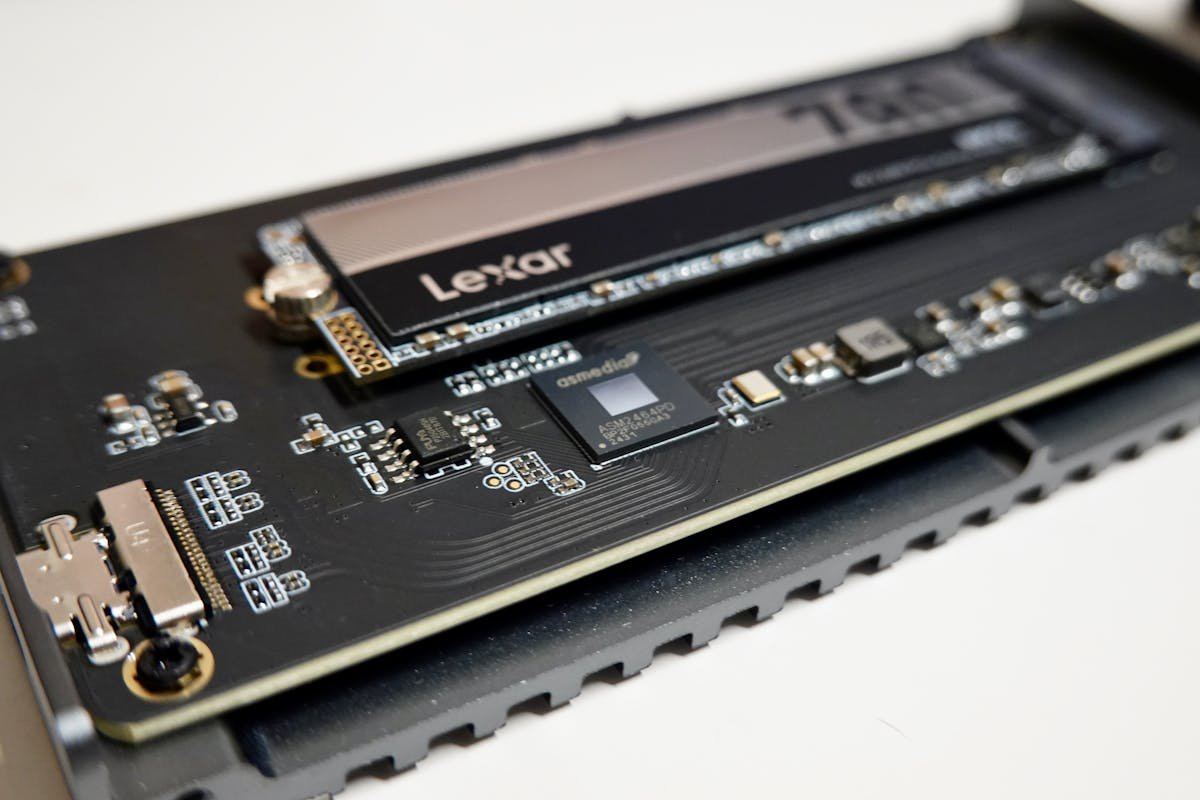
Most modern laptops have 1-2 M.2 NVMe SSD slots, but the number varies by model and price range. Budget laptops often have just 1 slot (soldered or upgradeable); gaming and workstation laptops typically have 2 slots. Some older business laptops include a secondary 2.5″ SATA slot. To find out how many SSD slots your specific laptop has, check the official spec sheet, use a system scanner tool like Crucial System Scanner, or open the bottom panel and count the M.2 slots visually. This guide covers how to check, what each slot type means, and which popular laptops have upgradeable storage.
Common SSD Slot Configurations
Here are the most common setups you’ll find in modern laptops:
| Configuration | Storage Capacity at Max | Common In | Upgradeable? |
|---|---|---|---|
| Soldered storage (no slot) | Fixed at purchase | Apple silicon MacBooks | No |
| 1x M.2 NVMe (removable) | Up to 4TB+ (user upgradeable) | Budget laptops (Inspiron, VivoBook, IdeaPad) | Yes—can swap SSD |
| 2x M.2 NVMe | Up to 8TB (two SSDs) | Gaming, professional (XPS 15, ROG, Razer Blade) | Yes—can expand/swap both |
| 1x M.2 NVMe + 1x 2.5″ SATA | Up to 6TB (NVMe + SATA combo) | Some business laptops, older mid-range | Yes—can add/replace both |
| 1x M.2 (SATA) | Up to 2TB (slower than NVMe) | Older laptops (2017-2019) | Yes—but limited to SATA speed |
M.2 Size Standards: 2230 vs 2280 vs 2242 vs 22110
M.2 SSDs come in different physical lengths, identified by a 4-digit code: the first two digits are width (22mm always), and the last two are length.
| Size | Length | Common In | Notes |
|---|---|---|---|
| M.2 2230 | 30mm (shortest) | Microsoft Surface, Steam Deck, ultraportables | Rare; very few SSDs available in this size |
| M.2 2242 | 42mm | Some gaming laptops, secondary slots | Growing availability; more options than 2230 |
| M.2 2280 | 80mm (standard) | 99% of laptops with M.2 slots | Most common; thousands of options available |
| M.2 22110 | 110mm (longest) | Rare; some workstations, specialized gear | Very uncommon in laptops; desktops more common |
Important: Check your laptop’s spec sheet for the M.2 size. If your laptop has an M.2 2230 slot (like Surface), you cannot use a 2280 SSD—it won’t fit. Some laptops accept either length (the Dell XPS 15 9530 takes 2230 or 2280), so check which lengths your slot supports.
NVMe vs SATA: What’s the Difference?
Both NVMe and SATA are M.2 form factor, but they differ in speed and protocol:
| Specification | NVMe | SATA |
|---|---|---|
| Speed | Up to 7,450 MB/s on PCIe Gen 4 (Samsung 990 Pro); Gen 5 is faster | 550 MB/s (speed capped by protocol) |
| Real-world benefit | 5-10x faster for large file transfers; boots faster | Slower boot and file copy times |
| Power consumption | Higher (but manageable) | Lower (more battery-friendly) |
| Lifespan | 5–10+ years typical | 5–10+ years typical |
| Cost | £25–60 for 1TB (2024) | Rare to find; legacy tech |
Bottom line: Buy NVMe if your laptop’s M.2 slot supports it, as it’s significantly faster. Some older M.2 slots only support SATA, so check which interface your slot accepts before buying.
How Many SSD Slots Do Popular Laptops Have?
Dell
| Model | SSD Slots | Upgradeable? | M.2 Size |
|---|---|---|---|
| XPS 13 (2024) | 1x M.2 NVMe (removable) | Yes | 2230 or 2280 (XPS 13 9340) |
| XPS 13 Plus (2023) | 1x M.2 NVMe (removable) | Yes | 2230 or 2280 (XPS 13 Plus 9320) |
| XPS 15 (9530, 2023) | 2x M.2 NVMe | Yes (second slot) | 2230 or 2280 / 2230 or 2280 |
| Inspiron 15 (2023) | 1x M.2 NVMe (removable) | Yes | 2280 |
| Latitude 5540 | 1x M.2 NVMe (optional second M.2 slot) | Yes | 2230 or 2280 (second slot: Gen 3 M.2 2230 only) |
| Alienware m15 (2024) | 2x M.2 NVMe | Yes (both) | 2280 / 2280 |
HP
| Model | SSD Slots | Upgradeable? |
|---|---|---|
| Spectre x360 14 (2024) | 1x M.2 NVMe (removable) | Yes |
| Pavilion 15 (2023) | 1x M.2 NVMe (removable) | Yes |
| Omen 16 (2024) | 2x M.2 NVMe | Yes (both) |
| EliteBook 640 (business) | 1x M.2 NVMe + 1x 2.5″ SATA | Yes (both) |
ASUS
| Model | SSD Slots | Upgradeable? |
|---|---|---|
| VivoBook 14 (2024) | 1x M.2 NVMe (removable) | Yes |
| ZenBook 14 (OLED) | 1x M.2 NVMe (soldered) | No |
| ROG Zephyrus G16 | 2x M.2 NVMe | Yes (both) |
| TUF Gaming A16 | 2x M.2 NVMe | Yes (both) |
Lenovo
| Model | SSD Slots | Upgradeable? |
|---|---|---|
| ThinkPad E14 (2024) | 1x M.2 NVMe (removable) | Yes |
| ThinkPad X1 Carbon | 1x M.2 NVMe (removable) | Yes |
| ThinkPad T15 Gen 3 | 2x M.2 NVMe | Yes (both) |
| IdeaPad 5 Pro (2023) | 1x M.2 NVMe (removable) | Yes |
Apple MacBooks (All Soldered)
All MacBooks use soldered storage that cannot be upgraded after purchase. You must configure storage at time of purchase.
- MacBook Air M3 (2024): 256GB–2TB soldered SSD (not upgradeable)
- MacBook Pro 14/16 (2024): 512GB–8TB soldered SSD (not upgradeable)
Cost implications: Upgrading from 256GB to 512GB at MacBook purchase time costs ~£200. Buying a new MacBook later to get more storage would cost £1,000+, so always max out storage upfront if your budget allows.
How to Check Your Laptop’s SSD Slot Configuration
Method 1: Check the Official Spec Sheet
Find your laptop’s spec sheet and look for sections titled “Storage,” “Internal Storage,” or “Memory.”
What to look for:
- “1 x M.2 NVMe” or “2 x M.2 NVMe” = Number of removable SSD slots
- “M.2 2280” = Physical size (2280 is standard)
- “PCIe Gen 4” or “Gen 5” = Speed standard (for compatibility checking)
- “Soldered storage” or “not upgradeable” = Fixed at purchase
- “+ 1 x 2.5″ SATA” = Secondary slot (older style, slower)
Example (Dell Inspiron 15):
Storage: 512GB M.2 NVMe SSD (2280), 1 slot (user upgradeable), supports up to 2TB
- One M.2 NVMe slot you can access and upgrade
- Physical size is 2280 (standard)
- You can swap it for a larger SSD (up to 2TB)
Method 2: Use System Information Tools
Windows:
- Press Win+R, type
msinfo32, and press Enter - Look for storage entries—you’ll see “SSD0,” “SSD1,” etc.
- This shows how many SSDs are installed, not how many slots are available (you may have 1 of 2 slots filled)
macOS:
- Apple menu → About This Mac → Storage
- Shows only total capacity, not slot count (MacBooks are soldered anyway)
Dedicated tools:
- Crucial System Scanner (free) — Scans your system and reports storage details
- Kingston SSD Manager — Shows installed SSD info
- HWiNFO — Advanced tool; shows all connected storage devices
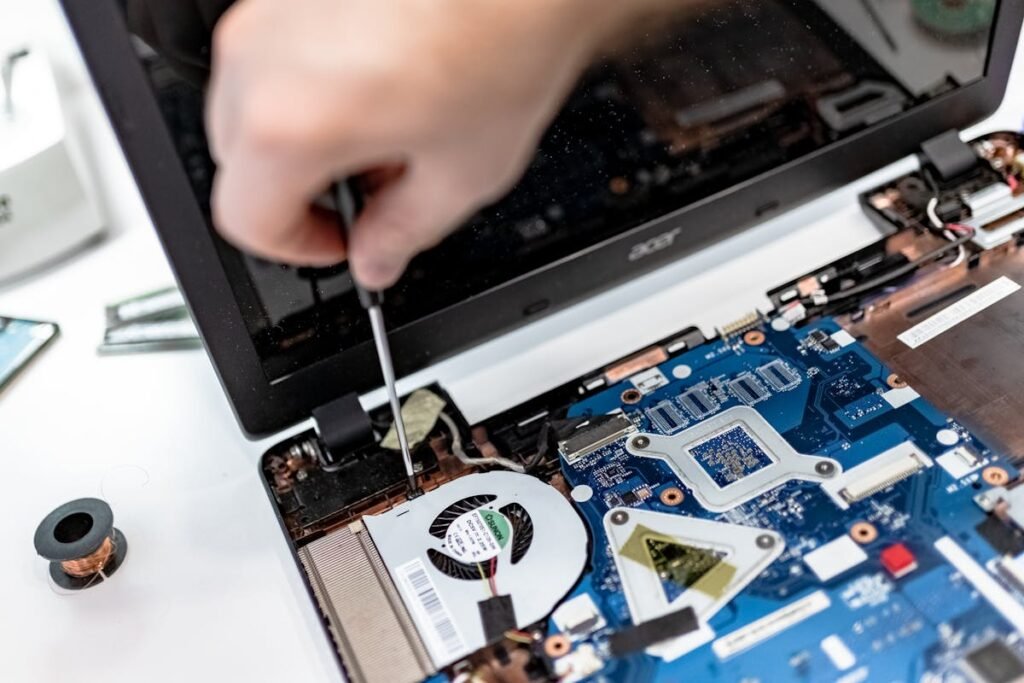
Method 3: Physical Inspection (Open the Laptop)
If you own the laptop and want to verify slot count visually:
- Power off the laptop completely and unplug all cables
- Remove the bottom panel (usually 6-12 Phillips screws; watch a YouTube disassembly for your model)
- Locate the M.2 slots — you’ll see rectangular slots at an angle (45 degrees) with small gold connectors
- Count the slots:
- 1 slot: One empty slot (or one SSD installed)
- 2 slots: Two slots visible (one or both may have SSDs)
- Soldered: You’ll see a flat chip soldered to the motherboard (not a removable module)
- Check the M.2 size: The slot will have a label near it (e.g., “M.2 2280”) or you can measure the slot length (~30mm, 42mm, 80mm, or 110mm)
Safety tips:
- Ground yourself (touch a metal part of the frame) to avoid static discharge
- Don’t force screws—if stuck, use a small lubricant like WD-40
- Take photos of the layout before disassembly so you remember cable routing
- If uncomfortable opening a laptop, take it to a technician or use the software methods above
Upgrading Storage: Which Laptops Allow Secondary SSD?
If your laptop has 2 M.2 slots, you can add a second SSD to double your storage. Here are popular models with expandable storage:
| Laptop Series | 2 Slots? | Max Capacity (2 SSDs) | Notes |
|---|---|---|---|
| Dell XPS 15 (9530) | Yes (2x M.2 2230/2280 NVMe) | Up to 8TB | Gaming/creative professionals — add 4TB secondary drive |
| ASUS ROG Zephyrus G16 | Yes (2x M.2 NVMe) | Up to 8TB | Gaming laptop — second slot perfect for game library |
| Alienware m15 (2024) | Yes (2x M.2 NVMe) | Up to 8TB | Gaming — add storage for large games |
| ThinkPad T15 Gen 3 | Yes (2x M.2 NVMe) | Up to 8TB | Business — dual drives for RAID or backups |
| Dell Latitude 5540 | Optional (second M.2 slot, Gen 3 M.2 2230 only) | Check Dell’s storage options | Business—second slot on dual-storage configurations |
Selecting the Right Replacement or Additional SSD
When upgrading storage on a laptop, match these specifications:
1. Form Factor (Physical Size)
Match the M.2 size exactly. If your slot is 2280, buy a 2280 SSD. A 22110 will not fit, and a 2230 only fits if your laptop supports that length.
- M.2 2280 SSDs (most common, standard)
- M.2 2230 SSDs (for Surface, Steam Deck)
- M.2 2242 SSDs (less common)
2. Interface (NVMe vs SATA vs optane)
Use NVMe if your slot supports it. SATA M.2 is slower, but some older slots only accept SATA drives.
- NVMe PCIe Gen 4 (up to 7,450 MB/s) — Standard for 2022+ laptops
- NVMe PCIe Gen 5 (faster than Gen 4) — Latest, slightly more expensive
3. Speed (Matching Your System)
Check your system’s PCIe Gen (3, 4, or 5). You can use a faster SSD in a slower slot (it will run at slot speed), but it’s wasteful.
- PCIe Gen 3 system: Buy Gen 3 SSD (3,000–3,500 MB/s)
- PCIe Gen 4 system: Buy Gen 4 SSD (up to 7,450 MB/s)
- PCIe Gen 5 system: Buy Gen 5 SSD (faster than Gen 4)
4. Capacity
Choose based on needs. Modern capacities: 256GB (minimum), 512GB (standard), 1TB (comfortable), 2TB (plenty), 4TB+ (professional).
- 512GB SSDs — Budget option
- 1TB SSDs — Best value
- 2TB SSDs — Comfortable for creative professionals
Key Takeaways
- Most laptops have 1–2 M.2 NVMe slots—check your spec sheet to find out
- Soldered storage (such as on Apple silicon MacBooks) cannot be upgraded after purchase
- Removable M.2 SSDs can be swapped or expanded (common on budget and gaming laptops)
- M.2 2280 is the standard size—check your model’s exact size to buy compatible SSDs
- Buy NVMe if your slot supports it—much faster, but some older M.2 slots only accept SATA
- For gaming/creative work, dual SSDs (2 M.2 slots) let you max storage (up to 8TB)
- Use our SSD compatibility guide for specific laptop recommendations
Frequently asked questions
How many SSD slots does my laptop have?
Most laptops with removable storage have one or two M.2 slots, but the only reliable answer is your model’s specification sheet or service manual. For example, Dell lists two M.2 slots for the XPS 15 9530 and one slot for the ThinkPad X1 Carbon Gen 13 in Lenovo’s PSREF. Windows tools only show drives that are installed, not empty slots, so check the documentation or look inside.
Can I upgrade my laptop’s SSD?
You can if the SSD is a removable M.2 drive, which is the case on many Windows laptops, including the Dell XPS 13 9340, HP Spectre x360 14 and several Microsoft Surface models. You cannot on Apple silicon MacBooks, where storage is soldered to the logic board and chosen when you buy. Check your model’s service manual to confirm the drive is removable and which size it takes.
What is the difference between M.2 2280 and M.2 2230?
The numbers are the drive’s dimensions in millimetres: both are 22mm wide, but a 2280 drive is 80mm long and a 2230 drive is 30mm long. The size is about physical fit, not speed, and a drive must match the length your slot supports. Some laptops accept either, such as the Dell XPS 15 9530, whose two slots take M.2 2230 or 2280 drives.
Is an NVMe SSD faster than a SATA SSD?
Yes, much faster. The SATA III interface is limited to 6Gb/s, so SATA SSDs top out at around 550 to 560 MB/s, while a PCIe 4.0 NVMe drive such as the Samsung 990 Pro is rated at up to 7,450 MB/s sequential read. The catch is compatibility: some older M.2 slots only support SATA, so check which interface your slot accepts before buying.
Can I have two SSDs in my laptop?
Yes, if your laptop has a second M.2 slot or a 2.5-inch drive bay. The Dell XPS 15 9530 has two M.2 slots, and the Dell Latitude 5540 offers optional dual storage with a second slot limited to Gen 3 M.2 2230 drives. Many thin laptops have only one slot, so confirm in the manufacturer’s specifications before you buy a second drive.
Related Guides
- Laptop SSD Compatibility Guide (2026) — Find compatible SSDs for your laptop
- Laptop Battery Replacement Guide — DIY upgrade instructions
- Laptop RAM Compatibility Guide (2026) — Check RAM upgrade options
Shopping for SSD Upgrades
Popular brands for laptop SSD upgrades:
- WD Black SN850X (gaming)
- Samsung 870 QVO (2.5in SATA – only for laptops with a 2.5in bay)
- Crucial P5 Plus (reliable)
- SK Hynix P41 Platinum (efficient)
Recommended upgrades
As an Amazon Associate we earn from qualifying purchases. Prices & availability shown on Amazon.
M.2 2280 NVMe SSDs
How we verify this guide
We cross-reference compatibility figures against manufacturer specifications where available, official service manuals, and the standards that govern fit — memory type and speed (DDR4 / DDR5 / LPDDR5), maximum supported capacity and slot count, SSD form factor and interface (M.2 2280, NVMe PCIe vs SATA, keying), and charger wattage and connector (USB-C Power Delivery, GaN). We’re explicit about soldered or non-upgradeable parts, prioritise primary sources over retailer listings, and re-verify the data on a regular cycle. More on our method →