Affiliate disclosure: this page contains affiliate links — if you buy through them we may earn a commission at no extra cost to you. As an Amazon Associate we earn from qualifying purchases.
HP sells docks that say “universal” on the box and laptops that all appear to have the same USB-C port, and the result is one of the most common support-forum complaints there is: the dock arrives, and either nothing appears on the monitors or the laptop quietly discharges while it’s plugged in. Neither is a faulty dock. Both are compatibility mismatches you can predict before you spend anything.
This guide sets out HP’s current dock line-up with the specifications taken from HP’s own QuickSpecs and data sheets, shows you how to work out what your particular HP laptop can actually drive, and covers the three things that cause almost every failure — port capability, power budget and HP’s tested-model list.
Start with the port, not the model
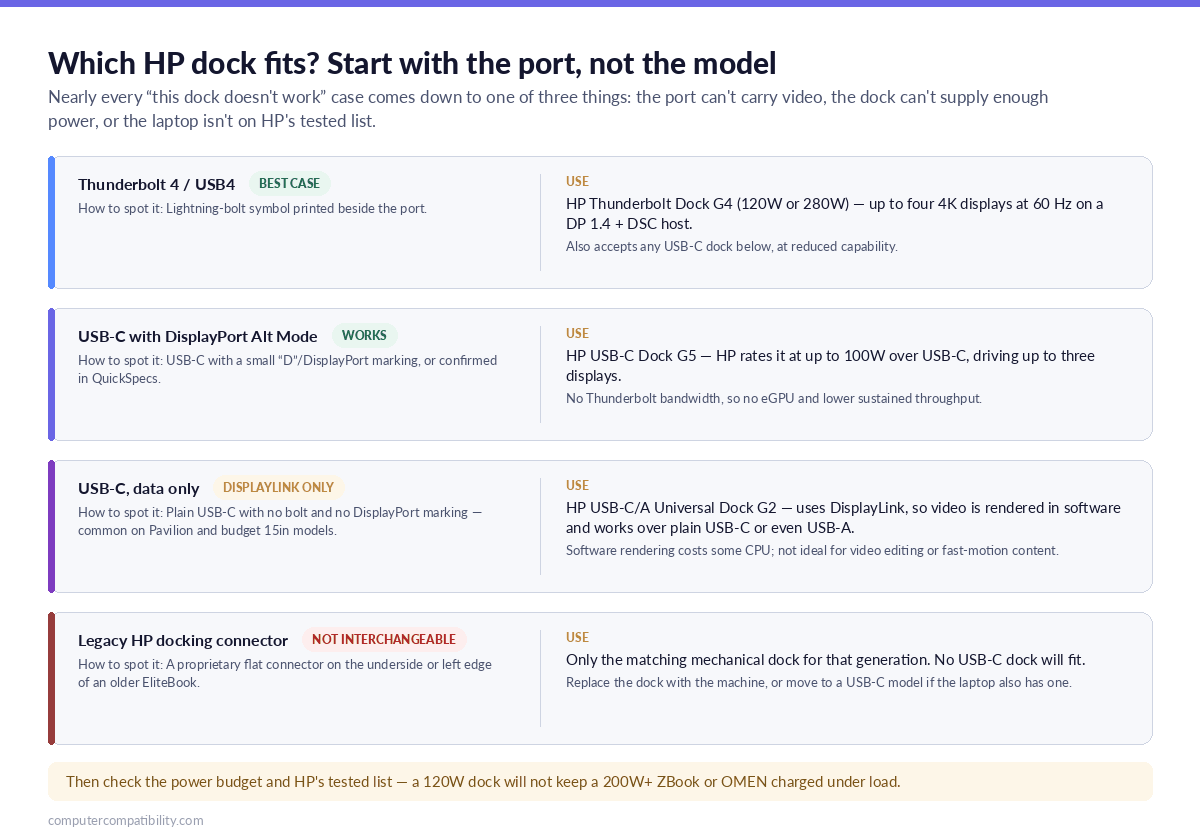
A dock can only do what the port it plugs into allows. Four possibilities, and the difference between the middle two is where most people come unstuck:
Thunderbolt 4 or USB4. Marked with a small lightning-bolt symbol beside the port. Full bandwidth, full display capability, and the only option that unlocks the Thunderbolt Dock G4.
USB-C with DisplayPort Alt Mode. Physically identical to any other USB-C port, sometimes marked with a small “D” or DisplayPort logo. Carries video natively but without Thunderbolt’s bandwidth. This is what most HP business laptops without Thunderbolt have.
USB-C, data only. Also physically identical, and this is the trap. Common on consumer Pavilion and budget 15-inch models: the port charges and moves data but carries no video signal at all. A standard USB-C dock plugged into one of these will do nothing on the display side, and no driver will fix it.
Legacy HP docking connector. A proprietary flat connector on the underside or left edge of older EliteBook generations. Only the matching mechanical dock for that generation fits.
If the port markings on your machine are ambiguous — and they often are — don’t guess. HP publishes the answer for every model in QuickSpecs, and the lookup method is in the section below.
HP dock line-up: specifications and overview
Figures below are from HP’s QuickSpecs and product data sheets. Power delivery is the number that varies most between HP and non-HP hosts, so both are shown where HP states them.
| Dock | Connection | Power to laptop | Displays | Best for |
|---|---|---|---|---|
| HP Thunderbolt Dock G4 (120W) | Thunderbolt 4 | Up to 100W via USB-C to supported systems; 75W to non-HP | Up to 4 × 4K @ 60Hz on a DisplayPort 1.4 + DSC host | EliteBook, Dragonfly and most Thunderbolt-equipped business machines |
| HP Thunderbolt Dock G4 (280W) | Thunderbolt 4 + combo cable | Up to 230W on HP platforms via the combo cable; 75W via USB-C on non-HP | Up to 4 × 4K @ 60Hz on a DisplayPort 1.4 + DSC host | ZBook mobile workstations and anything that ships with a high-wattage PSU |
| HP USB-C Dock G5 (5TW10AA) | USB-C with DisplayPort Alt Mode | Up to 100W via USB-C (5V/9V/10V/12V/15V/20V, 5A max) | Up to 3 displays | Business laptops with USB-C video but no Thunderbolt |
| HP USB-C/A Universal Dock G2 (5TW13AA) | USB-C, or USB-A via the included adapter — DisplayLink | Up to 100W via USB-C (5V/9V/10V/12V/15V/20V, 5A max) | Three 4K displays on a USB-C host; two 4K plus the laptop screen on a USB-A host | Mixed estates, older machines, and data-only USB-C ports |
| HP USB-C Travel Hub G3 (86S97AA) | USB-C with DisplayPort Alt Mode | Up to 65W pass-through (needs a 90W supply to reach it) | One display, HDMI 2.0 up to 4K @ 60Hz | Travel and hot-desking, not a desk replacement |
Display figures are ceilings set by the dock. What you actually get is capped by whichever is lower — the dock or your laptop’s graphics and port. That distinction is the subject of its own section further down.
What’s on the back of the Thunderbolt Dock G4
Both wattages share the same port set, which is worth knowing because it’s unusually complete for a dock at this size:
- 1 × Thunderbolt 4
- 1 × USB-C 3.2 Gen 2 (10 Gbps) with DisplayPort
- 1 × USB-C 3.2 Gen 2 with 15W power out
- 2 × USB-A 3.2 Gen 1 (5 Gbps)
- 2 × USB-A 3.2 Gen 2 (10 Gbps) charging ports, 7.5W each
- 2 × DisplayPort 1.4
- 1 × HDMI 2.0
- 1 × Ethernet, supporting 1Gb and 2.5Gb
- 1 × Kensington lock slot
- 280W model only: a 4.5mm barrel power connector for the combo cable
How to check what your HP laptop actually supports
HP maintains the answer for every machine it has ever sold, and most people never find it. Two official routes:
Product Content Browser. Go to pcb.inc.hp.com/webapp/, enter your PC product number (the code on the label underneath the laptop, not the marketing name), then open Product Information → Compatibilities. HP lists every accessory validated against that specific model, docks included. This is the definitive list, and it is the one HP support staff work from.
QuickSpecs. Search HP’s support site for your model’s QuickSpecs document. The I/O ports section states explicitly whether each USB-C port carries DisplayPort and Power Delivery — which settles the data-only question that port markings often leave open.
If your machine appears on neither list against the dock you’re considering, that isn’t a formality. It’s the single best predictor of whether the thing will work, for reasons the next section explains.
Power delivery: the mistake that wastes the most money
Match the dock’s wattage to what your laptop needs, not to what fits the port. The failure mode is not dramatic — everything appears to work, but the battery percentage falls slowly while you’re plugged in and working, then drops sharply under load.
| Your laptop | Typical PSU | Dock that keeps up |
|---|---|---|
| EliteBook, ProBook, Dragonfly, most 13–14in business machines | 45–65W | Any of the docks above. The Thunderbolt Dock G4 120W or USB-C Dock G5 are comfortable. |
| Larger EliteBook and ProBook models, light creative work | 65–100W | Thunderbolt Dock G4 120W or USB-C Dock G5, both at their 100W ceiling — adequate, with little headroom |
| ZBook mobile workstations under sustained load | 150–230W | Thunderbolt Dock G4 280W via the combo cable, which HP rates at up to 230W on HP platforms |
| OMEN and Victus gaming laptops | 200–330W | No HP dock will charge these under load. Use a dock for peripherals and displays and keep the original charger connected for gaming. |
| Any non-HP laptop | — | 75W on the Thunderbolt Dock G4 — HP states its higher figures only for supported HP platforms. HP’s spec sheet for the USB-C Dock G5 gives a single 100W figure with no HP/non-HP split. |
The gaming-laptop row is the one that catches people out most often, and there is a well-documented example on HP’s own support forum: an OMEN 17 owner bought a USB-C Dock G5 on the strength of “universal” marketing, and found the machine wasn’t on HP’s supported list and the dock couldn’t come close to the laptop’s power requirement. A dock rated at 100W was never going to feed a machine that ships with a 330W supply.
Multi-monitor limits: the dock is only half the equation
“Supports four 4K displays” describes the dock. Whether your laptop can drive four 4K displays is a separate question, and the answer lives in the graphics silicon and the DisplayPort version of the port, not the dock.
HP states the Thunderbolt Dock G4’s maximum of four 4K displays at 60Hz for hosts supporting DisplayPort 1.4 with Display Stream Compression. DSC is doing real work in that sentence — it’s the compression that makes four simultaneous 4K streams fit in the available bandwidth. A host without DSC will manage fewer displays or lower refresh rates from exactly the same dock.
Three practical rules:
Thunderbolt gives dedicated bandwidth; USB-C Alt Mode shares it. On a USB-C dock, display data and USB traffic compete for the same lanes. Copy a large file to an external drive while running dual monitors and you may see the displays stutter. On Thunderbolt this doesn’t happen.
Integrated graphics have a hard display limit. Most Intel integrated GPUs top out at four simultaneous displays including the laptop’s own panel — so three external monitors plus the built-in screen is often the real ceiling, whatever the dock advertises.
DisplayLink is a different mechanism entirely. The USB-C/A Universal Dock G2 renders video in software and sends it as compressed data over USB, which is why it works over plain USB-C and even USB-A. It’s the right answer for a data-only port or a mixed fleet, and the wrong answer for video editing or fast-motion content, where the compression and CPU overhead show.
For the underlying limits on your specific machine, our guide to how many monitors a laptop can support covers the graphics side, and Thunderbolt 3 vs 4 vs 5 covers the generational differences.
Can you use HP docks with non-HP laptops — and vice versa?
Yes, within limits, and the limits are consistent.
HP docks on other brands. The Thunderbolt Dock G4 and USB-C Dock G5 are standards-based, so they work with any Thunderbolt 4 or USB-C DisplayPort Alt Mode laptop respectively. HP’s QuickSpecs for the G4 note testing on selected Apple MacBook, Dell Latitude and Lenovo ThinkPad models alongside HP’s own. Three things you lose on the Thunderbolt Dock G4: power delivery drops to 75W, the dock’s power button only works on supported HP notebooks, and driver support is partial — HP states that Ethernet drivers need installing separately on non-HP Windows systems, and that Mac systems get no Ethernet or audio drivers from HP at all.
Other brands’ docks on HP laptops. Equally fine for standards-based docks. A Dell WD22TB4 or a CalDigit Thunderbolt 4 dock will drive an HP EliteBook without complaint. We cover the Dell range in the Dell dock compatibility guide.
What never works cross-brand: any proprietary mechanical docking connector. Those are generation-specific even within a single manufacturer.
One caveat for managed environments: features like MAC address pass-through, wake-on-LAN and PXE boot over the dock are typically validated only on the vendor’s own machines. If you’re deploying at scale, test one before ordering fifty.
Troubleshooting an HP dock that isn’t working
Work through these in order. The first three resolve the large majority of cases.
1. Check the cable. A USB-C cable rated for USB 2.0 charging will not carry video, and they look identical to full-featured ones. Use the cable supplied with the dock. If it’s been swapped, that is very often the whole problem.
2. Update the dock firmware. HP ships a firmware installer for each dock. Note the constraint in HP’s QuickSpecs: disconnected firmware updates are supported on Windows systems only, so a Mac-only household will need to borrow a Windows machine once.
3. Check the BIOS Thunderbolt setting. Several HP business models ship with Thunderbolt security set to require authorisation, which silently blocks new devices. Look in BIOS setup under Advanced → Port Options or Thunderbolt Configuration. HP’s QuickSpecs also specify a minimum Thunderbolt software level of SW17.x for some functionality.
4. Update graphics and chipset drivers. Display detection over a dock depends on both. Get them from HP’s support page for your model rather than Windows Update, which often carries older versions.
5. Re-check the power budget. If the symptom is “works fine, but the battery drains”, nothing in the driver stack will fix it. See the power table above.
6. Confirm the model is on HP’s list. Back to the Product Content Browser. If your machine isn’t validated against that dock, you may be chasing a problem that has no fix.
Which HP dock should you buy?
Business laptop, one or two 1080p or 1440p monitors. The USB-C Dock G5. HP rates it at up to 100W over USB-C, it drives up to three displays, and doesn’t require Thunderbolt. Buying a Thunderbolt dock for this workload is money spent on bandwidth you won’t use.
ZBook or dual 4K. The Thunderbolt Dock G4, and the 280W version if the laptop ships with a supply above about 150W. This is the only HP dock that will both drive the displays and keep a workstation charged under sustained load.
Travel or hot-desking. The USB-C Travel Hub G3. One 4K display over HDMI, two USB-A ports and 65W pass-through in something that fits in a laptop sleeve. It is not a desk dock and isn’t meant to be.
Mixed fleet, older machines, or a data-only USB-C port. The USB-C/A Universal Dock G2. DisplayLink makes it the most forgiving option in the range — it will drive displays from ports that carry no video signal at all, and the included USB-A adapter covers machines with no usable USB-C.
Frequently Asked Questions
Will the HP USB-C Dock G5 work with my laptop?
It needs a USB-C port that supports both Power Delivery and DisplayPort Alt Mode. If your USB-C port is data-and-charging only — common on Pavilion and budget models — the dock will not produce a display signal. Confirm in your model’s QuickSpecs, then check the model against HP’s Product Content Browser, because HP validates the G5 primarily against its commercial range.
What’s the difference between the 120W and 280W Thunderbolt Dock G4?
Only power delivery; the port set is identical. The 120W model supplies up to 100W over USB-C to supported systems. The 280W model uses a combo cable and delivers up to 230W on HP platforms. Both fall to 75W over USB-C on non-HP hosts. Choose the 280W version only if your laptop’s own power supply is rated well above 100W.
Can I use an HP dock with a MacBook?
Yes for the standards-based docks — HP’s QuickSpecs note testing on selected Apple models. On the Thunderbolt Dock G4 expect 75W of charging rather than the higher HP figure, and be aware that HP states Mac systems receive no Ethernet or audio drivers from HP, so those dock functions may be limited depending on macOS version.
Why won’t my HP dock charge my laptop?
Almost always a power-budget mismatch rather than a fault. Compare the wattage on your laptop’s original power brick with the dock’s output — and remember the 75W ceiling the Thunderbolt Dock G4 applies to non-HP hosts. If the laptop’s supply is 150W or more, only the 280W Thunderbolt Dock G4 comes close, and gaming models are outside what any HP dock can sustain.
How many monitors can an HP dock support?
Up to four 4K displays at 60Hz on the Thunderbolt Dock G4, but only with a host supporting DisplayPort 1.4 with DSC. The USB-C Dock G5 supports up to three displays, and the USB-C/A Universal Dock G2 supports three 4K over USB-C or two 4K plus the laptop screen over USB-A. In all cases your laptop’s graphics is the real limit — most integrated GPUs cap at four simultaneous displays including the built-in panel.
Do I need Thunderbolt, or is USB-C enough?
USB-C is enough for two monitors, wired networking, keyboard, mouse and a webcam — which is what most desk setups are. Thunderbolt earns its cost if you need three or more high-resolution displays, fast external storage running alongside those displays, or an external GPU enclosure.
Why does my dock stop working after a Windows update?
Usually a graphics or chipset driver has been replaced with a generic version. Reinstall the display and chipset drivers from HP’s support page for your model, then reapply the dock firmware. If the dock disappears entirely rather than losing display output, check whether the update reset the BIOS Thunderbolt security setting.
Where to buy HP docks
Prices move constantly and the older generations turn up refurbished at a substantial discount, so check current listings before committing:
- HP Thunderbolt Dock G4 on Amazon UK — for Thunderbolt 4 machines and ZBooks
- HP USB-C Dock G5 on Amazon UK — the mainstream choice for business laptops
- HP USB-C/A Universal Dock G2 on Amazon UK — DisplayLink, for mixed or older fleets
- HP USB-C Travel Hub G3 on Amazon UK — travel and hot-desking
As an Amazon Associate we earn from qualifying purchases. Prices and availability shown on Amazon.
Related guides
- Laptop Docking Station Compatibility Guide
- Dell Dock Compatibility Guide — WD19, WD22 & Universal Docks
- Lenovo Dock Compatibility Guide
- Thunderbolt 3 vs 4 vs 5 — Dock Compatibility
- How Many Monitors Can My Laptop Support?
- HP Laptop Charger Compatibility
- HP Laptop Upgrade Guide — RAM, SSD & Charger Compatibility
How we verify this guide
Dock specifications in this guide are taken from HP’s own QuickSpecs and product data sheets rather than retailer listings, and we state HP’s figures for HP and non-HP hosts separately because they differ. Where a limit depends on your laptop rather than the dock — display count, DisplayPort version, DSC support — we say so and point you at HP’s Product Content Browser for the model-specific answer. We re-verify on a regular cycle. More on our method →
Free download: The 2026 Docking Station Compatibility Master Guide
Thunderbolt 5, USB4, USB-C or DisplayLink — pick a dock that actually drives your monitors and charges your laptop. Get the PDF instantly.