
Affiliate disclosure: this page contains affiliate links — if you buy through them we may earn a commission at no extra cost to you. As an Amazon Associate we earn from qualifying purchases.
One of the most common questions we hear is whether you can take an SSD from a desktop PC and use it in a laptop. The short answer is: it depends on the form factor. In this guide, we’ll break down which SSDs work in both systems, which don’t, and what your options are if you want to move storage between devices.
The Good News: M.2 NVMe Works in Both (Usually)
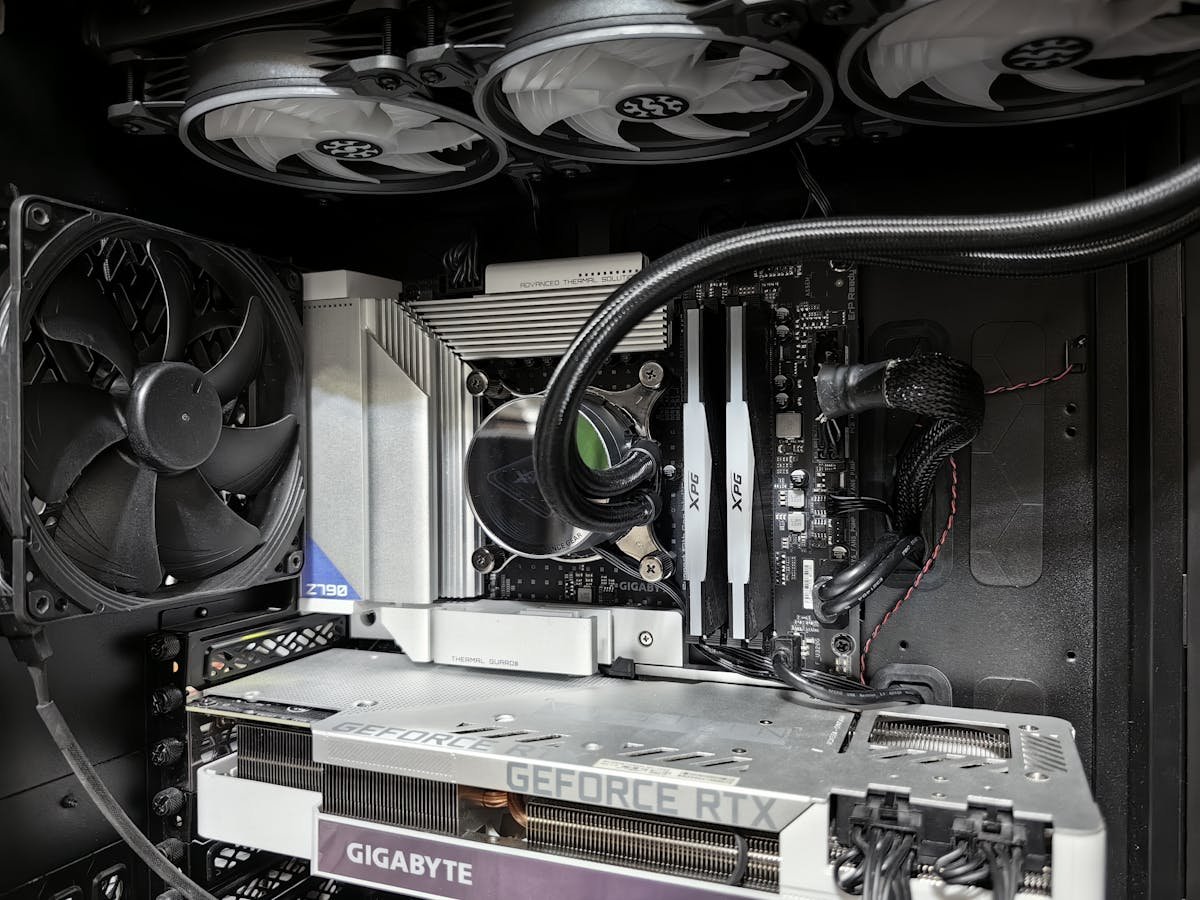
If your desktop has a modern M.2 NVMe SSD—the slim, stick-like drive—the good news is that the 2280 standard is identical in both laptops and desktops. The “2280” refers to the physical dimensions: 22mm wide by 80mm long. This is the most common form factor in both device types.
What this means: If you have a Samsung 970 EVO Plus, Crucial P5, or WD Black SN850X in your desktop, and your laptop has an M.2 slot, you can physically install it in the laptop. There are no compatibility differences—the slot is the same, the electrical connector is identical, and the drive will work at the same speed.
However, there are a few caveats:
- Laptop drive compatibility: Some ultra-thin laptops (MacBook Pro, Dell XPS 13) use proprietary or soldered storage that can’t be upgraded. Always check your specific laptop model’s upgrade guide before attempting this.
- Performance ceiling: While the drive will work, your laptop may not support the same PCIe generation as your desktop. For example, if your desktop supports PCIe 4.0 and your laptop only supports PCIe 3.0, the drive will run at the slower speed. Check your laptop’s specs to be sure.
- Thermal considerations: Laptops run hotter and have less cooling. A high-performance desktop SSD might throttle in a laptop with poor thermal management. Budget-friendly drives or those with low power consumption (like the Crucial P3) typically work better in portable systems.
For detailed compatibility information on your specific laptop, check our laptop SSD compatibility guide.
2.5″ SATA SSDs: Yes, But Declining
Before M.2 NVMe became standard, most laptops used 2.5″ SATA SSDs (the same size as a thin CD case). If your desktop has a 2.5″ SSD sitting unused, you can use it in any laptop with a 2.5″ SATA drive bay.
Reality check: Very few modern laptops have 2.5″ bays anymore. Ultrabooks, gaming laptops, and 2020+ models almost always use M.2 only. If your laptop is more than 5 years old, it might have a 2.5″ slot. Check your laptop’s manual or disassembly guide before assuming.
If your laptop does have a 2.5″ bay:
- Popular desktop SATA SSDs like the Crucial MX500, Samsung 860 EVO, or WD Blue 3D will fit and work perfectly
- You may need a mounting bracket or adapter caddy (usually £5-15)
- SATA speed is 550 MB/s max—significantly slower than modern NVMe drives, but still much faster than mechanical hard drives
3.5″ Desktop Drives: Absolutely Not
3.5″ hard drives and SSDs will not fit in a laptop under any circumstances. The form factor is too large, and there’s no mechanical bay. If your desktop has a 3.5″ HDD or SSD, you’ll need to leave it where it is or repurpose it elsewhere (like a USB external enclosure—see below).
PCIe Add-In Cards: Won’t Work in Laptops
Some high-end desktops use full-length PCIe SSD cards (like enterprise NVMe RAID adapters). These are complete dead ends for laptop use. Laptops have no PCIe slots, and even if they did, there’s nowhere to mount a full-size card. If you’re moving storage from a specialist workstation with PCIe SSDs, you’ll need to keep those drives in the desktop.
M.2 2230 vs 2280: A Hidden Gotcha
While we said M.2 works in both systems, there’s a form factor variation you need to know about. The most common lengths are:
- M.2 2280 (80mm): Standard for both desktops and most laptops
- M.2 2230 (30mm): Becoming more common in ultra-compact laptops (Dell XPS 13, some Framework models, recent MacBook Airs)
- M.2 2242 (42mm): Rare; some mobile workstations only
Compatibility table:
| Form Factor | Desktop Compatible | Laptop Compatible | Notes |
|---|---|---|---|
| M.2 2280 | Yes (standard) | Yes (most models) | Universal; works in nearly all systems |
| M.2 2230 | No (too short) | Yes (some ultrabooks) | Check laptop manual; many slots only fit 2280 |
| 2.5″ SATA | Yes (older models) | Yes (pre-2018 laptops) | Fading out; check if your laptop has the bay |
| 3.5″ HDD/SSD | Yes (desktop only) | No | Too large; no laptop bays |
| PCIe Add-In Card | Yes (some workstations) | No | Laptops have no PCIe slots |
Can You Use an Adapter?
If your laptop only supports 2280 but you have a 2230 drive, or vice versa, adapters do not exist for M.2 drives. The slot is keyed, and the drives are physically different lengths. There’s no mechanical way to make it work.
However, for 2.5″ SATA drives in M.2-only laptops, you have one option: USB external enclosure (see below).
USB External Enclosure: The Universal Fallback
If your laptop can’t accept your desktop SSD directly, the easiest solution is a USB 3.0+ external enclosure. This is a small case that lets you connect the SSD via USB-C or USB-A, turning it into an external drive.
Pros:
- Works with any SSD (2.5″ SATA or M.2 NVMe)
- No installation needed; just plug in
- Easy to remove and swap between systems
- Great for backups and file transfers
Cons:
- USB 3.0 is slower than internal SATA (around 400 MB/s real-world vs 550 MB/s for internal SATA)
- USB-C on laptops may be shared with charging, reducing available bandwidth
- Less convenient for regular use than internal storage
Popular external enclosures:
- 2.5″ SATA SSD enclosures (£15-30)
- M.2 NVMe USB enclosures (£20-50)
Real-World Examples
Scenario 1: Moving a Samsung 970 EVO Plus (2280) from desktop to laptop
If your desktop has a Samsung 970 EVO Plus and your laptop has an M.2 slot, this is a straightforward move. Check your laptop’s manual to confirm it supports 2280 M.2 NVMe. If it does, power off both systems, remove the desktop SSD, insert it into the laptop, and power on. The laptop will recognize it immediately. You may need to move your Windows installation using cloning software if the desktop SSD has an OS on it.
Scenario 2: Moving a Crucial MX500 (2.5″ SATA) to a modern ultrabook
If you have a Crucial MX500 in your desktop and a 2020+ laptop (like a Dell XPS 13 or MacBook Air), your laptop probably doesn’t have a 2.5″ bay. Your best option is to put the drive in a USB enclosure and use it for backups or external file storage.
Scenario 3: Upgrading a 2016 Lenovo ThinkPad with an old 2.5″ HDD
Older business laptops often have 2.5″ bays. If your ThinkPad has a mechanical hard drive and you have a spare 2.5″ SSD from a retired desktop, you can upgrade it. You’ll likely need a small mounting bracket (many come in the box with the ThinkPad), but the swap is simple. See our SSD compatibility guide for specific model instructions.
Performance Considerations
Even when an SSD is physically compatible, you need to consider these factors:
PCIe Generation Mismatch: A desktop SSD designed for PCIe 4.0 will work in a PCIe 3.0 laptop, but it will run at PCIe 3.0 speeds (around 3,500 MB/s instead of 7,000 MB/s). You won’t damage anything—it’s just slower than the drive’s capability. For laptops, this rarely matters; you’ll still get excellent real-world performance.
Thermal Throttling: Some aggressive desktop drives (like the WD Black SN850X) can get hot without active cooling. Laptops have limited thermal headroom. If your laptop runs hot or has poor ventilation, a drive designed for low-power operation (like the Crucial P3) is safer. High-end drives may throttle after sustained writes, reducing peak performance.
Power Draw: Desktop SSDs may consume slightly more power than laptop-optimized drives. If your laptop is on battery power, this can marginally reduce battery life. The difference is usually negligible, but it’s worth considering for extended portable use.
FAQs
Q: Can I use a desktop M.2 SSD in a Mac?
A: Only on Intel-based Macs. Apple Silicon Macs (M1/M2/M3) use proprietary SSD modules that are soldered to the logic board. You cannot upgrade the storage on any MacBook Air, MacBook Pro, or Mac mini with M-series chips. Only older Intel-based models (pre-2016 MacBook Pro 15″, some iMacs) had user-upgradeable SSDs, and even then, they often used custom form factors.
Q: Will moving my desktop SSD to a laptop void the warranty?
A: Manufacturer warranties typically don’t cover user-installed storage, regardless of where the drive came from. However, the SSD’s manufacturer warranty remains valid as long as you keep the drive itself. Moving a Samsung 970 EVO Plus to a different system won’t affect Samsung’s 5-year warranty on the drive.
Q: Can I use a laptop SSD in a desktop?
A: Yes, if it’s M.2 2280. Most modern laptop SSDs are standard 2280 drives and will work perfectly in a desktop. Your desktop’s BIOS may recognize it slightly differently (as “Slot 3” instead of “Slot 1”), but functionality is identical. Some specialized drives (like those in MacBooks) use proprietary controllers and won’t work in non-Apple systems, but standard brands like Crucial, Samsung, and WD work universally.
Q: What’s the best way to transfer data to the new system?
A: If the SSD has a Windows installation on it, you have two options. (1) Clone the drive before moving it using software like Macrium Reflect or Acronis. This keeps all your programs and settings. (2) Do a fresh Windows install on the laptop and migrate data manually using a USB external enclosure or cloud storage. For most people, option 2 is cleaner and avoids driver conflicts. See our laptop upgrade guide for more details.
Q: Can I use an external SSD for gaming on my laptop?
A: Yes, but not ideal. Modern games expect fast SSD speeds. A USB 3.0 external drive (around 400 MB/s) will work, but you may see longer loading times compared to an internal drive. USB 3.1 or USB-C Thunderbolt enclosures are faster and make a noticeable difference. For the best gaming experience on a laptop with limited M.2 slots, upgrading the internal drive is superior to external storage.
Q: Are there any security issues moving an SSD between systems?
A: No, SSDs are hardware-agnostic. There are no security concerns from a hardware perspective. However, if the drive contains Windows or a Linux installation with full-disk encryption (BitLocker, LUKS), it may fail to boot on a different motherboard due to licensing or driver issues. For encrypted drives, it’s safer to decrypt before moving or do a clean install on the destination system.
Summary
Most modern desktop SSDs can move to laptops, but success depends on the form factor. M.2 2280 NVMe drives are the safest bet—they work in the vast majority of modern systems. Older 2.5″ SATA drives may or may not fit, depending on your laptop’s age. 3.5″ drives and PCIe cards have no laptop compatibility whatsoever. When in doubt, consult your laptop’s disassembly manual or upgrade guide, and consider a USB external enclosure as a universal fallback.
Want More Upgrade Help?
Check out our complete SSD compatibility guide for your specific laptop model, or browse our laptop upgrade section for step-by-step installation instructions.
Recommended upgrades
As an Amazon Associate we earn from qualifying purchases. Prices & availability shown on Amazon.
M.2 2280 NVMe SSDs
How we verify this guide
We cross-reference compatibility figures against manufacturer specifications where available, official service manuals, and the standards that govern fit — memory type and speed (DDR4 / DDR5 / LPDDR5), maximum supported capacity and slot count, SSD form factor and interface (M.2 2280, NVMe PCIe vs SATA, keying), and charger wattage and connector (USB-C Power Delivery, GaN). We’re explicit about soldered or non-upgradeable parts, prioritise primary sources over retailer listings, and re-verify the data on a regular cycle. More on our method →

