

Affiliate disclosure: this page contains affiliate links — if you buy through them we may earn a commission at no extra cost to you. As an Amazon Associate we earn from qualifying purchases.
Before upgrading your RAM, you need to know what you currently have installed. This guide shows you exactly how to check your RAM type, speed, capacity, and available slots on any operating system.
Windows — Task Manager Method
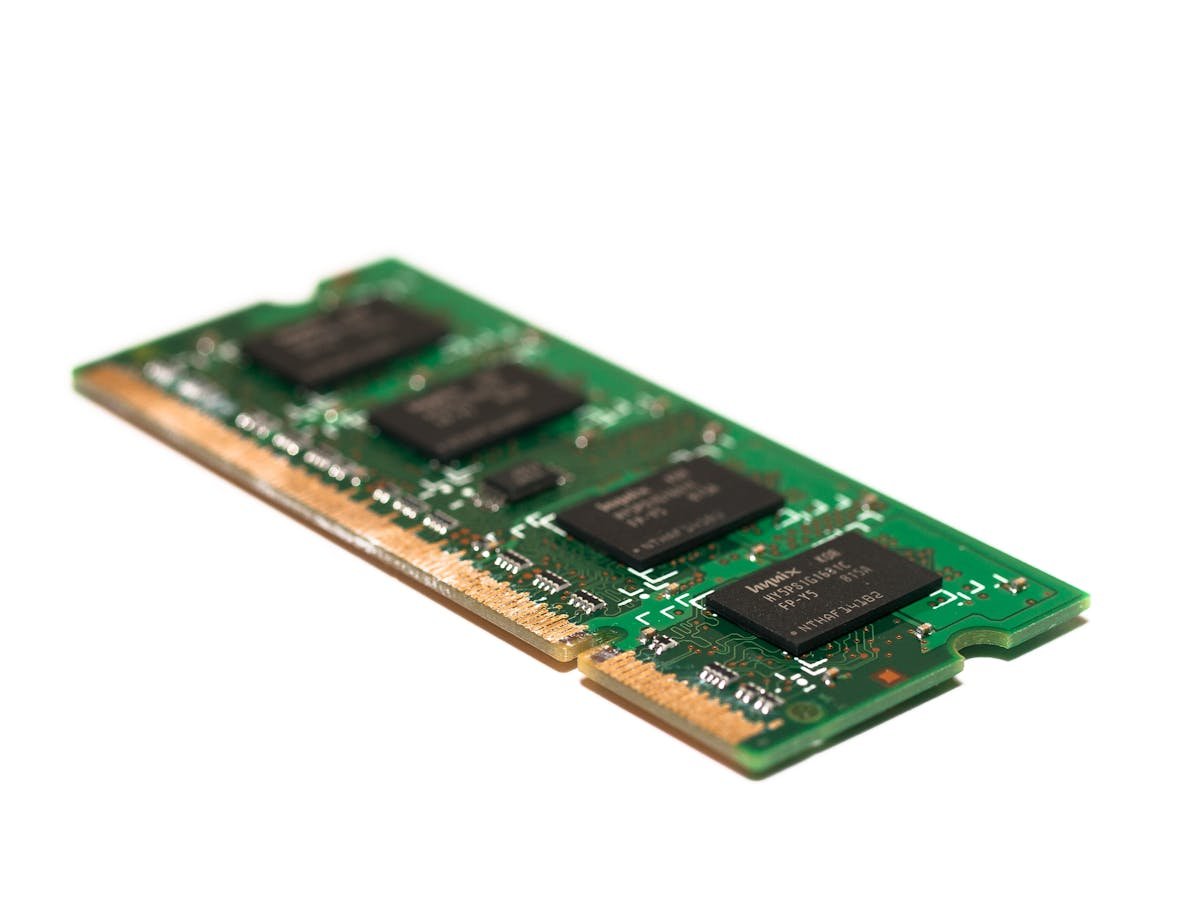
The quickest way on Windows: press Ctrl+Shift+Esc to open Task Manager, click the Performance tab, then select Memory. You will see total installed RAM, speed, form factor, slots used, and how many slots are available. This tells you immediately whether you have room for more RAM.
Windows — CPU-Z (Detailed Information)
For detailed specifications, download the free CPU-Z utility. The Memory tab shows type (DDR4/DDR5), channels, frequency, and timings. The SPD tab shows each individual module with manufacturer, part number, and rated speeds. This information is essential for buying compatible replacement modules.
Mac — About This Mac
Click the Apple menu, select About This Mac, then click More Info and System Report. Under Hardware > Memory, you will see the type, speed, and configuration of installed RAM. Note that most modern MacBooks have soldered RAM that cannot be upgraded.
Linux — Terminal Commands
Use sudo dmidecode -t memory for detailed module information including type, speed, manufacturer, and slot locations. For a quick summary, use free -h for total installed memory or lshw -class memory for hardware details.
What to Look For
When checking your RAM, note these key details: Type (DDR3, DDR4, or DDR5), Speed (e.g. 3200MHz), Total capacity, Number of sticks and their sizes, and Available empty slots. All these must be matched when purchasing new RAM.
Frequently Asked Questions
How do I know if my RAM is DDR4 or DDR5?
Use Task Manager (Windows) or CPU-Z. The Memory tab clearly shows the DDR generation.
Can I check RAM without opening my laptop?
Yes, all methods described above are software-based and do not require opening the device.
How do I know if I have empty RAM slots?
Windows Task Manager shows “Slots used: X of Y” in the Memory performance tab.
Recommended upgrades
As an Amazon Associate we earn from qualifying purchases. Prices & availability shown on Amazon.
For laptops and mini PCs that use DDR5 SO-DIMM
For laptops and mini PCs that use DDR4 SO-DIMM
How we verify this guide
We cross-reference compatibility figures against manufacturer specifications where available, official service manuals, and the standards that govern fit — memory type and speed (DDR4 / DDR5 / LPDDR5), maximum supported capacity and slot count, SSD form factor and interface (M.2 2280, NVMe PCIe vs SATA, keying), and charger wattage and connector (USB-C Power Delivery, GaN). We’re explicit about soldered or non-upgradeable parts, prioritise primary sources over retailer listings, and re-verify the data on a regular cycle. More on our method →

