

Affiliate disclosure: this page contains affiliate links — if you buy through them we may earn a commission at no extra cost to you. As an Amazon Associate we earn from qualifying purchases.
Cloning your hard drive to an SSD preserves your entire Windows installation, applications, settings, and files. You can be up and running on your new SSD in under an hour without reinstalling anything — the fastest way to upgrade your laptop’s storage.
What You Need
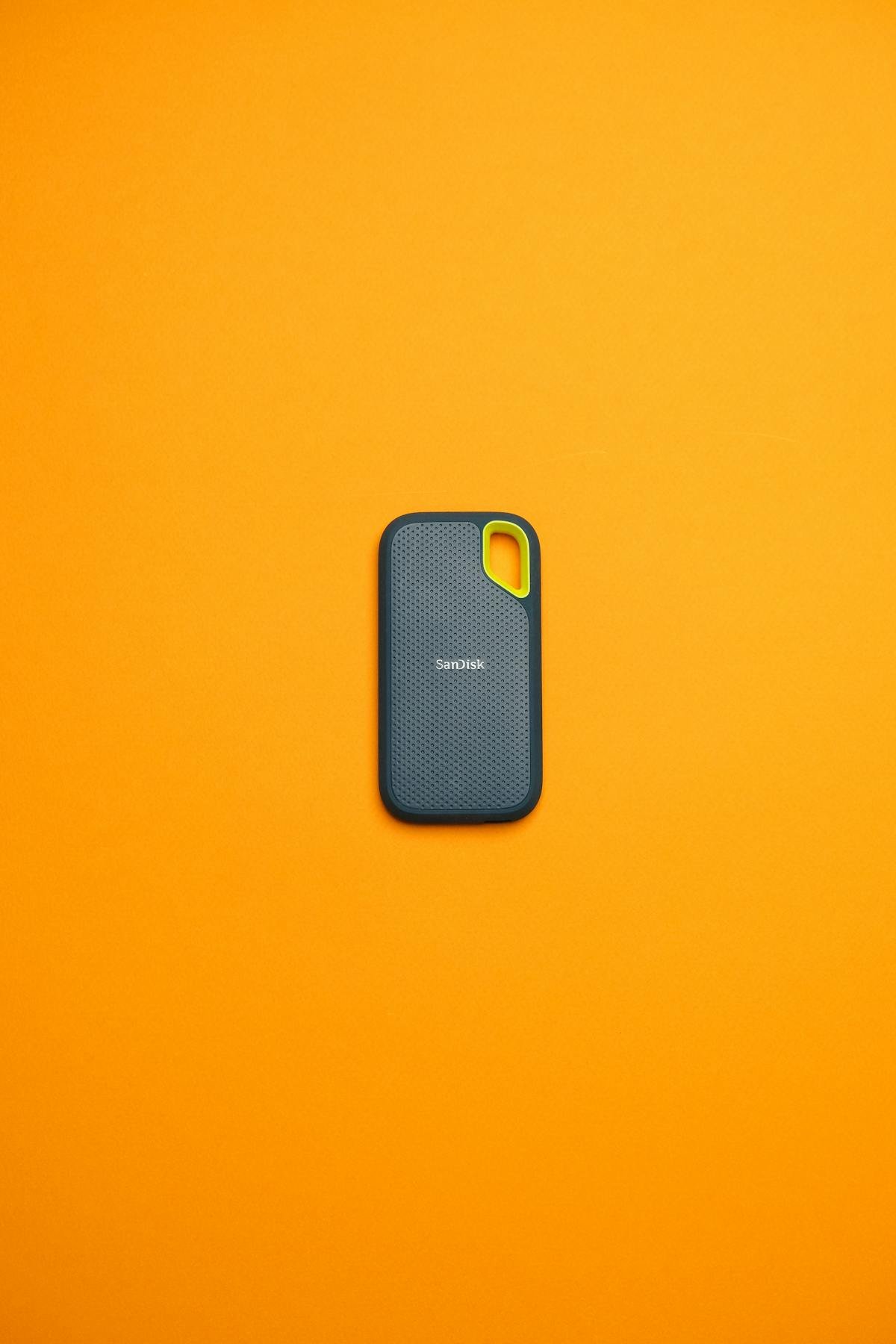
Your new SSD (NVMe or SATA, matching your laptop’s slot), a USB-to-SATA adapter or NVMe enclosure for external connection during the clone, and free cloning software like Macrium Reflect or Samsung Data Migration.
Recommended Cloning Accessories
| Accessory | Use Case | Price* |
|---|---|---|
| USB 3.0 to SATA Adapter | 2.5″ SATA SSD cloning | ~£10 |
| M.2 NVMe USB-C Enclosure | NVMe SSD cloning | ~£15 |
Step-by-Step Process
1. Connect your new SSD externally via USB adapter. 2. Open cloning software and select source (old drive) and destination (new SSD). 3. Resize the main partition if needed. 4. Start the clone — typically 20-60 minutes. 5. Shut down, swap drives physically, and boot from new SSD.
Post-Clone Checklist
After booting, verify all files are intact, check Windows activation, and run CrystalDiskMark to confirm expected speeds. If your old drive was MBR, consider converting to GPT for better UEFI compatibility.
Frequently Asked Questions
Can I clone a larger HDD to a smaller SSD?
Yes, as long as the used space fits within the SSD capacity. Most cloning software resizes partitions automatically.
Do I need to reinstall Windows after cloning?
No — cloning copies everything including Windows. Your system should boot normally from the new SSD.
Recommended upgrades
As an Amazon Associate we earn from qualifying purchases. Prices & availability shown on Amazon.
M.2 2280 NVMe SSDs
How we verify this guide
We cross-reference compatibility figures against manufacturer specifications where available, official service manuals, and the standards that govern fit — memory type and speed (DDR4 / DDR5 / LPDDR5), maximum supported capacity and slot count, SSD form factor and interface (M.2 2280, NVMe PCIe vs SATA, keying), and charger wattage and connector (USB-C Power Delivery, GaN). We’re explicit about soldered or non-upgradeable parts, prioritise primary sources over retailer listings, and re-verify the data on a regular cycle. More on our method →
*Indicative UK street prices, shown for guidance only. These are not live Amazon prices and change frequently — check the current price on Amazon before buying.

