Affiliate disclosure: this page contains affiliate links — if you buy through them we may earn a commission at no extra cost to you. As an Amazon Associate we earn from qualifying purchases.
The Dell XPS 15 is one of the most popular premium creator laptops on the market, but its RAM upgradeability depends entirely on which generation you own. If you have a 9530 or 9520, you’re in luck — both use standard DDR5 SO-DIMM modules that can be upgraded. If you own the newer 9540, you’ll want to know upfront: the RAM is soldered, so upgrades aren’t possible.
This guide walks you through which RAM modules work with each XPS 15 model, shows you the best-performing options from Crucial, Kingston, and Corsair, and explains the installation process step by step.
XPS 15 RAM Compatibility by Model Year
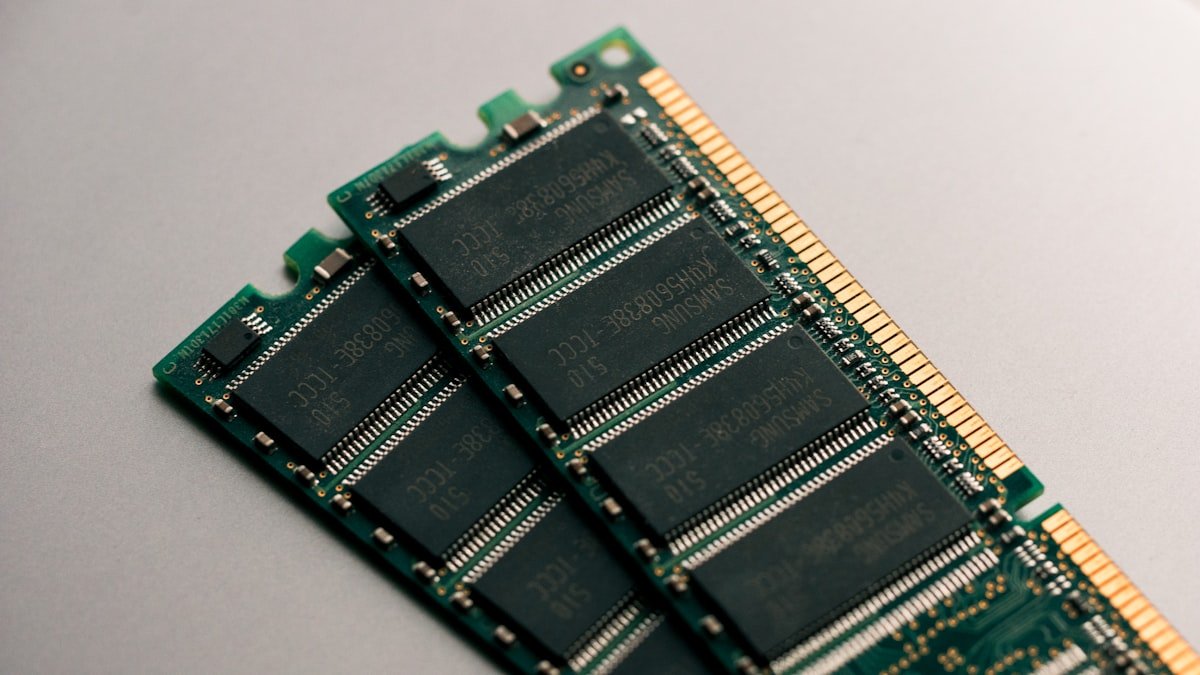
Dell changed the XPS 15’s RAM architecture dramatically between generations. Here’s what each model supports:
| Model | RAM Type | Speed | Max Capacity | Upgradeable |
|---|---|---|---|---|
| XPS 15 9530 (2023–2024) | DDR5 SO-DIMM | DDR5-5600 | 64GB (2×32GB) | Yes |
| XPS 15 9520 (2022–2023) | DDR5 SO-DIMM | DDR5-4800 | 64GB (2×32GB) | Yes |
| XPS 15 9540 (2024–present) | LPDDR5X (soldered) | DDR5-5600 | Non-upgradeable | No |
The critical distinction: 9530 and 9520 owners have two removable SO-DIMM slots under the back panel. 9540 owners are stuck with whatever Dell configured at the factory.
Best RAM for XPS 15 9530 (Top Pick)
The XPS 15 9530 is the sweet spot for upgraders. It supports DDR5-5600 natively, which means you get full speed performance without any downclocking. Here are the three best options:
1. Crucial DDR5-5600 32GB Kit (2×16GB) — Best All-Round
Buy Crucial DDR5-5600 32GB Kit on Amazon
The Crucial CT2K16G56C46S5 is the best balance of performance and price for the XPS 15 9530. It runs at full DDR5-5600 speed, is JEDEC-standard (meaning rock-solid compatibility), and comes with a lifetime warranty. You get 32GB total (16GB×2), which is the recommended maximum for most creators working with 4K video, large Photoshop files, and multiple browser tabs.
Specs: DDR5-5600, CAS Latency 46, 1.1V, SO-DIMM form factor. Fits perfectly under the XPS 15 back panel with typical heatspreaders.
2. Kingston Fury Impact DDR5-5600 32GB Kit — Best Performance
Buy Kingston Fury Impact DDR5-5600 on Amazon
The Kingston Fury Impact line is optimized for high performance. It ships pre-configured with aggressive timings that still maintain full JEDEC compatibility. If you’re doing CPU-heavy creative work (video encoding, 3D rendering, music production) alongside your RAM-intensive tasks, this kit will squeeze out a few extra fps in workloads where memory bandwidth matters.
Same 32GB capacity (16GB×2), same DDR5-5600 speed, but slightly lower latency than Crucial. Slightly pricier, but the performance gain is real on the XPS 15’s Intel or AMD chip.
3. Corsair Vengeance DDR5-5600 32GB Kit — Budget Option
Buy Corsair Vengeance DDR5-5600 on Amazon
If you want to save £30–50 compared to Kingston, the Corsair Vengeance is a rock-solid choice. It’s JEDEC-standard DDR5-5600, has lower heatspreaders than gaming kits (important for the XPS 15’s tight back panel), and comes with Corsair’s warranty. You won’t notice the performance difference between this and Kingston in real-world use unless you’re benchmarking.
Specs: DDR5-5600, CAS Latency 46, SO-DIMM, 1.1V. The best value-for-money option if you’re on a tighter budget.
Best RAM for XPS 15 9520 (DDR5-4800 Models)
The XPS 15 9520 natively supports DDR5-4800, not DDR5-5600. However, you have options:
Option 1: Stick with DDR5-4800
If you want guaranteed JEDEC compatibility without any BIOS tweaking, buy modules rated for DDR5-4800. The Crucial CT2K16G48C40S5 (32GB kit, DDR5-4800, CAS 40) is the obvious choice here and costs slightly less than the DDR5-5600 version.
Buy Crucial DDR5-4800 32GB on Amazon
Option 2: Use DDR5-5600 (Downclocked to 4800)
DDR5-5600 modules will work in an XPS 15 9520, but they’ll automatically downclock to your motherboard’s maximum speed (DDR5-4800). You’re not “wasting” the 5600 rating — it simply won’t run faster than what your hardware supports. This means you can use any of the 9530 recommendations above in a 9520 if you find a better deal, and performance will be identical to native DDR5-4800 modules.
Many retailers stock DDR5-5600 more readily than DDR5-4800, so this flexibility can save you money and shipping time.
Maximum RAM Configurations: How Much Do You Need?
The XPS 15 9530 and 9520 both support up to 64GB total (2×32GB), but most users don’t need that much. Here’s what to buy:
32GB (2×16GB) — Recommended for most creators. This is the sweet spot for 4K video editing, photography workflows, and heavy multitasking. 32GB will handle Adobe Creative Suite, DaVinci Resolve, and 20+ browser tabs simultaneously without breaking a sweat. This is what we recommend above.
64GB (2×32GB) — Only if you’re doing very specific work. This means working with 8K raw video, massive CAD assemblies (automotive, aerospace), or real-time 3D rendering. If you’re unsure whether you need 64GB, you don’t. Spending an extra £200–300 for memory you’ll never use is a waste. You can always upgrade later if you realise you need it.
16GB — Only for budget-conscious buyers. If you’re upgrading from 8GB factory config, jumping to 16GB is a noticeable improvement. But for a premium creator laptop like the XPS 15, 16GB will feel tight within a year as software bloats. We don’t recommend stopping here.
XPS 15 9540: Why You Can’t Upgrade
Dell switched to soldered LPDDR5X memory in the XPS 15 9540 (released late 2024). This memory is fused directly to the motherboard and cannot be removed or replaced. This is a cost-cutting measure that Dell used to bring the price down, but it means your upgrade options are zero.
If you’re buying an XPS 15 9540 new, choose your RAM configuration carefully at purchase time. Once it leaves the factory, you’re stuck with it for the laptop’s life. We recommend 32GB as the standard config — it’s more future-proof than 16GB and won’t add significant cost to your initial purchase.
If you own a 9540 and feel RAM-constrained now, upgrading to a 9530 (or the next generation when it comes out) is the only path forward. Soldered memory is non-negotiable.
How to Install RAM in Your XPS 15
Installing new RAM in an XPS 15 9530 or 9520 takes 10 minutes and requires only a screwdriver. Here’s the process:
Step 1: Power down and unplug. Shut down Windows completely, wait 30 seconds, then unplug the power cable. Press the power button once to discharge any remaining charge.
Step 2: Remove the back panel. Flip the laptop over. You’ll see 10–12 screws around the perimeter of the bottom cover. Unscrew all of them (Dell sometimes uses different screw lengths, so keep them in the order you removed them). Gently prise off the back panel — there’s typically a small plastic tab on one edge. Don’t force it.
Step 3: Locate the RAM slots. You’ll see two SO-DIMM slots near the centre-right of the motherboard, usually close to the WiFi card. If there’s existing RAM in there, you’ll see the blue retention clips at each end of the modules.
Step 4: Remove existing RAM (if upgrading). Gently pull the blue retention clips outward on both ends of each module. The RAM will pop up at a 45-degree angle. Pull it out fully. Repeat for the second module if both slots are occupied.
Step 5: Install new RAM. Align the notch on the new module with the key in the SO-DIMM slot. Insert at a 45-degree angle, then press down firmly until the retention clips snap shut on both sides. You should hear two distinct clicks.
Step 6: Reassemble. Replace the back panel, screw in all the screws in reverse order, and power on. Windows will detect the new RAM automatically — no driver installation needed.
Pro tip: Take a photo of your RAM modules before you remove them. If something goes wrong during installation, you’ll know exactly what you’re working with.
FAQ: Best RAM for Dell XPS 15
Can I mix DDR5-4800 and DDR5-5600 RAM in my XPS 15 9530?
Yes, you can mix them, but both modules will run at the speed of the slowest module (DDR5-4800). For simplicity and guaranteed compatibility, we recommend buying a matching 32GB kit (2×16GB of the same speed) rather than mixing. It costs the same and gives you better performance.
Will DDR5-5600 RAM damage my XPS 15 9520?
No. DDR5-5600 modules are fully backward-compatible. They’ll simply downclock to your motherboard’s maximum speed (DDR5-4800) and run safely. There’s no risk of damage or instability.
What’s the difference between SO-DIMM and regular DDR5 RAM?
SO-DIMM is the laptop form factor — shorter and narrower than desktop DDR5 modules. Desktop DDR5 (UDIMM) won’t fit in your XPS 15. Always buy SO-DIMM specifically. Check the part number: Crucial’s SO-DIMM codes contain “S5” at the end (e.g., CT2K16G56C46S5), and Kingston/Corsair typically list “SO-DIMM” or “Laptop” in the product title.
Is 32GB really enough for 4K video editing?
Yes. DaVinci Resolve, Premiere Pro, and Final Cut Pro can all handle 4K UHD timelines smoothly with 32GB and a modern SSD. You’ll see the biggest performance boost when scrubbing through timeline and previewing effects — RAM speed (DDR5-5600) matters more than sheer capacity here. Only jump to 64GB if you’re working with 8K RAW or extremely complex multi-cam timelines.
Do I need to update my BIOS after installing new RAM?
No. JEDEC-standard DDR5 modules (like Crucial, Kingston, and Corsair) are plug-and-play. BIOS updates are only needed if you’re overclocking (pushing RAM beyond rated speeds), which we don’t recommend on laptops. Just install and power on.
Will upgrading RAM void my Dell warranty?
No. User-accessible RAM upgrades do not void your warranty under UK consumer law. However, always back up your data before opening the laptop. If you accidentally damage the motherboard during installation, that’s on you — but simply replacing SO-DIMM modules is safe and supported by Dell.
Related Dell Upgrade Guides
- Dell Battery Replacement: Latitude, XPS & Inspiron Step-by-Step
- Best RAM for Dell Laptops in 2026
- Dell Precision T7920 RAM & SSD Upgrade Guide (2018)
- Dell Precision T7875 RAM & SSD Upgrade Guide (2024)
- Dell Precision T5860 RAM & SSD Upgrade Guide (2024)
- Dell Upgrade Guide
Not sure what fits? Use our free Compatibility Checker covering 3,195+ models.
Helpful Guides
Recommended upgrades
As an Amazon Associate we earn from qualifying purchases. Prices & availability shown on Amazon.
For laptops and mini PCs that use DDR5 SO-DIMM
For laptops and mini PCs that use DDR4 SO-DIMM
How we verify this guide
We cross-reference compatibility figures against manufacturer specifications where available, official service manuals, and the standards that govern fit — memory type and speed (DDR4 / DDR5 / LPDDR5), maximum supported capacity and slot count, SSD form factor and interface (M.2 2280, NVMe PCIe vs SATA, keying), and charger wattage and connector (USB-C Power Delivery, GaN). We’re explicit about soldered or non-upgradeable parts, prioritise primary sources over retailer listings, and re-verify the data on a regular cycle. More on our method →