
Affiliate disclosure: this page contains affiliate links — if you buy through them we may earn a commission at no extra cost to you. As an Amazon Associate we earn from qualifying purchases.
Yes, many laptops can have a second SSD added, but it depends on your specific model. Modern laptops typically include one or two M.2 slots for NVMe SSDs. If your laptop has a second empty M.2 slot, you can install another SSD without removing the original drive. However, some ultrabooks have only one M.2 slot, meaning adding a second drive requires replacing the existing one. Business laptops and gaming rigs frequently have dual M.2 support, while premium ultrabooks may have only one.
Understanding M.2 Slot Configurations
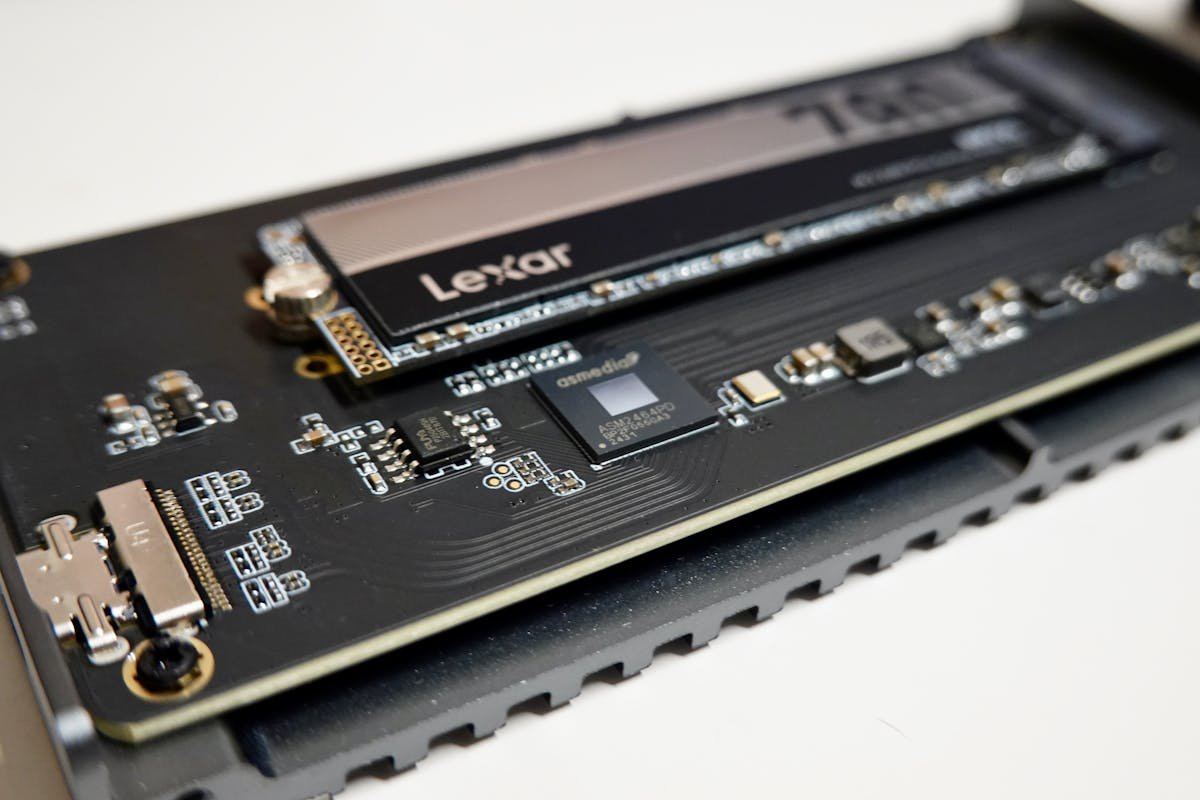
Single M.2 slot: Common on budget and ultra-thin laptops. Only one NVMe SSD supported. To upgrade storage, you must remove the existing drive and install a larger one.
Dual M.2 slots: Standard on gaming laptops, business laptops, and mid-range ultrabooks. You can install a second SSD without replacing the first. This is ideal for users needing large storage without removing working hardware.
Slot types: Most modern laptops use M.2 Key M slots (standard NVMe). Some older models or high-end laptops have M.2 Key B slots (for older SATA M.2 drives) or mixed Key B/M slots. Verify your laptop’s slot types before purchasing a drive.
Checking Your Laptop for Dual M.2 Support
Method 1 — Manufacturer specs: Visit your laptop’s product page and search “storage,” “SSD,” or “M.2 slots.” If it lists “2x M.2” or “Dual NVMe,” you support two drives.
Method 2 — Disassembly and visual inspection: Remove the bottom panel (screwdriver required). Look for M.2 slots on the motherboard—they look like small connectors. Count how many you see. Two slots = dual SSD support.
Method 3 — Download service manual: Search “[laptop model] service manual” on the manufacturer’s website. The manual clearly documents all available M.2 slots and their specifications.
Method 4 — Online community research: Search “[laptop model] dual SSD” on Reddit or tech forums. Users often share upgrade experiences and confirm whether the model supports two drives.
Common Laptops with Dual M.2 Support
Gaming laptops: ASUS ROG, MSI GE/GS, Razer Blade Pro, Alienware, and other gaming systems almost universally support dual M.2 slots for maximum storage without sacrificing speed.
Business laptops: ThinkPad T-series (most models), HP EliteBook, Dell Latitude, and Lenovo Legion support dual M.2 for flexibility in professional configurations.
Mid-range ultrabooks: ASUS VivoBook Pro, HP Envy 15, Dell Inspiron 15 (recent models) often include dual M.2 slots.
MacBook Pro: Some MacBook Pro models (Intel-based, pre-M1) support dual M.2 via an adapter, but Apple Silicon Macs (M1/M2/M3/M4) have soldered storage and do not support upgrades.
Budget/premium ultrabooks: MacBook Air, Dell XPS 13, HP Spectre often have only one M.2 slot to maximize internal space for battery and cooling.
Installing a Second SSD
What you need: A compatible M.2 NVMe SSD (2280 form factor is standard), a small screwdriver (often included in laptop service kits), and thermal pads (optional, but recommended for the second drive).
Installation steps:
1. Power off the laptop and disconnect all power sources (unplug charger, remove battery if removable).
2. Remove the bottom panel by unscrewing 8-10 screws (usually Phillips head).
3. Locate the second M.2 slot (marked on the motherboard or visible as an empty connector).
4. Insert the new SSD at a 30-degree angle into the empty M.2 slot, then press down and secure with a single screw.
5. Replace the bottom panel and power on.
6. Your laptop should automatically recognize the new drive. Format it as needed in Settings or Disk Management (Windows) or Disk Utility (Mac).
BIOS configuration: Most modern laptops automatically detect new M.2 drives. If not, restart and enter BIOS (usually F2, F12, or Del during startup), confirm the drive is visible, and save settings.
Thermal Considerations for Dual SSDs
When installing a second M.2 SSD, thermal performance matters. M.2 drives can reach 60-80°C under load, potentially affecting laptop cooling if not properly isolated.
Add thermal pads: Apply a thin thermal pad (0.5-1mm, thermal conductivity ~3-5 W/mK) between the new SSD and the laptop chassis or heatsink. This dissipates heat and prevents throttling.
Ensure airflow: Confirm the second M.2 slot isn’t blocked by the battery, cooling system, or other components. Check the service manual to confirm.
Monitor temperatures: Use software like CrystalDiskInfo (Windows) or Macs Fan Control (Mac) to monitor SSD temperature. If it exceeds 80°C, your thermal solution needs improvement.
Find compatible M.2 SSDs on Amazon
Frequently Asked Questions
Can I add a second SSD to my laptop?
Only if your laptop has a second M.2 slot. Check your specs or service manual. Gaming and business laptops often support dual SSDs. Ultra-thin laptops and premium ultrabooks usually have only one slot.
How do I check if my laptop has two M.2 slots?
Check the manufacturer’s specs for “2x M.2” or “Dual NVMe.” Download the service manual and look for M.2 slot diagrams. Physically remove the bottom panel and count M.2 connectors on the motherboard.
What if my laptop has only one M.2 slot?
You cannot add a second internal SSD. Your options are: (1) Replace the existing drive with a larger capacity, or (2) Use an external USB-C SSD for additional storage. External drives are slower but useful for backup.
Is there a performance penalty for using dual SSDs?
No. Modern M.2 slots are independent, so two SSDs run at full speed simultaneously. You gain capacity and speed (if configured as RAID 0, though not recommended for stability reasons).
What M.2 SSD should I buy for the second slot?
Buy the same capacity and speed as your original drive, or faster. For compatibility, verify: (1) Your laptop supports M.2 Key M (standard), (2) Form factor is 2280 (22mm wide × 80mm long), (3) The drive is NVMe (not SATA M.2). All modern NVMe drives meet these specs.
Do I need thermal pads for a second SSD?
Recommended. Thermal pads (0.5-1mm) improve heat dissipation and prevent throttling. If your laptop has a heatsink near the second M.2 slot, thermal pads are important. Check the service manual for guidance.
Recommended Products
These are the products we recommend based on this guide. All links go to Amazon where you can check current prices and availability.
| Product | Why We Recommend It | Amazon |
|---|---|---|
| Corsair Vengeance DDR4 SO-DIMM 32GB (2×16GB) 3200MHz | Best overall DDR4 upgrade kit | View on Amazon |
| Kingston Fury Impact DDR4 SO-DIMM 32GB (2×16GB) 3200MHz | Reliable alternative with tight latency | View on Amazon |
| Crucial DDR4 SO-DIMM 16GB 3200MHz | Budget single-stick upgrade | View on Amazon |
| Samsung DDR4 SO-DIMM 32GB 3200MHz | OEM-quality for business laptops | View on Amazon |
| Samsung 990 Pro 2TB NVMe M.2 2280 | Fastest consumer NVMe — ideal for gaming & editing | View on Amazon |
| WD Black SN850X 2TB NVMe | Excellent Gen4 speed with heatsink option | View on Amazon |
| Crucial P5 Plus 1TB NVMe | Great value Gen4 SSD | View on Amazon |
| Kingston NV2 1TB NVMe | Budget-friendly with solid reliability | View on Amazon |
Prices and availability may vary. As an Amazon Associate, we earn from qualifying purchases.
Related Guides
- Ram Compatibility
- Ssd Compatibility
- Charger Compatibility
- How To Upgrade Surface Laptop Ssd
- How To Upgrade Dell Xps Ssd
Recommended upgrades
As an Amazon Associate we earn from qualifying purchases. Prices & availability shown on Amazon.
M.2 2280 NVMe SSDs
How we verify this guide
We cross-reference compatibility figures against manufacturer specifications where available, official service manuals, and the standards that govern fit — memory type and speed (DDR4 / DDR5 / LPDDR5), maximum supported capacity and slot count, SSD form factor and interface (M.2 2280, NVMe PCIe vs SATA, keying), and charger wattage and connector (USB-C Power Delivery, GaN). We’re explicit about soldered or non-upgradeable parts, prioritise primary sources over retailer listings, and re-verify the data on a regular cycle. More on our method →