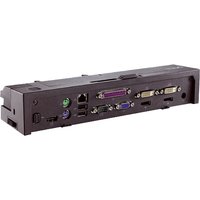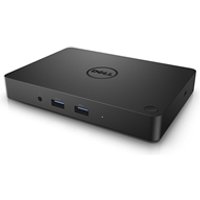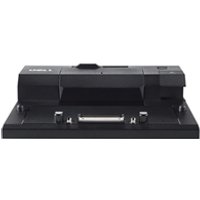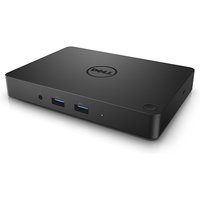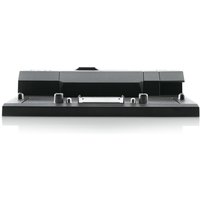
It depends on the dock type. A Dell Thunderbolt or USB-C dock works with HP laptops that support the same protocol. A Dell Thunderbolt dock plugged into an HP Thunderbolt laptop functions perfectly. However, proprietary docks designed specifically for Dell systems may not work with HP laptops due to custom connector types, drivers, or configuration software. The safest approach is to use a universal standard dock (USB-C or Thunderbolt) rather than brand-specific docks.
Dell Docks: Proprietary vs. Universal
Proprietary Dell docks: Some Dell models use custom docking mechanisms (e.g., Dell’s old WD15, WD19 docks with proprietary dock connectors). These are designed exclusively for Dell laptops and use a special dock connector, not standard USB-C or Thunderbolt.
Universal USB-C/Thunderbolt docks from Dell: Modern Dell docking stations (e.g., Dell USB-C docks, Thunderbolt docks) use standard USB-C or Thunderbolt connectors. These work with any laptop supporting the same protocol.
Example of compatibility: A Dell WD19 dock (uses proprietary connector) will NOT work with HP laptops. A Dell Thunderbolt dock (uses Thunderbolt connector) WILL work with HP Spectre or other Thunderbolt-capable HP laptops.
Dell Dock Types and HP Compatibility
Dell Thunderbolt docks (e.g., Dell Thunderbolt Dock WD22TB4):
Compatible with: Any Thunderbolt 3/4/5 HP laptop (HP Spectre, HP EliteBook with Thunderbolt).
Functionality: Full speed, all features, daisy-chaining support.
Result: Works perfectly. No issues or limitations.
Dell USB-C docks (e.g., Dell USB-C Dock DA305, DA310):
Compatible with: Any USB-C HP laptop (most modern HP models).
Functionality: Power delivery, USB peripherals, monitors (via USB-C or HDMI passthrough).
Result: Works perfectly. No driver or compatibility issues.
Proprietary Dell docks (WD15, WD19, WD19S with dock connector):
Compatible with: Only Dell laptops with matching dock connectors (not HP).
Functionality: Not applicable—physical connector incompatibility.
Result: Will NOT work with HP laptops. The connector doesn’t fit.
Checking if a Dell Dock Will Work with Your HP Laptop
Step 1 — Identify the dock connector type: Look at the Dell dock’s connection port. Is it USB-C, Thunderbolt (looks like USB-C with lightning bolt symbol), or a custom Dell connector?
Step 2 — Check your HP laptop’s ports: Does your HP laptop have USB-C, Thunderbolt, or proprietary docking ports?
Step 3 — Match the standards: If both use USB-C or Thunderbolt, they’re compatible. If one uses a proprietary connector and the other doesn’t, they’re incompatible.
Example: Dell Thunderbolt Dock WD22TB4 (uses Thunderbolt) + HP Spectre x360 (has Thunderbolt) = Compatible. Full functionality.
Counter-example: Dell WD19 dock (uses proprietary connector) + HP ProBook (has USB-C) = Incompatible. Different connector types.
Common HP Laptop Ports
HP Spectre series: Thunderbolt 3/4 (most models). Compatible with Thunderbolt docks from any brand, including Dell.
HP EliteBook: Recent models have USB-C or Thunderbolt. Check specifications. Compatible with universal USB-C or Thunderbolt docks.
HP Pavilion/Envy: Most use USB-C only (not Thunderbolt). Compatible with USB-C docks but limited Thunderbolt support.
HP ProBook: Business models vary. Some have USB-C, others have proprietary docking ports. Check your specific model.
Recommendation: Verify your exact HP model’s port configuration before attempting to use a Dell dock.
Why Brand-Specific Docks Are Problematic
Proprietary connectors: Dell, HP, and Lenovo historically developed custom dock connectors. These are incompatible across brands.
Driver requirements: Some proprietary docks include custom software or drivers that only work with that brand’s laptops. Cross-brand use may cause missing features.
Configuration software: Dell’s dock management software may not recognize an HP laptop, causing setup failures.
Power delivery negotiation: Custom docks may not properly negotiate power delivery with non-matching laptop models.
Best Practice: Choose Universal Docks
If you own multiple brands (Dell, HP, Lenovo), buy a universal Thunderbolt or USB-C dock instead of brand-specific docks. Universal docks are:
Compatible: Work with any Thunderbolt or USB-C device across brands.
Future-proof: Compatible with future laptops using the same standard.
Flexible: Can charge phones, tablets, and other USB-C devices.
Examples: Anker Thunderbolt docks, Belkin USB-C docks, CalDigit Thunderbolt hubs.
Find universal docks on Amazon UK
Frequently Asked Questions
Will a Dell Thunderbolt dock work with an HP Spectre?
Yes, if the HP Spectre has Thunderbolt ports (most recent models do). A Dell Thunderbolt dock is fully compatible. Plug it in and it works instantly—no drivers needed.
Will a Dell USB-C dock work with an HP ProBook?
Yes, if the HP ProBook has USB-C ports. A Dell USB-C dock is compatible with any USB-C laptop. Check your ProBook model for USB-C port availability.
Will a proprietary Dell dock (WD19) work with HP?
No. The Dell WD19 uses a proprietary dock connector that physically doesn’t match HP’s USB-C or Thunderbolt ports. It’s incompatible by design.
Do I need Dell drivers for a Dell dock on an HP laptop?
Not for standard Thunderbolt or USB-C docks. These work without drivers. If the Dell dock has custom software (battery management, firmware updates), you may need to install it separately, but basic functionality (charging, USB peripherals, monitors) works immediately.
Is it better to use a brand-specific dock or a universal dock?
Universal docks are better. They work across brands, with multiple devices, and are more future-proof. Brand-specific docks are cheaper but less flexible and incompatible with other brands.
How do I know if my HP laptop supports Thunderbolt?
Check the HP specs page for your model. Search “Thunderbolt” or “Thunderbolt 3/4.” If present, your laptop is compatible with Thunderbolt docks. Most HP Spectre and EliteBook models have Thunderbolt; Pavilion and Envy typically have USB-C only.
Recommended Products
These are the products we recommend based on this guide. All links go to Amazon UK where you can check current prices and availability.
| Product | Why We Recommend It | Amazon UK |
|---|---|---|
| Corsair Vengeance DDR4 SO-DIMM 32GB (2×16GB) 3200MHz | Best overall DDR4 upgrade kit | View on Amazon UK |
| Kingston Fury Impact DDR4 SO-DIMM 32GB (2×16GB) 3200MHz | Reliable alternative with tight latency | View on Amazon UK |
| Crucial DDR4 SO-DIMM 16GB 3200MHz | Budget single-stick upgrade | View on Amazon UK |
| Samsung DDR4 SO-DIMM 32GB 3200MHz | OEM-quality for business laptops | View on Amazon UK |
| Samsung 990 Pro 2TB NVMe M.2 2280 | Fastest consumer NVMe — ideal for gaming & editing | View on Amazon UK |
| WD Black SN850X 2TB NVMe | Excellent Gen4 speed with heatsink option | View on Amazon UK |
| Crucial P5 Plus 1TB NVMe | Great value Gen4 SSD | View on Amazon UK |
| Kingston NV2 1TB NVMe | Budget-friendly with solid reliability | View on Amazon UK |
Prices and availability may vary. As an Amazon Associate, we earn from qualifying purchases.
Related Dell Upgrade Guides
- Dell Battery Replacement: Latitude, XPS & Inspiron Step-by-Step
- Best RAM for Dell Laptops in 2026
- Dell Precision T7920 RAM & SSD Upgrade Guide (2018)
- Dell Precision T7875 RAM & SSD Upgrade Guide (2024)
- Dell Precision T5860 RAM & SSD Upgrade Guide (2024)
- Dell Upgrade Guide
Not sure what fits? Use our free Compatibility Checker covering 3,195+ models.