Affiliate disclosure: this page contains affiliate links — if you buy through them we may earn a commission at no extra cost to you. As an Amazon Associate we earn from qualifying purchases.
The Short Answer
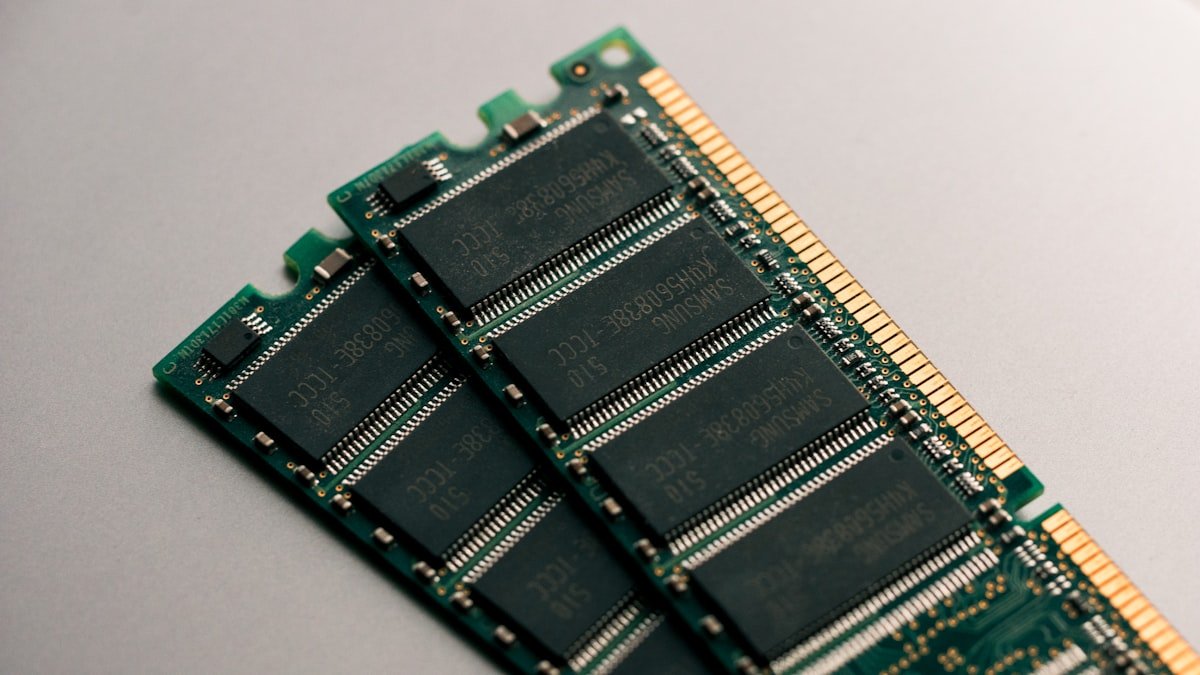
Yes, you can mix RAM brands in a laptop — but with important caveats. All RAM follows the same JEDEC industry standards, which means a Kingston stick and a Corsair stick will physically fit in the same slot. However, mismatched RAM can cause performance issues, stability problems, or both depending on what specifications differ.
The key principle: what must match is strictly limited, but what should match is much broader. Get this right and your laptop will run fine. Get it wrong and you might face random crashes, boot failures, or silent performance loss.
What Must Match (Non-Negotiable)
DDR Generation
This is the only truly hard requirement. You must use the same DDR generation as what your laptop supports. A laptop with DDR4 slots will not accept DDR5 sticks — the notches are in different positions. Common generations:
- DDR4 — Most laptops built 2015–2022
- DDR5 — Modern laptops from 2022 onward (Intel 12th Gen, AMD Ryzen 6000 series+)
- DDR3 — Older laptops, mostly 2009–2014
Mixing DDR4 with DDR5 is physically impossible — the stick will not fit.
Form Factor
Laptops use SO-DIMM (Small Outline Dual In-line Memory Module) sticks. Desktop RAM is never compatible with laptops. A desktop DDR4 UDIMM will not fit in a laptop SO-DIMM slot, even though both are DDR4. Always verify your laptop uses SO-DIMM — the stick is much shorter than desktop RAM.
What Should Match (Strongly Recommended)
Speed (MHz)
RAM sticks have rated speeds like 3200 MHz, 3600 MHz, or 5600 MHz. When you mix two sticks with different speeds, your laptop will automatically run both at the speed of the slower stick. This is called “downclocking.”
Example:
- Slot 1: 3200 MHz stick
- Slot 2: 3600 MHz stick
- Result: Both run at 3200 MHz — you lose the speed advantage of the faster stick
Performance impact: In most everyday tasks, you won’t notice. In gaming or video editing with heavy memory bandwidth demands, you might see 5–15% performance loss. Matching speeds avoids this completely.
Capacity
Mixing capacities (e.g. 8GB + 16GB) affects dual-channel mode — the mechanism that makes RAM faster. See the dedicated section below for details. The short version: it works, but you’ll lose some dual-channel benefit on the larger stick.
Timings (CAS Latency)
CAS latency (often listed as “CL16”, “CL20”, etc.) measures how many clock cycles it takes RAM to respond to a request. Tighter timings (lower numbers) are slightly faster but less critical than speed.
When mixed with different timings, the laptop uses the slower timings. Most people won’t notice the difference in everyday use, but matching timings is still ideal for consistency.
What Doesn’t Need to Match
- Brand — Crucial, Kingston, Corsair, G.Skill, Patriot, Samsung, SK Hynix, Micron all work together
- Colour/heatspreader — Purely cosmetic
- Warranty or model number — As long as speed/capacity/timings are compatible
- Manufacturing date — Older and newer chips from the same brand coexist fine
Dual-Channel Mode Explained
Dual-channel mode is a CPU feature that lets two matched RAM sticks work together, doubling memory bandwidth. Modern laptops with two RAM slots use this heavily for gaming and video work.
When sticks match (speed, capacity, timings), your laptop runs both in full dual-channel:
| Slot 1 | Slot 2 | Mode | Speed Impact |
|---|---|---|---|
| 8GB, 3600 MHz | 8GB, 3600 MHz | Full dual-channel (0–8GB) | Maximum bandwidth |
| 16GB, 3200 MHz | 16GB, 3200 MHz | Full dual-channel (0–32GB) | Maximum bandwidth |
| 8GB, 3600 MHz | 16GB, 3600 MHz | Flex mode (0–16GB dual, 16–24GB single) | Good, with hybrid penalty |
| 8GB, 3200 MHz | 8GB, 3600 MHz | Full dual-channel, but at 3200 MHz | Limited by slower stick |
Flex mode (unequal capacities) runs the first 16GB in dual-channel, then switches to single-channel for the remaining 8GB. Real-world impact is minimal in most tasks.
What Happens When Speeds Don’t Match
When you install sticks with different speeds:
- The BIOS detects the mismatch during boot
- Your laptop automatically runs both sticks at the slower speed
- You get no errors — the system adapts silently
- Performance is reduced compared to matched sticks, but usually unnoticed
Example (real-world): You upgrade a factory 8GB 3200 MHz stick with a 16GB 3600 MHz stick. Result: 24GB total running at 3200 MHz in flex mode. In a spreadsheet or web browser, you won’t see any difference. In a game demanding high memory bandwidth, you might see 5–10% lower FPS than if you’d bought a matching 16GB 3200 MHz stick instead.
What Happens When Capacities Don’t Match
Mismatched capacities trigger flex mode. Your laptop splits the memory into two regions:
- Region 1 (0 to smaller stick capacity) — Dual-channel (fastest)
- Region 2 (larger stick capacity to total) — Single-channel (slower)
Example: 8GB + 16GB = 24GB total
- First 8GB: dual-channel (both sticks active)
- Next 8GB (from the 16GB stick): single-channel only
In practice, this is rarely a problem. Most applications stay well under 16GB. The performance penalty only kicks in if your workload exceeds the smaller stick’s capacity and heavily uses the single-channel region. For office work, streaming, gaming, or photo editing on a 8GB + 16GB setup, you won’t notice.
Best Practice: Buy Matched Kits
Despite all the flexibility above, the safest and most reliable approach is to buy a matched kit — two sticks with identical speed, capacity, timings, and ideally the same brand and model number. Why?
- Guaranteed compatibility — No guessing. Both sticks are tested together by the manufacturer.
- Maximum dual-channel performance — Full bandwidth from 0 to total capacity.
- Easier troubleshooting — If something breaks, you know the sticks aren’t the culprit.
- Better price — Kits often cost the same or less than buying two random sticks.
- Warranty — Kit warranties are often easier to claim on.
The cost difference between mismatched and matched RAM is negligible — usually under £5 for a laptop kit. There’s almost no reason to mix brands or specs unless you’re upgrading an existing stick.
Recommended Matched RAM Kits
DDR4 Kits (2x8GB, 2x16GB)
For laptops with DDR4 (most models up to 2022):
- Kingston Fury Beast SO-DIMM — Check price on Amazon
- Corsair Vengeance SO-DIMM — Check price on Amazon
- Crucial Ballistix SO-DIMM — Check price on Amazon
- G.Skill Ripjaws SO-DIMM — Check price on Amazon
Speeds: DDR4-3200, DDR4-3600, or DDR4-2666 (check your laptop’s supported speeds in BIOS or manual).
DDR5 Kits (2x8GB, 2x16GB)
For newer laptops with DDR5 (2022+, Intel 12th Gen, AMD Ryzen 6000+):
- Kingston Fury Renegade SO-DIMM — Check price on Amazon
- Corsair Vengeance SO-DIMM DDR5 — Check price on Amazon
- Crucial Ballistix SO-DIMM DDR5 — Check price on Amazon
- SK Hynix SO-DIMM DDR5 — Check price on Amazon
Speeds: DDR5-4800, DDR5-5600, or DDR5-6400 depending on your CPU support.
When Mixing Makes Sense
There are legitimate reasons to mix RAM brands and specs:
Upgrading an Existing Stick
If your laptop came with a single 8GB factory stick and you want to add more RAM, you have two options:
- Buy a matching 8GB stick — Total 16GB in full dual-channel. Ideal, but costs more.
- Buy a different 8GB or 16GB stick — Still compatible, runs in flex mode. Cheaper.
Example upgrade path:
- Factory: 1x Samsung DDR4-3200 8GB
- Upgrade: + Kingston DDR4-3200 8GB (matching speed, different brand)
- Result: 16GB in full dual-channel. Works perfectly.
Recovering a Failed Stick
If one of your two matched sticks fails, you might keep the working stick and replace the failed one with whatever is available and compatible (same DDR generation, form factor, similar speed). This is a temporary measure until you can buy a proper matched kit.
Cost Savings on Used Purchases
When buying second-hand laptop RAM, matched pairs are rarer and more expensive. Buying two used sticks of similar speed/generation from different sellers is often cheaper, even if they don’t perfectly match.
Stability and Stability Risk
Mixing RAM is generally stable — your laptop won’t crash simply because you mixed brands or speeds. However, some edge cases can cause instability:
- Very tight timings + older BIOS — If you mix old and new sticks with aggressive timings, older BIOS versions may struggle. Solution: update your BIOS.
- Severely mismatched speeds — Mixing DDR4-2666 with DDR4-3600 works, but stresses the slower stick. Rare, but possible instability if the slower stick is near end-of-life.
- Mixing capacities beyond flex mode limits — Some ancient Intel CPUs (pre-2010) had issues with 4GB+ single-channel regions. Modern laptops (2015+) handle this fine.
In practice: If you’re mixing RAM from similar eras (both made 2020+, both DDR4-3200 or faster), you’ll experience zero stability issues.
How to Check Your Current RAM
Before upgrading, identify what’s already in your laptop:
Windows:
- Right-click This PC → Properties → scroll to “Installed RAM”
- Or use CPU-Z (free) → Memory tab → shows capacity, speed, timings
macOS:
- Apple menu → About This Mac → Memory tab → shows capacity and type
- For more detail, use system profiler
For exact model numbers and timings: Use HWiNFO (Windows) or Everest (Windows/Mac).
Frequently Asked Questions
Will my laptop recognise mixed RAM immediately?
Yes. When you boot with new RAM installed, your BIOS detects it during POST (power-on self-test). You’ll see the total capacity displayed during startup. No driver installation needed.
Can I mix Kingston and Corsair in the same laptop?
Absolutely. All DDR4 and DDR5 RAM follows JEDEC standards. As long as both sticks are DDR4 (or both DDR5), the same form factor (SO-DIMM for laptops), and ideally similar speeds, they’ll work together.
What if the two sticks are different capacities?
Your laptop enters flex mode. The smaller capacity runs in dual-channel with the other stick; the excess on the larger stick runs in single-channel. Performance impact is minimal unless your workload exceeds the smaller stick’s size and heavily demands memory bandwidth.
Is it safe to mix old RAM with new RAM?
Generally yes, as long as they’re the same DDR generation. A stick from 2018 (DDR4-2666) paired with a 2024 stick (DDR4-3200) will both work; the system downclocks to DDR4-2666. The only risk is if the older stick is degrading — but that’s a problem with that stick alone, not the mixing.
Do I need to enable anything in BIOS for mixed RAM to work?
No. Modern BIOS versions automatically detect and configure mixed RAM. You might see options like “Memory Interleaving” or “Flex Mode” already enabled. Leave them as-is unless you have a specific issue.
What should I do if my laptop won’t boot after adding new RAM?
First steps:
- Power off completely and remove the battery (if removable)
- Reseat both sticks — remove and reinstall firmly until they click
- Power back on
- If still no boot, try one stick at a time in each slot to isolate a faulty stick
- Check your laptop manual or manufacturer support for max RAM capacity (some laptops max out at 32GB even if two SO-DIMM slots exist)
If a single stick consistently fails to boot, that stick is faulty — return it and buy a replacement matching the other stick’s speed.
Recommended Products
These are the products we recommend based on this guide. All links go to Amazon where you can check current prices and availability.
| Product | Why We Recommend It | Amazon |
|---|---|---|
| Corsair Vengeance DDR4 SO-DIMM 32GB (2×16GB) 3200MHz | Best overall DDR4 upgrade kit | View on Amazon |
| Kingston Fury Impact DDR4 SO-DIMM 32GB (2×16GB) 3200MHz | Reliable alternative with tight latency | View on Amazon |
| Corsair Vengeance DDR5 SO-DIMM 32GB (2×16GB) 5600MHz | Top-rated DDR5 kit for gaming & productivity | View on Amazon |
| Kingston Fury Impact DDR5 SO-DIMM 32GB (2×16GB) 5600MHz | Excellent DDR5 alternative with XMP support | View on Amazon |
| Dell S2722QC 27″ 4K USB-C Monitor | Best USB-C monitor with 65W laptop charging | View on Amazon |
| LG 27UN850-W 27″ 4K USB-C | Colour-accurate 4K for creative work | View on Amazon |
| BenQ GW2780 27″ 1080p IPS | Budget-friendly for general productivity | View on Amazon |
| Laptop Battery (OEM replacement) | Genuine replacement for extended lifespan | View on Amazon |
Prices and availability may vary. As an Amazon Associate, we earn from qualifying purchases.
Related Guides
- Ram Compatibility
- Sodimm Vs Lpddr Laptop Ram
- 8Gb Vs 16Gb Vs 32Gb Laptop Ram
- Best Ram For Lenovo Legion
- Best Ram For Asus Rog
Recommended upgrades
As an Amazon Associate we earn from qualifying purchases. Prices & availability shown on Amazon.
For laptops and mini PCs that use DDR5 SO-DIMM
For laptops and mini PCs that use DDR4 SO-DIMM
How we verify this guide
We cross-reference compatibility figures against manufacturer specifications where available, official service manuals, and the standards that govern fit — memory type and speed (DDR4 / DDR5 / LPDDR5), maximum supported capacity and slot count, SSD form factor and interface (M.2 2280, NVMe PCIe vs SATA, keying), and charger wattage and connector (USB-C Power Delivery, GaN). We’re explicit about soldered or non-upgradeable parts, prioritise primary sources over retailer listings, and re-verify the data on a regular cycle. More on our method →