Affiliate disclosure: this page contains affiliate links — if you buy through them we may earn a commission at no extra cost to you. As an Amazon Associate we earn from qualifying purchases.
The MacBook Pro 13″ with M1 chip (2020) was the first Apple laptop with a custom silicon processor. This guide covers charger, dock, and external storage compatibility for M1 MacBooks. Important: the M1 has soldered RAM and SSD—no internal upgrades are possible. All expansion happens externally.
RAM Compatibility
The M1 MacBook Pro 13″ comes with unified memory soldered directly to the chip. You cannot upgrade, replace, or add RAM after purchase. Available configurations at time of purchase:
- 8GB unified memory — base model, entry-level content creation
- 16GB unified memory — standard for developers, video editing, multiple VMs
If you need more than 16GB, upgrading to a newer MacBook (M2 Pro, M3 Pro, or later) is your only option. The M1 cannot be retrofitted with additional RAM. RAM is shared with GPU, so the 8GB configuration uses 3-4GB for graphics on the integrated GPU.
SSD Compatibility
Storage is also soldered and non-upgradeable. Available at purchase:
- 256GB, 512GB, 1TB, or 2TB internal SSD
Once purchased, you cannot swap the internal drive. For additional storage, use external SSDs connected via Thunderbolt 3 or USB-C ports. The M1 has 2x Thunderbolt/USB4 ports supporting up to 5 external displays (though the M1 is limited to 1 external display — see below).
Recommended external SSDs:
- Thunderbolt 3 SSD: Browse Thunderbolt 3 SSDs on Amazon — fastest option (up to 2400 MB/s)
- USB-C NVMe enclosure: Browse USB-C NVMe enclosures on Amazon — affordable, 1000+ MB/s
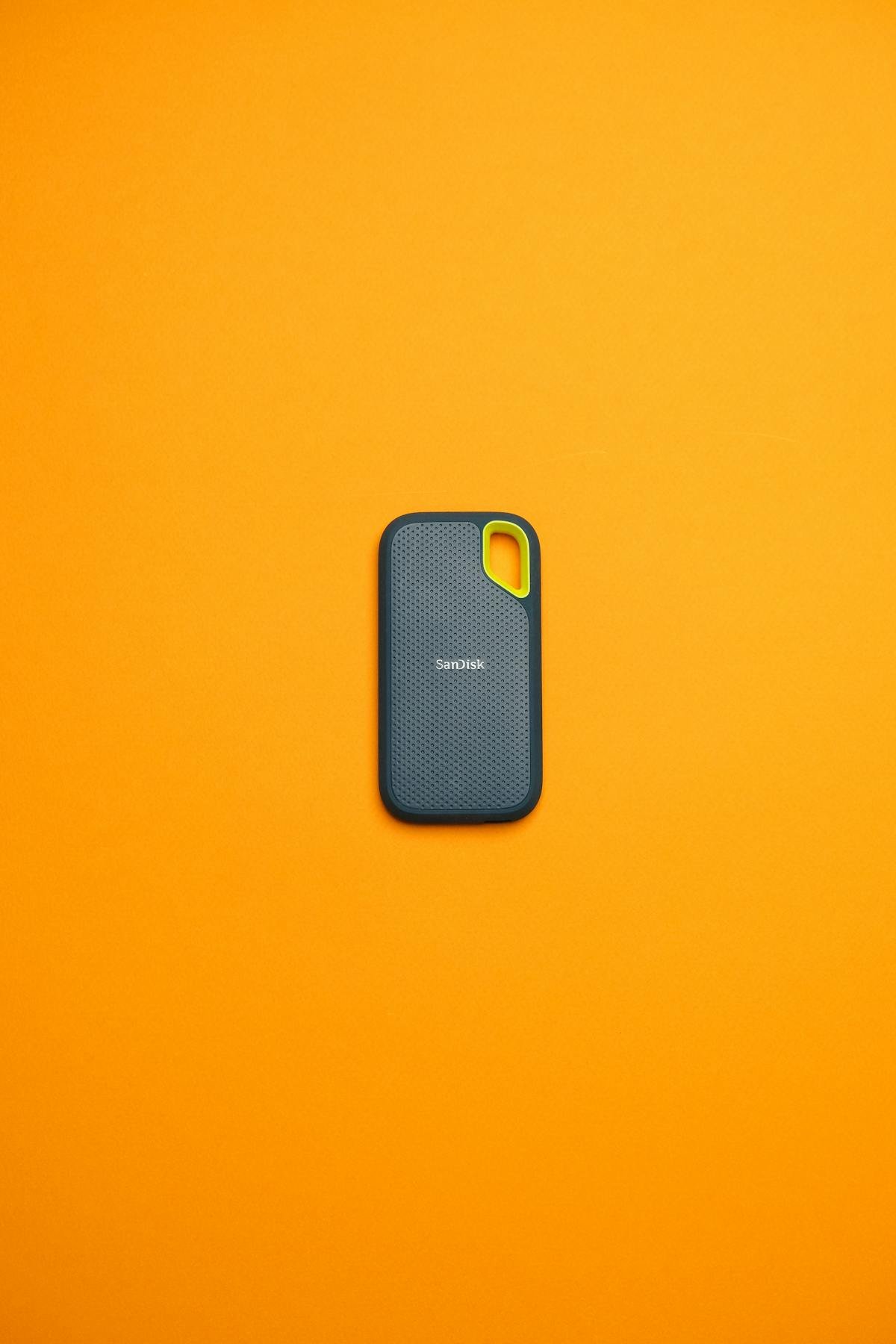
- Portable SSD (2.5″ or M.2): Browse portable SSDs on Amazon — rugged, bus-powered
Charger Compatibility
The 13″ M1 MacBook Pro (2020) uses USB-C power delivery charging only. There is no MagSafe connector on this model — that arrived with the 14″ and 16″ models in 2021.
Original charger: 61W USB-C power adapter (included)
Compatible chargers:
- Any USB Power Delivery charger rated 45W or higher
- 96W USB-C charger (faster charging available)
- Multiport USB-C chargers with 60W+ available on the charger port
Third-party USB-C chargers: Browse USB-C PD chargers on Amazon
Note: The M1 charges slowly with lower-wattage chargers (30W takes ~3 hours; 61W takes ~1.5 hours). Using a higher-wattage charger will not damage the battery—Apple devices regulate charging internally.
Dock & Hub Compatibility
The 13″ M1 MacBook Pro has 2x Thunderbolt 3 ports (compatible with USB-C devices). Each port can drive a display and carry data simultaneously, but the M1’s GPU limits you to 1 external display maximum.
Compatible dock types:
- Thunderbolt 3 docks: Full bandwidth, daisy-chain support, up to 96W power delivery
- USB-C hubs: Lower bandwidth, simpler, cheaper, single connection support
Popular docks for M1 MacBook Pro 13″:
- Browse Thunderbolt 3 docks on Amazon — Caldigit TS3+, OWC Thunderbolt 3 Dock
- Browse USB-C hubs on Amazon — Satechi, Anker, Belkin multiport hubs
The M1’s support for only 1 external display means: dock + 1 external monitor = full setup. You cannot add a second monitor without additional hardware.
MacBook Pro 13″ M1 Specifications
| Component | Specification | Upgradeable? |
|---|---|---|
| Processor | Apple M1 (8-core CPU, 7-8 core GPU) | No |
| RAM | 8GB or 16GB unified memory (soldered) | No |
| SSD | 256GB, 512GB, 1TB, or 2TB (soldered) | No |
| Display | 13.3″ Retina (2560 x 1600) | No |
| Ports | 2x Thunderbolt 3 / USB-C | No |
| Charging | USB-C only, 61W adapter included | N/A |
| External displays | 1 maximum | No |
| Battery | 52.2 Wh, ~17 hours | No |
Frequently Asked Questions
Can I upgrade the RAM or SSD on a 13″ M1 MacBook Pro?
No. Both RAM and SSD are soldered directly to the logic board. You cannot upgrade, replace, or expand them internally. All upgrades must be external via USB-C or Thunderbolt storage devices.
What charger should I use with the 13″ M1 MacBook Pro?
Use the included 61W USB-C charger, or any USB Power Delivery charger rated 45W or higher. The M1 will charge with lower wattage (slower) or higher wattage (not faster) chargers without damage. For fastest charging, use 61W or 96W.
How many external displays can I connect to an M1 MacBook Pro 13″?
Only 1 external display. The M1’s GPU does not support dual external monitors. If you need 2+ displays, upgrade to an M1 Pro, M2 Pro, or later MacBook.
Are Thunderbolt 3 docks compatible with the M1 MacBook Pro 13″?
Yes. Thunderbolt 3 docks work with all M1 Macs. They provide power delivery, USB ports, and display connectivity. Look for docks with 96W power delivery for fast charging.
What external SSD is fastest for the M1 MacBook Pro?
Thunderbolt 3 SSDs are fastest (up to 2400 MB/s). USB-C NVMe enclosures with good controllers reach 1000+ MB/s. For most users, either is fine; Thunderbolt is overkill unless you move large video files daily.
Recommended Products
There are no internal upgrade parts to recommend for this machine. Its unified memory is part of the Apple silicon package and its SSD is soldered to the logic board — neither can be replaced after purchase, by you or by Apple. Anything sold as “MacBook RAM” for this model is a SO-DIMM that physically cannot be fitted.
What does help: an external Thunderbolt or USB-C SSD for working files and backups, a dock if you need more ports, and buying the memory and storage you need at the point of order. We have deliberately removed the internal RAM and SSD recommendations that previously appeared here.
| Product | Why We Recommend It | Amazon |
|---|
Prices and availability may vary. As an Amazon Associate, we earn from qualifying purchases.
Related Apple Upgrade Guides
- Which MacBooks Have Soldered SSD & RAM? Complete List (2012-2026)
- Can You Upgrade a MacBook? RAM, SSD & Storage Options by Model
- MacBook External Monitor Compatibility
- Apple MacBook Pro 15″ (2013)
- Apple Mac mini (2014)
- Apple Upgrade Guide
Not sure what fits? Use our free Compatibility Checker covering 3,195+ models.
Helpful Guides
Recommended upgrades
As an Amazon Associate we earn from qualifying purchases. Prices & availability shown on Amazon.