Affiliate disclosure: this page contains affiliate links — if you buy through them we may earn a commission at no extra cost to you. As an Amazon Associate we earn from qualifying purchases.
If you own a MacBook Pro and you’re wondering if you can upgrade the memory or storage, we have one critical piece of news: if you own an Apple Silicon MacBook Pro (2020 onwards), nothing is upgradeable. Memory is soldered to the chip. Storage is soldered to the logic board. This guide explains why, shows you exactly which models have these limitations, and walks you through what you CAN upgrade — chargers, docks, external storage, and more.
If you’re shopping for a MacBook Pro right now, this page will help you choose the right configuration from the start, since you can’t change it later.
MacBook Pro Models at a Glance
| Generation | Screen Size(s) | Chip Options | Memory (Unified) | Storage | Charger | Upgrade Status |
|---|---|---|---|---|---|---|
| M4 (2024) | 14″, 16″ | M4, M4 Pro, M4 Max | 16–128GB | 512GB–8TB (soldered) | MagSafe 3 (67W/140W) | Non-upgradeable |
| M3 (2023) | 14″, 16″ | M3, M3 Pro, M3 Max | 8–128GB | 512GB–8TB (soldered) | MagSafe 3 (67W/140W) | Non-upgradeable |
| M2 (2023) | 13″, 14″, 16″ | M2, M2 Pro, M2 Max | 8–96GB | 256GB–8TB (soldered) | MagSafe 3 (67W/140W) | Non-upgradeable |
| M1 (2020–2021) | 13″, 14″, 16″ | M1, M1 Pro, M1 Max | 8–64GB | 256GB–2TB (soldered) | MagSafe 3 (61W/96W) | Non-upgradeable |
| 2012–2015 (Intel) | 13″, 15″ | Intel Core i5/i7 | 4–16GB DDR3L SO-DIMM | 512GB SSD (proprietary OWC Aura) | MagSafe 2 / USB-C | Fully upgradeable RAM; SSD upgrade possible |
Key insight: Every MacBook Pro from the M1 onwards (2020 to present) has completely soldered memory and storage. There is no upgrade path.
Apple Silicon Unified Memory Explained
Apple’s shift from Intel processors to their own “Apple Silicon” chips (M1, M2, M3, M4) brought a radical architectural change that made memory upgrades physically impossible.
What is unified memory? In traditional laptops, the CPU and GPU have separate memory pools. They have to copy data back and forth, which is slow and power-hungry. Apple’s chips integrate the CPU, GPU, neural engine, media encoders, and memory onto a single piece of silicon. The memory is part of the same package — it’s on the die itself, not on a separate module.
This design has two advantages: blazing-fast performance and exceptional power efficiency. The downside is that the memory capacity is locked in at the factory. You cannot swap it out. It’s soldered directly to the processor chip. Once you buy a MacBook Pro with 8GB, 16GB, 24GB, or any other configuration, that’s what you have for the life of the machine.
The same is true for storage. Since the M1, Apple has also soldered the SSD directly to the logic board. Unlike older MacBook Pros (2012–2015), where you could pull out the storage module and install a larger one, today’s models don’t give you that option.
This is Apple’s design philosophy: vertical integration for performance and thinness. It’s not a flaw — it’s intentional. But it does mean you must choose the right configuration when you order.
MacBook Pro M4 Series (2024)
Overview
The M4, M4 Pro, and M4 Max are the current generation, released in late 2024. All three chips support between 16GB and 128GB of unified memory, depending on the model. Storage ranges from 512GB to 8TB.
Memory & Storage Options
M4 MacBook Pro 14″: 16GB, 24GB, or 32GB unified memory. Storage: 512GB to 2TB SSD.
M4 Pro MacBook Pro 14″: 24GB, 36GB, or 48GB unified memory. Storage: 512GB to 8TB SSD.
M4 Max MacBook Pro 14″ & 16″: 36GB, 48GB, 64GB, or 128GB unified memory. Storage: 512GB to 8TB SSD.
M4 Charger Compatibility
All M4 MacBook Pros use MagSafe 3. The 14″ models ship with a 67W USB-C PD charger (or optionally 96W). The 16″ models ship with a 140W USB-C PD charger.
Yes, you can use a lower-wattage charger: a 67W will work on a 16″ M4 Max, but charging will be slower, especially under load. A higher-wattage charger (140W) is not harmful on the 14″ models, but unnecessary.
All M4 models also accept standard USB-C PD charging — you don’t have to use MagSafe if you prefer a standard USB-C cable.
MacBook Pro M3 Series (2023)
Overview
The M3, M3 Pro, and M3 Max launched in early 2023. They are very similar to M4 in terms of upgradability (none), but they use older Thunderbolt 4 instead of Thunderbolt 5 found on M4 Pro/Max.
Memory & Storage
M3 MacBook Pro 14″: 8GB, 16GB, or 24GB unified memory. Storage: 512GB to 2TB.
M3 Pro MacBook Pro 14″: 18GB, 36GB, or 48GB unified memory. Storage: 512GB to 8TB.
M3 Max MacBook Pro 14″ & 16″: 36GB, 48GB, or 128GB unified memory. Storage: 512GB to 8TB.
Note: The M3 is the least common configuration. Most buyers choose M3 Pro or Max.
MacBook Pro M2 Series (2023)
Overview
The M2 generation came in 13″, 14″, and 16″ models. The 13″ M2 MacBook Pro is now considered entry-level but very capable for everyday tasks, coding, and content creation.
Memory & Storage
M2 MacBook Pro 13″: 8GB or 16GB unified memory. Storage: 256GB to 1TB.
M2 Pro MacBook Pro 14″ & 16″: 16GB, 24GB, 32GB, or 64GB unified memory. Storage: 512GB to 8TB.
M2 Max MacBook Pro 14″ & 16″: 32GB, 64GB, or 96GB unified memory. Storage: 512GB to 8TB.
MacBook Pro M1 Series (2020–2021)
Overview
The original M1 MacBook Pro launched in November 2020 and shocked the industry with its performance-per-watt. These machines are still entirely viable today, but you may find slower SSD speeds compared to M2, M3, and M4 (M1 uses PCIe 3.0; later generations use PCIe 4.0).
Memory & Storage
M1 MacBook Pro 13″: 8GB or 16GB unified memory. Storage: 256GB to 2TB.
M1 Pro MacBook Pro 14″ (2021): 16GB, 32GB, or 64GB unified memory. Storage: 512GB to 8TB.
M1 Max MacBook Pro 14″ & 16″ (2021): 32GB or 64GB unified memory. Storage: 512GB to 8TB.
Legacy MacBook Pro (2012–2015 Intel)
The Last Upgradeable MacBook Pros
If you own a non-Retina MacBook Pro from 2012 or a Retina model from 2012–2015, congratulations: you have the last MacBook Pros with user-upgradeable components.
Memory Upgrades
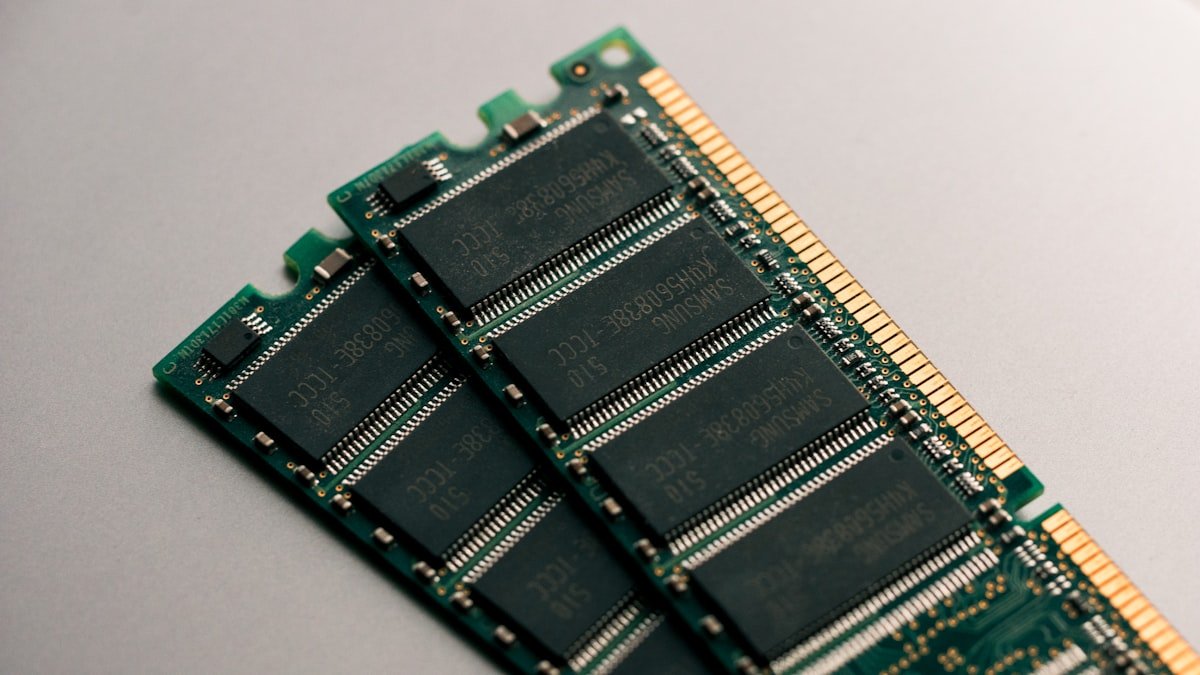
2012–2015 MacBook Pros use DDR3L SO-DIMM memory modules (the same small form factor used in many laptops). You can upgrade from the factory configuration up to 16GB total (two 8GB modules). Replacement DDR3L SO-DIMM modules are widely available and inexpensive.
Storage Upgrades
Retina MacBook Pros (2012–2015) shipped with a proprietary SSD format (Apple’s “Aura” design). You could replace the original drive with third-party options from OWC (Other World Computing), who made compatible Aura-format SSDs. OWC Aura modules topped out at 2TB, which is adequate for many workflows.
The non-Retina 2012 MacBook Pro used a standard 2.5″ SATA SSD/HDD, which is trivially easy to upgrade to any modern SSD.
Today, these machines are 10+ years old. If you still own one, upgrading RAM and SSD can extend its life, but Apple Silicon machines are now vastly faster and more power-efficient.
What You CAN Upgrade or Change on Modern MacBook Pros
Chargers (MagSafe 3)
You can buy third-party MagSafe 3 chargers, USB-C PD chargers, or USB-C cables to charge your M1/M2/M3/M4 MacBook Pro. Apple’s original chargers are expensive; third-party alternatives work fine.
External Storage (USB-C / Thunderbolt)
If you need more storage, add an external SSD via Thunderbolt or USB-C. Modern external SSDs are fast, portable, and significantly cheaper per terabyte than upgrading the internal drive would be (if it were even possible).
See our laptop SSD compatibility guide for recommendations on fast external drives that work with MacBook Pro.
Docks & Hubs (Thunderbolt 4/5)
MacBook Pros have two or three Thunderbolt ports (depending on model). A Thunderbolt dock adds multiple USB-A ports, additional Thunderbolt ports, HDMI, SD card readers, Ethernet, and more. Popular options include Thunderbolt 4 docks on Amazon.
RAM and Storage — NO, You Cannot Upgrade These
Do not believe claims that you can upgrade memory or storage on modern MacBook Pros. Some repair shops advertise “memory upgrades,” but they are either using third-party parts that don’t actually work with Apple’s locked-down architecture, or they’re outright scams. Apple’s design makes this physically impossible on all M-series models.
MagSafe 3 Charger Compatibility
MagSafe 3 vs. Older Charging Standards
All modern MacBook Pros (M1 onwards) use MagSafe 3, which is a magnetically-aligned charging connector that attaches to the side of the machine. This is separate from USB-C PD charging, which also works but requires a cable instead of a magnetic dock.
| MacBook Pro | MagSafe Wattage | Alternative USB-C PD | Compatible Chargers |
|---|---|---|---|
| 14″ M1/M2/M3/M4 | 67W | Up to 96W (USB-C) | 67W MagSafe or any USB-C PD charger 60W+ |
| 16″ M1 Pro/Max | 96W | Up to 140W (USB-C) | 96W MagSafe or USB-C PD charger 100W+ |
| 16″ M2/M3/M4 Pro/Max | 140W | Up to 140W (USB-C) | 140W MagSafe or USB-C PD charger 140W |
Can You Use a Lower-Wattage Charger?
Yes. A 67W charger will work on a 14″ M4 MacBook Pro and on any 16″ model, but charging will be slower. Under full load (e.g. exporting a 4K video), the laptop may even lose battery charge while plugged in.
Can You Use a Higher-Wattage Charger?
Yes. A 140W charger will work on a 14″ MacBook Pro (M1/M2/M3/M4). It will not damage the machine. Charging will not be faster than the 14″ design supports, but you’re paying for extra capacity you don’t need.
Third-Party MagSafe 3 Chargers
Popular options include Anker, Belkin, and Hyper. All use the same MagSafe 3 connector as Apple’s chargers, and they’re significantly cheaper. Check the wattage: a 140W third-party charger will work fine on any model.
Shop MagSafe 3 chargers on Amazon
Best Accessories for MacBook Pro
External Storage (Thunderbolt 4/5 SSD)
If your MacBook Pro came with 512GB or 1TB, external SSD storage is essential. A fast Thunderbolt 4 external SSD offers nearly the speed of internal storage at a fraction of the cost.
Thunderbolt 4 Dock
A dock multiplies your connectivity: USB-A ports, HDMI for a second display, SD card reader, Ethernet for a wired connection, and additional Thunderbolt bandwidth for external drives.
USB-C Hub (Budget Alternative)
If a Thunderbolt dock is too expensive, a simpler USB-C multi-port hub offers USB-A, HDMI, SD, and USB-C pass-through at a lower price.
MagSafe 3 Charger (Third-Party)
Save money by buying a third-party MagSafe 3 charger. Brands like Anker and Belkin are reliable.
USB-C Cable (High-Wattage)
If you prefer charging via USB-C instead of MagSafe, get a high-wattage (up to 140W) USB-C cable. This gives you flexibility to charge from any USB-C PD power adapter you already own.
Laptop Stand & External Keyboard
MacBook Pro’s built-in keyboard and trackpad are excellent, but for desk work, a stand + external keyboard improves ergonomics and lets you open the lid wider for better airflow.
Buying Guide: How Much Memory Do You Need?
8GB Unified Memory
Suitable for: Web browsing, email, office documents, light photo editing.
Not suitable for: Video editing, 3D rendering, running many browser tabs, virtual machines, or development with large codebases.
Reality check: 8GB felt adequate in 2020, but by 2024 it’s the minimum. Apple still offers it on the M4 base model for marketing purposes, but most users regret this choice.
16GB Unified Memory
Suitable for: Most professionals: developers, designers, video editors working on standard HD/2K projects, music producers, writers, and everyday users.
Not suitable for: Heavy 4K video editing, GPU-intensive 3D rendering, running 20+ browser tabs simultaneously, or multiple virtual machines.
Best value: This is the sweet spot for most buyers in 2026. Upgrade from 8GB to 16GB if you can afford it.
24GB & 32GB Unified Memory
Suitable for: Heavy 4K video editing, 3D rendering, large language model (LLM) work, scientific computing, and professional workflows that regularly open hundreds of files.
Cost vs. benefit: The jump from 16GB to 24GB/32GB costs £200–400 extra. Unless you’re certain your workflow needs it, 16GB is usually sufficient.
48GB+ Unified Memory
Suitable for: Professional filmmakers, visual effects artists, data scientists, and software engineers working on massive codebases or machine learning models.
Cost: Very expensive (£600–1,000+), and only available on M3 Pro/Max and M4 Pro/Max.
Storage: How Much Do You Need?
512GB: Tight. You’ll need external storage quickly.
1TB: Comfortable for most users. Room for your OS, applications, and a few large projects.
2TB+: Ideal if you work with video, large datasets, or want to keep years of files locally without external drives.
Remember: You cannot upgrade storage later. Choose wisely at purchase time.
Frequently Asked Questions
Can I upgrade the memory on my MacBook Pro?
No, not on any M1, M2, M3, or M4 MacBook Pro. Memory is soldered directly to the processor chip and cannot be removed or replaced. This is true for all Apple Silicon models from 2020 onwards. If you need more memory, you must buy a new machine.
Can I upgrade the storage on my MacBook Pro?
No, storage is also soldered since the M1 generation (2020). Unlike older MacBook Pros (2012–2015), where you could swap out the SSD, today’s machines do not allow storage upgrades. You must add external storage via Thunderbolt or USB-C.
Can I use any charger with my MacBook Pro?
Yes, any USB-C PD charger (60W or higher) will charge your MacBook Pro. MagSafe 3 charging is faster and more convenient, but USB-C charging always works. Third-party MagSafe 3 chargers also work fine and are cheaper than Apple’s official chargers.
Can I use a 140W charger on my 14-inch MacBook Pro?
Yes. The 14″ MacBook Pro is designed to accept up to 96W via MagSafe, but a higher-wattage charger will not cause damage. Charging speed will not exceed the machine’s rated input, and you’re paying for wattage you don’t need. A 67W or 96W charger is appropriate for the 14″ model.
What’s the difference between MagSafe 3 and USB-C charging?
MagSafe 3 is a magnetic connector that attaches to the side of the MacBook and disconnects cleanly if someone trips on the cable. USB-C is a standard connector that requires a cable. Both deliver the same power. MagSafe is more convenient; USB-C gives you flexibility to use chargers you already own.
Are older 2012–2015 MacBook Pros still worth upgrading?
If you own a 2012–2015 Intel MacBook Pro, upgrading RAM and SSD can extend its useful life by a few years. DDR3L RAM is cheap, and third-party SSDs work well. However, these machines are now 10+ years old. If you use your Mac daily, upgrading to Apple Silicon is worth the investment for performance and battery life.
Related Compatibility Guides
For more information on laptop upgrades and compatibility:
- MacBook Air upgrade guide
- Laptop RAM compatibility overview
- Laptop SSD compatibility guide
- Laptop charger compatibility
Recommended Products
These are the products we recommend based on this guide. All links go to Amazon where you can check current prices and availability.
| Product | Why We Recommend It | Amazon |
|---|---|---|
| Corsair Vengeance DDR4 SO-DIMM 32GB (2×16GB) 3200MHz | Best overall DDR4 upgrade kit | View on Amazon |
| Kingston Fury Impact DDR4 SO-DIMM 32GB (2×16GB) 3200MHz | Reliable alternative with tight latency | View on Amazon |
| Crucial DDR4 SO-DIMM 16GB 3200MHz | Budget single-stick upgrade | View on Amazon |
| Samsung DDR4 SO-DIMM 32GB 3200MHz | OEM-quality for business laptops | View on Amazon |
| Samsung 990 Pro 2TB NVMe M.2 2280 | Fastest consumer NVMe — ideal for gaming & editing | View on Amazon |
| WD Black SN850X 2TB NVMe | Excellent Gen4 speed with heatsink option | View on Amazon |
| Crucial P5 Plus 1TB NVMe | Great value Gen4 SSD | View on Amazon |
| Kingston NV2 1TB NVMe | Budget-friendly with solid reliability | View on Amazon |
Prices and availability may vary. As an Amazon Associate, we earn from qualifying purchases.
Related Apple Upgrade Guides
- Which MacBooks Have Soldered SSD & RAM? Complete List (2012-2026)
- Can You Upgrade a MacBook? RAM, SSD & Storage Options by Model
- MacBook External Monitor Compatibility
- Apple MacBook Pro 15″ (2013)
- Apple Mac mini (2014)
- Apple Upgrade Guide
Not sure what fits? Use our free Compatibility Checker covering 3,195+ models.
Helpful Guides
Related Resources
- Laptop Upgrade Compatibility Checker — Check RAM, SSD & charger compatibility for 3,195+ models
- RAM Compatibility Guide — DDR4, DDR5 & LPDDR5 explained
- SSD Compatibility Guide — NVMe, SATA & M.2 sizes
- Charger Compatibility Guide — USB-C, Power Delivery & GaN
- Docking Station Compatibility Guide — Thunderbolt, USB-C & DisplayLink
Popular Brand Upgrade Guides
- Dell Laptop Upgrades
- Lenovo Laptop Upgrades
- HP Laptop Upgrades
- ASUS Laptop Upgrades
- Acer Laptop Upgrades
- MSI Laptop Upgrades
Recommended upgrades
As an Amazon Associate we earn from qualifying purchases. Prices & availability shown on Amazon.