Affiliate disclosure: this page contains affiliate links — if you buy through them we may earn a commission at no extra cost to you. As an Amazon Associate we earn from qualifying purchases.
MSI gaming laptops are upgrade paradises compared to Dell, Apple, or ASUS ROG. Most current MSI gaming models use dual DDR5 SO-DIMM RAM with easily accessible bottom panels, but maximum RAM and M.2-slot count vary by model — from 32GB soldered on the Prestige 16 to 192GB across four slots on the Titan 18 HX, with one to three M.2 bays. Check your exact model below. Whether you’re pushing a Katana 15 from 16GB to 32GB for smoother 1440p gaming, adding a second 4TB SSD for your game library, or upgrading a Raider 18 HX to 96GB for streaming, MSI delivers the upgradeability that high-performance gaming demands. This comprehensive guide covers every current MSI gaming series, shows you the compatibility matrix, and walks you through real-world upgrade paths.
MSI’s gaming lineup is broad: from the budget-friendly Katana series to the powerhouse Raider GE78 HX with RTX 4090. All share a common advantage: excellent user-upgrade accessibility. Unlike some competitors who lock down their premium models with soldered memory, MSI trusts gamers to open the case and make upgrades. This guide covers all current series with detailed specs, upgrade strategies, and specific product recommendations.
MSI Gaming Series Overview — All Models & Specs
MSI divides its gaming portfolio by GPU tier and use case. The following table covers all current flagship series as of 2024, plus notable recent models still widely available.
| Series | Screen | GPU Range | Processor | RAM Max | SSD Slots | Charger | Upgrade Score |
|---|---|---|---|---|---|---|---|
| Katana 15/17 B13V | 15.6″ / 17.3″ | RTX 4050-4070 | Up to Intel Core i7 13th Gen | Up to 64GB DDR5-5200 (2 slots) | 2x M.2 NVMe (PCIe Gen4) | 200W adapter | 5/5 |
| Crosshair 16 HX D14V | 16″ | RTX 4060-4070 | Up to Intel Core i7 HX 14th Gen | Up to 96GB DDR5-5600 (2 slots) | 2x M.2 NVMe (1x Gen4, 1x Gen5) | 240W adapter | 5/5 |
| Cyborg 15 A13V | 15.6″ | RTX 4050-4060 | Up to Intel Core i7 13th Gen | Up to 64GB DDR5-5200 (2 slots) | 1x M.2 NVMe (PCIe Gen4) | 120W adapter | 5/5 |
| Raider GE78 HX 13V | 17″ (16:10) | RTX 4070-4090 | Up to Intel Core i9 HX 13th Gen | Up to 64GB DDR5-5600 (2 slots) | 2x M.2 NVMe (1x Gen4, 1x Gen5) | 280W (RTX 4070) or 330W (RTX 4080/4090) adapter | 5/5 |
| Stealth 16 Studio A13V | 16″ | RTX 4050-4070 | Up to Intel Core i9 13th Gen | Up to 64GB DDR5-5200 (2 slots) | 2x M.2 NVMe (PCIe Gen4) | 240W adapter | 5/5 |
| Stealth 18 AI Studio A1V | 18″ | RTX 4060-4090 | Up to Intel Core Ultra 9 | Up to 96GB DDR5-5600 (2 slots) | 2x M.2 NVMe (PCIe Gen4) | 280W adapter | 5/5 |
| Titan 18 HX | 18″ | RTX 4080-4090 | Up to Intel Core i9 HX 14th Gen (A14V) | Up to 192GB DDR5 (4 slots) | 3x M.2 NVMe (2x Gen4, 1x Gen5) | 400W adapter | 5/5 |
| Creator Z16 HX Studio B13V | 16″ | RTX 4050-4070 | Up to Intel Core i9 HX 13th Gen | Up to 64GB DDR5-5600 (2 slots) | 1x M.2 NVMe (PCIe Gen5) | 240W (Core i7) or 280W (Core i9) adapter | 5/5 |
| Prestige 16 | 16″ | RTX 4050-4060 (Studio A13V) / Intel Arc integrated (AI Evo B1M) | Up to Intel Core i9 13th Gen (Studio) / Core Ultra 9 (AI Evo) | Up to 32GB LPDDR5 (soldered, not upgradeable) | 1x M.2 NVMe (Studio) / 2x M.2 NVMe (AI Evo) | 150W adapter (Studio) / 100W USB-C PD (AI Evo) | 2/5 (SSD only) |
| Modern 14/15 F13M | 14″ / 15.6″ | Iris Xe (integrated) | Up to Intel Core i7 13th Gen | Up to 64GB DDR5-5600 or DDR4-3200 (2 slots) | 1x M.2 NVMe (PCIe Gen4) | 65W adapter | 5/5 |
Upgrade scores reflect accessibility and upgradeability. Models with SO-DIMM slots score 5/5: most have two memory slots (four on the Titan 18 HX) and between one and three M.2 slots. The Prestige 16 scores lower because its memory is soldered, so only the SSD can be upgraded.
RAM Upgrades — DDR5 SO-DIMM Strategy
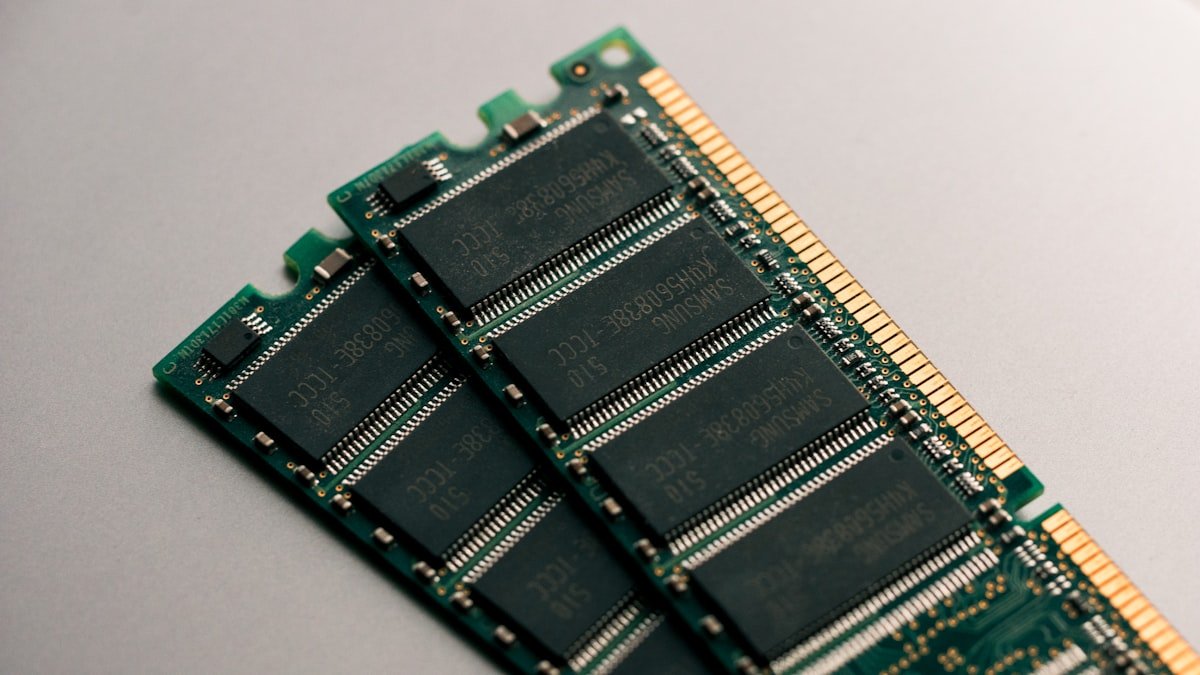
Most MSI gaming laptops from 2023 onwards use DDR5 SO-DIMM memory (DDR5-5200 or DDR5-5600 on the models above) in two slots, or four on the Titan 18 HX. Some budget models, such as the Thin GF63 12V, still use DDR4-3200. For DDR5 models this is excellent news: upgradeability is straightforward, and DDR5 SO-DIMM modules are becoming more affordable as adoption increases.
DDR5 Basics for Gaming Laptops
Speed options: MSI lists DDR5-5200 or DDR5-5600 for the models above, and faster DDR5-6400 modules are also sold. Different speeds are compatible in the same laptop — you can mix DDR5-5600 and DDR5-6400 sticks (the faster stick will run at the lower speed). There’s no practical gaming difference between 5600 and 6400, so don’t pay extra for speed beyond what’s standard in your model.
Capacity per stick: Available in 8GB, 16GB, 24GB, 32GB and 48GB. To reach 96GB on a two-slot model that supports it (such as the Crosshair 16 HX or Stealth 18 AI Studio), you need two 48GB sticks, which are still premium-priced (£80-120 per stick as of 2024). Most users will upgrade to 32GB-48GB instead.
Recommended Upgrade Paths
Gaming at 1440p (Katana, Crosshair, Cyborg):
- 16GB base → 32GB: Add one 16GB DDR5-5600 stick. Cost: £50-70. Most games run equally smooth at 16GB and 32GB (32GB helps only if you stream while gaming or run heavy background apps).
- 16GB base → 48GB: Add one 32GB stick. Cost: £70-100. Overkill for pure gaming, but useful if you also do video editing or 3D modeling.
Streaming + Gaming (Raider GE78 HX, Stealth 16 Studio):
- 16GB base → 48GB: Add one 32GB stick. Cost: £70-100. OBS streaming consumes 6-8GB additional RAM; paired with games needing 12-16GB, you’ll hit 24GB total. 48GB future-proofs you for 3+ years of streaming setups.
- 16GB base → 64GB: Replace both sticks with two 32GB modules, the maximum MSI lists for these two models. Rarely needed for streaming alone, but useful if you also create content.
Content Creation (Stealth 18 AI Studio, Titan 18 HX):
- 32GB base → 96GB: Fit two 48GB sticks in the two-slot Stealth 18 AI Studio; the four-slot Titan 18 HX supports up to 192GB. Video editing, 3D rendering, and heavy Photoshop work benefit from 48GB+. 96GB future-proofs you for 5+ years of professional workflows.
Best DDR5-5600/6400 SO-DIMM Modules for MSI Gaming
| Module | Capacity | Speed | Price (UK)* | Best For |
|---|---|---|---|---|
| Corsair Vengeance DDR5 SO-DIMM | 8GB-48GB | DDR5-5600 | £35-180 | Gaming-tuned, excellent compatibility, proven in MSI laptops |
| Crucial Micron DDR5 SO-DIMM | 8GB-48GB | DDR5-5600 | £35-140 | Value option, Micron quality, solid for gaming |
Top recommendation for MSI gaming: Corsair Vengeance DDR5 SO-DIMM (any capacity) or Kingston FURY Impact. Both are proven in gaming laptops and offer excellent value at £40-60 per 16GB stick.
Do I Really Need 96GB?
For pure gaming: No. 32GB is comfortable; 48GB is future-proof for 5+ years. 96GB is wasteful unless you’re a content creator running Davinci Resolve, Blender, or heavy professional software alongside gaming.
For streaming: 48GB is sensible (32GB for OS/games, 16GB buffer for OBS). 96GB is luxury but rarely necessary.
For content creation: 64GB-96GB is ideal. Video rendering, 3D modeling, and large dataset work benefit from the headroom.
In practice, most gamers will upgrade from 16GB to 32GB (£50-70) and call it done. That single upgrade extends gaming comfort for 4-5 years.
SSD & Storage Upgrades
Most MSI gaming laptops in the table above include two M.2 NVMe slots. The Cyborg 15 A13V and Creator Z16 HX Studio B13V have one, and the Titan 18 HX A14V has three. Factory configuration is typically 1TB in slot 1, leaving the second slot empty. Adding a second drive is the most popular upgrade after RAM and delivers immediate benefit (larger game library, faster boot times, dedicated cache for streaming).
Why Dual SSDs Matter for Gaming
- Game library size: Modern AAA games are 80-150GB each. A single 1TB drive holds ~5-8 games before you’re full. Two drives let you keep 10-12 games installed simultaneously.
- Streaming cache: If you stream, dedicate the second drive to OBS cache and recordings (prevents disk contention with games).
- OS + Games separation: Windows and game files don’t compete for I/O bandwidth when on separate drives.
Recommended M.2 2280 NVMe Drives
| Drive | Capacity | Speed | Price (UK)* | Best For |
|---|---|---|---|---|
| Samsung 980 Pro | 250GB-2TB | 7,000 MB/s Gen4 | £90-350 | Premium option, best reliability, gaming benchmark winner |
| WD Black SN850X | 1TB-8TB | 7,300 MB/s Gen4 | £85-340 | Gaming-optimized, great value, proven in MSI laptops |
| Sabrent Rocket 4 Plus | 500GB-8TB | 7,000 MB/s Gen4 | £50-250 | Generous warranty, budget-friendly, good performance |
| Kingston NV2 | 250GB-4TB | 3,500 MB/s Gen4 | £35-80 | Budget overflow storage (slower, but half the price) |
| Crucial P5 Plus | 500GB-2TB | 6,600 MB/s Gen4 | £45-120 | Balanced performance and price, solid for gaming |
Top recommendation for MSI gaming: Keep your factory 1TB drive in slot 1, add a 2TB WD Black SN850X or Samsung 980 Pro in slot 2. Total cost: £100-120 for 3TB of gaming storage.
High-performance option: Replace both with 2TB Samsung 980 Pro in slot 1 and 4TB Sabrent Rocket 4 Plus in slot 2. Total: 6TB of pure Gen4 performance for £300-400.
Installing a Second SSD (5-Minute Process)
- Shut down and unplug your MSI gaming laptop
- Remove the bottom panel (typically 10-15 Phillips screws)
- Locate slot 2 (usually labeled, near the battery or rear edge)
- Insert the NVMe drive at a 30° angle into the empty slot
- Press down firmly until it clicks
- Secure with the tiny Phillips screw (if present)
- Replace the bottom panel
- Boot up; Windows detects the new drive automatically in Disk Management
Tip: Format the new drive as NTFS in Windows Disk Management after installation. Alternatively, let Windows prompt you to initialize it on first boot.
SSD Replacement (Upgrading Slot 1)
If your factory 1TB drive is slow (many OEM drives are budget models), you can replace it:
- Back up your data (time-consuming if full)
- Remove the bottom panel
- Locate slot 1 (occupied by factory drive)
- Gently pull the drive out at 30° angle
- Insert your new SSD and press down until it clicks
- Secure with the tiny screw
- Replace the bottom panel and boot
- Clone your old drive to the new one using software like Macrium Reflect (or reinstall Windows fresh)
Note: Replacing the OS drive requires either cloning (complex) or clean Windows reinstall (easier). Adding a second drive (slot 2) avoids this hassle entirely.
Power Delivery & Chargers
MSI gaming laptops ship with a dedicated adapter whose wattage scales with GPU power consumption. Several models also have a USB-C or Thunderbolt 4 port that MSI lists with Power Delivery (the Crosshair 16 HX, Raider GE78 HX, Stealth, Titan and Creator models), while MSI does not list Power Delivery on the Type-C port of the Katana 15/17 or Cyborg 15. The Prestige 16 AI Evo uses a 100W USB-C PD adapter.
Charger Reference by Series
- Katana 15/17 B13V: 200W adapter (the Type-C port is not listed with Power Delivery)
- Crosshair 16 HX D14V: 240W adapter; Type-C port with Power Delivery 3.0
- Raider GE78 HX 13V: 280W (RTX 4070) or 330W (RTX 4080/4090) adapter
- Stealth 16 Studio A13V / 18 AI Studio A1V: 240W (Stealth 16 Studio) or 280W (Stealth 18 AI Studio) adapter; Thunderbolt 4 port with Power Delivery
- Titan 18 HX A14V: 400W adapter
- Creator Z16 HX Studio B13V: 240W (Core i7) or 280W (Core i9) adapter; Thunderbolt 4 port with Power Delivery 3.0
- Prestige 16: 150W adapter for the Studio A13V (RTX 4050/4060); 100W USB-C PD adapter for the AI Evo B1M (integrated Intel Arc graphics)
- Modern 14/15 F13M: 65W adapter; Type-C port with Power Delivery 3.0 (integrated graphics only)
Key point: Barrel-jack chargers are proprietary and difficult to replace. USB-C PD chargers are more flexible (you can use higher-wattage USB-C chargers in a pinch). Keep your original charger safe.
Travel chargers: If you need a backup, 100W USB-C Power Delivery chargers can supplement Stealth and Creator models (but won’t provide full power during gaming). Barrel-jack models are harder to replace on the road.
Battery Replacement & Lifespan
MSI gaming laptop batteries (53.5Wh to 99.9Wh on the models above) are user-replaceable on most models. Unlike MacBook Air or some ASUS models, you can order a replacement battery and swap it yourself (or have it serviced).
Battery lifespan: 4-5 years under normal use. Degradation accelerates after year 4.
Replacement cost: £50-120 depending on battery capacity. Much cheaper than professional service.
Signs your battery needs replacement:
- Only 1-2 hours of battery life under light use (when new was 5-8 hours)
- Battery health (via BatteryReport on Windows) shows below 60%
- Battery percentage drops randomly without use
- Laptop won’t boot on battery power, only AC
DIY battery replacement process:
- Remove the bottom panel (10-15 screws)
- Disconnect the battery cable (twist clip or simple plug)
- Remove old battery (typically 2-4 screws or clips)
- Install new battery, secure with screws/clips
- Reconnect the cable and replace the bottom panel
Finding the right battery: Search for “[Your MSI model] battery” on Amazon. Make sure part numbers match your exact laptop variant.
Thermal Upgrades & Cooling
MSI gaming laptops run hot under sustained load (GPU 75-85°C, CPU 85-95°C is normal). While RAM and SSD upgrades don’t directly affect thermals, you can improve cooling by replacing thermal paste.
Thermal Paste Replacement
Thermal paste between GPU/CPU and heatsink degrades over 2-3 years. Replacing it can reduce temperatures by 5-10°C and improve sustained performance.
Recommended thermal compounds:
- Thermal Grizzly Kryonaut (premium, highest performance, ~£12 per application)
- Arctic MX-6 (budget, good performance, non-conductive, ~£6)
- Corsair TM30 (solid middle ground)
Process: This requires removing the heatsink (10-20 screws typically), cleaning old paste with isopropyl alcohol, applying new paste (pea-sized dot), and reassembling. Takes 30-60 minutes; requires care to avoid damaging components.
Cooling Pads
External laptop coolers (£20-80) provide 5-10°C improvement and extend component lifespan. Popular options:
- Thermaltake Massive 20 (dual fans, good airflow)
- Cooler Master NotePal (budget, solid performance)
- HAVIT Gaming Cooling Pad (RGB, good aesthetics)
Use a cooling pad under sustained gaming or streaming sessions.
Complete Upgrade Examples
Budget Gamer (Katana 15):
- Add 16GB DDR5-5600 SO-DIMM (16GB → 32GB): £50-70
- Add 2TB WD Black SN850X SSD: £100-120
- Total cost: £150-190 | New capacity: 32GB RAM + 3TB SSD
- Real-world impact: Smooth 1440p gaming in all titles; room for 10+ large games
Serious Gamer (Raider GE78 HX):
- Add 32GB DDR5-5600 SO-DIMM (16GB → 48GB): £100-150
- Add 4TB Sabrent Rocket 4 Plus SSD: £200-250
- Total cost: £300-400 | New capacity: 48GB RAM + 5TB SSD
- Real-world impact: Streaming + gaming without performance dips; massive game library installed
Content Creator (Stealth 18 AI Studio):
- Fit two 48GB DDR5-5600 SO-DIMMs (32GB → 96GB): £160-240
- Replace factory SSD with 2TB Samsung 980 Pro: £150
- Add 4TB Sabrent Rocket 4 Plus in slot 2: £200-250
- Total cost: £510-640 | New capacity: 96GB RAM + 6TB SSD
- Real-world impact: Video rendering, 3D modeling, and photo editing with zero limitations; massive project archive
Common Upgrade Mistakes
- Buying DDR4 instead of DDR5: Most recent MSI gaming models use DDR5, but some budget models still use DDR4 (MSI lists DDR4-3200 for the Thin GF63 12V). The two are not interchangeable, so a DDR4 stick won’t fit a DDR5 slot. Always verify your model’s memory type before purchasing.
- Mixing memory speeds: You can mix DDR5-5600 and DDR5-6400, but the faster stick runs at the slower speed. No practical benefit to mixing — buy matching pairs for symmetry.
- Ignoring warranty: Warranty terms vary by region. MSI’s warranty FAQ says RAM and SSD upgrades won’t void the warranty, but damage caused by your own parts or disassembly isn’t covered, and MSI recommends having upgrades fitted by a service centre. For the Cyborg 15 A13V, MSI’s specification page asks you to consult a service centre before upgrading the SSD. If the laptop needs a warranty repair, contact MSI first.
- Overstuffing the case: Adding high-capacity SSDs (4TB+) can cause cable management issues. Leave clearance for airflow around the drives.
- Not checking BIOS compatibility: Rarely, some older BIOS versions may not recognize very large capacity drives (though this is nearly extinct in 2024). If your laptop doesn’t recognize a new SSD, update BIOS from MSI’s website.
- Forgetting thermal paste on thermal upgrades: If you’re accessing the CPU/GPU area for any reason, take the opportunity to replace thermal paste. It’s cheap (£6-12) and impactful (5-10°C improvement).
When NOT to Upgrade
If your MSI gaming laptop is older than 5-6 years, showing signs of physical damage (cracked chassis, non-responsive keys, GPU artifacts), or experiencing persistent overheating despite cleaning, prioritize repair or replacement over upgrades. Spending £300+ on RAM and SSD for a declining machine is poor investment.
Also, if you’re bottlenecking on GPU (getting 60 FPS in demanding games despite plenty of RAM), adding more memory won’t help. GPU upgrades are impossible (GPU is soldered to the main board), so you’d benefit more from lowering game settings or considering a laptop with a higher-tier GPU instead.
Warranty & Service Considerations
MSI’s warranty FAQ says upgrading RAM and SSD won’t void the warranty, although damage caused during an upgrade isn’t covered and terms can vary by region. However:
- Verify before opening: Check your specific model’s warranty terms on MSI’s website
- Keep your receipt: You may need proof of warranty coverage if you claim a defect
- Don’t touch sealed areas: Avoid opening sealed sections (CPU/GPU area) unless you’re comfortable with thermal paste replacement
- Use antistatic protection: Wear a wrist strap or work on an antistatic mat to avoid damaging components
Frequently asked questions
Can I upgrade the RAM in an MSI gaming laptop?
Yes, on most MSI gaming models. The recent Katana, Cyborg, Crosshair, Raider, Stealth and Titan models we checked all use SO-DIMM memory slots, so modules can be added or swapped. MSI lists two slots on models such as the Katana 15 B13V, Cyborg 15 A13V and Raider GE78 HX 13V, and four on the Titan 18 HX A14V. Some slimmer MSI laptops, such as the Prestige 16 AI Evo, have memory soldered to the board that cannot be upgraded.
What is the maximum RAM for an MSI gaming laptop?
It depends on the exact model. MSI lists a 64GB maximum for the Katana 15 B13V, Cyborg 15 A13V, Stealth 16 Studio A13V and Raider GE78 HX 13V, and 96GB for the Crosshair 16 HX D14V and Stealth 18 AI Studio A1V. The Titan 18 HX A14V supports up to 192GB across four slots. Check the specification page for your full model code before buying, as limits change between generations.
How many SSD slots does an MSI gaming laptop have?
Between one and three M.2 NVMe slots, depending on the model. MSI lists one slot on the Cyborg 15 A13V, two on the Katana 15 B13V, Stealth 16 Studio A13V, Crosshair 16 HX D14V and Raider GE78 HX 13V, and three on the Titan 18 HX A14V. On the Crosshair 16 HX and Raider GE78 HX, one of the two slots is PCIe Gen5 compatible. The Thin GF63 12V has one M.2 slot plus a 2.5-inch SATA bay.
Does my MSI laptop use DDR4 or DDR5 memory?
Most recent MSI gaming laptops use DDR5, but some budget models still use DDR4. For example, MSI lists DDR5-5200 for the Katana 15 B13V and DDR4-3200 for the Thin GF63 12V. The two types are not interchangeable, because the key notch on the module sits in a different position, so a DDR4 stick will not fit a DDR5 slot. Check the memory line on your model’s MSI specification page before buying.
What charger wattage does my MSI gaming laptop need?
Use an adapter with the wattage MSI lists for your exact model, as it varies widely across the range. MSI lists 120W for the Cyborg 15 A13V, 200W for the Katana 15 B13V, 240W for the Crosshair 16 HX D14V and Stealth 16 Studio A13V, 280W for the Stealth 18 AI Studio A1V, 280W or 330W for the Raider GE78 HX 13V depending on graphics card, and 400W for the Titan 18 HX A14V.
Recommended Products
These are the products we recommend based on this guide. All links go to Amazon where you can check current prices and availability.
| Product | Why We Recommend It | Amazon |
|---|---|---|
| Corsair Vengeance DDR5 SO-DIMM 32GB (2×16GB) 5600MHz | Best overall DDR5 upgrade kit | View on Amazon |
| Kingston Fury Impact DDR5 SO-DIMM 32GB (2×16GB) 5600MHz | Reliable DDR5 alternative with tight latency | View on Amazon |
| Corsair Vengeance DDR5 SO-DIMM 32GB (2×16GB) 5600MHz | Top-rated DDR5 kit for gaming & productivity | View on Amazon |
| Kingston Fury Impact DDR5 SO-DIMM 32GB (2×16GB) 5600MHz | Excellent DDR5 alternative with XMP support | View on Amazon |
| Samsung 990 Pro 2TB NVMe M.2 2280 | Fast PCIe 4.0 NVMe, ideal for gaming and editing | View on Amazon |
| WD Black SN850X 2TB NVMe | Excellent Gen4 speed with heatsink option | View on Amazon |
| Crucial P5 Plus 1TB NVMe | Great value Gen4 SSD | View on Amazon |
| Kingston NV2 1TB NVMe | Budget-friendly with solid reliability | View on Amazon |
Prices and availability may vary. As an Amazon Associate, we earn from qualifying purchases.
Related MSI Upgrade Guides
- MSI Stealth 17 Studio A13V RAM & SSD Upgrade Guide (2023)
- MSI Stealth 16 Mercedes-AMG A13V RAM & SSD Upgrade Guide (2023)
- MSI Stealth 14 Studio A13V RAM & SSD Upgrade Guide (2023)
- MSI Stealth 15M B12U RAM & SSD Upgrade Guide (2022)
- MSI Prestige 15 A12SC RAM & SSD Upgrade Guide (2022)
- MSI Upgrade Guide
Not sure what fits? Use our free Compatibility Checker covering 3,195+ models.
Helpful Guides
Related Resources
- Laptop Upgrade Compatibility Checker — Check RAM, SSD & charger compatibility for 3,195+ models
- RAM Compatibility Guide — DDR4, DDR5 & LPDDR5 explained
- SSD Compatibility Guide — NVMe, SATA & M.2 sizes
- Charger Compatibility Guide — USB-C, Power Delivery & GaN
- Docking Station Compatibility Guide — Thunderbolt, USB-C & DisplayLink
Popular Brand Upgrade Guides
- Dell Laptop Upgrades
- Lenovo Laptop Upgrades
- HP Laptop Upgrades
- ASUS Laptop Upgrades
- Acer Laptop Upgrades
- MSI Laptop Upgrades
Recommended upgrades
As an Amazon Associate we earn from qualifying purchases. Prices & availability shown on Amazon.
For laptops and mini PCs that use DDR5 SO-DIMM
For laptops and mini PCs that use DDR4 SO-DIMM
M.2 2280 NVMe SSDs
Free download: The 2026 Laptop RAM Upgrade Compatibility Cheat Sheet
Find out in minutes whether your laptop’s RAM is upgradeable, exactly which DDR4/DDR5/LPCAMM2 stick fits, and how much is worth it. Enter your email and we’ll send the PDF instantly.
*Indicative UK street prices, shown for guidance only. These are not live Amazon prices and change frequently — check the current price on Amazon before buying.