Affiliate disclosure: this page contains affiliate links — if you buy through them we may earn a commission at no extra cost to you. As an Amazon Associate we earn from qualifying purchases.
Laptop and desktop RAM look similar, but they’re fundamentally different physical components that are completely incompatible with each other. You cannot swap a laptop memory module into a desktop, and vice versa. Understanding these differences will prevent expensive purchasing mistakes and help you upgrade the right component for your system.
This guide explains why laptop and desktop RAM are different, what DIMM and SODIMM actually mean, which systems use which type, and compatibility rules that apply across different devices and form factors.
Why Laptop and Desktop RAM Are Physically Different

Space is the primary reason. Laptops have tight internal constraints—every millimetre counts. Desktop computers have room to spare inside the chassis. Manufacturers designed laptop RAM (SODIMM) to be roughly half the physical length of desktop RAM (DIMM), allowing more compact system designs without sacrificing performance or capacity.
The trade-off is pure form factor. Laptop RAM and desktop RAM use the same underlying technology (DDR4, DDR5, etc.), operate at the same speeds, and deliver identical performance. The only difference is the plastic connector and physical dimensions. This means you can’t just adapt or bridge them—the slots are entirely different shapes.
Understanding this distinction is critical before upgrading. Many users assume they can use whichever RAM is cheapest or most available, only to discover they’ve bought the wrong type.
DIMM vs SODIMM Comparison
| Specification | DIMM (Desktop) | SODIMM (Laptop) |
|---|---|---|
| Full Name | Dual Inline Memory Module | Small Outline Dual Inline Memory Module |
| Physical Length | ~133mm | ~67mm (roughly half) |
| Physical Height | ~33mm | ~30mm (slightly shorter) |
| DDR4 Pin Count | 288 pins | 260 pins |
| DDR5 Pin Count | 288 pins | 262 pins |
| Voltage (DDR4) | 1.2V standard (some variants 1.35V) | 1.2V standard |
| Voltage (DDR5) | 1.1V standard | 1.1V standard |
| Typical Systems | Desktop PCs, gaming builds, workstations | Laptops, ultrabooks, some mini PCs |
| Memory Slots per System | 2–4 slots (varies by motherboard) | 1–2 slots (varies by laptop design) |
| Maximum Capacity (modern) | 64GB or 128GB per module (DDR5) | 32GB or 48GB per module (DDR5) |
| Compatibility | Fits only DIMM slots | Fits only SODIMM slots |
The pin count difference is critical. A DDR4 DIMM has 288 pins, whilst a DDR4 SODIMM has 260 pins. Even if you could physically force a SODIMM into a DIMM slot (you can’t), the pin layout is completely different, and the module would not make electrical contact with the slot.
Physical Size Difference
To illustrate the size difference: a desktop DIMM module is approximately 133mm long (about 5 inches), whilst a SODIMM is roughly 67mm (about 2.5 inches)—exactly half the length. The height is nearly identical (both around 30–33mm), but the length difference is unmistakable.
This size difference is why the pin count varies. Fewer pins means less physical space required for the connector. The SODIMM connector and slot are specifically designed for the compact dimensions of the module, and they will not accept a DIMM-sized board.
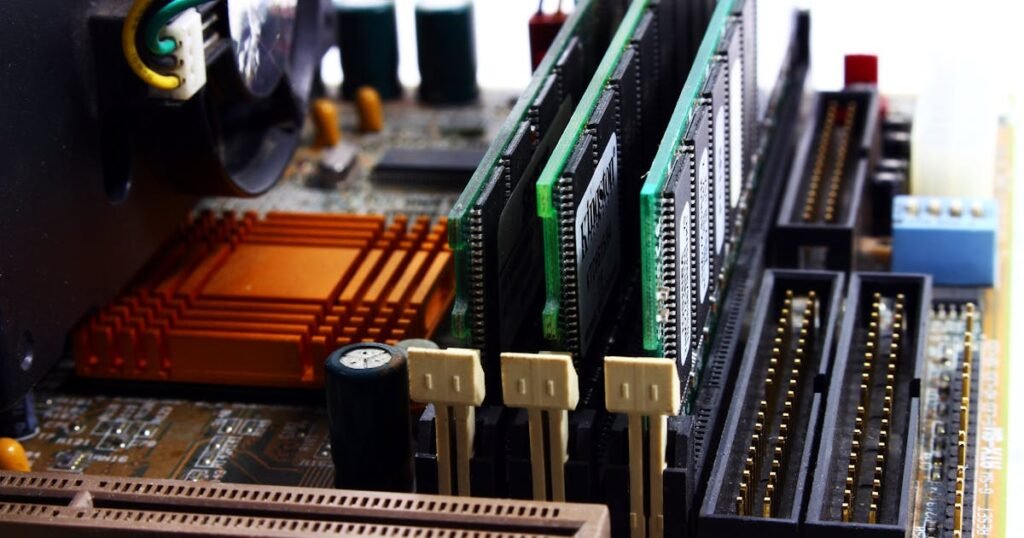
If you hold a DIMM and SODIMM side by side, the SODIMM looks like a stubby, truncated version of the DIMM. This visual difference is your first clue—if you’re buying RAM and the module looks too short, it’s probably not compatible with your desktop.
Can You Use Laptop RAM in a Desktop?
Short answer: No, not without adapters, and adapters are not recommended.
A SODIMM module will not physically fit into a DIMM slot. The slot is wider and longer; the module is too short and has the wrong pin layout. You cannot force a SODIMM into a DIMM slot without risk of damaging both the RAM and the motherboard.
Adapters exist (SODIMM-to-DIMM adapters), but they are niche products intended only for specialised applications (like retrofitting old desktop systems with limited DIMM availability). These adapters are:
- Difficult to source and expensive
- Prone to contact issues and instability
- Not officially supported by motherboard manufacturers
- Risky for expensive RAM or systems
For 99.9% of use cases, simply buy desktop RAM (DIMM) if you’re upgrading a desktop. It’s cheaper, more reliable, and widely available.
Can You Use Desktop RAM in a Laptop?
Short answer: No. Desktop RAM is too physically large to fit in a laptop.
A DIMM module is too long and won’t fit into a SODIMM slot, even partially. Laptop chassis are designed with specific internal constraints; a DIMM-sized module would collide with the keyboard, trackpad, or other internal components.
Unlike SODIMM-to-DIMM adapters (which at least exist, however impractical), there is no adapter to make a DIMM fit in a SODIMM slot. You must buy laptop RAM (SODIMM) if you’re upgrading a laptop.
If you’ve accidentally purchased desktop RAM for a laptop, return it and buy SODIMM instead. Attempting to force a DIMM into a SODIMM slot will damage the module and potentially the laptop motherboard.
Mini PCs and Small Form Factor Systems
Here’s a critical detail: most mini PCs use laptop RAM (SODIMM), not desktop RAM.
Mini PCs are compact by definition. Manufacturers prioritise small chassis over desktop-like expandability. Systems like the Intel NUC, ASUS PN-series, and Zotac Zbox use SODIMM slots to save space, even though they sit on a desk next to a monitor.
This catches many users off guard. You might assume a mini PC—because it’s a “PC” and sits on your desk—uses desktop RAM. It doesn’t. Check your specific mini PC manual before ordering RAM.
Common mini PC brands and their RAM type:
- Intel NUC: SODIMM (laptop RAM)
- ASUS PN50/PN51: SODIMM (laptop RAM)
- Zotac Zbox: SODIMM (laptop RAM)
- Gigabyte Brix: SODIMM (laptop RAM)
- ASRock DeskMini: SODIMM (laptop RAM)
- Lenovo ThinkCentre M90n: SODIMM (laptop RAM)
For a comprehensive guide to mini PC specifications and compatibility, see our Mini PCs compatibility guides.
Performance Differences Between DIMM and SODIMM
There are no performance differences.
This is important to emphasise: a DDR5-5600 SODIMM delivers identical performance to a DDR5-5600 DIMM. The physical form factor does not affect speed, latency, or bandwidth. Both operate at the same voltages and clock frequencies.
The reason they look different is purely practical—space constraints in laptops. If laptops had room for full-size DIMM modules, manufacturers would use them. If desktops were as space-constrained as laptops, manufacturers would use SODIMM in desktops too.
You cannot get a “faster” laptop by using a theoretical desktop-sized module, because such modules don’t exist for laptops. The performance ceiling is determined by the chipset and processor, not the form factor of the RAM.
LPDDR vs SODIMM vs DIMM
There’s a third type of memory you may encounter: LPDDR (Low Power DDR). It’s important to understand how it differs from SODIMM.
What is LPDDR?
LPDDR (Low Power DDR) is memory that is soldered directly to the motherboard. It cannot be removed or upgraded. You’ll find LPDDR in:
- Most Apple MacBooks (M-series processors use soldered memory)
- Ultra-thin laptops and ultrabooks (some brands solder LPDDR4 or LPDDR5 to save space and weight)
- Smartphones and tablets
- Budget laptops (soldering reduces manufacturing costs)
If your laptop has LPDDR memory, you cannot upgrade it. This is a significant limitation compared to laptops with SODIMM slots.
DIMM, SODIMM, and LPDDR Comparison
| Type | Form Factor | Removable? | Typical System | Upgradeable? |
|---|---|---|---|---|
| DIMM | Full-size module, ~133mm long | Yes | Desktop PCs, gaming rigs, workstations | Yes, completely |
| SODIMM | Half-size module, ~67mm long | Yes | Laptops, mini PCs, ultrabooks | Yes (check slot count first) |
| LPDDR | Soldered to motherboard | No | MacBooks, thin ultrabooks, phones | No—locked in at purchase |
When shopping for laptop RAM, always verify whether your system has SODIMM slots or soldered LPDDR. If it’s soldered, your only upgrade path is replacing the entire motherboard—not practical or cost-effective.
CAMM2 — The New Standard Bridging Laptop and Desktop
A new standard called CAMM2 (Connectivity and Modularity Module 2) is emerging as a potential successor to SODIMM in premium laptops and compact systems. CAMM2 is faster, more compact, and mechanically more robust than SODIMM.
However, CAMM2 is still rare (as of 2026). Most laptops still use SODIMM. CAMM2 modules will not fit in SODIMM slots, and SODIMM modules will not fit in CAMM2 slots.
For detailed information on CAMM2 and how it compares to SODIMM, see our guide on CAMM2 RAM explained.
Desktop RAM Buying Basics
If you’re upgrading a desktop, you need DIMM modules. Here are the critical considerations before buying:
Matching Pairs and Dual-Channel
Desktop systems typically benefit from installing RAM in matching pairs in dual-channel configuration. This means:
- Buy two identical 16GB modules (32GB total) rather than one 32GB module
- Install them in alternate slots (slot 1 and slot 3, or as recommended by your motherboard manual)
- Dual-channel gives a 5–10% performance boost compared to single-channel
For most gaming and productivity use, the performance gain is noticeable but not transformative. If your motherboard only has two slots and you want to upgrade later, buying one 32GB module now allows adding another 32GB later.
Motherboard QVL (Qualified Vendor List)
Motherboard manufacturers publish a QVL—a list of RAM modules tested and confirmed compatible with that specific motherboard. Before buying expensive RAM, check your motherboard’s QVL on the manufacturer’s support page (ASUS, MSI, Gigabyte, etc.).
RAM not on the QVL may work, but you’re taking a risk. Incompatible RAM can cause system instability, crashes, or failure to boot—and troubleshooting is difficult.
Maximum Supported Speed
Your motherboard and CPU have a maximum supported RAM speed. For example, an Intel i5-12400 officially supports DDR5-4800. Buying DDR5-6000 RAM will run at 4800, not 6000. Check your chipset’s specifications before spending extra on faster RAM.
How Many RAM Slots Does Your System Have?
| System Type | Typical Slot Count | Notes |
|---|---|---|
| Desktop (consumer) | 2–4 DIMM slots | Budget boards: 2 slots. Mainstream: 4 slots. High-end: sometimes 6 slots. |
| Laptop (standard) | 1–2 SODIMM slots | Budget/thin: 1 slot. Mainstream: 2 slots. Some soldered (not upgradeable). |
| Mini PC | 1–2 SODIMM slots | Most have 2 SODIMM slots, some have 1 soldered + 1 upgradeable. |
| Workstation/Server | 4–12 DIMM slots | High-end workstations and servers can have many slots for 256GB+ total. |
To find your exact slot count, check your system manual or use utilities like CPU-Z (Windows/Linux) or System Information (Mac).
RDIMM vs UDIMM (Registered vs Unbuffered)
When shopping for desktop RAM, you may encounter the terms RDIMM and UDIMM. These refer to how the RAM communicates with the motherboard.
UDIMM (Unbuffered DIMM)
This is standard consumer/gaming RAM. The memory controller on the motherboard directly addresses each memory cell. UDIMM is:
- Cheaper than RDIMM
- Lower latency (fractionally faster)
- Suitable for consumer PCs, gaming rigs, and most workstations
RDIMM (Registered DIMM)
This is server and high-end workstation RAM. A register buffer sits between the memory controller and memory cells, allowing more stable operation with many modules in parallel. RDIMM is:
- More expensive than UDIMM
- Slightly higher latency (negligible in practical use)
- Designed for systems with 8+ RAM slots
- Required for compatibility with server motherboards
Important: RDIMM and UDIMM are not compatible. An RDIMM will not work in a UDIMM slot and vice versa. If you’re building a gaming PC or consumer workstation, buy UDIMM. If you’re configuring a server or high-end workstation, your IT department will specify RDIMM.
Upgrading Desktop vs Laptop RAM — Key Differences
| Factor | Desktop RAM Upgrade | Laptop RAM Upgrade |
|---|---|---|
| Accessibility | Remove side panel (usually 2 screws), pop the RAM clips, slide module out | Remove bottom panel (varies: 10–20 screws), locate SODIMM slot, pop clips, slide out |
| Tools Required | Screwdriver, optional ESD wrist strap | Small screwdriver (usually), optional ESD wrist strap |
| Difficulty | Very easy (5 minutes) | Easy to moderate (depends on laptop design; 10–30 minutes) |
| Risk of Damage | Low (large modules are hard to damage) | Moderate (soldered nearby components, cramped spaces) |
| Slot Count | Typically 2–4 DIMM slots | Typically 1–2 SODIMM slots |
| Maximum Capacity | 256GB+ (some boards support more) | 48GB–96GB (limited by slot count and module availability) |
| Cooling Considerations | RAM runs cool; airflow around modules is beneficial but not critical | RAM is cramped; adjacent components can radiate heat; monitor temps if upgrading to high-speed DDR5 |
| Warranty Risk | Upgrading RAM voids warranty on some boards (check manufacturer) | Upgrading RAM often voids laptop warranty (check manufacturer) |
Upgrading laptop RAM is generally safe if you follow anti-static precautions (wear a wrist strap, work on a non-carpeted surface), but the process is more cramped and time-consuming than upgrading a desktop. Some laptops require removing the entire keyboard or motherboard to access RAM—check reviews or the service manual before buying.
Recommended Products
| Product | Type & Spec | Best For | Amazon |
|---|---|---|---|
| Corsair Vengeance DDR5 DIMM Kit (2x16GB) | Desktop, DDR5-5600, CL36 | Gaming and productivity desktops (mainstream) | Check Price |
| Kingston Fury Impact DDR5 SODIMM | Laptop, DDR5-5600, CL40 | Modern laptop upgrades (2024–2026) | Check Price |
| Crucial DDR4 UDIMM (non-ECC) | Desktop, DDR4-3200, CL22 | Budget desktop upgrades, older systems | Check Price |
| G.Skill Ripjaws DDR5 SODIMM | Laptop, DDR5-6400, CL28 | High-performance laptop builds and ultra-thin systems | Check Price |
| Crucial Pro RDIMM (ECC) | Workstation/Server, DDR5-4800, RDIMM | Professional workstations and small servers | Check Price |
Prices and availability may vary. As an Amazon Associate, we earn from qualifying purchases.
Frequently Asked Questions
Can I put laptop RAM (SODIMM) in a desktop?
No. SODIMM modules are physically too short and have a different pin layout (260 pins for DDR4 SODIMM vs 288 for DIMM). They will not fit in a DIMM slot, and forcing one in will damage both the module and the motherboard. Always buy DIMM for desktops.
Can I put desktop RAM (DIMM) in a laptop?
No. DIMM modules are too long and will collide with internal components. They physically cannot fit in a SODIMM slot. Always buy SODIMM for laptops.
Do mini PCs use laptop or desktop RAM?
Most mini PCs use laptop RAM (SODIMM), including Intel NUC, ASUS PN-series, Zotac Zbox, and Gigabyte Brix. Check your specific model’s manual, as a few high-end mini PCs use desktop RAM (DIMM).
Is desktop RAM faster than laptop RAM?
No. A DDR5-5600 DIMM is identical in speed to a DDR5-5600 SODIMM. The form factor does not affect performance. The physical size difference is purely for space constraints in laptop designs.
How many RAM slots does a desktop have?
Most desktop motherboards have 2–4 DIMM slots. Budget boards have 2, mainstream boards have 4, and high-end boards sometimes have 6 or more. Check your motherboard manual for the exact count.
What is RDIMM, and can I use it in my gaming PC?
RDIMM (Registered DIMM) is server/workstation memory designed for systems with many RAM slots. UDIMM (Unbuffered DIMM) is standard consumer memory. They are not compatible. Gaming PCs require UDIMM. If your motherboard specifies RDIMM, you have a server-class board.
Can I mix DIMM and SODIMM in the same system?
No. A system has either DIMM slots (desktop) or SODIMM slots (laptop/mini PC). You cannot have both in the same system. Attempting to install both types will result in immediate failure or damage.
Related Guides
- Dual-Channel RAM Explained — Why matching pairs matter and how to configure them
- Laptop RAM Compatibility Guide — Find compatible RAM for your specific laptop model
- DDR4 vs DDR5 Laptop RAM — Differences, compatibility, and which you need
- Soldered RAM Explained — LPDDR vs removable RAM and upgradeability
- CAMM2 RAM Explained — The emerging standard replacing SODIMM
- ECC vs Non-ECC Memory — When you need error-correcting RAM
Recommended upgrades
As an Amazon Associate we earn from qualifying purchases. Prices & availability shown on Amazon.
For desktops that use DDR5 DIMMs
For desktops that use DDR4 DIMMs
How we verify this guide
We cross-reference compatibility figures against manufacturer specifications where available, official service manuals, and the standards that govern fit — memory type and speed (DDR4 / DDR5 / LPDDR5), maximum supported capacity and slot count, SSD form factor and interface (M.2 2280, NVMe PCIe vs SATA, keying), and charger wattage and connector (USB-C Power Delivery, GaN). We’re explicit about soldered or non-upgradeable parts, prioritise primary sources over retailer listings, and re-verify the data on a regular cycle. More on our method →