Affiliate disclosure: this page contains affiliate links — if you buy through them we may earn a commission at no extra cost to you. As an Amazon Associate we earn from qualifying purchases.
Your laptop or desktop’s memory performance depends on more than just speed and capacity. One of the most important factors that directly affects how fast your system processes data is whether your RAM is running in single-channel or dual-channel mode. If you’ve ever wondered why your colleague with the same CPU and amount of RAM sometimes gets better performance than you, dual-channel memory might be the answer.
Dual-channel memory can provide a significant boost to system responsiveness, gaming frame rates, and productivity workloads — but only if you know how to set it up correctly. This guide explains exactly what dual-channel RAM is, how it works, why it matters, and how to ensure your system is taking full advantage of it.
What Is Dual-Channel RAM?
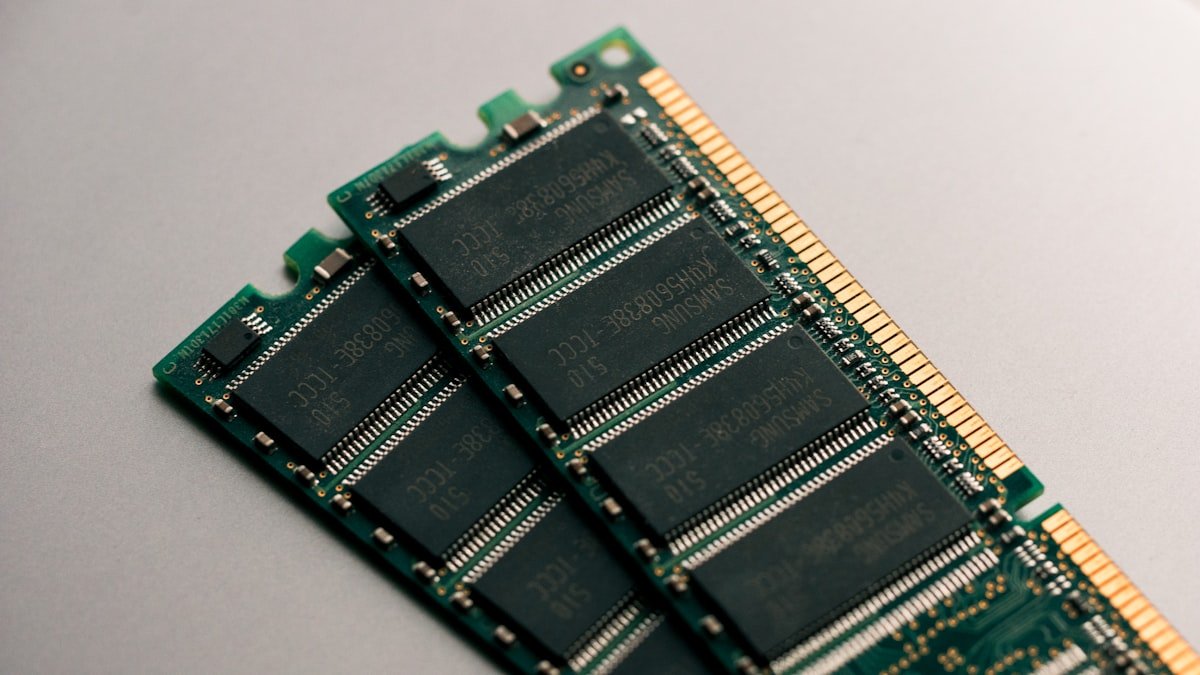
Dual-channel memory means your system has two parallel pathways (channels) connecting your RAM to your memory controller. Instead of all data flowing through a single channel, dual-channel architecture splits the workload, allowing your system to read from and write to memory twice as fast.
Think of it like a two-lane motorway versus a single-lane road. Both can carry cars, but the two-lane road moves traffic significantly faster because data can flow in parallel rather than waiting in a queue.
Modern processors have a built-in memory controller, and most of them support dual-channel memory. However, you can only use dual-channel if you meet two conditions:
- Your motherboard or laptop has at least two memory slots
- Each memory slot has a compatible RAM module installed
A single stick of RAM, no matter how fast, will always run in single-channel mode. You need two sticks to activate dual-channel.
Single-Channel vs Dual-Channel Performance
The performance difference between single-channel and dual-channel is measurable, though how much it impacts your specific workload depends on what you’re doing. Here’s a detailed comparison:
| Specification | Single-Channel | Dual-Channel |
| Memory Bandwidth | ~51 GB/s (DDR4-3200) | ~102 GB/s (DDR4-3200) |
| Gaming FPS Improvement | Baseline | +5-15% (varies by game and GPU) |
| Productivity Tasks | Noticeable lag with large files | Smooth, responsive performance |
| Video Editing (4K) | Stuttering, longer exports | Smoother playback, faster exports |
| 3D Rendering | Slower frame rates | +10-20% faster rendering |
| Multitasking | More noticeable slowdowns | Maintains responsiveness |
In real-world terms, the difference is most noticeable in tasks that move large amounts of data through RAM quickly — video editing, 3D rendering, scientific computing, and gaming with high-end GPUs. For basic web browsing and document editing, you might not perceive a difference, but the system is still more efficient.
How Dual-Channel Works Technically
Understanding the mechanics of dual-channel memory helps explain why it’s so effective. Your processor contains a memory controller — a dedicated chip that manages all communication between the CPU and RAM. Modern memory controllers support multiple channels.
When you install two RAM modules in separate channels, the memory controller interleaves the data. This means consecutive data blocks alternate between the two channels:
- Address 0, 64 bytes — Channel A
- Address 64, 64 bytes — Channel B
- Address 128, 64 bytes — Channel A
- And so on…
This interleaving allows the processor to access the next block of data from one channel while the other is retrieving data, effectively doubling the throughput. The CPU doesn’t have to wait for one channel to complete before accessing the next block — both channels work in parallel.
The key requirement is that the modules are the same speed and capacity. If they’re mismatched, the system can still run, but it drops to a hybrid mode (flex mode, explained below) that loses some benefits.
How to Check If Your System Is Running Dual-Channel
You can easily verify whether your laptop or desktop is running in dual-channel mode using free tools.
Windows — Task Manager Method
- Press Ctrl + Shift + Esc to open Task Manager
- Go to the Performance tab
- Click Memory in the left sidebar
- Look for the “Channels” or “Slots” information
- If it shows 2 slots, 2 used, you’re running dual-channel
- If it shows 1 slot, 1 used, you’re running single-channel
CPU-Z Method (More Detailed)
- Download CPU-Z (free, available on cpuid.com)
- Run the application
- Go to the Memory tab
- Look at the “Channels” field
- It will show “Single” or “Dual”
- The “Size” field shows how much total RAM you have
- The “Part Number” shows each module’s specifications
Linux — Command Line
If you’re running Linux, you can check RAM configuration with:
sudo dmidecode -t memory
This shows all installed memory modules and their slot assignments.
Which Laptops Support Dual-Channel?
Not all laptops can use dual-channel RAM. It depends on whether the RAM is upgradeable (removable SODIMM slots) or soldered to the motherboard.
Laptops with dual-channel upgradeable RAM (most business and gaming models):
- Most Dell XPS and Precision models
- Lenovo ThinkPad series (non-ultrabooks)
- HP Pavilion and Envy gaming models
- ASUS VivoBook and ROG gaming laptops
- Razer Blade (15″ and larger models)
- MSI gaming laptops
Laptops with soldered single-channel RAM (cannot upgrade):
- MacBook Air and Pro (all models)
- Microsoft Surface Laptop (most models)
- Most ultraportable 13″ laptops
- Some budget models
If your laptop has soldered RAM, you’re stuck with single-channel performance. However, if it has two SODIMM slots, you can definitely enable dual-channel by adding a second matching module. See our guide on how to upgrade laptop RAM for detailed instructions.
How to Enable Dual-Channel on Your System
If your system supports it, enabling dual-channel is straightforward. You simply need to install two RAM modules that match in key specifications.
The Essential Rules
Matching capacity: Both modules should have the same capacity. Ideally 8GB + 8GB, 16GB + 16GB, or 32GB + 32GB.
Matching speed: Both modules should be the same speed rating (e.g., DDR5-5600 or DDR4-3200). If they’re different speeds, the faster module will throttle down to match the slower one.
Compatible type: Both must be the same type — either both SODIMM (for laptops) or both UDIMM (for desktops). They cannot be mixed.
Install in alternate slots: On desktops, install modules in slots 2 and 4 (or slots A2 and B2 on some boards) — check your motherboard manual. Most modern boards auto-detect the correct configuration.
Once installed, restart your system. Most modern motherboards automatically detect and enable dual-channel with no BIOS configuration needed. You can verify using the methods above (Task Manager, CPU-Z, etc.).
Common Mistakes That Disable Dual-Channel
- Using modules with different capacities: 8GB + 16GB works but runs in flex mode (see below)
- Using mismatched speeds: DDR5-5600 + DDR5-4800 works but both run at the slower speed
- Installing both modules in adjacent slots: Some boards require alternating slots for dual-channel
- Using one SODIMM and one onboard soldered chip: Disables dual-channel entirely
Mismatched RAM and Flex Mode
What happens if you install two modules with different capacities, like 8GB + 16GB? Your system won’t break — but it enters flex mode.
In flex mode, the first 16GB (matching capacity on both channels) runs in dual-channel mode, and the remaining 8GB runs in single-channel mode. Performance on the full 24GB is:
- First 16GB: Full dual-channel bandwidth
- Final 8GB: Single-channel bandwidth
This is perfectly functional but slightly suboptimal. If you’re upgrading a laptop with 8GB soldered RAM and adding 16GB, you’ll get this configuration automatically and most users won’t notice the performance difference.
Speed mismatches (e.g., DDR5-5600 + DDR5-4800) are also automatically handled: both modules will clock down to the slower speed. To get the most from dual-channel, matching pairs are ideal, but modern systems are very tolerant of mismatches.
Quad-Channel and Beyond
High-end workstations and servers don’t stop at dual-channel. Quad-channel memory (four parallel channels) is common in professional systems and provides even more bandwidth for tasks like 3D rendering and scientific computing.
Quad-channel platforms include:
- Intel Xeon W-series workstations: Quad-channel DDR5
- AMD Threadripper Pro: Quad-channel DDR5
- Intel Xeon server CPUs: Up to 12-channel memory
- AMD EPYC servers: Up to 12-channel memory
For most users, dual-channel is the sweet spot between performance and cost. Quad-channel systems are specialized and expensive, making them suitable only for professional workloads where the investment justifies the bandwidth increase. For more information on memory technologies, see our guide on DDR4 vs DDR5 laptop RAM.
Recommended RAM Modules for Dual-Channel Setup
| Product | Type | Capacity | Speed | Best For |
| Corsair Vengeance DDR5 SODIMM | SODIMM | 16GB (Kit) | DDR5-5600 | Gaming laptops, general use |
| Kingston Fury Impact DDR4 SODIMM | SODIMM | 16GB (Kit) | DDR4-3200 | Budget upgrades, DDR4 laptops |
| Crucial DDR5 SODIMM | SODIMM | 16GB (Kit) | DDR5-5600 | Ultrabooks, ultraportables |
| G.Skill Trident Z5 DDR5 Desktop | UDIMM | 32GB (Kit) | DDR5-6000 | Gaming desktops, content creation |
| Samsung M471 DDR5 SODIMM | SODIMM | 16GB (Kit) | DDR5-5600 | Premium laptops, stable performance |
Prices and availability may vary. As an Amazon Associate, we earn from qualifying purchases.
Frequently Asked Questions
Does dual-channel RAM really make a difference for gaming?
Yes, but the impact depends on your GPU. Dual-channel can provide 5-15% more FPS in CPU-limited scenarios, especially with high-end graphics cards in esports titles or 1440p gaming. In GPU-bound games, the difference is minimal. If your gaming laptop or desktop is already bottlenecked by the GPU, dual-channel won’t help much. However, upgrading from single-channel to dual-channel is one of the most cost-effective performance upgrades you can make.
Can I mix an 8GB and 16GB stick in dual-channel?
Yes, you can install an 8GB and 16GB stick together. The system will run in flex mode: the first 16GB runs in dual-channel (using 8GB from each stick), and the final 8GB runs in single-channel. For most users, this provides acceptable performance. However, for optimal performance, matching capacities are recommended.
How do I know if my laptop supports dual-channel?
Check if your laptop has two SODIMM slots. Most business laptops (ThinkPad, Dell Latitude, HP EliteBook) and gaming laptops support this. Ultraportables and MacBooks typically don’t. Look up your exact model’s specifications, or read our guide on upgrading laptop RAM for model-specific information.
Does dual-channel work with DDR5?
Absolutely. Dual-channel works with DDR5 the same way it does with DDR4. In fact, DDR5’s higher bandwidth makes dual-channel even more important for demanding workloads. For detailed comparisons, see our DDR4 vs DDR5 comparison guide.
What about flex mode — is it worth using?
Flex mode works and is perfectly safe. If you’re upgrading a laptop with 8GB soldered RAM and adding 16GB, you’ll automatically get flex mode (8GB soldered + 8GB upgradeable = 8GB + 8GB dual-channel, plus 8GB single-channel from the SODIMM). For most users, the performance difference between full dual-channel and flex mode is imperceptible. The priority is having enough total RAM for your workload.
Related Guides
- DDR4 vs DDR5 Laptop RAM — Which Is Better?
- Laptop RAM Speed Compatibility — Does It Matter?
- 8GB vs 16GB vs 32GB Laptop RAM — How Much Do You Need?
- How to Upgrade Laptop RAM — Step-by-Step Guide
- Laptop RAM Compatibility Guide
Recommended upgrades
As an Amazon Associate we earn from qualifying purchases. Prices & availability shown on Amazon.
For laptops and mini PCs that use DDR5 SO-DIMM
For laptops and mini PCs that use DDR4 SO-DIMM
How we verify this guide
We cross-reference compatibility figures against manufacturer specifications where available, official service manuals, and the standards that govern fit — memory type and speed (DDR4 / DDR5 / LPDDR5), maximum supported capacity and slot count, SSD form factor and interface (M.2 2280, NVMe PCIe vs SATA, keying), and charger wattage and connector (USB-C Power Delivery, GaN). We’re explicit about soldered or non-upgradeable parts, prioritise primary sources over retailer listings, and re-verify the data on a regular cycle. More on our method →