

Affiliate disclosure: this page contains affiliate links — if you buy through them we may earn a commission at no extra cost to you. As an Amazon Associate we earn from qualifying purchases.
SSD Not Showing Up After Installation — Complete Troubleshooting Guide
You installed a new SSD into your laptop, booted it up, and it’s nowhere to be found. BIOS doesn’t show it, Windows doesn’t see it, and Disk Management is completely blank. This is frustrating, but like most upgrade issues, it’s almost always a simple fix.
We’ll walk you through diagnosing exactly what’s wrong — whether the drive isn’t being detected by BIOS, needs to be initialised in Windows, or if there’s a physical connection issue. By the end of this guide, you’ll have your new SSD working.
Quick Diagnosis: Where Is Your SSD Not Showing Up?
| Situation | What This Means | Go to Section |
| BIOS doesn’t show the new SSD at all | Drive isn’t being detected by the system — connection, seating, or compatibility issue | SSD Not Showing in BIOS |
| BIOS shows the SSD but Windows doesn’t | Drive is fine; Windows needs to initialise it as a new disk | SSD Shows in BIOS But Not Windows |
| Disk Management shows the drive but it has no drive letter | Normal for new drives — need to initialise and assign a letter | SSD Shows in BIOS But Not Windows |
| You have an NVMe drive and it won’t show in BIOS | M.2 slot may be disabled, or wrong key type — see NVMe section | NVMe vs SATA Detection Issues |
SSD Not Showing in BIOS — Physical Connection Issues
If BIOS doesn’t detect your SSD at all, it’s a physical problem. The drive either isn’t seated properly, is in the wrong slot, or has a connectivity issue.
Step 1: Check Physical Seating (NVMe M.2 Drives)
NVMe drives sit at an angle in the M.2 slot. If not fully seated, BIOS won’t detect them.
- Power off and unplug your laptop.
- Open the access panel (usually 1–4 screws).
- Locate the M.2 slot — it’s a small, rectangular slot on the motherboard, usually near the middle or top-right.
- If there’s a screw or standoff at the end of the M.2 slot, unscrew it slightly.
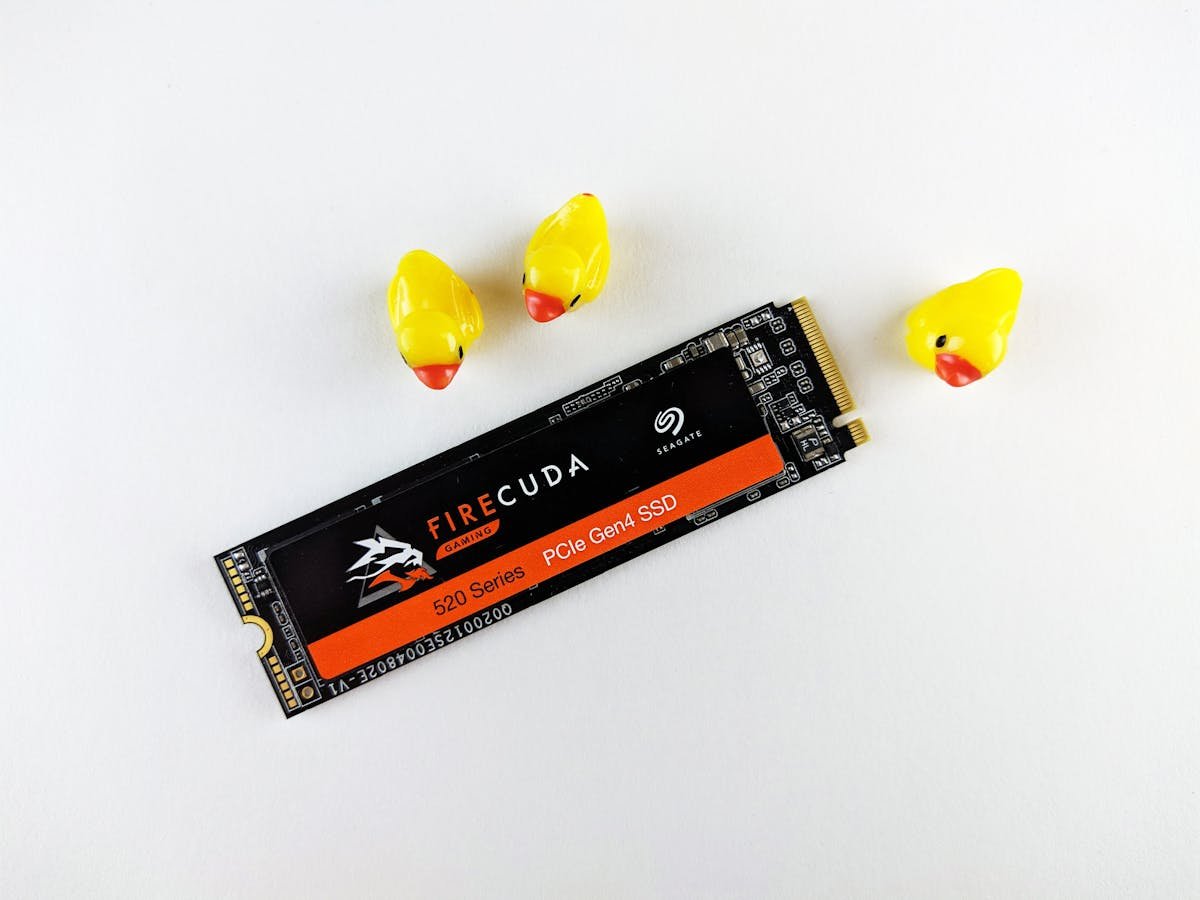
- Locate your new SSD — it’s a small stick about the size of a stick of chewing gum.
- Insert the SSD at a 45-degree angle into the M.2 slot.
- Press down firmly and screw the retention screw back in (snug but not over-tight).
- Close the panel and power on.
- Enter BIOS (F2, Del, or F1 depending on your brand — press it repeatedly during startup) and check if the drive is now detected.
If you hear the screw click tight and the SSD is firmly seated, but BIOS still doesn’t see it, move to Step 2.
Step 2: Check M.2 Slot Configuration in BIOS
Some laptops allow you to disable M.2 slots. Yours might be disabled.
- Enter BIOS during startup (press F2, Del, F1, or Esc+F10 repeatedly).
- Look for a tab called “Advanced,” “Integrated Peripherals,” “Onboard Devices,” or “Storage Configuration.”
- Find an option like “M.2 Slot,” “NVMe,” or “SATA Mode.”
- If it says “Disabled,” change it to “Enabled” or “Auto.”
- Save changes (usually Ctrl+S or F10) and exit BIOS.
- Restart and check if the SSD is now detected.
Most laptops have this setting enabled by default, but some manufacturers disable it to save power or prevent conflicts with other storage devices.
Step 3: Check M.2 Key Type (NVMe vs SATA — Rare, But Possible)
M.2 drives come in two key types: NVMe (B+M key) and SATA (B key). They’re physically different and won’t fit in the wrong slot.
- NVMe drive — Has a notch roughly in the middle of the bottom edge (B+M key).
- SATA drive — Has a notch slightly offset towards one end (B key only).
Most modern laptops only have NVMe slots. However, if you have a desktop or older laptop with both types of slots, verify you’re installing the correct type.
Check your laptop’s specifications:
- Visit your laptop manufacturer’s support page.
- Search for your model and find the “Storage” or “Memory” specifications.
- It will say “NVMe,” “SATA,” or both.
If your specs say “NVMe only” but you installed a SATA M.2 drive, that’s your problem — you’ll need an NVMe drive instead.
Step 4: Check SATA Cable Connection (2.5-Inch SATA Drives)
If you’re installing a traditional 2.5-inch SATA SSD (not M.2), make sure both the data cable and power cable are fully connected.
- Power off and unplug.
- Open the access panel.
- Locate your 2.5-inch SSD — it’s a flat, rectangular drive about the size of a book.
- Check the SATA data cable (thin ribbon cable) — unplug it and plug it back in firmly. You should feel a click.
- Check the SATA power cable (wider connector with 4 or more pins) — do the same.
- If the connector is damaged or corroded, the drive won’t be detected. In that case, you’ll need a new cable or SATA adapter.
- Close the panel and power on.
- Check BIOS again.
If cables are connected but BIOS still doesn’t see the drive, move to Step 5.
Step 5: Test with an External Enclosure
If BIOS won’t detect your SSD after trying all the above, test whether the drive itself is faulty or if it’s a laptop connectivity issue.
- Power off and unplug your laptop.
- Remove the SSD.
- Use an NVMe USB enclosure (for NVMe drives) or a USB-to-SATA adapter (for 2.5-inch drives).
- Insert the SSD into the enclosure or connect it to the adapter.
- Plug the USB cable into another computer (not your laptop).
- If the other computer detects the drive, your SSD is fine and the issue is with your laptop’s connectivity.
- If the other computer doesn’t detect it either, your SSD is likely faulty and needs to be returned.
This test definitively tells you if the problem is the drive or the laptop.
SSD Shows in BIOS But Not in Windows — Initialisation Required
If BIOS detects your SSD but Windows doesn’t show it in File Explorer, the drive is fine — it simply needs to be initialised as a new disk before Windows will recognise it.
What Initialisation Means
When a brand-new SSD is first detected by Windows, the OS treats it as an unknown disk that hasn’t been set up yet. Initialisation assigns a drive letter and file system, making the drive usable in Windows.
This is 100% normal and expected. You haven’t missed anything — this is just the final setup step.
How to Initialise Your SSD in Windows
- Open Disk Management:
- Windows 10/11: Right-click “This PC” → Manage → Storage → Disk Management (or press Windows+X, select Disk Management)
- Alternatively: Press Windows+R, type `diskmgmt.msc`, and press Enter
- In Disk Management, you’ll see your new SSD listed. It will likely show as “Unknown” or “Not Initialised” with a red exclamation mark or black bar.
- Right-click on the SSD entry (not the volume bar, but the drive itself on the left side of the window).
- Select Initialise Disk.
- A dialog box will ask you to choose between MBR (Master Boot Record) or GPT (GUID Partition Table). For modern systems, choose GPT (unless you’re on an older system or need MBR for compatibility).
- Click OK.
- Windows will initialise the disk (usually takes a few seconds).
- Right-click on the new unallocated space and select New Simple Volume.
- Follow the wizard to assign a drive letter and format the drive (NTFS is the standard for Windows).
- Once complete, your SSD will appear in File Explorer with a drive letter (e.g., E:, F:, etc.).
That’s it — your SSD is now ready to use.
Can’t Find Disk Management?
If Disk Management doesn’t show your drive even though BIOS does, try:
- Restart Windows — Sometimes a fresh boot helps Windows detect the drive.
- Update BIOS — Your BIOS version might need updating to fully support the new drive.
- Check BIOS storage mode — Ensure the BIOS is set to the correct storage mode for your drive (AHCI for SATA, NVMe mode for NVMe).
NVMe vs SATA Detection Issues — What You Need to Know
NVMe and SATA drives are detected differently by BIOS, and each has specific troubleshooting steps.
NVMe Detection Troubleshooting
Symptom: NVMe SSD not showing in BIOS.
Quick checks:
- Reseat the drive (it should be level, not at an extreme angle).
- Check BIOS to ensure the M.2 slot is enabled (not disabled).
- Look for a “NVMe Mode” setting in BIOS and ensure it’s set to “Enabled” or “Auto.”
- Some laptops have multiple M.2 slots — try a different slot if available.
Advanced check:
- Visit your laptop manufacturer’s website and download the latest BIOS update.
- Older BIOS versions sometimes don’t recognise newer, high-capacity NVMe drives (e.g., 2TB or 4TB models).
- Updating the BIOS can resolve detection issues.
SATA Detection Troubleshooting
Symptom: SATA SSD not showing in BIOS.
Quick checks:
- Verify both the data cable and power cable are fully connected.
- Check BIOS for a “SATA Mode” setting — ensure it’s set to “AHCI” (not “IDE” or legacy mode).
- If your laptop has a built-in SATA port and an M.2 SATA slot, try both and see if one works better.
Why SATA might not show:
- SATA cables can be loose or corroded, especially in older laptops.
- Some laptops automatically disable SATA when an NVMe drive is detected (to save power or avoid conflicts).
- Check your laptop’s manual to see if there’s a setting for this in BIOS.
Laptop-Specific Troubleshooting
Different laptop brands have different storage configurations. Here are brand-specific notes:
Dell Laptops
- Dell often disables the second M.2 slot by default. Go to BIOS → System Configuration → Onboard Devices → M.2 Slot (secondary) and set it to Enabled.
- If you see “SATA Mode: Disabled” in BIOS, enable it if you’re installing a SATA drive.
HP Laptops
- HP laptops sometimes need a BIOS update to recognise high-capacity NVMe drives. Check HP Support for your model and download the latest BIOS.
- In BIOS, look for Advanced → Onboard Devices → M.2 SSD and ensure it’s enabled.
Lenovo Laptops
- Lenovo ThinkPads often require the SSD to be “activated” in BIOS. Go to Security → I/O Port Access and ensure M.2 slots are not blocked.
- Also check that the Storage Controller is set to AHCI (not RAID).
ASUS Laptops
- ASUS often supports multiple M.2 slots. If the primary slot doesn’t work, try the secondary slot.
- In BIOS, look for Advanced → Onboard Devices → M.2_1 and M.2_2 to enable/disable them.
Apple MacBooks
- Older MacBooks (2015 and earlier) support SSD upgrades. Newer models (2016+) have soldered storage and can’t be upgraded.
- Mac SSDs use a proprietary connector — you can’t use standard NVMe drives. You’ll need Apple-compatible SSDs (from brands like OWC or Transcend).
- Once installed, restart and go to Apple Menu → System Settings → Storage to verify the new drive appears.
Desktop SATA Connection Checks
If you’re troubleshooting a desktop (not a laptop), here are additional checks:
SATA Port and Cable Verification
- Is the SATA port functional? Try connecting the SSD to a different SATA port on the motherboard. Some ports can fail.
- Is the cable damaged? Look for bent, corroded, or melted connectors. If damaged, replace the cable.
- Is the power supply plugged in? Verify the SSD is receiving power via the SATA power cable.
- Is the motherboard in AHCI mode? Check BIOS for Storage → SATA Mode and ensure it’s set to AHCI (not IDE or RAID).
NVMe Slot Check (Desktops)
- Some desktop motherboards have M.2 slots that share bandwidth with SATA ports. Disabling SATA mode in BIOS can free up bandwidth for NVMe.
- Check your motherboard manual to see if this applies.
Mac SSD Issues — Special Considerations
If you have a MacBook, SSD installation and detection differs from Windows laptops.
Mac SSD Compatibility
- Pre-2016 MacBooks: Support standard NVMe M.2 SSDs. However, you’ll likely need an adapter to connect third-party NVMe drives to Apple’s proprietary connector.
- 2016+ MacBooks: Have soldered storage that can’t be upgraded. You cannot install a new SSD yourself.
- iMacs and Mac minis: Support standard NVMe drives in M.2 slots. Installation is similar to desktops.
Verify Mac Detects the SSD
- Restart your Mac and hold Command+Option+R during startup to enter Recovery Mode.
- Go to Utilities → Disk Utility.
- Look for your new SSD in the sidebar. If it appears here, the drive is detected.
- If it doesn’t appear in Disk Utility, the drive isn’t being recognised by the system — check physical seating and try another slot.
Initialise the SSD on Mac
- In Disk Utility, select your new SSD in the sidebar.
- Click the “Erase” button in the toolbar.
- Give it a name and choose a file system (APFS for modern Macs, HFS+ for older systems).
- Click Erase.
- Once complete, the SSD will appear in Finder as a new drive.
Testing with an External Enclosure — Diagnostic Guide
An external USB enclosure is one of the most useful tools for diagnosing SSD issues. Here’s how to use it properly:
What You Need
- NVMe USB enclosure (for NVMe drives)
- USB-to-SATA adapter (for 2.5-inch SATA drives)
- A working computer (laptop or desktop with a USB port)
Testing Steps
- Insert your SSD into the external enclosure.
- Connect the enclosure to a different computer via USB.
- On that computer, open Disk Management (Windows) or Disk Utility (Mac).
- If the external computer detects your SSD, the drive is fine and the issue is with your laptop’s internal connection.
- If the external computer also doesn’t detect it, your SSD is faulty and needs to be returned.
This is the fastest way to isolate whether the problem is hardware (the SSD) or the laptop’s storage controller.
Frequently Asked Questions
Why does my new SSD appear in Disk Management but not in File Explorer?
It needs to be initialised and assigned a drive letter. Right-click on the drive in Disk Management, select “Initialise Disk,” then create a new volume and assign it a drive letter. Once complete, it will appear in File Explorer.
Can I use a SATA M.2 drive in an NVMe slot?
No. SATA M.2 drives (B key) and NVMe drives (B+M key) have different notches and won’t fit in each other’s slots. Check your laptop’s specifications to determine which type it supports, then purchase the correct one.
Do I need to format my new SSD?
Yes, before you can use it. Windows requires you to initialise the disk and create a volume (during which you’ll choose a file system, usually NTFS). This is done in Disk Management. On Mac, use Disk Utility.
Is it safe to force-shutdown my laptop if the new SSD isn’t detected?
Yes, force-shutdowns won’t damage the SSD. However, if Windows was in the middle of writing data when you shut down, you might have corrupted files. Always use a normal shutdown when possible.
My external enclosure shows the SSD, but my laptop doesn’t — what’s wrong?
Your SSD is fine; your laptop has a connectivity issue. This could be:
- A loose SATA cable (for 2.5-inch drives)
- An M.2 slot that’s physically damaged
- A disabled M.2 slot in BIOS
- An outdated BIOS that doesn’t recognise your drive’s capacity
Does the SSD’s speed affect whether it’s detected?
No. Detection is purely a matter of physical connection and BIOS recognition. Speed (e.g., PCIe Gen3 vs Gen4) is separate from detection.
Can I have multiple M.2 SSDs in one laptop?
Some modern laptops support it, but not all. Check your laptop’s specifications. If it lists “2x M.2 slots” or similar, you can install multiple drives. If it lists “1x M.2,” you can only use one.
Recommended SSD & Diagnostic Products
| Product | Why We Recommend It | Amazon |
| Samsung 990 EVO NVMe SSD 1TB | High-performance NVMe drive with excellent compatibility. Samsung SSDs are widely recognised by BIOS and rarely cause detection issues. Reliable, fast, and future-proof. | View on Amazon |
| WD Black SN850X 1TB | Western Digital’s flagship NVMe drive. WD is trusted worldwide and SSDs are detected reliably by most BIOS versions. Excellent performance. | View on Amazon |
| Kingston NV2 1TB | Kingston’s reliable NVMe drive. Kingston has wide BIOS compatibility and excellent warranty. Good value for a trusted brand. | View on Amazon |
| Crucial P5 Plus 1TB | Crucial (Micron) makes reliable SSDs with broad compatibility. Mid-range performance and pricing, excellent for users upgrading from traditional hard drives. | View on Amazon |
| NVMe USB Enclosure | Essential diagnostic tool. Test whether your new SSD is faulty by connecting it to another computer via USB. Definitively isolates hardware problems. | View on Amazon |
| USB-to-SATA Adapter | For testing 2.5-inch SATA SSDs on another computer. Works with any USB port and is much cheaper than an enclosure. | View on Amazon |
| Anti-Static Wrist Strap | Protects your SSD and motherboard from electrostatic discharge (ESD) during installation. Essential for any storage upgrade. | View on Amazon |
| Precision Screwdriver Set | Most laptops use tiny screws to secure the SSD. A magnetic precision set prevents dropping screws inside your system. | View on Amazon |
| Spudger Toolkit | Safely pry open laptop cases and M.2 slot covers without damaging plastic or scratching the motherboard. | View on Amazon |
| Thermal Pads (SSD) | Some high-performance NVMe drives benefit from thermal pads to improve heat dissipation. Optional but recommended if your SSD has a bare controller. | View on Amazon |
Prices and availability may vary. As an Amazon Associate, we earn from qualifying purchases.
Related Troubleshooting Guides
- Laptop Upgrade Troubleshooting Hub — Complete guide covering all RAM and SSD upgrade issues in one place.
- RAM Not Recognised After Upgrade — Step-by-step troubleshooting for undetected memory, partial RAM detection, and compatibility problems.
- Laptop Won’t Boot After RAM Upgrade — Recovery guide for boot failures, beeping codes, and CMOS resets.
- Laptop SSD Compatibility Guide — Verify M.2 slot types, NVMe vs SATA support, and drive compatibility with your laptop model.
Recommended upgrades
As an Amazon Associate we earn from qualifying purchases. Prices & availability shown on Amazon.
M.2 2280 NVMe SSDs
How we verify this guide
We cross-reference compatibility figures against manufacturer specifications where available, official service manuals, and the standards that govern fit — memory type and speed (DDR4 / DDR5 / LPDDR5), maximum supported capacity and slot count, SSD form factor and interface (M.2 2280, NVMe PCIe vs SATA, keying), and charger wattage and connector (USB-C Power Delivery, GaN). We’re explicit about soldered or non-upgradeable parts, prioritise primary sources over retailer listings, and re-verify the data on a regular cycle. More on our method →

