Affiliate disclosure: this page contains affiliate links — if you buy through them we may earn a commission at no extra cost to you. As an Amazon Associate we earn from qualifying purchases.
The ASUS VivoBook 15 X515 (2021) is upgradeable with DDR4-3200 (1 slot + soldered) SODIMM RAM and supports up to 20GB (X515EA) across 1 slot. This guide covers RAM and SSD upgrade options.
ASUS VivoBook 15 X515 Specifications
| Specification | Details |
|---|---|
| Processor | 11th Gen Intel |
| Release Year | 2021 |
| RAM Type | DDR4-3200 (1 slot + soldered) |
| RAM Slots | 1 |
| Maximum RAM | 20GB (X515EA) |
| Storage | M.2 2280 NVMe PCIe 3.0 |
ASUS VivoBook 15 X515 RAM Upgrade Guide
Compatible RAM
The ASUS VivoBook 15 X515 uses DDR4-3200 (1 slot + soldered) SODIMM modules. With 1 slot, you can install up to 20GB (X515EA) of RAM.
Recommended Configurations
| Configuration | Total RAM | Modules |
|---|---|---|
| Standard | 16GB | 1 × 16GB SODIMM |
| Maximum | 32GB | 1 × 32GB SODIMM |
Installation Steps
- Shut down the laptop and disconnect the charger
- Remove the bottom panel screws (refer to your service manual for screw locations)
- Carefully pry off the bottom panel using a plastic spudger
- Disconnect the battery connector from the motherboard for safety
- Locate the RAM slot(s) — they are typically covered by a metal shield or near the centre of the board
- To remove existing RAM: push the retention clips outward and the module will pop up at an angle
- Insert the new SODIMM at a 30-degree angle, aligning the notch with the slot key
- Press down until the retention clips click into place
- Reconnect the battery, replace the bottom panel, and power on
- Verify in Task Manager (Ctrl+Shift+Esc → Performance → Memory) that the new RAM is detected
ASUS VivoBook 15 X515 SSD Upgrade
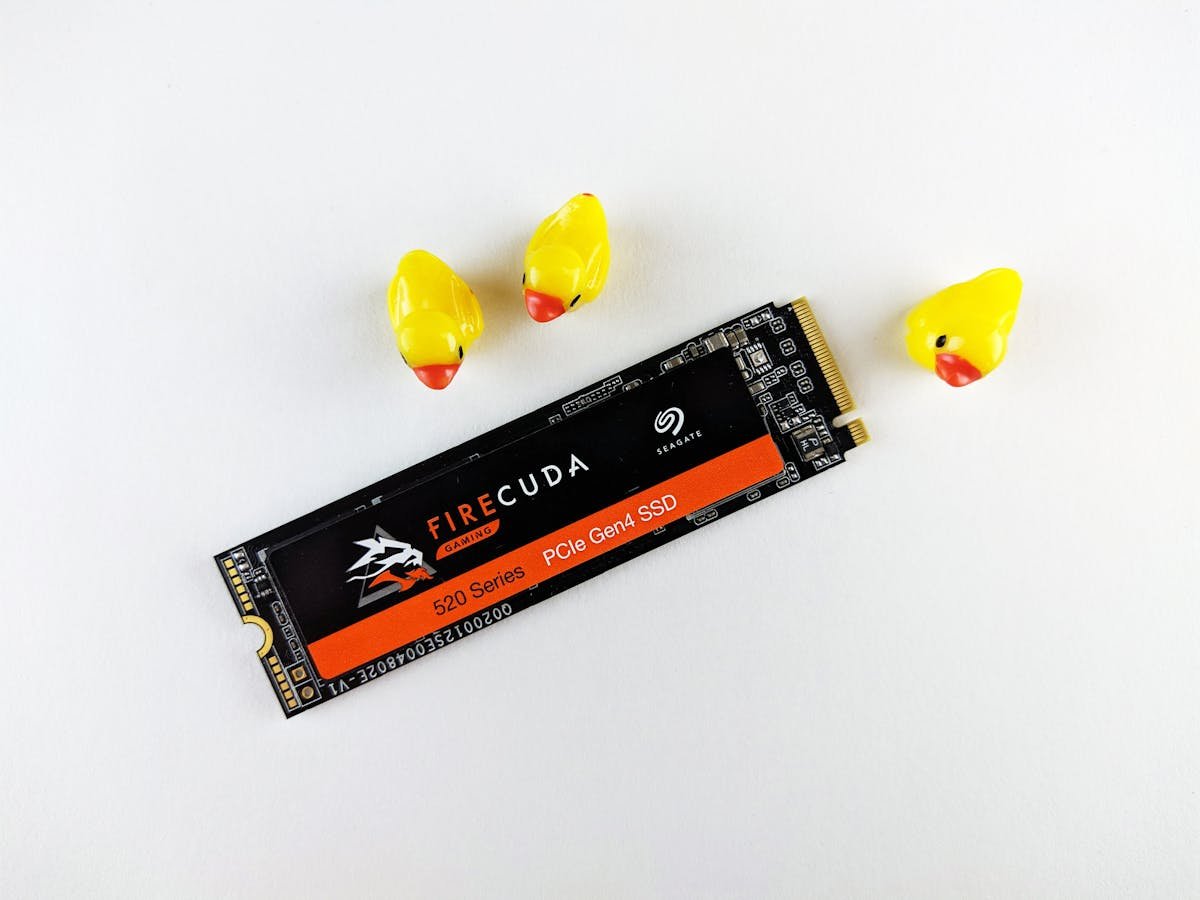
The ASUS VivoBook 15 X515 supports M.2 2280 NVMe PCIe 3.0 solid state drives. Upgrading the SSD is one of the best performance improvements you can make, especially if the laptop came with a smaller capacity drive.
SSD Installation
- Shut down and remove the bottom panel as described above
- Locate the M.2 SSD slot (usually secured with a single screw)
- Remove the retaining screw and carefully slide the existing SSD out at an angle
- Insert the new M.2 NVMe SSD at a 30-degree angle
- Press down flat and secure with the retaining screw
- Reassemble the laptop and install your operating system
Recommended Upgrade Products
| Product | Type | Best For | Link |
|---|---|---|---|
| Crucial 16GB DDR4-3200 SODIMM | RAM | 16GB stick | Shop |
| Kingston Fury Impact 16GB DDR4-3200 SODIMM | RAM | 16GB stick | Shop |
| Corsair Vengeance 32GB DDR4-3200 SODIMM Kit | RAM | 32GB kit (2×16GB) | Shop |
| Samsung 970 EVO Plus 1TB NVMe | SSD | High performance | Shop |
| WD Blue SN570 1TB NVMe | SSD | Great value | Shop |
| Crucial P3 Plus 1TB NVMe | SSD | Budget NVMe | Shop |
Prices and availability may vary. As an Amazon Associate, we earn from qualifying purchases.
Frequently Asked Questions
Q: What is the maximum RAM for the ASUS VivoBook 15 X515?
A: The ASUS VivoBook 15 X515 supports up to 20GB (X515EA) of DDR4-3200 (1 slot + soldered) RAM across 1 SODIMM slot.
Q: Can I upgrade the RAM in the ASUS VivoBook 15 X515?
A: Yes, the ASUS VivoBook 15 X515 has 1 accessible SODIMM slot. You can upgrade by removing the bottom panel and inserting compatible DDR4-3200 (1 slot + soldered) modules.
Q: What SSD does the ASUS VivoBook 15 X515 use?
A: The ASUS VivoBook 15 X515 uses a M.2 2280 NVMe PCIe 3.0 solid state drive. You can replace it with any compatible M.2 drive for more storage.
Q: How do I check my current RAM and storage?
A: Open Task Manager (Ctrl+Shift+Esc), click Performance, then check Memory and Disk tabs. For detailed specs, use CPU-Z (free utility).
Q: Is the ASUS VivoBook 15 X515 worth upgrading?
A: Adding more RAM and a larger SSD can significantly extend the useful life of the ASUS VivoBook 15 X515. A RAM upgrade improves multitasking, while an SSD upgrade provides more storage and faster boot times.
Related Guides
- ASUS Laptop Upgrade Guide
- RAM Compatibility Guide 2026
- SSD Compatibility Guide 2026
- Laptop Battery Replacement Guide
Recommended upgrades
As an Amazon Associate we earn from qualifying purchases. Prices & availability shown on Amazon.
For laptops and mini PCs that use DDR5 SO-DIMM
For laptops and mini PCs that use DDR4 SO-DIMM
M.2 2280 NVMe SSDs
How we verify this guide
We cross-reference compatibility figures against manufacturer specifications where available, official service manuals, and the standards that govern fit — memory type and speed (DDR4 / DDR5 / LPDDR5), maximum supported capacity and slot count, SSD form factor and interface (M.2 2280, NVMe PCIe vs SATA, keying), and charger wattage and connector (USB-C Power Delivery, GaN). We’re explicit about soldered or non-upgradeable parts, prioritise primary sources over retailer listings, and re-verify the data on a regular cycle. More on our method →