Lenovo ThinkPads are built for upgrades, and the easiest place to start is the SSD. All modern ThinkPads use standard M.2 2280 NVMe drives in their primary slot, which means you have complete freedom to choose from the best SSDs on the market. Whether you’re looking for raw speed, value, or large capacity, there’s an SSD that fits your ThinkPad perfectly.
In this guide, we’ll compare the top performers across budget, value, and performance tiers—and we’ll highlight the one model (X1 Nano) that breaks the mould with its tiny 2230 form factor. Let’s find your ideal upgrade.
ThinkPad SSD Compatibility at a Glance

| ThinkPad Model | Primary Slot | Secondary Slot | Best For |
|---|---|---|---|
| T14 Gen 4 | M.2 2280 NVMe Gen 4 | None | Business users, ultra-portable |
| T14s Gen 4 | M.2 2280 NVMe Gen 4 | None | Performance + portability |
| T16 Gen 2 | M.2 2280 NVMe Gen 4 | M.2 2280 NVMe Gen 4 | Professionals, dual SSD setup |
| X1 Carbon Gen 12 | M.2 2280 NVMe Gen 4 | None | Ultrabook, lightweight |
| X1 Extreme Gen 6 | M.2 2280 NVMe Gen 4 | M.2 2280 NVMe Gen 4 | High-end mobile workstation |
| L14 Gen 7 | M.2 2280 NVMe Gen 4 | None | Budget business laptop |
| P16 Gen 2 | M.2 2280 NVMe Gen 4 | M.2 2280 NVMe Gen 4 | Professional workstation |
| X1 Nano Gen 3 | M.2 2230 NVMe Gen 4 | None | Ultra-compact, limited space |
Key takeaway: Most ThinkPads use M.2 2280 NVMe Gen 4 in their main slot. The X1 Nano is the exception—it uses a smaller 2230 form factor. We’ll cover both below.
Best Overall: Samsung 990 Pro 1TB
For raw speed and reliability, the Samsung 990 Pro is the gold standard. This PCIe Gen 4 drive delivers consistent sequential speeds of 7,100 MB/s and random performance that crushes workloads like video editing, compiling, and large file transfers. Samsung’s reputation for quality control and their 5-year warranty make this the safest choice if you want the fastest experience.
The 1TB capacity is ideal for most ThinkPad users—enough for your OS, applications, and a decent library of projects without bloat. It runs cool and stays silent even under sustained load, a real benefit in a laptop where thermal noise matters.
Buy Samsung 990 Pro 1TB on Amazon UK
Best Value: WD Black SN770 1TB
The WD Black SN770 is our pick for users who want serious performance without the premium price. This drive hits 7,100 MB/s sequential speeds (matching the Samsung 990 Pro) but costs significantly less. Western Digital’s track record and thermal performance make this a no-brainer for the money.
It’s nearly indistinguishable from the Samsung in real-world use—boot times, application launch, file transfers all feel identical. The difference only shows up in sustained benchmarks. For a ThinkPad user doing office work, development, or content creation, you won’t feel the gap.
Buy WD Black SN770 1TB on Amazon UK
Best Budget: Kingston NV2 1TB
If your priority is price, the Kingston NV2 delivers solid performance at a fraction of the cost. It’s a Gen 4 drive with speeds around 3,500 MB/s—about half the high-end drives, but still far faster than SATA SSDs or hard drives. For everyday use (browsing, email, documents, light video work), you won’t notice the difference.
Kingston’s reliability is solid, and this drive comes with a 5-year warranty. It’s particularly good if you’re upgrading from a slower SATA drive or HDD—the jump will feel massive even though this isn’t a flagship model.
Buy Kingston NV2 1TB on Amazon UK
Best for Large Capacity: Crucial T500 2TB
Need more space? The Crucial T500 2TB delivers excellent performance at the 2TB tier. With speeds up to 7,400 MB/s and Crucial’s reputation for stability, this drive gives you enough room for your entire work library without compromises. 2TB is genuinely useful if you work with large video files, virtual machines, or large dataset folders.
At 2TB, you’re paying more per gigabyte than 1TB drives, but you’re also doubling your usable space. This is especially useful on ThinkPads with two M.2 slots (T16, X1 Extreme, P16)—pair one with a 1TB Samsung 990 Pro and a 2TB Crucial T500 for a beast of a system.
Buy Crucial T500 2TB on Amazon UK
Best for X1 Nano: Western Digital SN740 256GB / 512GB 2230
The X1 Nano Gen 3 is unique—it uses a 2230 form factor SSD instead of the standard 2280. This smaller drive fits the Nano’s ultra-compact 13-inch design. Your options are limited, but the Western Digital SN740 2230 is the best available.
Note: The 2230 form factor has lower capacity options than 2280 drives. The WD SN740 comes in 256GB, 512GB, and 1TB. For an X1 Nano, 512GB is the sensible minimum unless you exclusively work in the cloud. Check the exact model number on your Nano to confirm which slot width you have—the Lenovo documentation will confirm whether you have a 2230 or 2280 slot (though 2230 is standard on the Nano).
Buy WD SN740 2230 on Amazon UK
How to Choose SSD Capacity for Your ThinkPad
512GB: Tight if you’re a developer or work with large files. Fine for light office use and cloud-forward workflows. You’ll feel cramped quickly.
1TB: The sweet spot for most ThinkPad users. Enough for OS, applications, and project files. If you’re doing video editing or machine learning, you might outgrow this in 12-18 months.
2TB: Go here if you work with large media files (4K video, RAW photos), virtual machines, or large databases. Also smart if your ThinkPad has two M.2 slots and you want to fill both. Much better value per gigabyte than buying two 1TB drives.
For most people upgrading a T14 or X1 Carbon, 1TB is the practical choice. For P16 or X1 Extreme professionals, 2TB or a 1TB + 2TB combo makes sense.
How to Install an NVMe SSD in Your ThinkPad
Installing an SSD in a ThinkPad takes about 10 minutes and requires only a Phillips screwdriver and patience.
Step 1: Power off completely and unplug the laptop.
Step 2: Locate the M.2 slot. On most ThinkPads, you’ll need to remove the bottom panel (usually 5-8 screws). Check your specific model’s manual—Lenovo publishes detailed hardware maintenance guides for every ThinkPad.
Step 3: If the slot has an existing drive, gently pry it out at a 30-degree angle until it clicks free. If it’s empty, skip ahead.
Step 4: Insert your new drive at a 30-degree angle into the M.2 slot, then press down and secure with a single small screw.
Step 5: Replace the bottom panel and power on.
Important: Your ThinkPad will recognize the new drive immediately. If you’re replacing an old drive, you’ll need to reinstall Windows or clone your old drive (see below). If you’re adding a second drive, it will simply appear as a new disk in Windows.
Cloning Your Old Drive to Your New SSD
If you’re replacing an existing SSD or HDD, you probably want to move your existing Windows installation and files to the new drive without a fresh install. This is called cloning, and it’s simple with free tools like AOMEI Backupper Standard or Macrium Reflect.
The process: connect your new SSD via a USB enclosure, boot into the cloning software, select your old drive as source and new drive as destination, and wait 20-60 minutes depending on how much data you have. Your new drive will be an exact copy of the old one, complete with all your installed software and files.
See our guide: How to Clone Your Drive to a New SSD
Frequently Asked Questions
Can I use a 2TB SSD in a ThinkPad with only one M.2 slot?
Yes. If your ThinkPad has only one M.2 slot (T14, X1 Carbon, L14), you can absolutely upgrade to a single 2TB drive. This replaces your existing drive entirely. It’s a straightforward swap.
Do I need to enable XMP or any BIOS settings for my new SSD?
No. NVMe SSDs in laptops work automatically—there are no overclocking or memory timings to adjust. Plug it in, install Windows (or clone your old drive), and go.
Will a Gen 4 SSD work in a ThinkPad that originally shipped with a Gen 3 drive?
Yes. All M.2 2280 slots in modern ThinkPads (T14 Gen 3+, X1 Carbon Gen 10+, T16, P16) support Gen 4 drives natively. Gen 4 drives are backward compatible with Gen 3 slots (they’ll run at Gen 3 speeds). But recent ThinkPads almost certainly have Gen 4 slots, so you’ll get full speed.
Is the X1 Nano’s 2230 form factor a real limitation?
Yes and no. The 2230 form factor limits capacity (you won’t find 4TB drives), but 512GB or 1TB is usually enough for an ultrabook. The X1 Nano is designed for cloud-forward work anyway. Just be aware when upgrading that 2230 drives are less common and slightly pricier per gigabyte than 2280 drives.
Should I upgrade to a Gen 5 SSD?
Not yet. Gen 5 SSDs are brand new, expensive, and don’t offer practical benefits in a laptop. Gen 4 drives are mature, reliable, and more than fast enough for any ThinkPad workload. Gen 5 will matter in 3-4 years.
Which SSD runs coolest in a ThinkPad?
The Samsung 990 Pro and WD Black SN770 both run exceptionally cool, even under load. The Kingston NV2 runs warm but within safe limits. All modern Gen 4 drives are well within the thermal envelope of any ThinkPad. Thermal throttling is extremely rare in laptop SSDs.
Recommended Products
These are the products we recommend based on this guide. All links go to Amazon UK where you can check current prices and availability.
| Product | Why We Recommend It | Amazon UK |
|---|---|---|
| Corsair Vengeance DDR4 SO-DIMM 32GB (2×16GB) 3200MHz | Best overall DDR4 upgrade kit | View on Amazon UK |
| Kingston Fury Impact DDR4 SO-DIMM 32GB (2×16GB) 3200MHz | Reliable alternative with tight latency | View on Amazon UK |
| Crucial DDR4 SO-DIMM 16GB 3200MHz | Budget single-stick upgrade | View on Amazon UK |
| Samsung DDR4 SO-DIMM 32GB 3200MHz | OEM-quality for business laptops | View on Amazon UK |
| WD SN770M 1TB M.2 2230 NVMe | Best 2230 SSD for Dell, Surface, Steam Deck | View on Amazon UK |
| Sabrent Rocket 2230 1TB | Fast 2230 alternative | View on Amazon UK |
| Samsung PM991a 1TB 2230 | OEM-grade 2230 at good prices | View on Amazon UK |
| Samsung 990 Pro 2TB NVMe M.2 2280 | Fastest consumer NVMe — ideal for gaming & editing | View on Amazon UK |
Prices and availability may vary. As an Amazon Associate, we earn from qualifying purchases.
Related Lenovo Upgrade Guides
- Lenovo Battery Replacement: ThinkPad, IdeaPad & Legion Step-by-Step
- Best RAM for Lenovo ThinkPad in 2026
- Lenovo ThinkSystem SR665 V3 RAM & SSD Upgrade Guide (2023)
- Lenovo ThinkSystem SR665 RAM & SSD Upgrade Guide (2020)
- Lenovo ThinkSystem SR645 RAM & SSD Upgrade Guide (2020)
- Lenovo Upgrade Guide
Not sure what fits? Use our free Compatibility Checker covering 3,195+ models.
Helpful Guides
Recommended NVMe SSDs

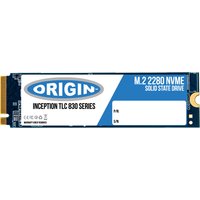

Western Digital
Western Digital WDS100T2XHE 2 TB M.2 PCI Express 4.0 NVMe TLC 3D NAND
£561.18
View Deal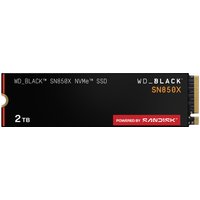
Western Digital
Western Digital Black WD_BLACK™ SN850X NVMe™ SSD POWERED BY SANDISK 2
£390.97
View Deal
Western Digital
Western Digital WD_BLACK™ SN850X NVMe™ SSD POWERED BY SANDISK 4 TB. [W
£753.70
View Deal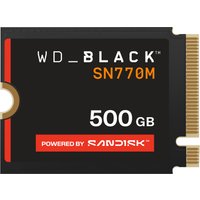
Western Digital
Western Digital Black WD_BLACK™ SN770M NVMe™ SSD POWERED BY SANDISK 50
£139.91
View Deal