One of the most common questions people ask when buying a laptop is simple yet critical: how much RAM do I actually need? In 2026, that answer is no longer straightforward. A decade ago, 4GB was plenty. Today, a modern Windows 11 laptop sitting idle can burn through 6GB just running background processes. Add a few browser tabs, and you’re pushing 10GB without doing anything demanding.
The challenge is that RAM choice matters more now than ever—especially if your laptop has soldered memory you can’t upgrade later. Buy too little, and you’ll spend the next five years watching your machine slow down as software bloats. Buy too much, and you’ve wasted hundreds of pounds. This guide breaks down exactly how much RAM you need based on your actual workload.
Quick Answer: RAM Requirements by Use Case
| Use Case | Minimum | Recommended | Ideal |
|---|---|---|---|
| Web browsing & email | 8 GB | 8 GB | 16 GB |
| Office work (Word, Excel, Teams) | 8 GB | 16 GB | 16 GB |
| Software development | 16 GB | 16 GB | 32 GB |
| Photo editing (Photoshop, Lightroom) | 16 GB | 16 GB | 32 GB |
| Video editing (4K or higher) | 16 GB | 32 GB | 64 GB |
| Gaming (modern AAA titles) | 16 GB | 16 GB | 32 GB |
| Data science & machine learning | 16 GB | 32 GB | 64 GB |
| Music production (DAWs) | 16 GB | 16 GB | 32 GB |
| Virtual machines & containers | 16 GB | 32 GB | 64 GB |
8GB in 2026: Is It Enough?
On paper, 8GB should be fine for basic tasks. Web browsing, email, document editing—none of these are memory hogs if you’re careful. In practice, 2026 is tougher on 8GB laptops than you’d expect.
Here’s what actually happens with 8GB on a modern Windows 11 machine:
- Idle state: Windows uses 3–4GB before you’ve opened a single application
- Chrome with 10 tabs: Another 2–3GB gone. You’re now at 6GB used, with 2GB free
- Add Teams or Outlook: Each can grab 500MB–1GB. You’ve hit 7.5GB with no room left
- Open a photo or PDF: Anything larger than ~200MB now forces Windows to swap to disk, which is painfully slow
Verdict: 8GB works for light users who stick to one browser, email, and Office. If you multitask—Teams call while browsing while editing a spreadsheet—8GB becomes genuinely painful. You’ll see constant disk thrashing, lag, and reduced battery life as your solid-state drive (SSD) acts as virtual memory.
If you’re buying a laptop in 2026, 8GB is a false economy. For an extra £40–60 at purchase, 16GB gives you breathing room for the entire lifespan of the machine.
16GB: The New Standard
16GB is the sweet spot for 2026. It’s the amount you’d recommend to almost anyone unless they have specific, demanding workloads.
With 16GB, you get:
- Comfortable multitasking without lag (10+ browser tabs, Teams, Spotify, everything running at once)
- Enough headroom for light creative work—editing a few photos in Photoshop, cutting together a short video, running a few music tracks in your DAW
- Room for your OS and background processes without ever hitting the swap file
- Future-proofing for 2–3 years of software bloat
Most modern laptops at any reasonable price point (£500 and up) come with 16GB these days. It’s become the baseline. Unless you’re buying the absolute cheapest budget machine or a specialist ultrabook where every gram matters, 16GB is what you’ll get—and it’s what you should have.
Real-world scenario: A software developer running VS Code, Docker, a local database server, Slack, Teams, and 15 browser tabs uses about 12–14GB under normal load. With 16GB, there’s enough headroom that the system never chokes. Drop to 8GB, and you’re watching the SSD light up constantly as Windows swaps to disk.
32GB: The Power User Choice
You need 32GB if you work in memory-intensive creative industries or development roles:
- Video editing: Adobe Premiere Pro with 4K footage can easily use 20–25GB. Davinci Resolve and Final Cut Pro are similar. 32GB lets you scrub timeline smoothly, apply effects, and work with multiple video layers without lag
- Photo editing at scale: Lightroom with tens of thousands of photos catalogued, open in Photoshop simultaneously, each with large PSD files stacked with layers—32GB prevents slowdowns
- Software development: If you’re running multiple Docker containers, Kubernetes clusters locally, a database server, and your IDE all at the same time, 32GB stops the swapping
- Gaming with heavy multitasking: Modern AAA titles (Cyberpunk 2077, Microsoft Flight Simulator, Unreal Engine 5 games) use 10–12GB. Add Discord, OBS, streaming software, and a browser in the background, and 32GB prevents stuttering
- 3D rendering & animation: Blender, Cinema 4D, and similar tools can use 15–20GB for moderately complex scenes
- Virtual machines: Running two or three VMs simultaneously (e.g. Linux development environment + Windows testing + a sandbox) requires 32GB minimum
The cost difference between 16GB and 32GB at purchase is typically £40–80. If any of the above describes your workflow, that’s easily worth it. The performance and responsiveness gains are noticeable and consistent.
64GB and Beyond: When You Actually Need It
64GB is rare for consumer laptops but increasingly available. You genuinely need it only if you’re:
- Working with massive video files: 4K or 8K raw footage timelines in Premiere or Resolve can push 40–50GB. 64GB ensures you’re never waiting on disk I/O
- Running enterprise VMs: Managing 4–5 virtual machines simultaneously, each with 8–16GB assigned, requires a host with 64GB
- Data science & machine learning: Loading large datasets (gigabytes) into RAM for analysis or training neural networks benefits massively from 64GB. You can train models faster and avoid serialising to disk
- Audio engineering: Mixing a full orchestral arrangement with hundreds of tracks, each with multiple plugins, can saturate 32GB. 64GB gives you safety margin
Unless you specifically do one of these things, 64GB is overkill. But if you do—if you’re charging clients for this work or your income depends on it—64GB is an investment that pays for itself in time saved waiting for your machine to respond.
Why This Matters More for Soldered RAM Laptops
Here’s the uncomfortable truth: many modern laptops have RAM soldered directly to the motherboard. You can’t upgrade it later. Apple MacBooks, MacBook Airs, most premium Ultrabooks, and increasingly budget machines all use soldered RAM.
If you buy a laptop with soldered 8GB, you’re stuck with 8GB for the entire 5–7 year lifespan of the machine. You can’t pop in a larger SODIMM in two years when software gets heavier. You can’t sell a laptop with undersized RAM.
This changes the calculus entirely. Buyers of soldered-RAM machines should:
- Buy more RAM than you think you need today. Think about what you’ll be running in 2028–2029
- Treat it as non-upgradeable. A MacBook with soldered 8GB is a £1,800 bet on the next five years requiring only 8GB
- Budget for the RAM upfront. An extra £40–100 spent at purchase is infinitely cheaper than replacing the entire laptop in three years because it’s too slow
If your laptop has user-accessible RAM slots (most business-class Lenovo ThinkPads, some Dell Precisions, some HP EliteBooks), you have more flexibility. You can start with 16GB and upgrade to 32GB in two years if you need to. With soldered RAM, you can’t.
How to Check Your Current RAM Usage
Before you upgrade or buy a new machine, check what you’re actually using:
On Windows:
- Right-click the taskbar and select Task Manager (or press Ctrl + Shift + Esc)
- Click the Performance tab
- Select Memory on the left
- Look at the graph and the numbers at the top. You’ll see “In use” (how much RAM is currently occupied) and “Available” (how much is free)
- Keep the Task Manager open for a few hours while you work normally. Note the peak usage
On macOS:
- Open Activity Monitor (Applications → Utilities → Activity Monitor)
- Click the Memory tab
- Look at the bottom left corner. You’ll see physical memory usage and how much is swapped to disk
- The Swap Used number is critical. If it’s ever more than 100MB or 200MB, your machine is running out of physical RAM and will feel sluggish
If you’re consistently using 80%+ of your available RAM, or if you see frequent disk swapping on macOS, upgrading is worth serious consideration.
Upgrading vs Buying New: The Cost Calculation
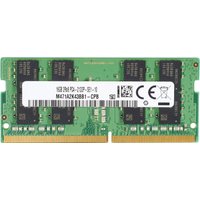
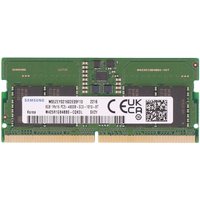
If your laptop has upgradeable RAM, replacement modules are cheap. A decent 16GB DDR4 or DDR5 SODIMM costs £20–40. A 32GB kit is £60–120. Swapping takes 10 minutes and a screwdriver.
Compare that to buying a new laptop:
- Entry-level replacement: £400–600
- Mid-range: £800–1,200
- Premium/workstation: £1,500–3,000+
The maths are obvious: if your laptop is otherwise functional and just feels sluggish due to low RAM, upgrading for £40–100 is far smarter than replacing the entire machine.
When NOT to upgrade:
- The RAM is soldered and you can’t access it
- Your laptop is more than 6–7 years old—you might be throwing money at an aging system
- The CPU or GPU is bottlenecking you (RAM won’t help if your processor is the constraint)
When TO upgrade:
- Your machine is 2–4 years old and still serviceable
- RAM is user-accessible (check your model before buying)
- Task Manager or Activity Monitor shows consistent high usage
- The upgrade costs less than £100 for a meaningful bump (e.g. 8GB to 16GB, or 16GB to 32GB)
Best RAM Upgrades by Capacity
If you’re upgrading an existing laptop with user-accessible RAM slots, here are reliable options available on Amazon UK:
16GB Single Module (for 8GB systems)
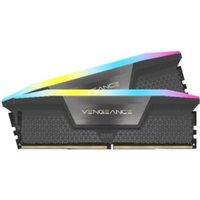
If your laptop has one RAM slot free or two populated 8GB modules, a 16GB SODIMM brings you to 16–24GB total. Popular models include Corsair Vengeance, Kingston Fury Impact, and Crucial Ballistix. Most laptops use DDR4 3200MHz or DDR5 4800MHz depending on age. Check your current RAM type before purchasing.
Browse 16GB DDR4 SODIMM on Amazon UK
Browse 16GB DDR5 SODIMM on Amazon UK
32GB Single Module (for 16GB systems or second slot)
A 32GB SODIMM is ideal for laptops with two slots where you want to keep one free or replace both 16GB modules for 64GB total. DDR4 32GB modules are affordable (£50–80) and offer good value. DDR5 32GB is pricier (£80–120) but becoming standard on newer machines.
Browse 32GB DDR4 SODIMM on Amazon UK
Browse 32GB DDR5 SODIMM on Amazon UK
64GB Dual Module Kit (professional/workstation)
If you need 64GB total, a matched pair of 32GB modules ensures compatibility and symmetrical performance (important for dual-channel operation). These kits are common in workstation-class laptops and cost £120–200 depending on speed and brand.
Browse 64GB DDR4 Kits on Amazon UK
Browse 64GB DDR5 Kits on Amazon UK
Pro tip: Before buying, check your laptop’s manual or use CPU-Z (Windows) or System Information (Mac) to determine the exact speed and type (DDR4 vs DDR5, MHz). Buying mismatched RAM or the wrong speed will either not work or force the system to run at the slowest module’s speed.
Frequently Asked Questions
Is 16GB enough for gaming in 2026?
Yes, 16GB is sufficient for modern gaming on a laptop. Most AAA games use 8–12GB. However, if you’re gaming while streaming, recording, or running heavy background applications (Discord, OBS, Chromium), bump to 32GB for smooth performance without stutters.
Does RAM speed (MHz) matter?
For consumer laptops, the difference between DDR4 3200MHz and 3600MHz is negligible—typically 2–5% performance difference. On Apple Silicon Macs, RAM speed doesn’t matter at all; the CPU/GPU use unified memory. For gaming and content creation, upgrading from 16GB to 32GB matters far more than upgrading from 3200MHz to 3600MHz.
Can I mix RAM brands or speeds?
Technically yes, but don’t. Mixing different speeds forces both modules to run at the slowest speed. Mixing brands can introduce compatibility issues or require BIOS tweaks. Always buy matched pairs if filling two slots, or identical models if upgrading an existing module.
Do I need to worry about RAM in 2026?
Less than you did five years ago, because 16GB has become standard. If you’re buying a new laptop, most options come with 16GB. If you’re stuck with 8GB and can upgrade (not soldered), it’s worth £30–50 for a 16GB module. If you’re doing professional creative work or development, 32GB is worth the investment.
What if my laptop still feels slow after upgrading RAM?
The CPU, GPU, or SSD is likely bottlenecking you, not RAM. If Task Manager shows you’re using only 60–70% of RAM after upgrading, RAM wasn’t your problem. Check disk usage (SSD health) and CPU load in Task Manager. An SSD upgrade or processor replacement might be what you actually need.
Is 32GB future-proof?
For most people, yes. For at least 3–5 years. If you’re doing 4K or 8K video editing professionally, or training large machine learning models, you might bump into 32GB limits by 2029–2030. But for typical creative work, development, and gaming, 32GB will carry you through the decade.
Recommended Products
These are the products we recommend based on this guide. All links go to Amazon UK where you can check current prices and availability.
| Product | Why We Recommend It | Amazon UK |
|---|---|---|
| Corsair Vengeance DDR4 SO-DIMM 32GB (2×16GB) 3200MHz | Best overall DDR4 upgrade kit | View on Amazon UK |
| Kingston Fury Impact DDR4 SO-DIMM 32GB (2×16GB) 3200MHz | Reliable alternative with tight latency | View on Amazon UK |
| Corsair Vengeance DDR5 SO-DIMM 32GB (2×16GB) 5600MHz | Top-rated DDR5 kit for gaming & productivity | View on Amazon UK |
| Kingston Fury Impact DDR5 SO-DIMM 32GB (2×16GB) 5600MHz | Excellent DDR5 alternative with XMP support | View on Amazon UK |
| Samsung 990 Pro 2TB NVMe M.2 2280 | Fastest consumer NVMe — ideal for gaming & editing | View on Amazon UK |
| WD Black SN850X 2TB NVMe | Excellent Gen4 speed with heatsink option | View on Amazon UK |
| Crucial P5 Plus 1TB NVMe | Great value Gen4 SSD | View on Amazon UK |
| Kingston NV2 1TB NVMe | Budget-friendly with solid reliability | View on Amazon UK |
Prices and availability may vary. As an Amazon Associate, we earn from qualifying purchases.