

/*
POST TITLE: How to Upgrade Your Laptop to Wi-Fi 7 — Complete Guide
SLUG: how-to-upgrade-laptop-wifi-to-wifi-7
CATEGORIES: [89, 127]
FOCUS KEYWORD: how to upgrade laptop Wi-Fi 7
META DESCRIPTION: Step-by-step guide to upgrading your laptop’s Wi-Fi card to Wi-Fi 7 (802.11be). Learn compatibility, installation, and performance expectations.
*/
Wi-Fi 7 (802.11be) offers 5-7x faster speeds than Wi-Fi 5 and significantly better range. If your laptop is stuck on older Wi-Fi standards, upgrading the Wi-Fi card is straightforward and costs £30-80. This guide covers identification, compatibility, and installation.
Will a Wi-Fi 7 Card Help Your Laptop?
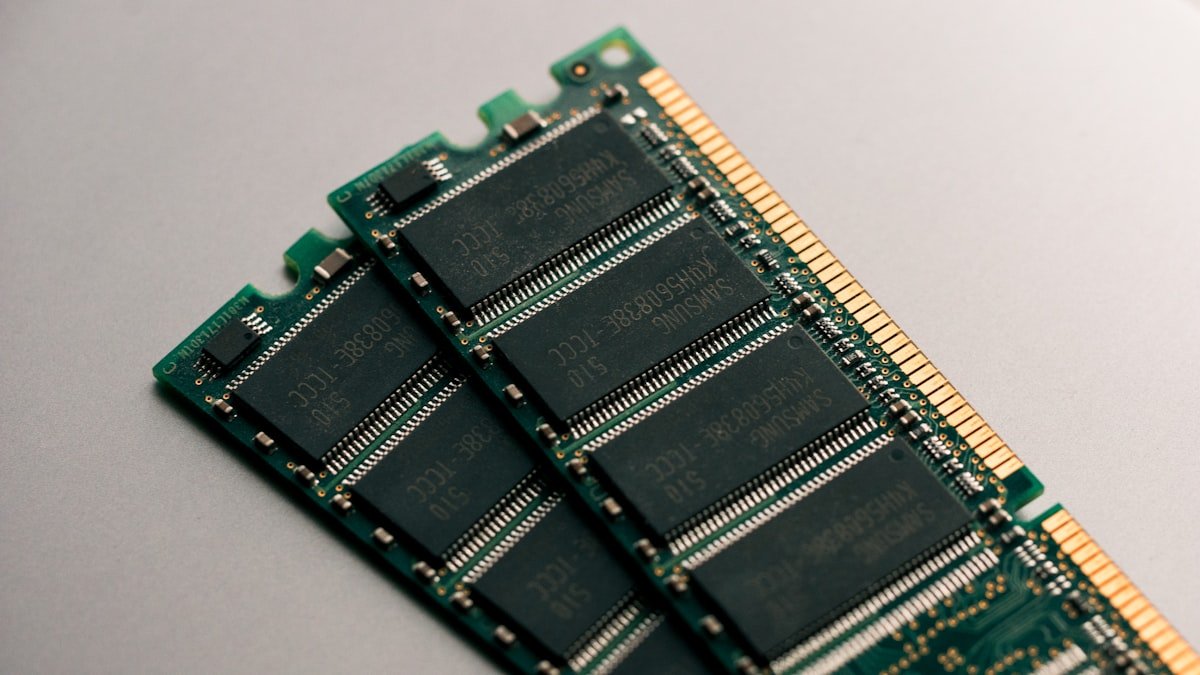
Wi-Fi card upgrades require three conditions:
- Your laptop has a removable Wi-Fi module: Most business/gaming laptops do; thin ultrabooks often don’t (soldered to motherboard).
- Your router supports Wi-Fi 6/6E/7: An older Wi-Fi 5 router won’t benefit from a Wi-Fi 7 card. You also need a Wi-Fi 7 router for full speeds.
- You’re in range of a Wi-Fi 6/7 network: Wi-Fi 7 is still rolling out; availability varies by region.
Check your laptop’s service manual or search “[Model] Wi-Fi card upgrade” on YouTube. If your model uses a soldered card, skip this upgrade—it’s not possible.
Tools & Materials
- Wi-Fi 6E or Wi-Fi 7 replacement card (M.2 NGFF form factor, usually 1216 or 2242 size)
- Phillips PH0 screwdriver
- Plastic pry tool
- Anti-static mat (recommended)
For Wi-Fi 7 cards in the UK, check Amazon UK for compatible Wi-Fi modules.
Identify Your Current Wi-Fi Card
Open Device Manager (Windows) or System Report (macOS) and expand Network Adapters. Your current Wi-Fi card model will be listed (often Intel Wi-Fi 6E, Realtek, etc.). Search this model number online to confirm it’s removable and to check compatibility with your motherboard’s antenna connectors.
Step 1: Power Down & Remove the Bottom Panel
Shut down and unplug. Remove the bottom panel screws carefully. The Wi-Fi card slot is usually on the motherboard, often near the edge, sometimes under the keyboard or near the battery area.
Step 2: Locate the Wi-Fi Card Slot
The Wi-Fi card is a small rectangular module (roughly 45mm x 20mm for most laptops) with two antenna connectors (coaxial) on top. The module inserts at a 30-degree angle into an M.2 slot on the motherboard. Two tiny screws (often hidden by a plastic cover) hold it in place.
Step 3: Disconnect Antenna Cables
The two white or black coaxial cables connected to the Wi-Fi card must be gently disconnected. Pull straight out with a steady motion—they are press-fit connectors, not screwed. Mark which cable connected to which antenna (usually labelled “Main” and “Aux”) for reinstallation later.
Step 4: Remove the Old Card
If screws are present, remove them and store safely. Pull the card straight out at a 30-degree angle. Some cards have a notch or clip—check your reference video to confirm removal direction.
Step 5: Install the New Wi-Fi Card
Insert the new card at a 30-degree angle into the slot until it clicks or seats fully. Press down and secure with screws if your model uses them. The card should lie flat and flush with the motherboard.
Step 6: Reconnect Antenna Cables
Push the antenna cables firmly onto the connectors marked on the new card. They should snap into place with a firm connection. Do not force them—they seat with moderate pressure. Reconnecting antennas correctly is critical for range and speed.
Step 7: Reassemble & Install Drivers
Reinstall the bottom panel and all screws. Power on the laptop. Windows will auto-detect the new card and likely download drivers automatically. If not, visit the Wi-Fi card manufacturer’s website and download the latest driver for your operating system.
After driver installation, a restart may be required. Your new Wi-Fi network options will appear in the Wi-Fi menu once drivers are loaded.
Performance: Wi-Fi 6 vs Wi-Fi 7
| Standard | Max Speed | Range | Latency |
| Wi-Fi 5 (802.11ac) | ~3.5 Gbps | Moderate | Higher |
| Wi-Fi 6 (802.11ax) | ~9.6 Gbps | Excellent | Low |
| Wi-Fi 6E (802.11ax + 6GHz) | ~9.6 Gbps | Very good (less congestion) | Very low |
| Wi-Fi 7 (802.11be) | ~46 Gbps theoretical | Very good | Ultra-low |
Theoretical speeds are not real-world speeds. Expect 10-25x improvements in practical throughput with a Wi-Fi 7 router, especially when multiple devices are connected.
Common Issues & Troubleshooting
| Problem | Solution |
| Card not recognized after installation | Reseat the card (remove and reinstall firmly). Verify antenna cables are fully connected. Install the latest driver from the card manufacturer’s website. |
| No antenna connectors connected | You must reconnect the antenna cables or you will have no Wi-Fi range. Even with the card installed, missing antennas mean no signal. Do not use the laptop until antennas are reconnected. |
| Weak Wi-Fi signal after upgrade | Antenna cables may be loose. Power off, remove the bottom panel, and firmly reseat both antenna connectors on the Wi-Fi card. Also verify your router supports the Wi-Fi 6/7 band you’re connecting to. |
| Driver installation fails | Download the driver directly from the Wi-Fi chip manufacturer (Intel, MediaTek, Broadcom) for your OS version. Generic Windows drivers may not provide full feature support. |
Is Wi-Fi 7 Worth Upgrading To?
Wi-Fi 7 is worth the upgrade if:
- You have a Wi-Fi 7 router (costs £150-300)
- Your current speeds feel slow or you work with large file transfers
- Your laptop is 3+ years old and stuck on Wi-Fi 5
- You use your laptop for video streaming or online gaming
Wi-Fi 7 routers are still expensive and not yet ubiquitous. If your current Wi-Fi works well or your router is Wi-Fi 5, the upgrade ROI is lower.
Related Guides
- Laptop Charger Compatibility Guide — USB-C PD
- Wi-Fi Card Upgrade Guide
- Best Tools for Laptop Repair (2026)
FAQ
Recommended Products
Looking for compatible upgrades? Here are our top picks available on Amazon UK:
Shop NVMe SSDs at PCHub.UK
Prices updated automatically from PCHub.UK — click to view full specs and buy

Prices from PCHub.UK via ComputersDeal. As an affiliate, we may earn from qualifying purchases. Prices updated 2026-04-10 13:15:58.

