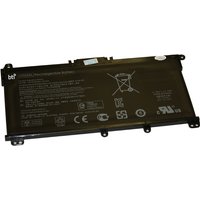
Lenovo laptops are known for their durability and repairability, making battery replacement straightforward on most models. Whether your ThinkPad, IdeaPad, or Legion battery is draining too fast, not holding a charge, or refusing to charge at all, this guide covers everything you need to know about replacing the battery in your Lenovo laptop — from identifying the right replacement to step-by-step installation.
Table of Contents
- Signs Your Lenovo Battery Needs Replacing
- Lenovo Battery Types by Series
- How to Find the Right Replacement Battery
- Step-by-Step Lenovo Battery Replacement
- After Replacement: Calibrating Your New Battery
- Tips to Extend Your New Battery’s Life
- Recommended Products
- Frequently Asked Questions
Signs Your Lenovo Battery Needs Replacing
Battery degradation is a natural process — all lithium-ion batteries lose capacity over time. You should consider replacing your Lenovo battery if: the battery drains significantly faster than when new (less than 50% of original life), the laptop shuts down unexpectedly despite showing charge remaining, Windows shows a ‘Consider replacing your battery’ warning, the battery is physically swollen or bulging (replace immediately if this happens), or the battery won’t charge past a certain percentage.
You can check your Lenovo battery’s health using Lenovo Vantage (pre-installed on most Lenovo laptops) or by opening Command Prompt as administrator and running ‘powercfg /batteryreport’. The report shows your battery’s design capacity versus its current full charge capacity — if full charge capacity is below 60% of design capacity, replacement is worthwhile.
Lenovo Battery Types by Series
| Lenovo Series | Battery Type | Typical Capacity | Replacement Difficulty |
|---|---|---|---|
| ThinkPad T-series | Internal (some older models have external) | 50-57 Wh | Easy |
| ThinkPad X-series | Internal | 51-57 Wh | Easy |
| ThinkPad L-series | Internal | 45-57 Wh | Easy |
| IdeaPad 3/5 series | Internal | 38-57 Wh | Moderate |
| Legion 5/7 series | Internal | 60-80 Wh | Easy |
| Yoga series | Internal | 46-71 Wh | Moderate |
ThinkPad laptops are particularly well-designed for maintenance and repairs. Many models feature easy-access bottom panels that come off with just a few Phillips screws, giving direct access to the battery.
How to Find the Right Replacement Battery
The safest way to find the correct replacement is to use your laptop’s exact model number and the battery part number. You can find both of these in Lenovo Vantage, on the sticker underneath your laptop, or in the BIOS (press F1 at boot).
Common Lenovo battery part numbers follow a pattern like ’01AV419′, ‘5B10W139’, or ‘L19M4PD1’. Search Amazon for this exact part number to find compatible replacements. Always verify the voltage (V) and connector type match your original battery.
For ThinkPad models, Lenovo uses FRU (Field Replaceable Unit) numbers that are printed on the original battery. Searching for the FRU number is the most reliable way to find an exact match.
Step-by-Step Lenovo Battery Replacement
Before starting, gather these tools: a Phillips #1 screwdriver (or #0 for newer thin models), a plastic spudger or pry tool, and an anti-static wrist strap (recommended but optional).
Step 1: Shut down the laptop completely and unplug the charger. Step 2: Close the lid and flip the laptop upside down on a soft surface. Step 3: Remove the bottom panel screws (typically 5-8 Phillips screws). On ThinkPads, the screws are often captive and stay in the panel. Step 4: Gently pry off the bottom panel using a plastic spudger, starting from one corner. Step 5: Disconnect the battery cable from the motherboard — this is usually a single connector that pulls straight up or slides out. Step 6: Remove any screws holding the battery in place (usually 2-4 screws). Step 7: Lift out the old battery and place the new one in the same position. Step 8: Secure with screws, reconnect the cable, replace the bottom panel, and power on.
Important: On newer Lenovo models, you may need to disable the internal battery in BIOS before opening the laptop. Enter BIOS (F1 at startup), go to Config → Power → Disable Built-in Battery, and confirm. The laptop will shut down and the battery will be safely disconnected.
After Replacement: Calibrating Your New Battery
After installing a new battery, it’s recommended to calibrate it for accurate charge reporting. Charge the battery to 100% and leave it plugged in for 2 hours. Then unplug and use the laptop until it shuts down from low battery. Finally, charge it back to 100% without interruption. This process helps the battery controller learn the new battery’s true capacity.
Your new battery may take 3-5 charge cycles to reach its full rated capacity. Don’t be concerned if the initial runtime seems slightly lower than expected.
Tips to Extend Your New Battery’s Life
Keep your battery between 20% and 80% charge when possible — this reduces stress on the lithium-ion cells. Lenovo Vantage has a ‘Conservation Mode’ that limits charging to 60%, which is ideal if you mostly use your laptop plugged in. Avoid exposing your laptop to extreme temperatures (below 0°C or above 35°C). Use the correct wattage charger for your model. Keep your laptop updated — firmware updates sometimes improve battery management.
Recommended Products
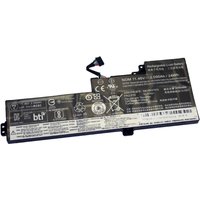
OEM replacement for ThinkPad T470, T480, A475, A485. 24Wh internal battery with plug-and-play fit.
From £35 · Check Price on Amazon UK →
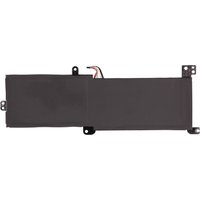
Replacement battery for IdeaPad 3/5 and Slim series. Check your model’s specific part number.
From £30 · Check Price on Amazon UK →
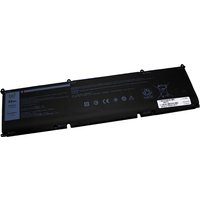
High-capacity replacement for Legion 5 and 5 Pro gaming laptops. 60-80Wh options available.
From £45 · Check Price on Amazon UK →
Professional-grade repair toolkit with precision screwdrivers, spudgers, and anti-static tools. Perfect for laptop repairs.
From £35 · Check Price on Amazon UK →
Frequently Asked Questions
How long do Lenovo laptop batteries last?
Lenovo batteries typically last 2-4 years before noticeable degradation. With good charging habits (keeping between 20-80%), you can extend this to 4-5 years. ThinkPad batteries tend to last longer due to Lenovo’s battery management software.
Can I use a third-party battery in my Lenovo?
Yes, third-party batteries work in most Lenovo laptops. However, buy from reputable sellers with good reviews. Check that the voltage, capacity, and connector match your original. Some ThinkPads may show a ‘non-genuine battery’ warning, but this doesn’t affect functionality.
How do I check Lenovo battery health?
Open Command Prompt as admin and run ‘powercfg /batteryreport’. This generates a detailed report showing design capacity vs current capacity, charge cycles, and usage history. Alternatively, use Lenovo Vantage which displays battery health in a user-friendly format.
My Lenovo battery is swollen. Is it dangerous?
A swollen battery should be removed and replaced immediately. Do not continue using the laptop. Swelling indicates a chemical reaction inside the battery that can, in rare cases, lead to overheating or fire. Handle carefully, do not puncture, and recycle at an electronics recycling centre.
Does replacing the battery void my Lenovo warranty?
For ThinkPad models, battery replacement is considered a user-serviceable part and should not void your warranty. For other Lenovo series, check your specific warranty terms. If your laptop is still under warranty, Lenovo may replace the battery for free if it has degraded significantly.
Why won’t my new Lenovo battery charge to 100%?
If Conservation Mode is enabled in Lenovo Vantage, charging is capped at 60%. Disable it to charge to 100%. If that’s not the issue, try a battery calibration cycle (full charge, full discharge, full charge). Some new batteries need 3-5 cycles to reach full capacity.
Related Lenovo Upgrade Guides
- Best RAM for Lenovo ThinkPad in 2026
- Lenovo ThinkSystem SR665 V3 RAM & SSD Upgrade Guide (2023)
- Lenovo ThinkSystem SR665 RAM & SSD Upgrade Guide (2020)
- Lenovo ThinkSystem SR645 RAM & SSD Upgrade Guide (2020)
- Lenovo ThinkSystem SR645 V3 RAM & SSD Upgrade Guide (2023)
- Lenovo Upgrade Guide
Not sure what fits? Use our free Compatibility Checker covering 3,195+ models.
Helpful Guides
Final Thoughts
Replacing a Lenovo laptop battery is one of the most straightforward laptop repairs you can do. ThinkPads especially are designed with repairability in mind. With the right part number and basic tools, you can restore your laptop’s battery life in under 30 minutes.
Check Your Laptop’s Compatibility
Use our free tool to find compatible RAM and SSD upgrades for your specific laptop model.
Launch Compatibility Checker →