
Affiliate disclosure: this page contains affiliate links — if you buy through them we may earn a commission at no extra cost to you. As an Amazon Associate we earn from qualifying purchases.
The ThinkCentre Neo 50q Gen 4 is a modern Tiny business desktop featuring Intel Core i3/i5 13th Gen (Raptor Lake), DDR4-3200 SODIMM memory, and flexible storage options. This guide covers RAM, SSD, and storage compatibility for all configurations.
ThinkCentre Neo 50q Gen 4 System Specifications
| Specification | Detail |
|---|---|
| Processor | Intel Core i3/i5 13th Gen (Raptor Lake) |
| Chipset | Intel B660 |
| RAM Type | DDR4-3200 SODIMM |
| RAM Slots | 2 SODIMM slots |
| Max RAM | 32 GB (2x 16GB) |
| Storage | M.2 NVMe |
| Form Factor | Tiny (USFF) |
| Release Year | 2023 |
RAM Compatibility & Upgrades
Memory Specifications
| Parameter | Value |
|---|---|
| Type | DDR4-3200 SODIMM |
| Voltage | 1.2V |
| Max Capacity | 32 GB (2x 16GB) |
Recommended RAM Upgrades
| Current | Upgrade To | Modules | Price* | Amazon Link |
|---|---|---|---|---|
| 8 GB | 16 GB | 1x 8GB DDR4-3200 | £20-35 | View |
| 16 GB | 32 GB | 2x 8GB DDR4-3200 kit | £35-60 | View |
| 32 GB | 64 GB | 2x 32GB DDR4-3200 | £90-160 | View |
Storage Compatibility
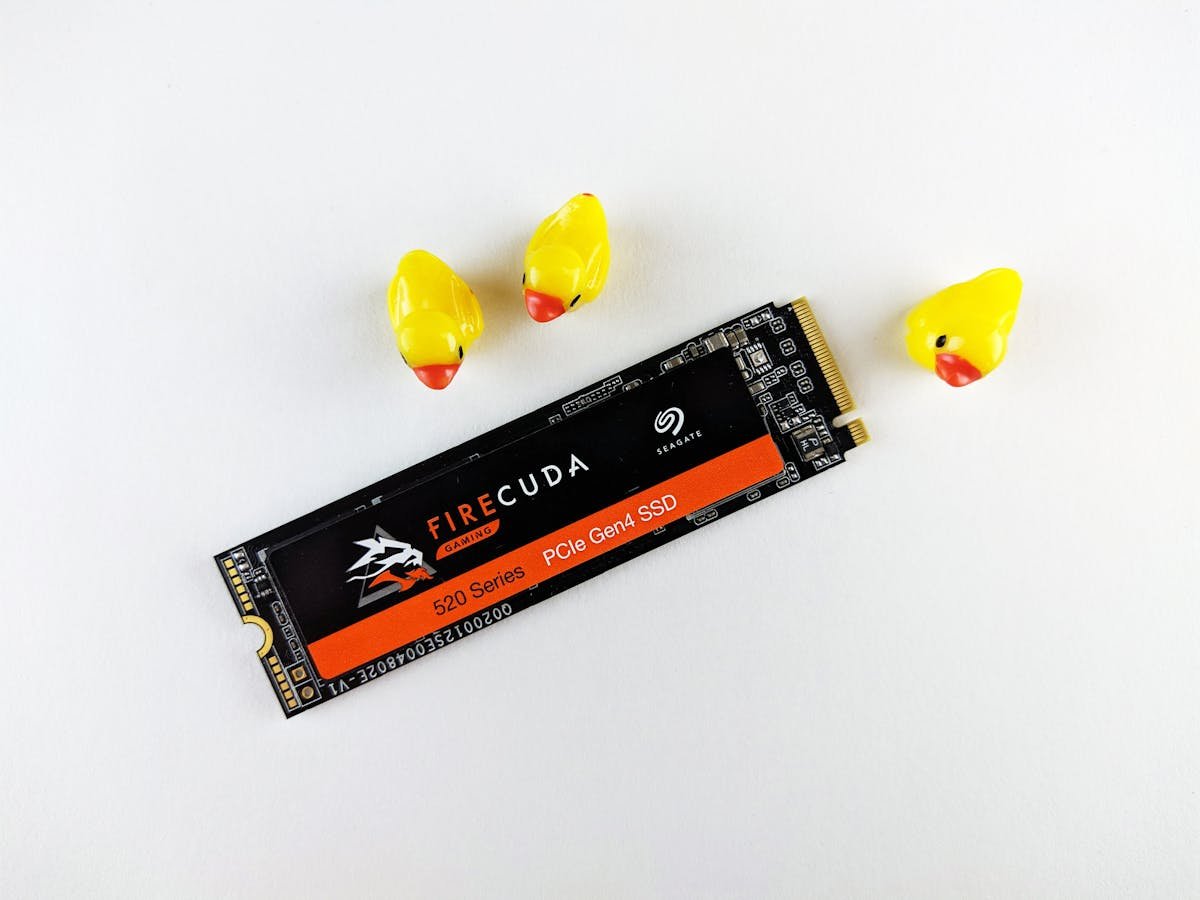
M.2 NVMe Storage
ThinkCentre Neo 50q Gen 4 supports 1 M.2 NVMe slot for fast primary storage, plus 1x 2.5-inch SATA bay.
| Specification | Detail |
|---|---|
| Interface | NVMe PCIe 4.0 |
| Supported Sizes | 2230, 2242, 2280 |
| Max Capacity | 4 TB |
Recommended NVMe SSDs
| Model | Capacity | Speed | Amazon Link |
|---|---|---|---|
| Samsung 970 EVO Plus | 500GB – 2TB | 3,500 MB/s | View |
| Crucial P3 | 500GB – 2TB | 3,500 MB/s | View |
| WD Blue SN580 | 500GB – 2TB | 4,150 MB/s | View |
Upgrade Installation Guide
Before You Start
- Power off and unplug the system completely
- Wait 30 seconds before opening the chassis
- Use an anti-static wristband to prevent ESD damage
- Note the Tiny (USFF) form factor dimensions when selecting components
RAM Installation
- Open the side panel or chassis cover
- Locate the DIMM slots on the motherboard
- Press retention clips outward on both ends of the slot
- Align the RAM module notch with the slot key
- Press down firmly until retention clips snap into place
M.2 NVMe Installation
- Locate the M.2 slot on the motherboard
- Remove the mounting screw if present
- Insert the NVMe drive at a 30-degree angle
- Press down and secure with the mounting screw
Frequently Asked Questions
Q: What is the maximum RAM for ThinkCentre Neo 50q Gen 4?
A: 32 GB (2x 16GB) using 2 SODIMM slots.
Q: Does ThinkCentre Neo 50q Gen 4 support NVMe SSDs?
A: Yes, it has 1 M.2 NVMe slot, plus a 2.5-inch SATA bay.
Q: Can I mix RAM speeds in ThinkCentre Neo 50q Gen 4?
A: Yes, but all modules will run at the slower speed. Match speeds for best performance.
Q: What form factor is the ThinkCentre Neo 50q Gen 4?
A: Tiny (USFF). Check physical dimensions before purchasing components.
Recommended Upgrade Kits
| Kit | Components | Price* | Amazon Link |
|---|---|---|---|
| Budget RAM | 8GB DDR4-3200 | £16-25 | View |
| Performance RAM | 16GB DDR4-3200 Kit | £30-50 | View |
| NVMe SSD | 500GB NVMe | £35-55 | View |
| Bundle | 16GB DDR4-3200 + 500GB NVMe | £60-95 | View |
Prices and availability may vary. As an Amazon Associate, we earn from qualifying purchases.
Related Lenovo Upgrade Guides
- Lenovo ThinkStation P3 Ultra RAM & SSD Upgrade Guide (2024)
- Lenovo ThinkCentre M70s Gen 5 RAM & SSD Upgrade Guide (2024)
- Lenovo ThinkCentre M80t Gen 4 RAM & SSD Upgrade Guide (2024)
- Lenovo ThinkCentre M70t Gen 5 RAM & SSD Upgrade Guide (2024)
- Lenovo ThinkCentre M90q Gen 5 RAM & SSD Upgrade Guide (2024)
- Lenovo Upgrade Guide
Not sure what fits? Use our free Compatibility Checker covering 3,195+ models.
Helpful Guides
Upgrades that fit the Lenovo ThinkCentre neo 50q Gen 4
What fits: Memory: DDR4-3200 SO-DIMM, 2 user slots, up to 32GB · Storage: M.2 2280 NVMe PCIe 4.0; 2.5in SATA drive supported
Spec source: psref.lenovo.com (checked 26 Sep 2026).
As an Amazon Associate we earn from qualifying purchases. Prices & availability shown on Amazon.
DDR4 SO-DIMM memory that fits
M.2 2280 NVMe SSDs that fit
2.5in SATA SSDs for the drive bay
*Indicative UK street prices, shown for guidance only. These are not live Amazon prices and change frequently — check the current price on Amazon before buying.