Affiliate disclosure: this page contains affiliate links — if you buy through them we may earn a commission at no extra cost to you. As an Amazon Associate we earn from qualifying purchases.
Mac Mini Upgrade Guide (2026) — RAM, SSD & Compatible Accessories
The Mac Mini has always been Apple’s most affordable gateway to macOS, but for years there’s been a nagging question: how much can you actually upgrade? The answer is complicated—and it’s changed dramatically depending on which generation you own.
If you bought a Mac Mini in 2018 with an Intel processor, you could upgrade both RAM and storage, making it one of the most user-friendly Macs ever built. But starting with the 2020 M1 model, Apple soldered memory directly to the motherboard and locked down internal storage. This guide reveals exactly what you can and can’t upgrade on every Mac Mini generation, from the latest M4 Pro down to the 2018 Intel models that still offer real upgrade potential.
The Hard Truth: Apple Silicon Mac Minis (M1, M2, M4)
Let’s start with the reality check. If you’re buying a new Mac Mini with an M-series processor (M1, M2, M4, or M4 Pro), you need to choose your configuration wisely at purchase time because you almost certainly won’t be upgrading it later.
| Model | Chip | RAM | SSD | Upgradeable? |
|---|---|---|---|---|
| Mac Mini M4 (2024) | Apple M4 | 16/24/32GB (soldered) | Internal soldered | No (external storage only) |
| Mac Mini M4 Pro (2024) | Apple M4 Pro | 24/48/64GB (soldered) | Internal soldered | No (external storage only) |
| Mac Mini M2 (2023) | Apple M2 | 8/16/24GB (soldered) | Internal soldered | No (external storage only) |
| Mac Mini M2 Pro (2023) | Apple M2 Pro | 16/32GB (soldered) | Internal soldered | No (external storage only) |
| Mac Mini M1 (2020) | Apple M1 | 8/16GB (soldered) | Internal soldered | No (external storage only) |
All Apple Silicon Mac Minis use soldered memory, meaning RAM is permanently fused to the logic board during manufacturing. There is no slot, no upgrade path, no second chance. The same applies to internal storage—it’s soldered and proprietary.
Implication: If you plan to keep your Mac Mini for 5+ years and might need more than 16GB RAM eventually, buy the M4 with 24GB or 32GB upfront. The price difference now (~$300–400) is far cheaper than buying a new machine later.
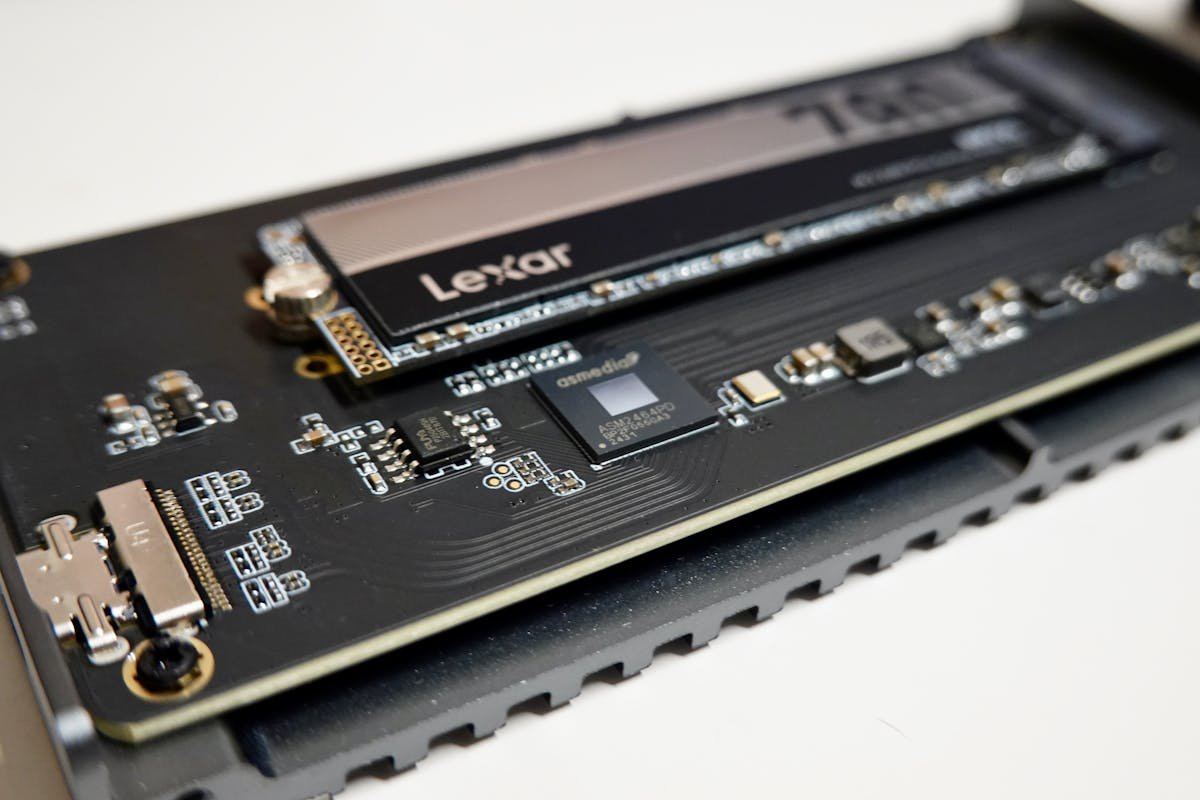
Storage caveat: Some enthusiasts have discovered emerging third-party NVMe adapter boards that may allow internal SSD replacement on newer Macs, but these are experimental, unsupported, and may void your warranty. For practical purposes, treat internal storage as non-upgradeable.
The Unicorn: 2018 Intel Mac Mini (Fully Upgradeable)
Here’s where things get interesting. The 2018 Mac Mini—Apple’s last Intel mini PC—included two user-accessible SO-DIMM slots for DDR4 memory. Storage, however, is soldered to the logic board on every 2018 model — there is no replaceable SSD.
| Model | Processor | RAM | SSD | Upgradeable? |
|---|---|---|---|---|
| Mac Mini 2018 (Core i7) | Intel i7-8700B | DDR4 SO-DIMM, 2 slots, 64GB max | Soldered (not upgradeable) | RAM only (storage soldered) |
| Mac Mini 2018 (Core i5) | Intel i5-8500B | DDR4 SO-DIMM, 2 slots, 64GB max | Soldered (not upgradeable) | RAM only (storage soldered) |
| Mac Mini 2018 (Core i3) | Intel i3-8100B | DDR4 SO-DIMM, 2 slots, 64GB max | Soldered (not upgradeable) | RAM only (storage soldered) |
This is a game-changer. If you own a 2018 Intel Mac Mini, you can:
- Upgrade RAM from 8GB to 64GB (2x 32GB DDR4 modules) for ~$100–150
- Add capacity with an external Thunderbolt 3 SSD — the internal storage is soldered and cannot be replaced
- Keep your investment productive for another 5+ years
Catch: All 2018 Mac mini models have soldered SSD storage. There is no M.2 slot, so the internal SSD cannot be upgraded — only the RAM (2× DDR4 SO-DIMM, up to 64GB) is user-upgradeable.
Worth considering: Used 2018 Intel Mac Minis are still abundant on the secondhand market. If you can find a good one for $400–600, upgrading its RAM (and adding external storage) makes it competitive with a base M1 for far less money. However, be aware that 8th Gen Intel is aging, and you’ll sacrifice M-series performance and modern features (TB4, WiFi 6E).
External Storage: The Only Practical Upgrade for Apple Silicon
Since internal upgrades aren’t possible on M1/M2/M4 Mac Minis, external storage is your lifeline for expansion.
Thunderbolt 3 / Thunderbolt 4 / Thunderbolt 5:
- Mac Mini (2020–2023) use Thunderbolt 3/4
- Mac Mini M4 (2024) uses Thunderbolt 4; Mac Mini M4 Pro (2024) uses Thunderbolt 5
- All are backward compatible—TB3 drives work on TB4/TB5 machines, just at TB3 speeds
Recommended external setups:
- Fast SSD storage: Samsung T7 Shield External SSD, Thunderbolt 4 External SSD
- Video/media archive: Large USB-C External Drives
- Thunderbolt docks: Thunderbolt Docking Stations for connecting multiple displays and drives
A good external Thunderbolt SSD connects at 1,200+ MB/s, making it nearly as fast as internal storage. For video editors or photographers moving terabytes daily, this is a practical solution.
RAM Requirements by Workload
Before dropping $500 on a Mac Mini M4 with 32GB RAM, ask yourself: do I actually need it? For 2018 Intel Mac Mini models, you can upgrade RAM yourself:
- DDR4 SO-DIMM 32GB RAM Modules — Upgrade Intel Mac Mini 2018 to 64GB for under £150.
- Thunderbolt 4 Docking Stations — Expand connectivity on newer M-series models.
8GB is sufficient for:
- Web browsing, email, productivity (Pages, Excel, Notion)
- Light photo editing (Lightroom)
- Music production (single tracks, modest plugins)
16GB is ideal for:
- Most professionals: designers, photographers, developers
- Light video editing (1080p timeline editing in Final Cut Pro)
- Running multiple applications simultaneously
- Virtual machines (1–2 running concurrently)
24GB+ is necessary for:
- 4K/8K video editing in Final Cut Pro or Adobe Premiere
- 3D rendering (Blender, Cinema 4D)
- Large-scale data analysis or AI/machine learning
- Running 3+ VMs simultaneously
- High-resolution photo batch processing
If you buy a base M4 with 16GB now and need 24GB in 2027, you won’t be able to upgrade. Plan for your maximum foreseeable need.
Display Compatibility & Thunderbolt Docks
Mac Mini ships without a display, so you’ll need an external monitor. Good news: all Apple Silicon Mac Minis support multiple displays via Thunderbolt.
Typical setup:
- M1 and M2 Mac mini: two external displays (one over Thunderbolt, one over HDMI)
- M4 Mac mini: up to three displays — two at 6K over Thunderbolt plus one at 5K over Thunderbolt or 4K over HDMI
- M4 Pro Mac mini: up to three displays at 6K over Thunderbolt or HDMI
Popular monitors for Mac Mini:
- LG UltraFine 27″ (2560×1440, TB4)
- Apple Studio Display (5120×2880, TB4, excellent match)
- LG UltraFine 32″ 6K (6016×3384, TB4)
- Standard USB-C monitors (ASUS, Dell, BenQ)
Thunderbolt docks: If you need extra ports (USB-A, SD card, additional TB4), consider a dock like the OWC Thunderdock, which provides expansion without taking up TB ports.
Can You Use an eGPU with Mac Mini?
Only on the 2018 Intel model.
Intel Mac Mini (2018): Yes, external GPUs (AMD cards in Thunderbolt enclosures) work well. This was a selling point for video professionals.
Apple Silicon Mac mini (M1/M2/M4): No. Apple does not support eGPUs on Apple Silicon at all — its own guidance states that a Mac with an Intel processor is required. This is not a driver gap that might close: macOS has no eGPU support path on M-series. If what you actually need is more displays rather than more GPU power, use a DisplayLink dock.
Bottom line: If you’re serious about GPU acceleration on Apple Silicon, buy the Mac Mini M4 Pro (which has a more capable GPU) rather than gambling on eGPU compatibility.
M4 vs. M4 Pro: Worth the Jump?
Mac Mini M4: 8–10 GPU cores, perfect for most users, lower price.
Mac Mini M4 Pro: 16–20 GPU cores, additional CPU cores, more RAM options (up to 64GB), faster media encoding, 3x Thunderbolt 5 ports.
Upgrade to M4 Pro if you do 4K video work, 3D rendering, or machine learning. Otherwise, M4 is enough.
Is the 2018 Intel Mac Mini Still Worth Buying?
Yes, if the price is right. A used 2018 Mac Mini (i5 or i7) in good condition for $400–600 can be upgraded to 32GB or 64GB of RAM for around $100–150. The SSD is soldered, so budget for an external Thunderbolt drive rather than an internal swap. Total: roughly $500–750 for a capable machine that will last several more years.
Compare that to a new Mac mini with M4, which starts at $599 + monitor (~$400+) = around $1,000. At that price the M4 is the better buy for most people. A used 2018 Intel Mac mini still makes sense if:
- Your workload doesn’t demand M-series performance (Final Cut, 3D, AI)
- You want maximum upgrade potential
- You’re budget-conscious and can find a good deal
However, expect:
- Lower performance on CPU-heavy tasks
- No WiFi 6E, TB4, or other modern features
- Older security patches (though still supported)
- Lack of resale value if you decide to upgrade later
Pro Tips for Mac Mini Buyers
- Buy storage and RAM upfront. You cannot upgrade Apple Silicon Mac Minis after purchase. Err on the side of generosity.
- Budget for a monitor separately. Mac Mini doesn’t include one. A good USB-C or Thunderbolt monitor costs $400–1,000+.
- Consider your workflow. Professionals (video, 3D, AI) should go M4 Pro. Everyone else: M4 base is fine.
- External storage is your friend. Thunderbolt SSDs are fast enough for daily work and cost far less than upgrading internally.
- Keep your old 2018 Intel Mac Mini. If you’re upgrading to Apple Silicon, hold onto your Intel model as a second machine for legacy software or as a media server.
The Mac Mini’s upgrade story is essentially this: old Intel models (2018) were user-friendly; modern Apple Silicon models (M1/M2/M4) are not. If upgradeability matters to you, buy the 2018 model secondhand or accept that your new M-series Mac Mini is a fixed configuration for life. That said, Apple Silicon is so efficient that even a base M4 with 16GB RAM will serve most users for 5+ years without feeling slow. Choose wisely at purchase time, and you’ll get years of satisfaction.
Frequently Asked Questions
Can you upgrade Mac mini RAM?
It depends entirely on the model. The 2018 Intel Mac mini has user-accessible DDR4 SO-DIMM slots and takes up to 64GB. Every Apple Silicon Mac mini (M1, M2, M4) uses unified memory soldered to the package, which cannot be changed after purchase — you choose the capacity when you order. The M4 starts at 16GB and configures to 24GB or 32GB; the M4 Pro starts at 24GB and goes to 48GB or 64GB.
Can you upgrade Mac mini SSD?
No, on any model. This is the point most guides get wrong: iFixit’s teardown of the 2018 Intel Mac mini found the CPU and SSD soldered to the logic board — only the RAM is user-upgradeable on that machine. Apple Silicon models are not user-upgradeable either; the M4’s storage sits on a removable module rather than being soldered, but it is paired to the machine and is not a practical upgrade path. For more space, add an external Thunderbolt SSD, which is fast enough for working files on any Mac mini.
How much memory should I buy with an M4 Mac mini?
Note first that there is no 8GB M4 Mac mini — Apple’s base configuration is 16GB. That is comfortable for browsing, email, office work and light photo editing. Step up to 24GB or 32GB if you run virtual machines, large Lightroom or Capture One libraries, many browser tabs alongside creative apps, or local AI models. Sustained 4K and 8K video work or 3D rendering is where the M4 Pro’s 48GB and 64GB options start to earn their price. Because the memory is soldered, buy for the workload you expect in three years, not today’s.
How many monitors can a Mac mini support?
More than the older guidance suggests. The M1 and M2 Mac mini each drive two external displays — one up to 6K at 60Hz over Thunderbolt, plus one up to 4K at 60Hz over HDMI. The M4 supports up to three: two at 6K over Thunderbolt and one at 5K over Thunderbolt or 4K over HDMI. The M4 Pro supports three displays at up to 6K over Thunderbolt or HDMI. If you need more than the chip allows, a DisplayLink dock is the only route.
Can you use an eGPU with a Mac mini?
Only on the 2018 Intel model, where AMD cards in Thunderbolt enclosures work well. Apple does not support external GPUs on Apple Silicon at all — its guidance requires a Mac with an Intel processor — and this is not a driver gap that may close later, because macOS has no eGPU support path on M-series chips. If what you actually need is more displays rather than more GPU power, use a DisplayLink dock instead.
Is the 2018 Mac mini still worth buying?
Only for specific reasons. Its genuine advantages are user-upgradeable RAM to 64GB and eGPU support, neither of which any Apple Silicon Mac mini offers. Against that: the SSD is soldered, so you are stuck with the capacity you buy, and it lacks Wi-Fi 6E, Thunderbolt 4 and the very large efficiency and performance gains of the M-series. For most buyers a base M4 is the better machine. Consider the 2018 only if you specifically need an eGPU or a large amount of cheap RAM.
Recommended Products
These are the products we recommend based on this guide. All links go to Amazon where you can check current prices and availability.
| Product | Why We Recommend It | Amazon |
|---|---|---|
| Corsair Vengeance DDR4 SO-DIMM 32GB (2×16GB) 3200MHz | Best overall DDR4 upgrade kit | View on Amazon |
| Kingston Fury Impact DDR4 SO-DIMM 32GB (2×16GB) 3200MHz | Reliable alternative with tight latency | View on Amazon |
| Crucial DDR4 SO-DIMM 16GB 3200MHz | Budget single-stick upgrade | View on Amazon |
| Samsung DDR4 SO-DIMM 32GB 3200MHz | OEM-quality for business laptops | View on Amazon |
Prices and availability may vary. As an Amazon Associate, we earn from qualifying purchases.
Related Apple Upgrade Guides
- Which MacBooks Have Soldered SSD & RAM? Complete List (2012-2026)
- Can You Upgrade a MacBook? RAM, SSD & Storage Options by Model
- MacBook External Monitor Compatibility
- Apple MacBook Pro 15″ (2013)
- Apple Mac mini (2014)
- Apple Upgrade Guide
Not sure what fits? Use our free Compatibility Checker covering 3,195+ models.
Helpful Guides
Free download: The 2026 Brand-by-Brand Laptop Upgradeability Matrix
See at a glance which laptop brands still let you upgrade RAM, SSD and battery — and which have soldered it shut. Get the PDF instantly.