
Affiliate disclosure: this page contains affiliate links — if you buy through them we may earn a commission at no extra cost to you. As an Amazon Associate we earn from qualifying purchases.
Installing an NVMe SSD in a desktop PC is one of the easiest upgrades you can make. No cables needed — just slot it in, secure it, and format. This step-by-step guide covers everything from choosing the right slot to initialising the drive in Windows.
What You Need
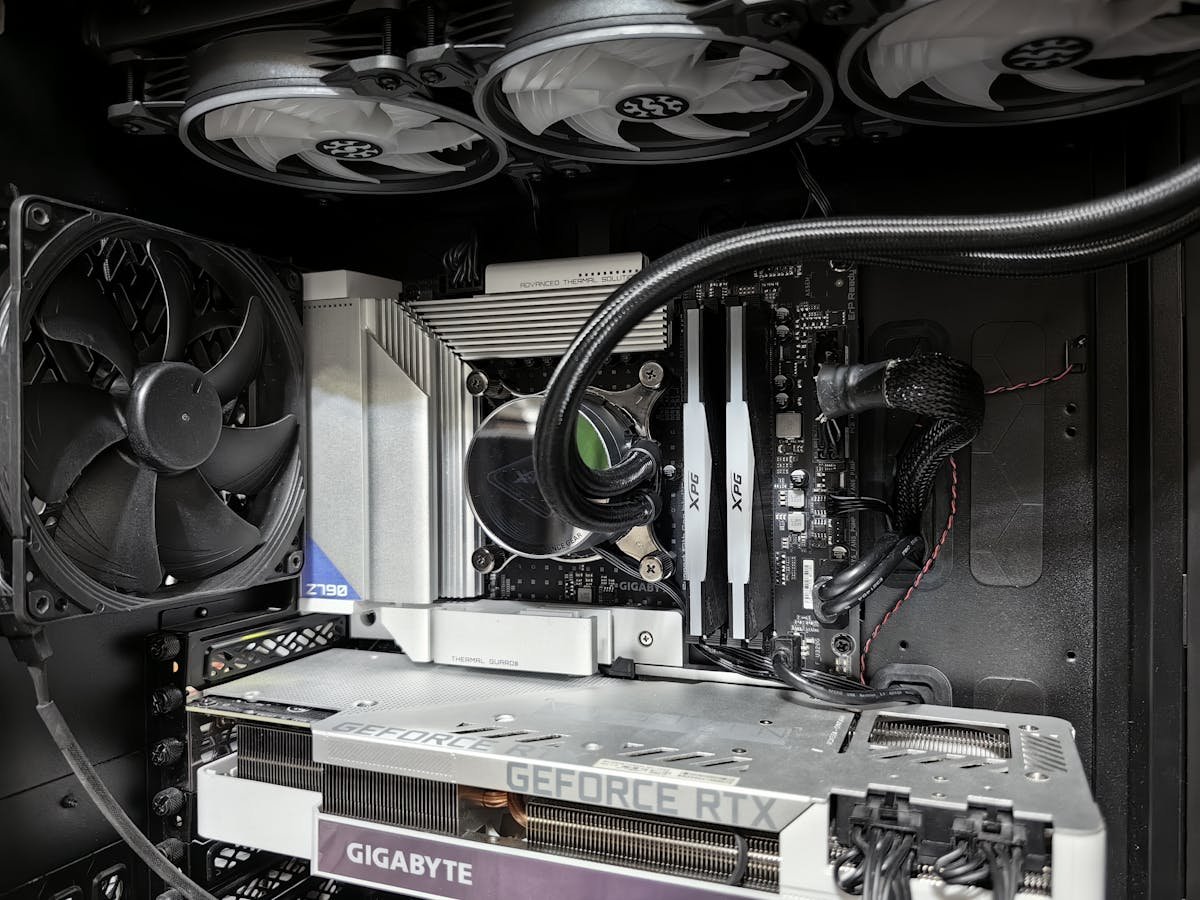
An M.2 NVMe SSD (2280 is standard for desktops), a small Phillips screwdriver, and your motherboard manual to locate the M.2 slots. No SATA or power cables are required — M.2 drives draw power directly from the motherboard slot.
Choose the Right M.2 Slot
Most motherboards have 2-5 M.2 slots, but not all are equal. The primary slot (closest to the CPU) typically runs at PCIe 4.0 or 5.0 speed, while secondary slots may be PCIe 3.0. Check your motherboard manual for which slot offers the fastest connection. On some boards, using certain M.2 slots disables SATA ports — the manual will note this.
Installation Steps
1. Power off and unplug your PC. 2. Remove the side panel and locate the M.2 slot. 3. Remove the M.2 heatsink (if present) by unscrewing it. 4. Remove the standoff screw at the 2280 position. 5. Insert the SSD into the slot at a 30-degree angle — the gold contacts go in first, label facing up. 6. Press the SSD flat and secure it with the standoff screw. 7. Reattach the heatsink. 8. Reassemble and boot.
Initialise the Drive in Windows
If this is an additional drive (not your boot drive), it will not appear in File Explorer immediately. Open Disk Management (right-click Start > Disk Management), find the new unallocated drive, initialise it as GPT, create a new simple volume, format as NTFS, and assign a drive letter. The drive will now appear in File Explorer.
Cloning Your Boot Drive
To migrate your operating system to the new NVMe SSD, use free cloning software like Macrium Reflect Free or Samsung Data Migration (for Samsung SSDs). Clone your existing boot drive to the NVMe, then change the boot order in BIOS to boot from the new drive.
Frequently Asked Questions
Do I need to format a new NVMe SSD?
Yes, new SSDs come unformatted. Use Windows Disk Management to initialise and format the drive.
Can I use an NVMe SSD as my boot drive?
Yes. NVMe SSDs make excellent boot drives with significantly faster Windows startup times.
Will an NVMe SSD work in any M.2 slot?
Most M.2 slots support NVMe, but some older boards have SATA-only M.2 slots. Check your motherboard specs.
Recommended upgrades
As an Amazon Associate we earn from qualifying purchases. Prices & availability shown on Amazon.
M.2 2280 NVMe SSDs
How we verify this guide
We cross-reference compatibility figures against manufacturer specifications where available, official service manuals, and the standards that govern fit — memory type and speed (DDR4 / DDR5 / LPDDR5), maximum supported capacity and slot count, SSD form factor and interface (M.2 2280, NVMe PCIe vs SATA, keying), and charger wattage and connector (USB-C Power Delivery, GaN). We’re explicit about soldered or non-upgradeable parts, prioritise primary sources over retailer listings, and re-verify the data on a regular cycle. More on our method →