Affiliate disclosure: this page contains affiliate links — if you buy through them we may earn a commission at no extra cost to you. As an Amazon Associate we earn from qualifying purchases.
Short answer: yes, most modern mini PCs support at least 2 monitors, and many support 3-4. The exact number and connection types depend on your specific model, but HDMI, DisplayPort, and USB-C with DP Alt Mode are standard across the board.
How to Check Your Mini PC’s Display Outputs
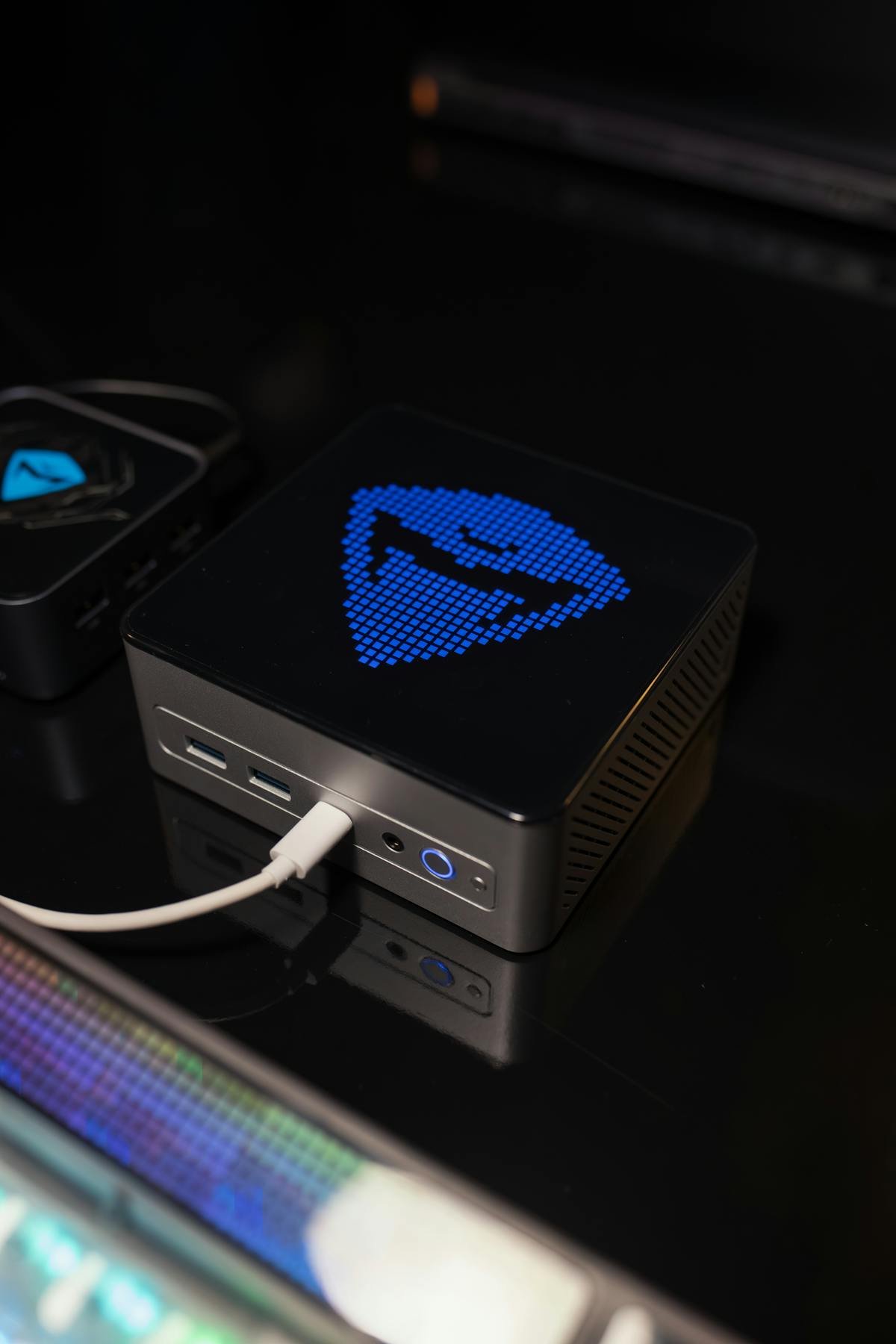
Step 1: Physical inspection
Look at the ports on your mini PC. You’ll likely see:
- HDMI 2.0 or 2.1 — White or black rectangular port (up to 4K at 60Hz on HDMI 2.0, 4K 120Hz on 2.1)
- DisplayPort 1.4 — Small rectangular port with a notch (up to 7680×4320 8K at 60Hz)
- USB-C with DP Alt Mode — USB-C charging port that also outputs video
- Thunderbolt 4 — Looks like USB-C, supports DisplayPort 1.4 video output
Step 2: Check specifications
Visit the manufacturer’s product page and search for “display outputs” or “monitor support.” Look for statements like:
- “Supports up to 2 displays” (via HDMI + USB-C/DP)
- “Supports up to 4 displays” (with Thunderbolt dock)
Display Output Types Explained
| Port Type | Max Resolution @ 60Hz | Max Resolution @ 120Hz | Audio Support | Daisy-Chain? |
|---|---|---|---|---|
| HDMI 2.0 | 4K (3840×2160) | 1440p | Yes | No |
| HDMI 2.1 | 8K (7680×4320) | 4K at 120Hz | Yes | No |
| DisplayPort 1.4 | 8K (7680×4320) | 4K at 144Hz | Yes | Yes (daisy-chain) |
| USB-C DP Alt Mode | Up to 4K | Depends on USB-C revision | Yes | With dock (daisy-chain) |
| Thunderbolt 3/4 | 6K / 8K (TB4) | 5K / 8K (TB4) | Yes | Yes via dock |
Mini PC Dual-Monitor Support by Brand/Model
| Brand | Model | Max Monitors | Output Ports | Best Config |
|---|---|---|---|---|
| Intel | NUC 13 Pro | 2 (up to 4 with dock) | 1×HDMI 2.0, 1×Thunderbolt 4 | TB4 to 2 DP, or HDMI + USB-C adapter |
| ASUS | NUC 14 Pro | 2 (up to 4 with dock) | 1×HDMI 2.1, 1×Thunderbolt 4 | Dual 4K via TB4 dock |
| Beelink | SER7 | 2 | 2×HDMI 2.0 | Dual HDMI at 1080p or single 4K |
| Minisforum | HM90 | 2 (up to 4 with dock) | 2×HDMI 2.0, 1×USB-C | HDMI + HDMI, or USB-C adapter for 3rd |
| Geekom | A7 | 2 | 1×HDMI 2.0, 1×USB-C DP Alt | HDMI + USB-C to DP adapter |
| Lenovo | ThinkCentre M100 | 2 | 2×HDMI 2.0 | Dual HDMI |
| HP | EliteDesk 800 G3 | 2 (up to 4 with dock) | 1×DisplayPort, 1×HDMI | DP + HDMI, or DP dock for extra displays |
Daisy-Chaining Multiple Displays
DisplayPort daisy-chaining allows you to connect multiple monitors to a single port — each monitor passes the signal to the next. Only works with DP 1.2 or later.
Example setup:
- Mini PC has 1×DisplayPort
- Connect Monitor 1 to mini PC via DP
- Connect Monitor 2 to Monitor 1 via DP (Monitor 1 must support daisy-chain)
- Enable daisy-chain in both monitor settings
- Result: 2 monitors from 1 DP port
Limitation: Not all monitors support daisy-chaining. Check your monitor specs before relying on this.
Thunderbolt 4 docks with daisy-chain: Much easier than individual monitor daisy-chaining. A single Thunderbolt 4 cable from the mini PC can support 2-6 monitors via a dock (depending on dock design).
Maximum Resolution Per Port
Rule of thumb: The more monitors you connect, the lower the resolution per monitor must be to avoid bandwidth saturation.
| Setup | HDMI 2.0 Limit | HDMI 2.1 Limit | DisplayPort 1.4 Limit |
|---|---|---|---|
| Single display | 4K @ 60Hz | 8K @ 60Hz | 8K @ 60Hz |
| Two displays (separate ports) | 1440p @ 60Hz each | 4K @ 60Hz each | 4K @ 120Hz each |
| Three displays (HDMI + DP + USB-C) | 1080p @ 60Hz each | 1440p @ 60Hz each | 1440p @ 120Hz each |
| Four displays (with dock) | 1080p @ 60Hz each | 1080p @ 60Hz each | 1440p @ 60Hz each |
USB-C to HDMI Adapters
If your mini PC has USB-C with DP Alt Mode, you can add a second or third HDMI monitor via USB-C adapters.
Types of USB-C adapters:
- USB-C to HDMI adapter (passive) — £15-30, works on USB-C DP Alt Mode ports. 1×HDMI output.
- USB-C to dual HDMI (active) — £40-60, supports 2 HDMI outputs. Requires power supply.
- USB-C DP Alt Mode hub — £60-150, supports HDMI + other USB ports. Best for full setup.
Display cables:
- HDMI 2.1 Cables — For 4K@60Hz or higher.
- DisplayPort Cables — For daisy-chaining monitors.
Best practice: Buy a reputable brand (Anker, Belkin, CalDigit) with good reviews. Cheap adapters may not fully support your mini PC’s bandwidth.
Thunderbolt Docks for Extra Displays
If your mini PC has Thunderbolt 3/4, a Thunderbolt dock is the easiest way to add 2-4 displays:
| Dock Model | Max Displays | Ports Included | Price (approx)* |
|---|---|---|---|
| CalDigit TS4 | 3×4K displays | 2×DP, 1×HDMI, USB-A, USB-C | £450-550 |
| OWC Thunderbolt Dock | 2×6K displays | 2×Thunderbolt, 1×USB-A, audio | £350-400 |
| Elgato Thunderbolt 3 Dock | 2 displays | 2×DP (daisy-chain capable) | £200-300 |
| Belkin Thunderbolt 3 Dock Pro | 2×6K displays | 2×DisplayPort, USB-A, Ethernet | £300-400 |
Setting Up Dual Monitors: Step-by-Step
Option 1: HDMI + USB-C (simplest)
- Connect Monitor 1 to the HDMI port on the mini PC
- Get a USB-C to HDMI adapter
- Connect Monitor 2 to the USB-C adapter
- Plug the adapter into the mini PC’s USB-C port
- Boot up and both monitors should auto-detect
- In Windows: Settings → System → Display → Arrange your displays
Option 2: Dual HDMI (if available)
- Connect Monitor 1 to HDMI 1
- Connect Monitor 2 to HDMI 2
- Boot — Windows auto-detects both
- In Windows: Settings → System → Display → Arrange
Option 3: Thunderbolt Dock
- Connect the dock’s single Thunderbolt cable to the mini PC
- Connect up to 3 displays to the dock (via DP or HDMI ports)
- Plug in dock’s power supply
- Boot — all displays auto-detect
- Windows auto-arranges; you can reorder in Display settings
Recommended Multi-Monitor Setups by Use Case
Office/productivity: 2×24″ 1080p IPS monitors via dual HDMI or HDMI + USB-C adapter. Best budget option.
Photo/video editing: 1×27″ 4K primary + 1×24″ secondary (colour reference) via HDMI + USB-C DP. Ensure USB-C supports 4K.
Trading/data analysis: 3-4 monitors at 1080p or 1440p. Requires Thunderbolt dock or desktop setup.
Gaming + content creation: 1×4K display for creative work + 1×144Hz gaming monitor via Thunderbolt dock with dual DP support.
FAQ
Q: Can all mini PCs support dual monitors?
A: Most modern mini PCs do via HDMI + USB-C/DP combinations. Older (pre-2019) or budget fanless models might only support 1 display.
Q: What’s the cheapest way to add a second monitor to a mini PC?
A: A USB-C to HDMI adapter (£20-30) if your mini PC has USB-C DP Alt Mode. Plug and play, no dock needed.
Q: Do USB-C adapters reduce image quality?
A: No, if the adapter supports DP Alt Mode. Quality is identical to native DisplayPort, though cheaper adapters may have compatibility issues.
Q: Can you run 4 monitors on a mini PC?
A: Yes, with a Thunderbolt dock. One dock (£200-500) can support 2-6 displays depending on model.
Q: Is it better to use one big monitor or two smaller ones?
A: Depends on workflow. Two 24″ monitors better for multitasking (email + spreadsheet). One 34″ ultrawide good for single-application focus.
Q: What happens if I connect more displays than supported?
A: Windows will detect them, but some may not display properly due to bandwidth limits. Disconnect unused monitors and try again.
Recommended Products
These are the products we recommend based on this guide. All links go to Amazon where you can check current prices and availability.
| Product | Why We Recommend It | Amazon |
|---|---|---|
| Anker 65W USB-C GaN Charger | Compact travel charger for most ultrabooks | View on Amazon |
| Ugreen 100W USB-C PD Charger | High-wattage for gaming & workstation laptops | View on Amazon |
| Anker 140W USB-C Charger | Maximum power for 16″ MacBook Pro & similar | View on Amazon |
| Baseus 65W GaN USB-C Charger | Budget alternative with multi-port charging | View on Amazon |
| Anker 341 7-in-1 USB-C Hub | Best budget single-monitor dock | View on Amazon |
| CalDigit TS4 Thunderbolt 4 Dock | Premium dock with 18 ports | View on Amazon |
| Ugreen 9-in-1 USB-C Hub | Budget dock with Ethernet included | View on Amazon |
| Plugable TBT3-UDZ Thunderbolt 3 Dock | Best mid-range dual-display dock | View on Amazon |
Prices and availability may vary. As an Amazon Associate, we earn from qualifying purchases.
Related Guides
- Mac Mini Upgrades
- Lenovo Thinkcentre Mini Pc Upgrades
- Mini Pc Home Server Nas Guide
- Mini Pc Vesa Mount Guide
- How Much Power Does Mini Pc Use
Recommended upgrades
As an Amazon Associate we earn from qualifying purchases. Prices & availability shown on Amazon.
How we verify this guide
We cross-reference compatibility figures against manufacturer specifications where available, official service manuals, and the standards that govern fit — memory type and speed (DDR4 / DDR5 / LPDDR5), maximum supported capacity and slot count, SSD form factor and interface (M.2 2280, NVMe PCIe vs SATA, keying), and charger wattage and connector (USB-C Power Delivery, GaN). We’re explicit about soldered or non-upgradeable parts, prioritise primary sources over retailer listings, and re-verify the data on a regular cycle. More on our method →
*Indicative UK street prices, shown for guidance only. These are not live Amazon prices and change frequently — check the current price on Amazon before buying.